Histogram
Distribution of one measure. What the histogram is for, the data it needs and every option it has.
4 min read
On this page
Distribution of one measure. It sits in the Distribution group of the widget library.
When to use it#
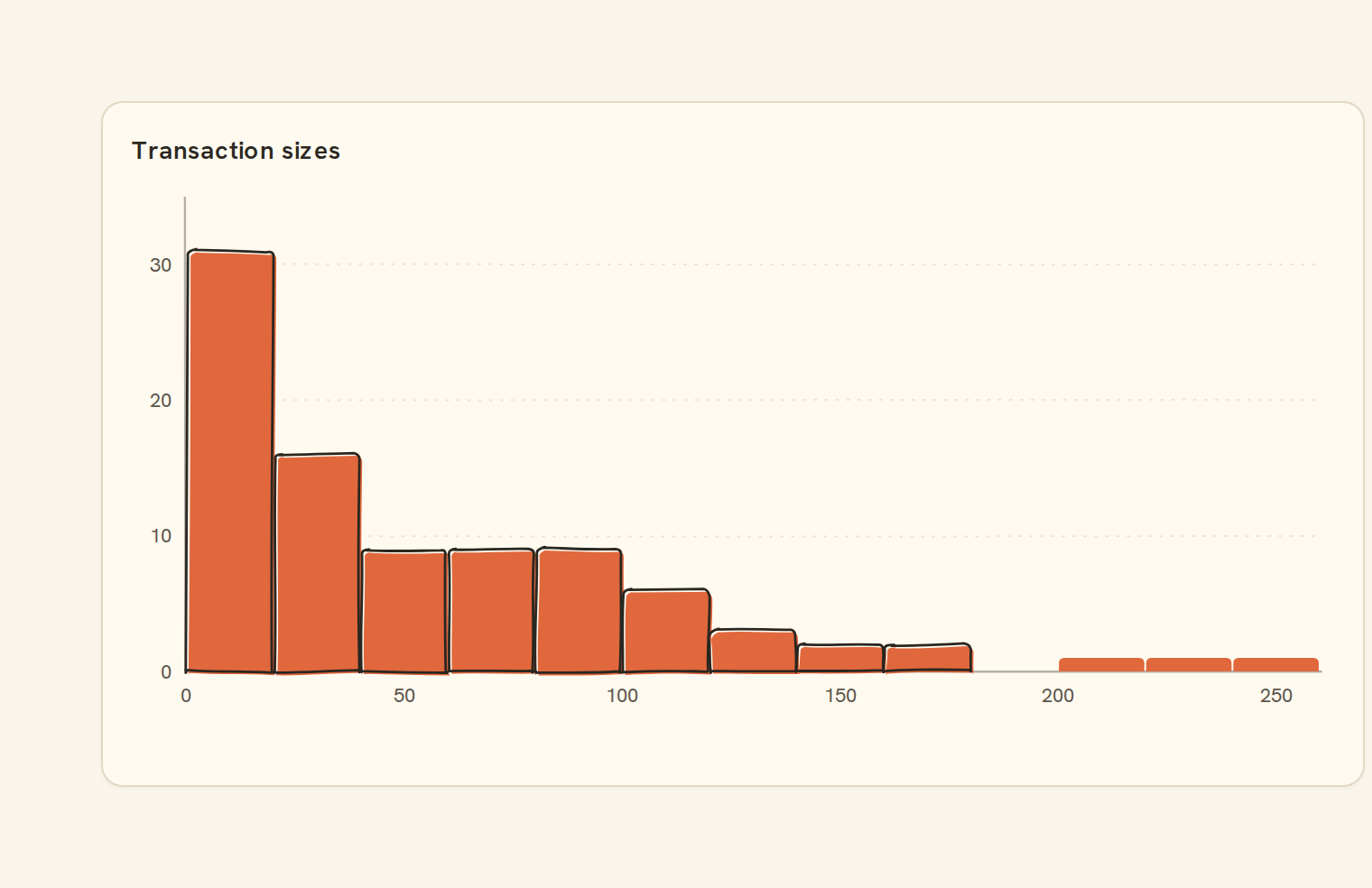
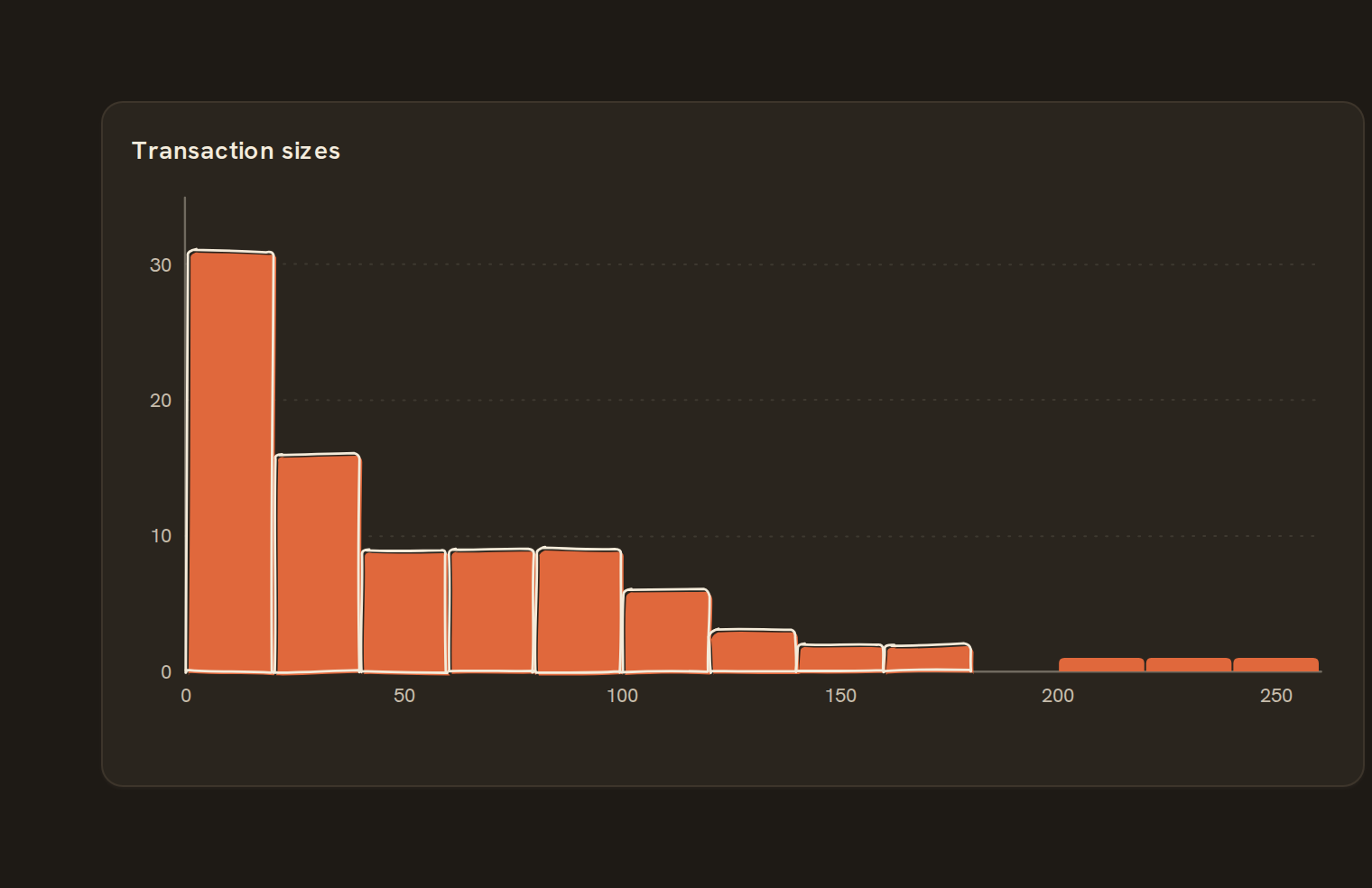
Use a histogram to see how a set of amounts is spread out: how big your transactions usually are, how many purchases fall under $20, or whether a few large invoices dominate. It counts rows into ranges, so feed it individual transactions rather than totals.
When to pick something else#
- Want a smooth outline of the spread? Use a Density chart.
- Comparing the spread across a few groups, such as accounts? Use a Box plot or Violin.
- Comparing totals per category? Use a Column chart.
The data it needs#
Pick these in the Data tab of the inspector. BankSync suggests a column for each when your source has an obvious match.
| Field | Needed | Pick | Notes |
|---|---|---|---|
| X axis | Yes | a date or a category or a number | |
| Y axis | Yes | a number | You can pick several. |
| Series | Optional | a category | |
| Color | Optional | a category |
Each row is drawn as it is, so shape the rows first if you need totals. See Shaping data.
Histogram options#
Set these on the Style tab of the inspector. "Automatic" means BankSync picks a value from the chart's size and data.
| Option | What it does | Values | New charts start with |
|---|---|---|---|
| Number of bins | How many ranges the values are split into. At the default, the count follows the chart width. | Whole number, 0 to 9007199254740991 | 20 |
| Show as share | Show each bar as a share of all rows instead of a raw count. | On or off | Off |
| Bin width | Make every bin this wide, in the units of the data. Overrides the number of bins. | Number, 0 or more | Automatic |
| Bar corner radius | Rounds the ends of the bars, in pixels. 0 keeps them square. | Number, 0 or more | Automatic |
| Cumulative | Each bar adds up everything to its left, so the last bar holds all rows. | On or off | Automatic |
Needs history#
Show a note instead of the chart until the rows cover enough periods, so a first week never reads as a trend.
| Option | What it does | Values | New charts start with |
|---|---|---|---|
| Date field | The date column whose distinct periods are counted. | Text | Automatic |
| Period | What counts as one period: a day, week, month, quarter or year. | Day, Week, Month, Quarter, Year | Automatic |
| Periods needed | How many distinct periods the rows must cover before the chart draws (2 to 60). | Whole number, 2 to 60 | Automatic |
| Waiting message | Shown until there is enough history. Leave empty for a message naming the periods. | Text, up to 120 characters | Automatic |
Shared chart styling#
Every chart also has the shared styling options. These apply to this one:
- Legend: position, layout and which series show.
- Axes: titles, tick labels and number format.
- Grid, title, padding and background.
- Value labels on the marks.
- Categories and labels: top N with "Other", sort order, readable labels, the handwritten callout.
- Style: corner radius, line width, opacity and animation.
- Tooltip on hover.
- Click to filter: clicking a mark can filter the rest of the dashboard. See Filters and cross-filtering.
- Colours: follow the dashboard palette or pick one for this chart.
Messy data#
- Blank and non-numeric values are ignored; if nothing is left it shows "No numbers to show".
- If every value is the same, it draws a single bin around it.
- The number of bins follows the chart width (between 5 and 30) unless you set a bin count or bin width.
- Negative amounts are binned like any other, so outflows recorded as negatives sit left of zero. Filter to one direction first.
- One very large transaction stretches the axis and squeezes everything else into a few bins; filter out outliers or set a bin width.
On a phone#
At phone width it automatically uses fewer, wider bins, so the shape stays readable. Counts on the axis stay whole numbers.
Related charts#
- Scatter plot: Two measures on x/y
- Box plot: Quartiles with whiskers
- Violin: Density per category
- Beeswarm: Non-overlapping dot plot
- Density: Kernel-smoothed distribution
- Ridgeline: Stacked distributions
- Strip plot: Each value as a tick
- Jitter plot: Scattered dots per category
Use this page with your AI assistant
Every BankSync doc is available as plain Markdown for agents and LLMs.