Radial bar
Polar bar chart. What the radial bar is for, the data it needs and every option it has.
2 min read
On this page
Polar bar chart. It sits in the Part-of-whole group of the widget library.
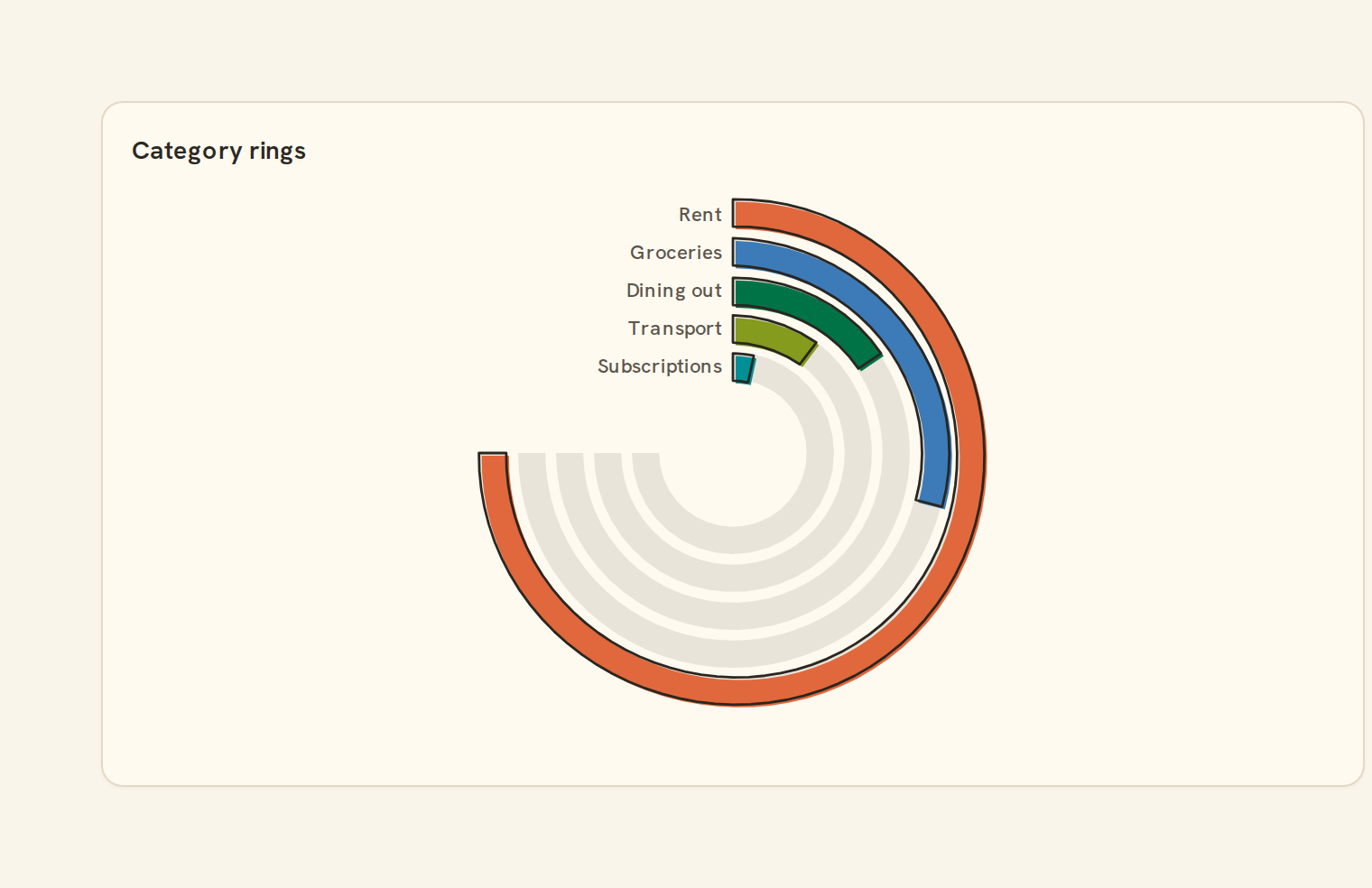
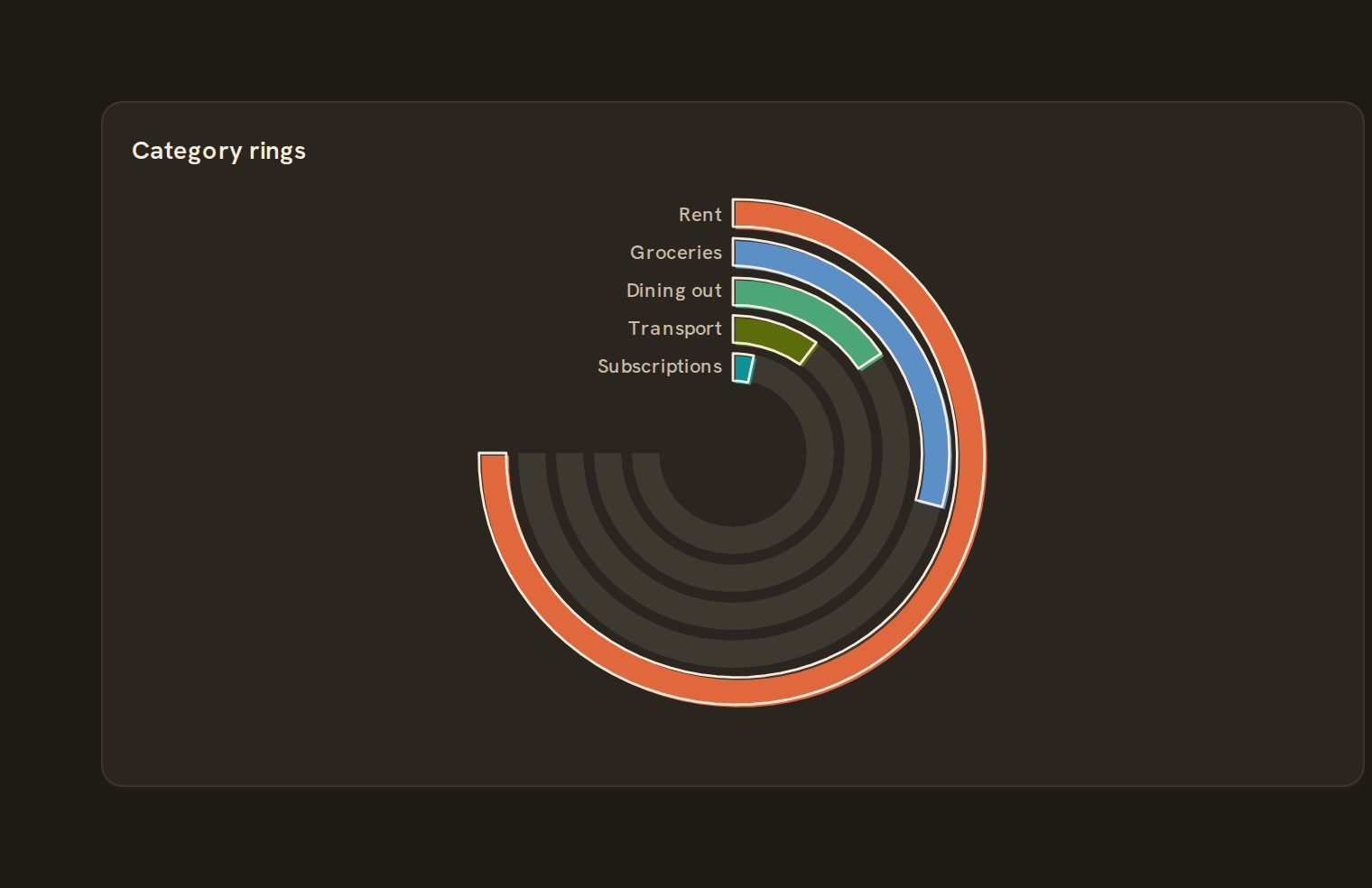
When to use it#
Use a radial bar chart to rank a few categories in a compact, eye-catching way, such as your top spending categories or the balances of your main accounts. Each category is a ring, and its arc runs further round the circle the bigger its value is. Rings sort largest first, outside in.
When to pick something else#
- More than a handful of categories, or values readers must compare precisely? Use a Bar chart. Rings further in are shorter for the same angle, which makes lengths harder to judge.
- Progress towards a single goal? Use a Progress bar or a Gauge.
- Shares of a total? Use a Donut chart.
The data it needs#
Pick these in the Data tab of the inspector. BankSync suggests a column for each when your source has an obvious match.
| Field | Needed | Pick | Notes |
|---|---|---|---|
| X axis | Yes | a category or a date | |
| Y axis | Yes | a number | |
| Series | Optional | a category | |
| Color | Optional | a category |
Rows that share a category are combined before drawing: choose Sum, Average, Count, Min or Max on the value field. See Binding data.
Radial bar options#
This chart has no options of its own; everything on its Style tab is the shared chart styling below.
Shared chart styling#
Every chart also has the shared styling options. These apply to this one:
- Legend: position, layout and which series show.
- Axes: titles, tick labels and number format.
- Grid, title, padding and background.
- Value labels on the marks.
- Categories and labels: top N with "Other", sort order, readable labels, the handwritten callout.
- Style: corner radius, line width, opacity and animation.
- Tooltip on hover.
- Click to filter: clicking a mark can filter the rest of the dashboard. See Filters and cross-filtering.
- Colours: follow the dashboard palette or pick one for this chart.
Messy data#
- Rows in the same category are added together.
- At most eight rings are drawn. Anything smaller folds into one grey "Other" ring.
- Negative values are dropped. If only negatives remain you see "Only negative values; nothing to show".
- All zeros show "Everything is zero for this period".
- The largest value sweeps three-quarters of the circle.
On a phone#
Rings get thinner as the card shrinks. When a ring is too thin for its label, the labels move into a legend below the chart. Keep to five or six categories on phones.
Related charts#
- Pie chart: Categorical share
- Donut chart: Pie with center label
- Treemap: Nested rectangles by value
- Sunburst: Hierarchical radial wedges
- Nightingale: Radial polar pie
- Mosaic: Marimekko tiled cells
- Waffle: 100-unit grid share
- Funnel: Conversion stage flow
- Pyramid: Inverted funnel
Use this page with your AI assistant
Every BankSync doc is available as plain Markdown for agents and LLMs.