Pie chart
Categorical share. What the pie chart is for, the data it needs and every option it has.
5 min read
On this page
Categorical share. It sits in the Part-of-whole group of the widget library.
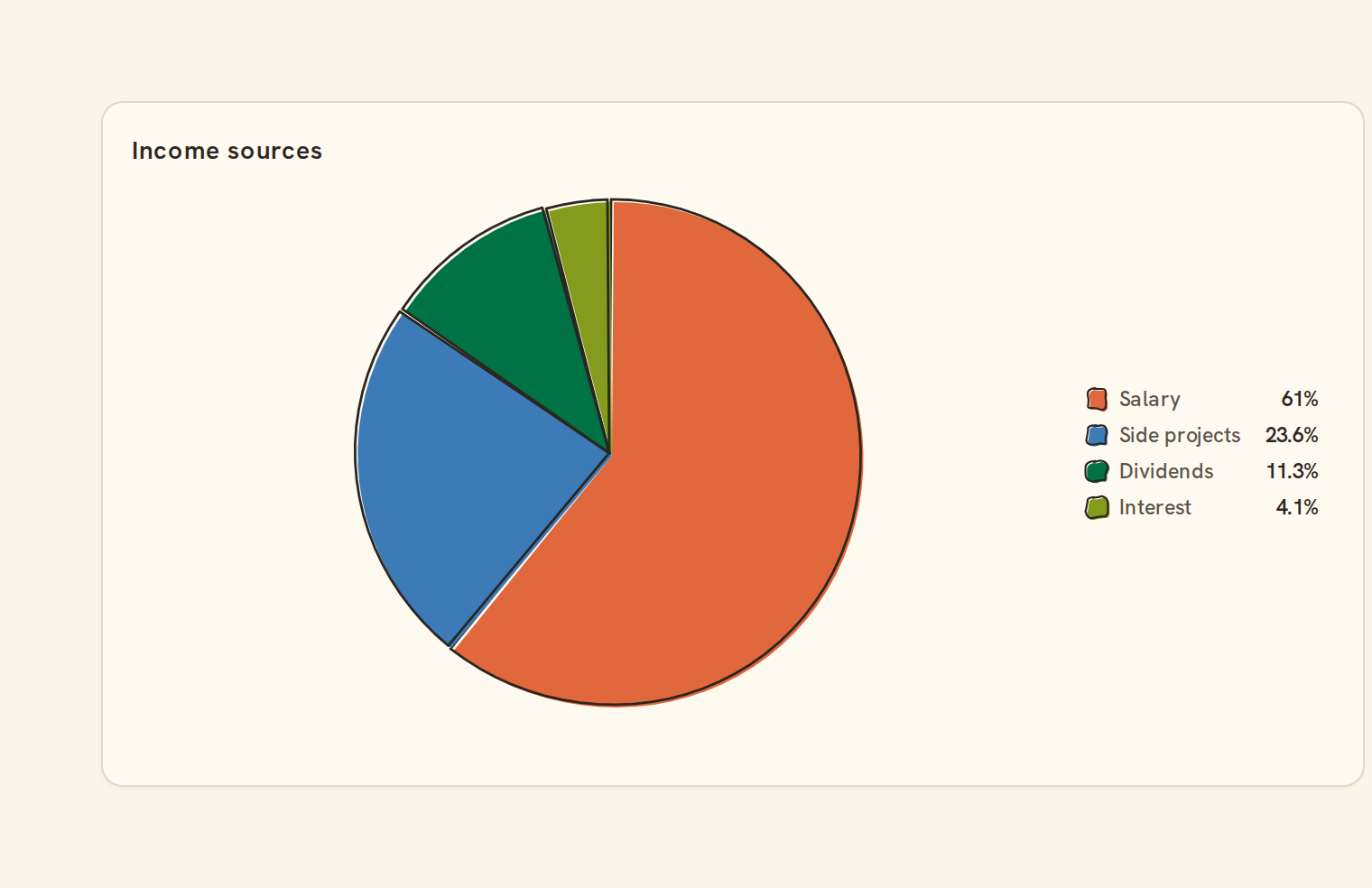
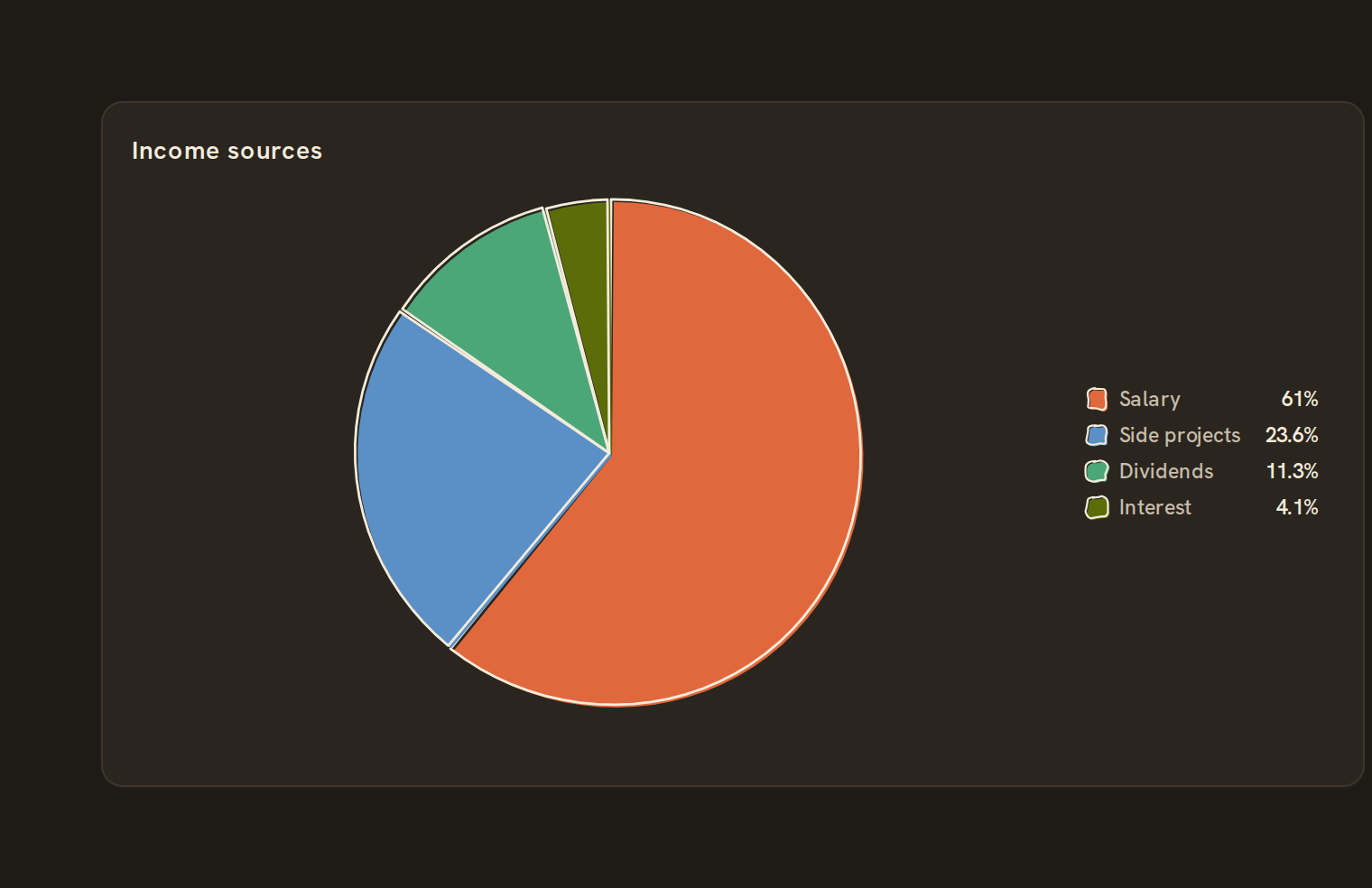
When to use it#
Use a pie chart to show how one total splits into a handful of parts, such as this month's spending by category or your balance split across accounts. It works best with two to six slices where one or two clearly dominate.
When to pick something else#
- Want the total in the middle? Use a Donut chart.
- Comparing the parts to each other, not to the whole? Use a Bar chart.
- Many categories, or categories inside groups? Use a Treemap.
- The split over time? Use a 100% stacked bar.
The data it needs#
Pick these in the Data tab of the inspector. BankSync suggests a column for each when your source has an obvious match.
| Field | Needed | Pick | Notes |
|---|---|---|---|
| Category | Yes | a category | |
| Value | Yes | a number |
Rows that share a category are combined before drawing: choose Sum, Average, Count, Min or Max on the value field. See Binding data.
Pie chart options#
Set these on the Style tab of the inspector. "Automatic" means BankSync picks a value from the chart's size and data.
| Option | What it does | Values | New charts start with |
|---|---|---|---|
| Pop out on hover | Slide the hovered slice out from the centre so it stands apart. | On or off | Off |
| Start angle | Where the first slice starts, in degrees; 0 is 12 o’clock. Use with the end angle for a half or partial circle. | Number | Automatic |
| End angle | Where the last slice ends, in degrees. 360 closes the full circle; 180 makes a half. | Number | Automatic |
| Slice gap | Empty space between slices, in pixels. | Number, 0 or more | Automatic |
| Corner radius | Rounds the corners of the shapes, in pixels. 0 keeps them square. | Number, 0 or more | Automatic |
| Sort by size | Order slices or groups from largest to smallest. | On or off | Automatic |
Needs history#
Show a note instead of the chart until the rows cover enough periods, so a first week never reads as a trend.
| Option | What it does | Values | New charts start with |
|---|---|---|---|
| Date field | The date column whose distinct periods are counted. | Text | Automatic |
| Period | What counts as one period: a day, week, month, quarter or year. | Day, Week, Month, Quarter, Year | Automatic |
| Periods needed | How many distinct periods the rows must cover before the chart draws (2 to 60). | Whole number, 2 to 60 | Automatic |
| Waiting message | Shown until there is enough history. Leave empty for a message naming the periods. | Text, up to 120 characters | Automatic |
Slice labels#
Text written on or beside each slice: its name, value or share.
| Option | What it does | Values | New charts start with |
|---|---|---|---|
| Show slice labels | Write a label on each slice. Slices too small to hold one are skipped. | On or off | Automatic |
| Label position | Inside the slice, on its outer edge, or outside the circle with room reserved beside it. | Inside, Outside, Perimeter | Automatic |
| Label content | What each label says: the category, the value, the percentage, or the category with one of them. | Category, Value, Percent, Category and value, Category and percent | Automatic |
| Label size | Text size of the slice labels, in pixels. | Number | Automatic |
| Label colour | Colour of the slice labels. Leave empty to pick black or white for contrast automatically. | Colour | Automatic |
| Smallest labelled slice | Skip labels on slices smaller than this share of the total, from 0 to 1 (0.05 is 5%). | Number, 0 to 1 | Automatic |
Shared chart styling#
Every chart also has the shared styling options. These apply to this one:
- Legend: position, layout and which series show.
- Axes: titles, tick labels and number format.
- Grid, title, padding and background.
- Value labels on the marks.
- Categories and labels: top N with "Other", sort order, readable labels, the handwritten callout.
- Style: corner radius, line width, opacity and animation.
- Tooltip on hover.
- Click to filter: clicking a mark can filter the rest of the dashboard. See Filters and cross-filtering.
- Colours: follow the dashboard palette or pick one for this chart.
Messy data#
- Rows with the same category are added together, and slices are sorted largest first.
- Only eight slices are drawn by default: the seven largest, plus one grey "Other" slice for the rest.
- Negative values (refunds, outflows stored as negatives) are left out and counted in the tooltip. If every value is negative you see "Only negative values; nothing to split". For spending, set the value to count spending so outflows become positive.
- If everything adds up to zero you see "Everything is zero for this period".
On a phone#
The legend moves under the pie and lists each slice with its share. Labels on the slices only appear when there is room, so on a phone read the shares from the legend or tap a slice.
Related charts#
- Donut chart: Pie with center label
- Treemap: Nested rectangles by value
- Sunburst: Hierarchical radial wedges
- Nightingale: Radial polar pie
- Radial bar: Polar bar chart
- Mosaic: Marimekko tiled cells
- Waffle: 100-unit grid share
- Funnel: Conversion stage flow
- Pyramid: Inverted funnel
Use this page with your AI assistant
Every BankSync doc is available as plain Markdown for agents and LLMs.