Sparkline
Tiny inline trend. What the sparkline is for, the data it needs and every option it has.
4 min read
On this page
Tiny inline trend. It sits in the Time series group of the widget library.
When to use it#
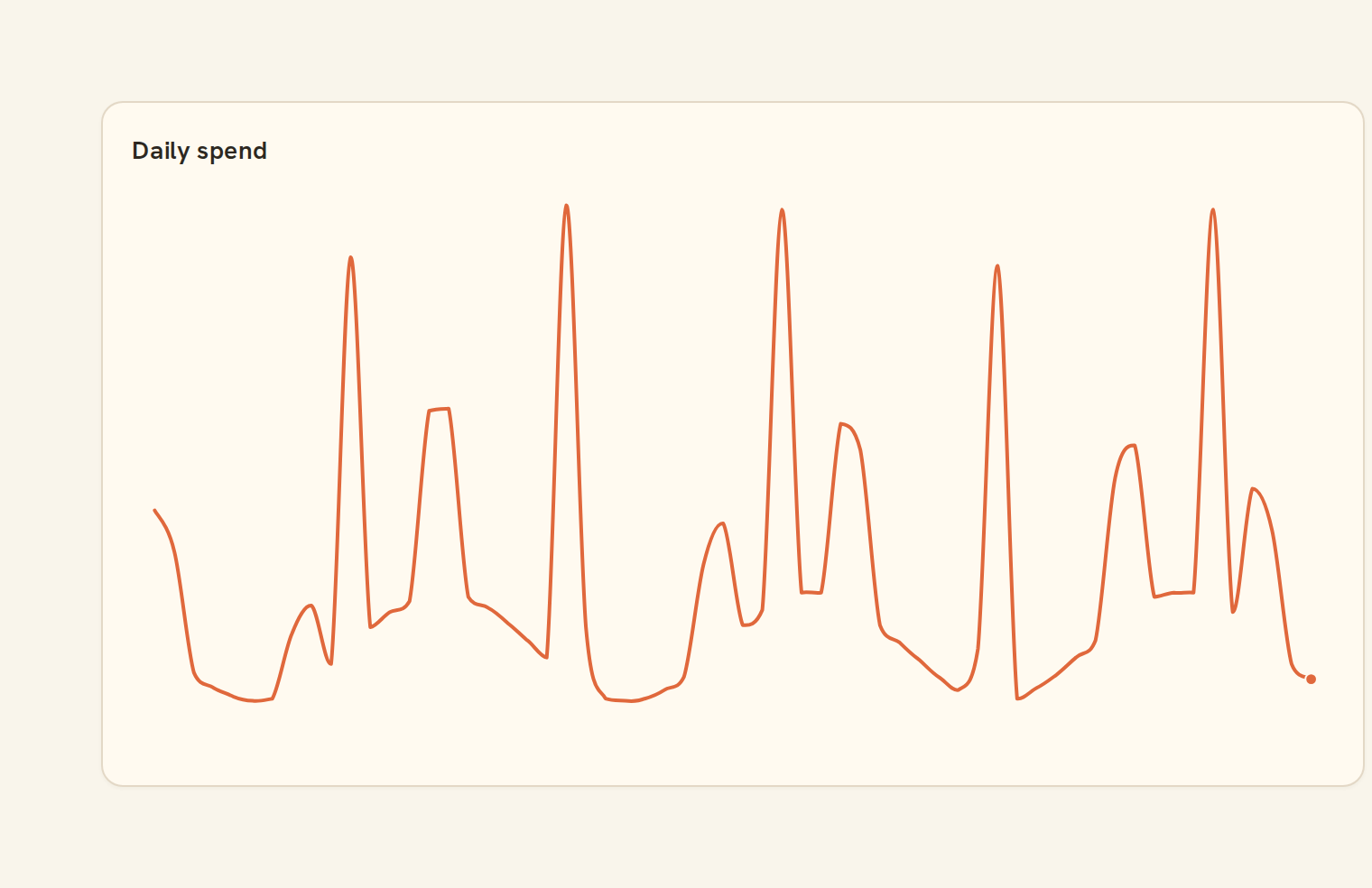
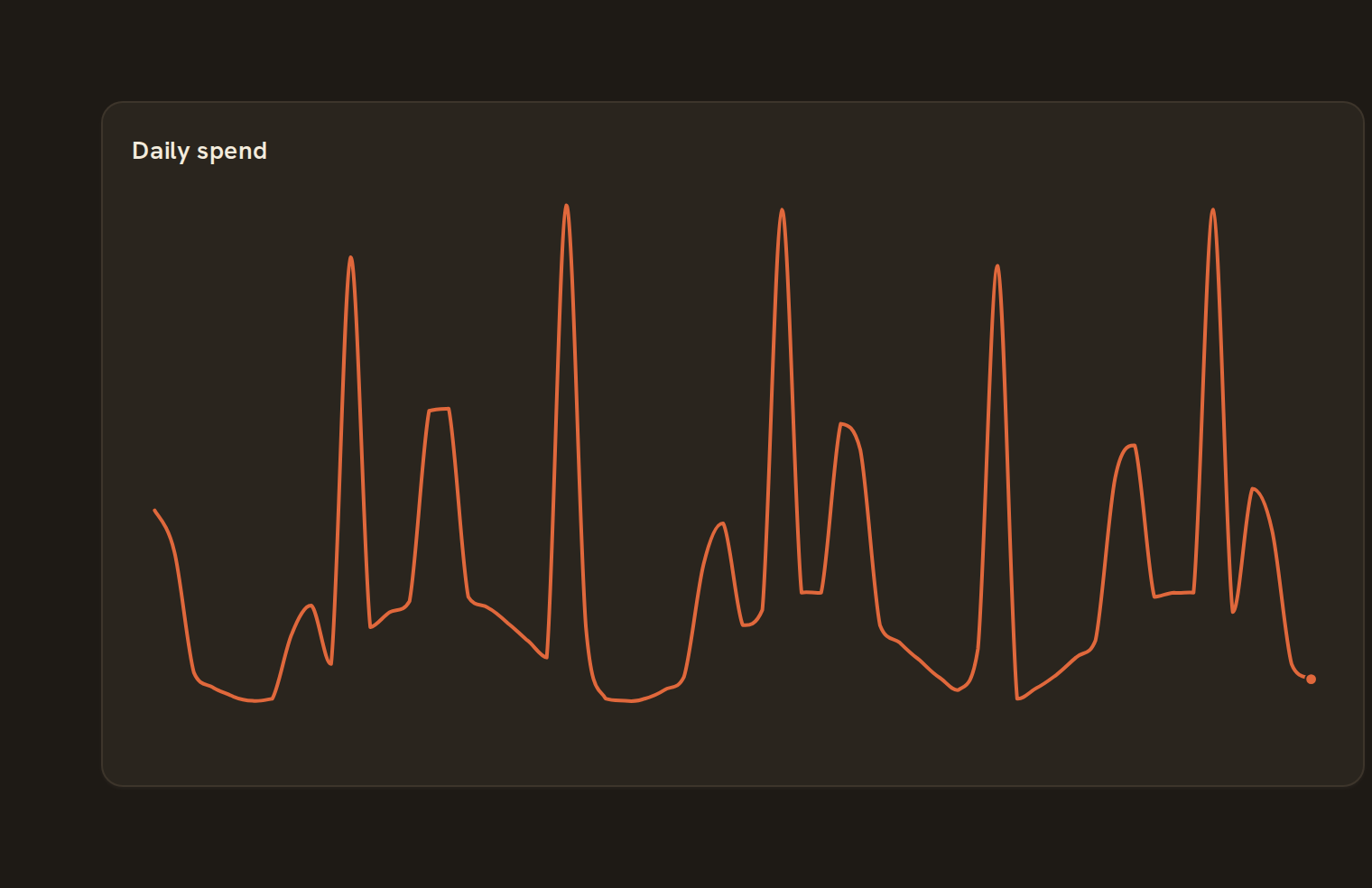
Use a sparkline to show the shape of a trend with no axes or gridlines, such as your account balance over the last 90 days or weekly spending this quarter. The last point is marked; you can also mark the high, low and average.
When to pick something else#
- Readers need actual values, dates and axes? Use a Line chart or Area chart.
- Just the current number? Use a KPI, which can carry its own small trend line.
The data it needs#
Pick these in the Data tab of the inspector. BankSync suggests a column for each when your source has an obvious match.
| Field | Needed | Pick | Notes |
|---|---|---|---|
| X axis | Yes | a category or a date | |
| Y axis | Yes | a number | |
| Series | Optional | a category | |
| Color | Optional | a category |
Rows that share a category are combined before drawing: choose Sum, Average, Count, Min or Max on the value field. See Binding data.
Sparkline options#
Set these on the Style tab of the inspector. "Automatic" means BankSync picks a value from the chart's size and data.
| Option | What it does | Values | New charts start with |
|---|---|---|---|
| Sparkline style | Line, area or bars. Win-loss draws bars above and below the baseline in separate colours for gains and losses. | Line, Area, Bar, Win loss | Line |
| Colour | Colour of the line, fill or bars. Leave empty to use the palette. | Colour | Automatic |
| Fill opacity | How solid the fill is in the area style, from 0 (clear) to 1 (solid). | Number, 0 to 1 | Automatic |
| Line width | Thickness of the line, in pixels. | Number, 0 or more | Automatic |
| Smooth line | Draw a gentle curve instead of straight segments. On by default. | On or off | Automatic |
| Mark latest value | Put a dot on the most recent value. On by default. | On or off | Automatic |
| Mark high and low | Put markers on the highest and lowest values. | On or off | Automatic |
| Show average line | Draw a faint line at the average value. | On or off | Automatic |
| Show value | Write the latest value at the end of the sparkline. Not shown in the win-loss style. | On or off | Automatic |
| Show axis | Show the first and last x labels under the sparkline when there is room. | On or off | Automatic |
| Positive colour | Colour of the up bars in the win-loss style. | Colour | Automatic |
| Negative colour | Colour of the down bars in the win-loss style. | Colour | Automatic |
Needs history#
Show a note instead of the chart until the rows cover enough periods, so a first week never reads as a trend.
| Option | What it does | Values | New charts start with |
|---|---|---|---|
| Date field | The date column whose distinct periods are counted. | Text | Automatic |
| Period | What counts as one period: a day, week, month, quarter or year. | Day, Week, Month, Quarter, Year | Automatic |
| Periods needed | How many distinct periods the rows must cover before the chart draws (2 to 60). | Whole number, 2 to 60 | Automatic |
| Waiting message | Shown until there is enough history. Leave empty for a message naming the periods. | Text, up to 120 characters | Automatic |
Shared chart styling#
Every chart also has the shared styling options. These apply to this one:
- Legend: position, layout and which series show.
- Axes: titles, tick labels and number format.
- Grid, title, padding and background.
- Value labels on the marks.
- Categories and labels: top N with "Other", sort order, readable labels, the handwritten callout.
- Style: corner radius, line width, opacity and animation.
- Tooltip on hover.
- Colours: follow the dashboard palette or pick one for this chart.
Messy data#
- Values for the same period are added together.
- Points are spaced evenly in the order they arrive, not by calendar date. A month with no rows is skipped rather than shown as a gap, so pick a time bucket and make sure every period has data.
- A period whose value is blank breaks the line into two pieces instead of dropping to zero.
- The vertical scale runs from the lowest value to the highest, not from zero, so small movements can look dramatic.
- A single point is drawn as a dot with its value next to it. No numbers at all shows "No value".
On a phone#
Sparklines get three rows on phones and read well at any width. They are one of the best choices for a narrow card.
Related charts#
- Line chart: Time series over any field
- Area chart: Stacked or overlaid area
- Stacked area: Series stacked over time
- Stream graph: Centered stacked area
- Step line: Discrete jumps over time
Use this page with your AI assistant
Every BankSync doc is available as plain Markdown for agents and LLMs.