The Chart Kind Catalog
Browse every chart kind BankSync can render, grouped by what they are good at, with a quick start for the everyday kinds, how switching kinds reuses your data binding, and where each chart is styled.
8 min read
On this page
Every data-bound widget renders as one chart kind. BankSync supports a large catalog of kinds. You pick a kind when you add a widget and can switch it any time later. Switching reuses the fields you already bound, so trying line, then area, then column is usually a one-click experiment, not a rebuild.

Not sure which one to pick?
- Line for a value over time (balance, daily spend).
- Bar / Column to compare a value across categories (spend by merchant).
- Pie / Donut for a few categories' share of a total.
- KPI for a single headline number (this month's spend).
- Table for the underlying rows.
The rest of this page is a reference catalog. The everyday kinds above are listed first in each group, and the more specialized kinds (Stream, Beeswarm, Sankey, Chord, and so on) follow for when you need them.
Two places you pick a kind#
There are two pickers, and they group the kinds slightly differently. Both reach the same catalog.
- The first-pick picker appears on an empty canvas under the heading What do you want to see? It groups kinds by visual family: Trend, Composition, Hierarchy, Distribution, Matrix, Single value, Relational, and Financial. You pick the look first, then the inspector prompts you for the fields.
- The Chart type picker lives in the inspector (the panel that opens when you select a widget). It groups kinds by the question they answer: Time series, Comparison, Part-of-whole, Distribution, Correlation, Flow / network, Matrix / heatmap, Radial, Financial, and Single value. Use it to switch an existing widget's kind without losing your bound fields.
The tables below follow the inspector's "question" grouping, since that is where you spend most of your time once a widget exists.
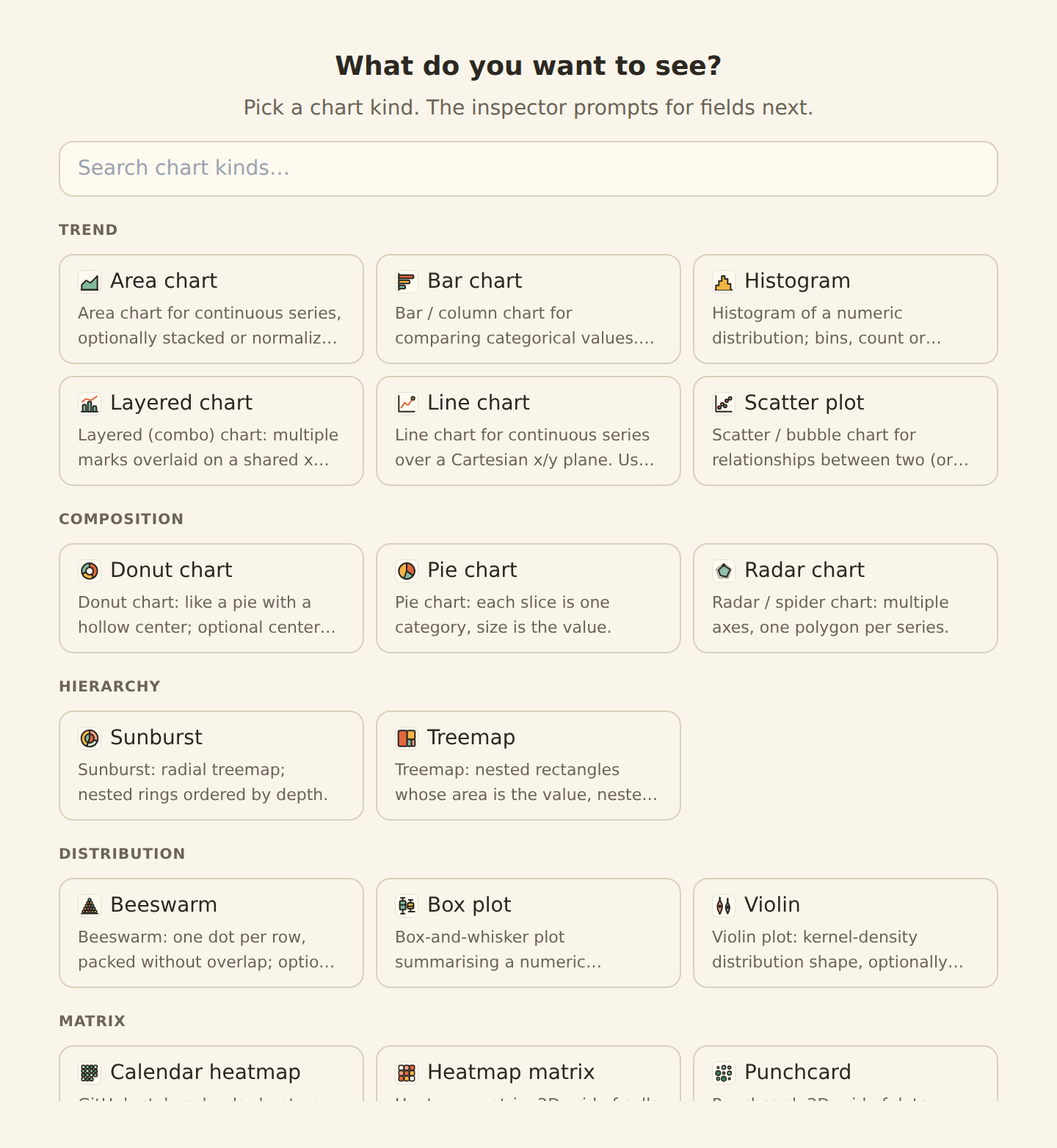
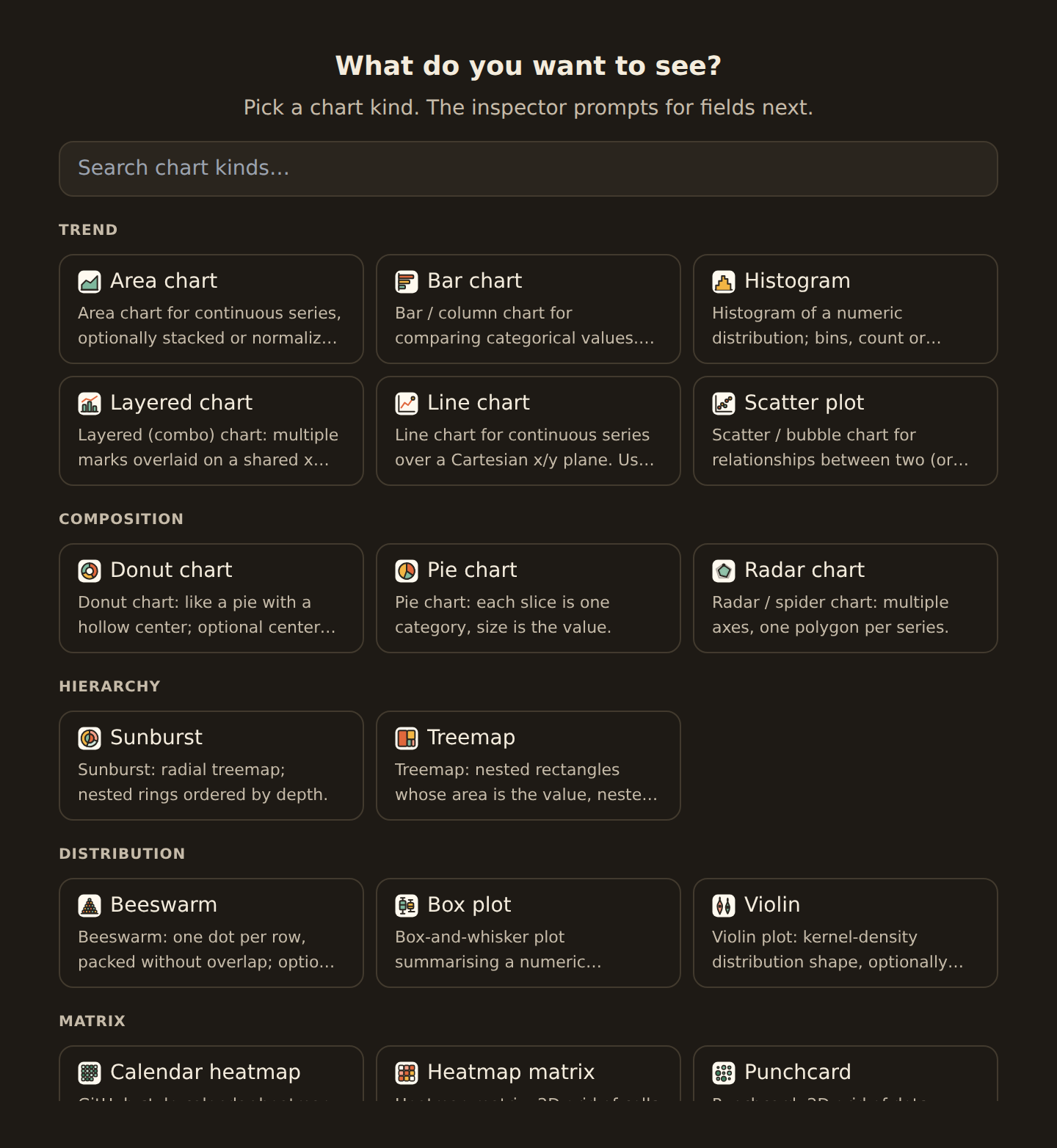
In the inspector, the Chart type dropdown lists the same kinds under question-based headings (Time series, Comparison, Part-of-whole, and so on), so you can switch an existing widget's kind from there without leaving its field bindings.
A worked example#
Say you want to see spend per category from your Transactions feed:
- Add a widget and point it at your Transactions feed.
- In the What do you want to see? picker, choose Bar (under Trend) or open the inspector's Chart type picker and choose Bar / Column (under Comparison).
- In the inspector, set Group by to Category and Value to the sum of Amount.
- To see the same numbers as a ranked list instead, switch the kind to Lollipop / Dot: your Category and Amount stay bound, so it is a one-click change.
That is the whole loop: pick a kind, bind a category and a number, switch kinds freely.
Every chart kind#
The Chart reference lists every kind, grouped the way the widget library groups them, with an example of each that you can open as a live chart. Each kind's page says what it is for and when to pick something else, the fields it needs, every option it has and what a new chart starts with, how it copes with messy data, and how it reads on a phone. Those pages are generated from the chart engine itself, so they always match what you can build.
A few pointers while you choose:
- Time series kinds (line, area, stacked area, stream, step line, sparkline) expect a date on one axis.
- Comparison kinds (bar, column, grouped and stacked bars, lollipop, dot, bullet) compare a number across categories.
- Part of a whole kinds (pie, donut, treemap, sunburst, waffle, funnel, pyramid) show shares of a total.
- Distribution, correlation, flow, matrix, radial and financial kinds cover spreads, relationships, movements between categories, two-way grids and price data.
- Waterfall (Financial, beta) walks from a starting amount to an ending one step by step: a P&L from revenue to net profit, or a month's net-worth change.
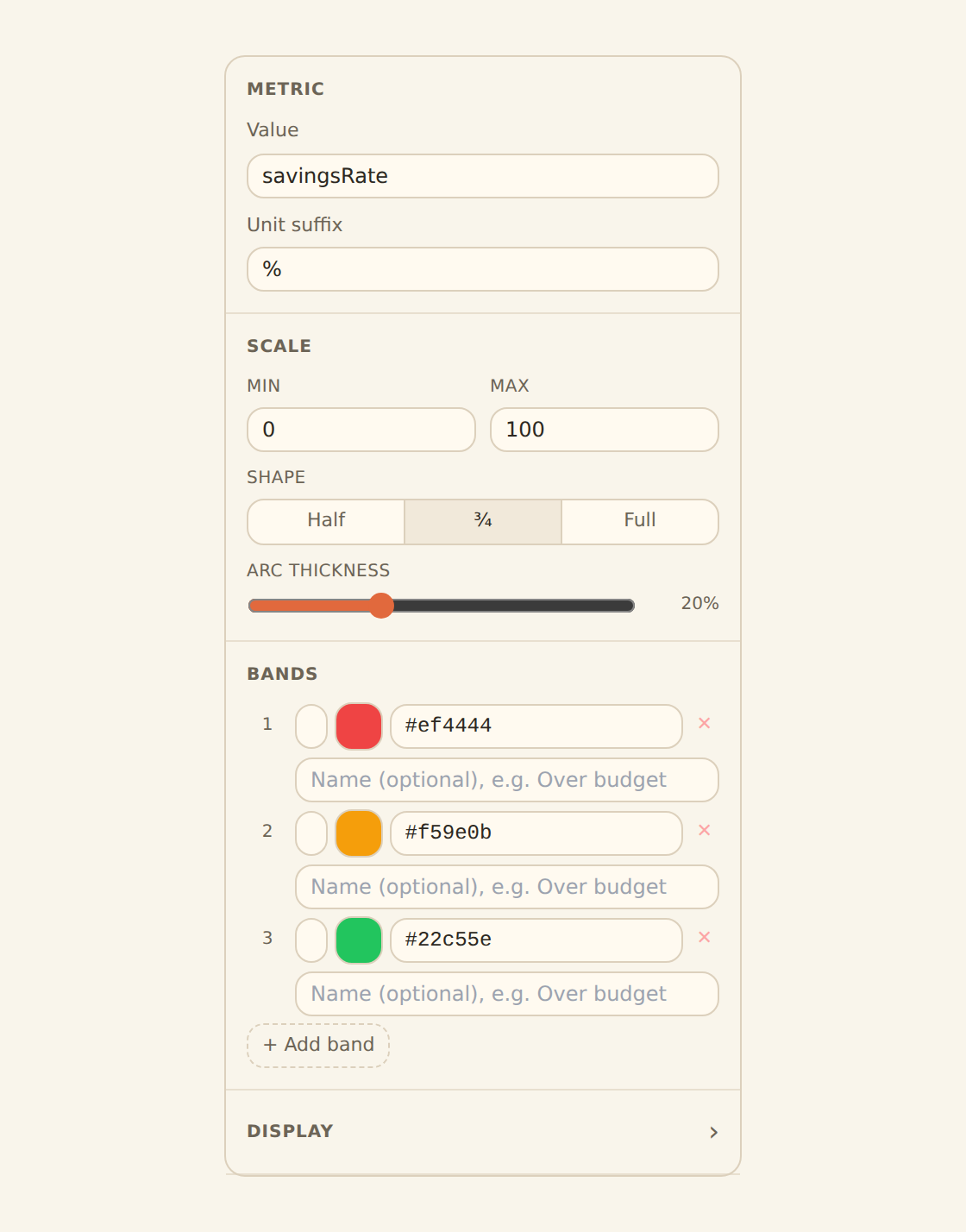
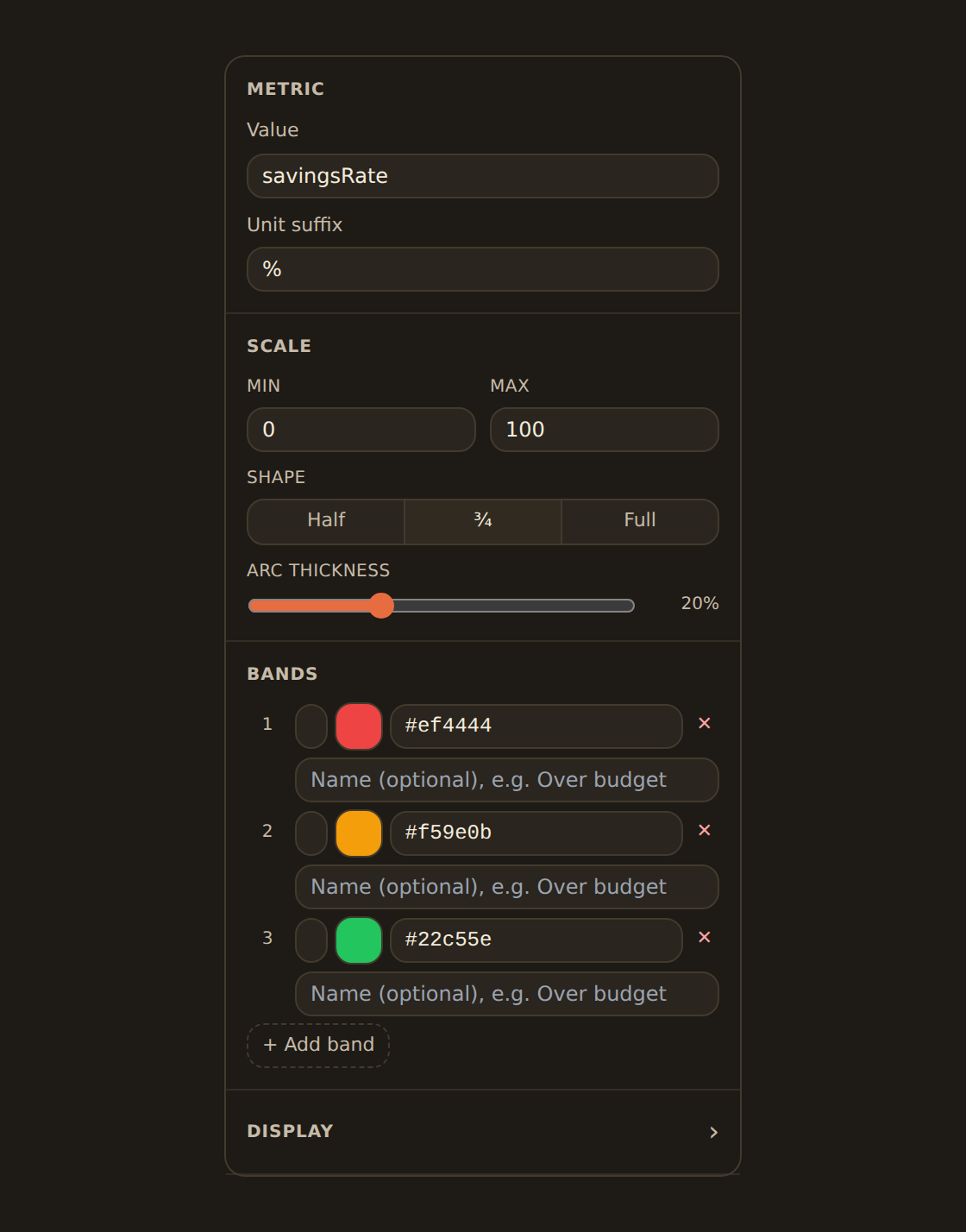
The single-value kinds (Gauge, Meter, Progress) show one number against a scale or target rather than a series of points. A gauge is the most legible of the three for a goal like a savings rate.
Switching kinds without losing work#
When you change a widget's kind in the inspector's Chart type picker, BankSync re-uses the fields you already bound (and their settings, like the grouping grain or the sum) and fills in only what the new kind adds. So line, area, and column swap freely.
One thing to know: if you switch to a kind that holds fewer fields, the extras are dropped rather than kept. For example, a multi-series line carries a date, a number, and a series split. Switch it to a pie (which has room only for a category and a value) and the series split has nowhere to go, so it falls away. Switch back and you re-bind it. Within kinds of the same shape (line, area, column, bar) nothing is lost.
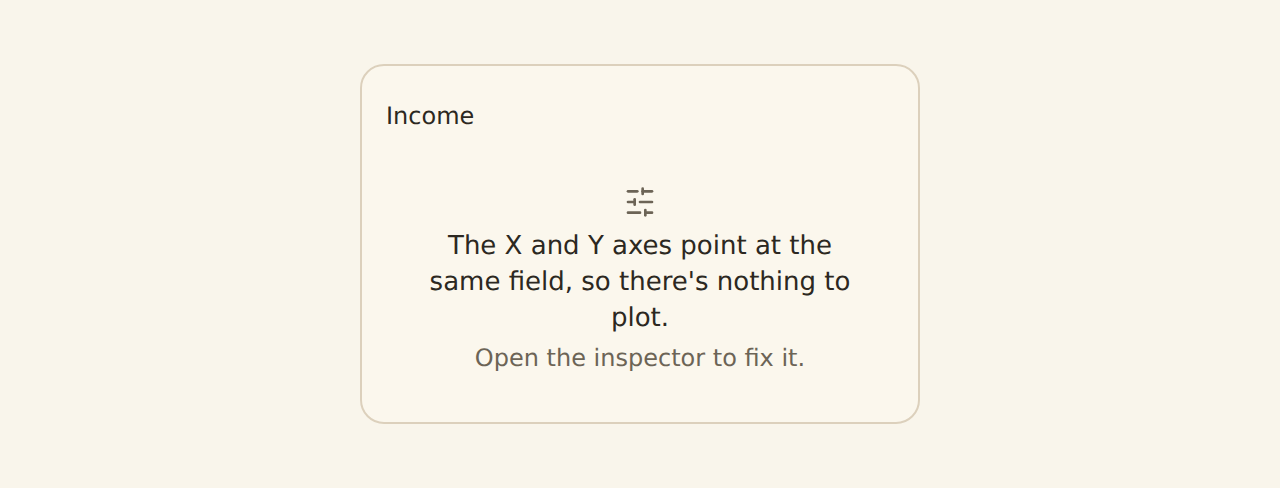
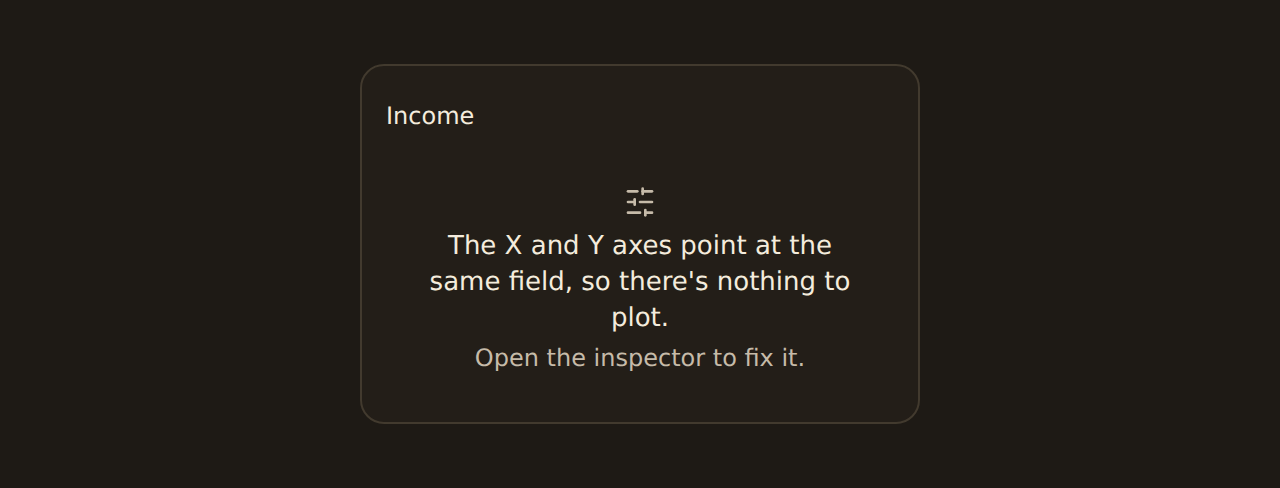
If a kind cannot render your current data, the picker disables it and tells you why in plain language, for example "needs a category field" or "needs a number field" rather than naming internal field roles. Bind the missing kind of field and the option lights up.
Financial kinds want price columns
Less common kinds are editable too
Make a chart your own#
Every chart kind is styleable. Select a chart and open its Style tab:
- Palette at the top: the dashboard's palette, another named palette, or Custom (hex list).
- Card: show the description as a subtitle, show the icon, an Accent colour, Surface, Padding, Title alignment, and a Drawing style that can differ from the dashboard's.
- [Kind] options: the settings only this kind has, such as line steps, bar stacking, or histogram bins.
- Categories and labels: Show top (fold small categories into "Other"), Order (As queried, By value, A to Z), Tidy labels, and the Handwritten callout.
- Legend, axes, grid, and value labels, where the kind has them.
The inspector only shows a control when changing it changes that kind of chart. Line, bar, area, and scatter charts also have a Series list on the Data tab for plotting several measures. Every chart's page in the Chart reference lists its options, and Chart styling covers the options every chart shares.
Goals, rules, tooltips and history#
These options work across chart kinds and are set in the widget's spec (the Advanced tab, or a template).
Reference lines and bands. annotations draws guides on line, area, bar, scatter, layer and waterfall charts:
reference-line: a goal or threshold. Thevalueis a number, a dashboard filter ({ "$filter": "goal" }), or a value read from the rows ({ "field": "budget", "aggregate": "max" }). A goal above every bar stretches the axis so it stays visible.reference-range: a shaded band betweenfromandto, such as a normal range.reference-statistic: a line at themean,median,min,maxor a percentile of a field.
{ "annotations": [ { "kind": "reference-line", "axis": "y", "value": { "field": "budget", "aggregate": "max" }, "label": "Budget", "color": "bad" }, { "kind": "reference-statistic", "axis": "y", "stat": "mean", "field": "amount", "label": "Average" } ]}Each line's label and value are read out to screen readers. text, trendline and event-markers annotations are not drawn yet.
Conditional colours. conditionalFormat colours a bar, point, slice or tile by rule: the first rule whose when matches the drawn row (after grouping) sets its colour. Give each rule a label such as "Over budget": it appears in the tooltip and screen-reader text, so colour is never the only signal.
{ "conditionalFormat": { "field": "amount", "rules": [ { "when": { "field": "amount", "op": "gt", "value": { "$field": "budget" } }, "label": "Over budget", "style": { "color": "bad" } } ] }}Category colours. colorMap fixes a colour per category on any chart kind; see Theming for the dashboard-wide map and the colour forms (slot:N, tokens, light and dark pairs).
Tooltips. tooltip.fields replaces the default tooltip rows with your own list, each with an optional label and format. tooltip.template replaces them with one line of text where {{field}} reads the hovered row, for example "{{merchant}} charged {{amount}}". Values are shown as text, never as markup.
Not enough history yet. minHistory holds a chart back until its rows cover enough periods, so a first week never reads as a trend:
{ "minHistory": { "field": "date", "unit": "month", "minPeriods": 2 } }Until then the chart keeps its box and shows a note naming the periods it needs, or your own message.
Charts fit themselves to the widget: on a small widget, extras such as the callout and legend give way first so the marks keep their room. If a widget is too small to draw anything useful, it says Make this widget bigger.
The catalog tracks the renderer
Beyond charts#
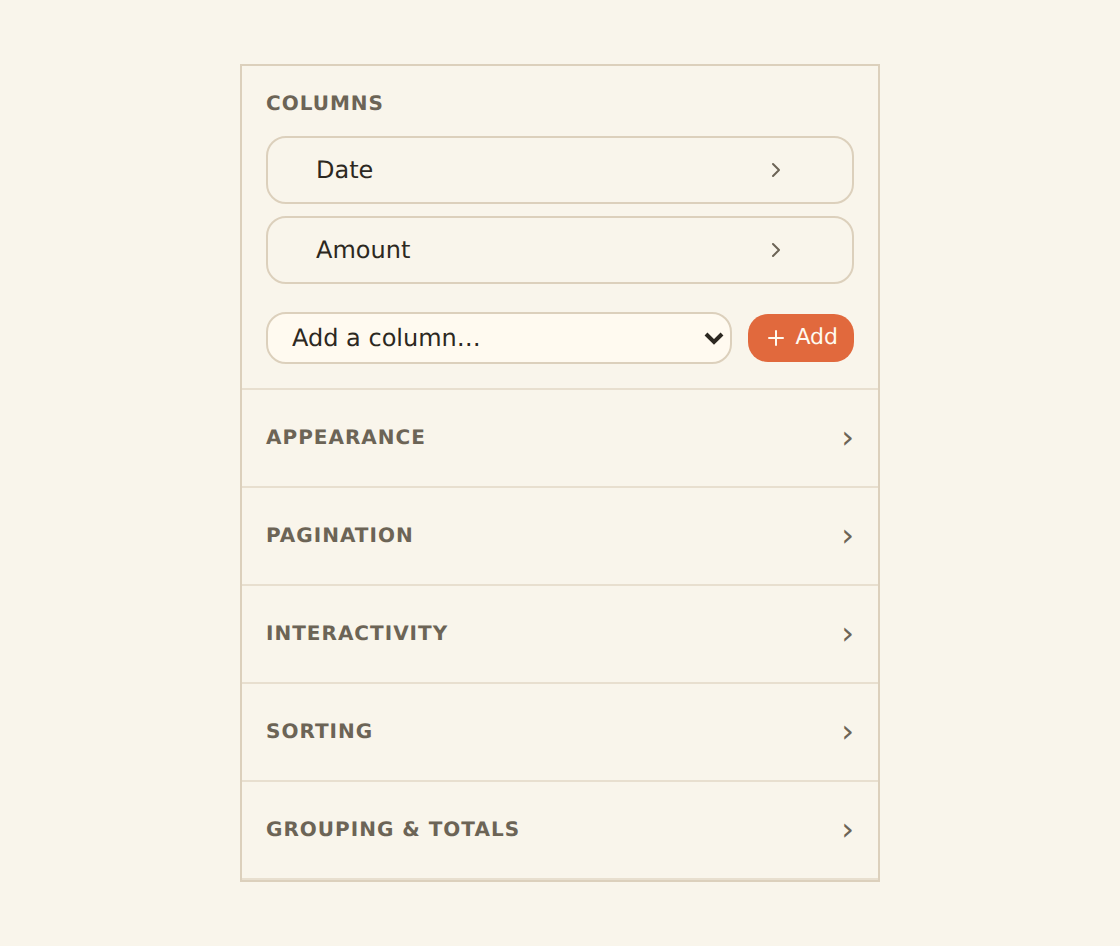
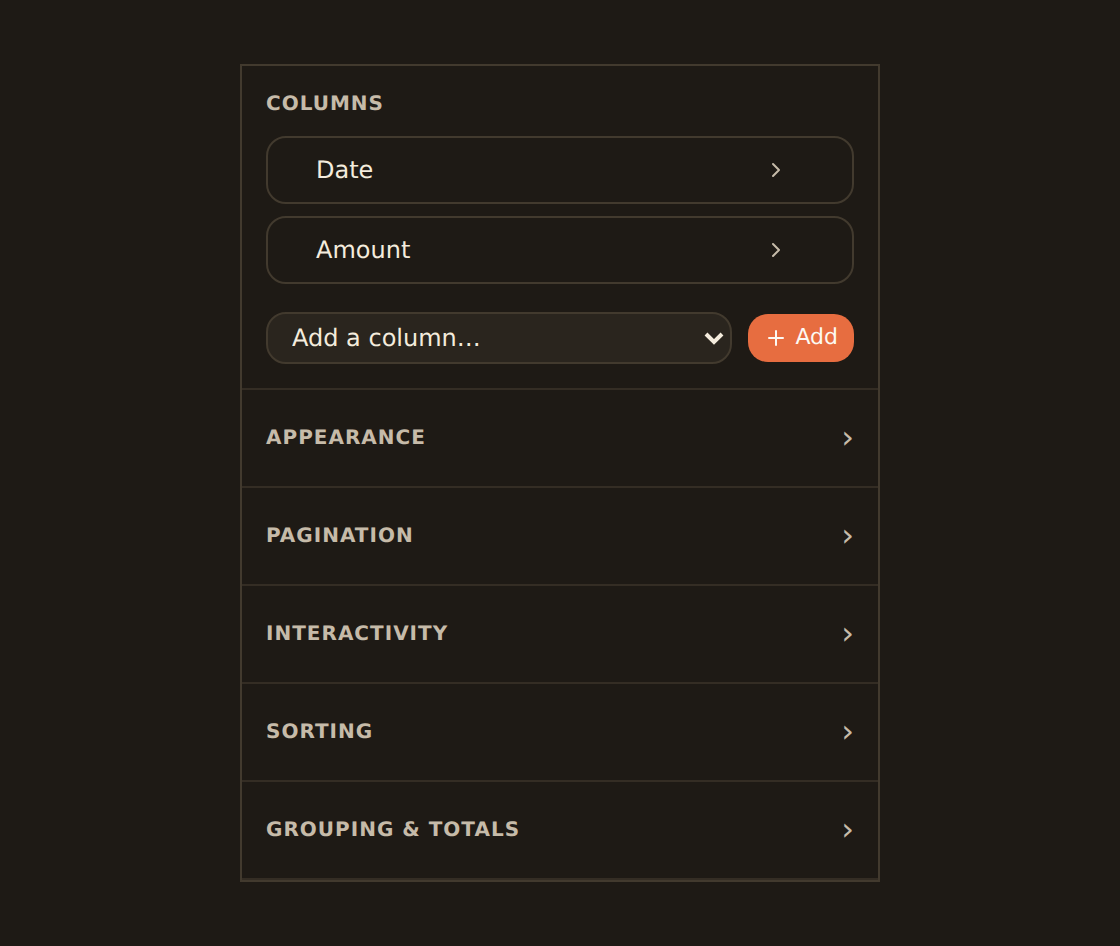
KPI, Table, and the single-value kinds are covered in depth on their own page. Tables in particular do more than show plain rows: each column can be formatted as currency, a status pill, a progress bar, an inline sparkline, a rating, and more, all configured in the table's column manager.
Related guides#
- Binding data: choose the fields a chart kind needs.
- Adding widgets: start a widget of any kind.
- KPI, table & gauge widgets: the non-chart kinds in depth.
- Chart reference: every chart kind with a live example, its fields and every option.
- Chart styling: legend, axes, grid, labels and colours, shared by every chart.
- Theming: drawing style, palette, and callouts for the whole dashboard.
Bind your data
Use this page with your AI assistant
Every BankSync doc is available as plain Markdown for agents and LLMs.