KPI, Table & Gauge Widgets
Configure the single-number and table widgets: a KPI with comparison, target and sparkline, a richly-formatted table with per-column control, a gauge with a needle and color bands, and meter and progress thresholds.
11 min read
On this page
- KPI: one number that matters
- Number format and currency
- Comparison delta
- Target
- Sparkline
- Stat grid: several KPIs in a row
- What a KPI shows at each size
- Worked example: spend this month, vs last month
- Table: rows with per-column control
- Pagination
- Gauge: a value on a scale
- Meter and progress: thresholds
- Worked example: savings rate against a 70% target
- Related guides
Not every widget is a chart. Three widget types show numbers without an x/y plot: the KPI for a single headline figure, the Table for rows of detail, and the Gauge for a value against a scale. Each has its own set of controls.
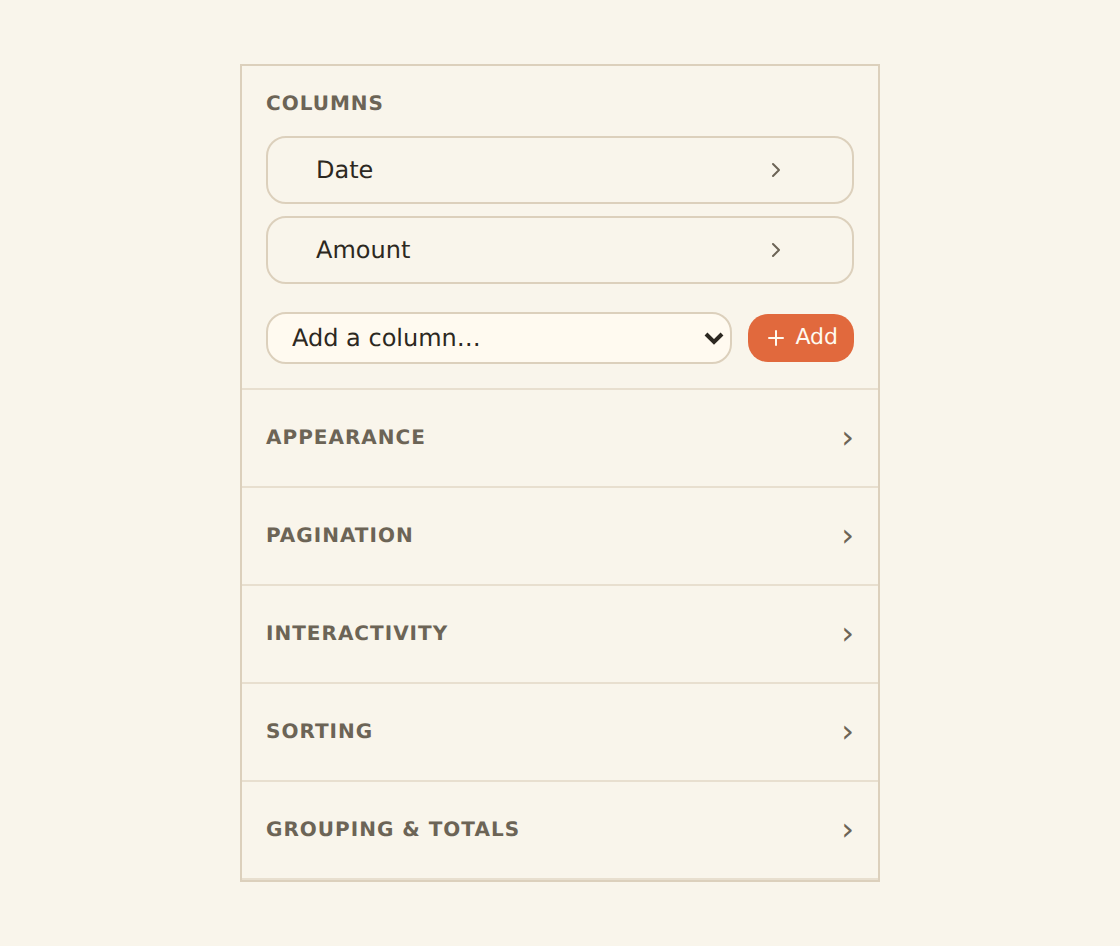
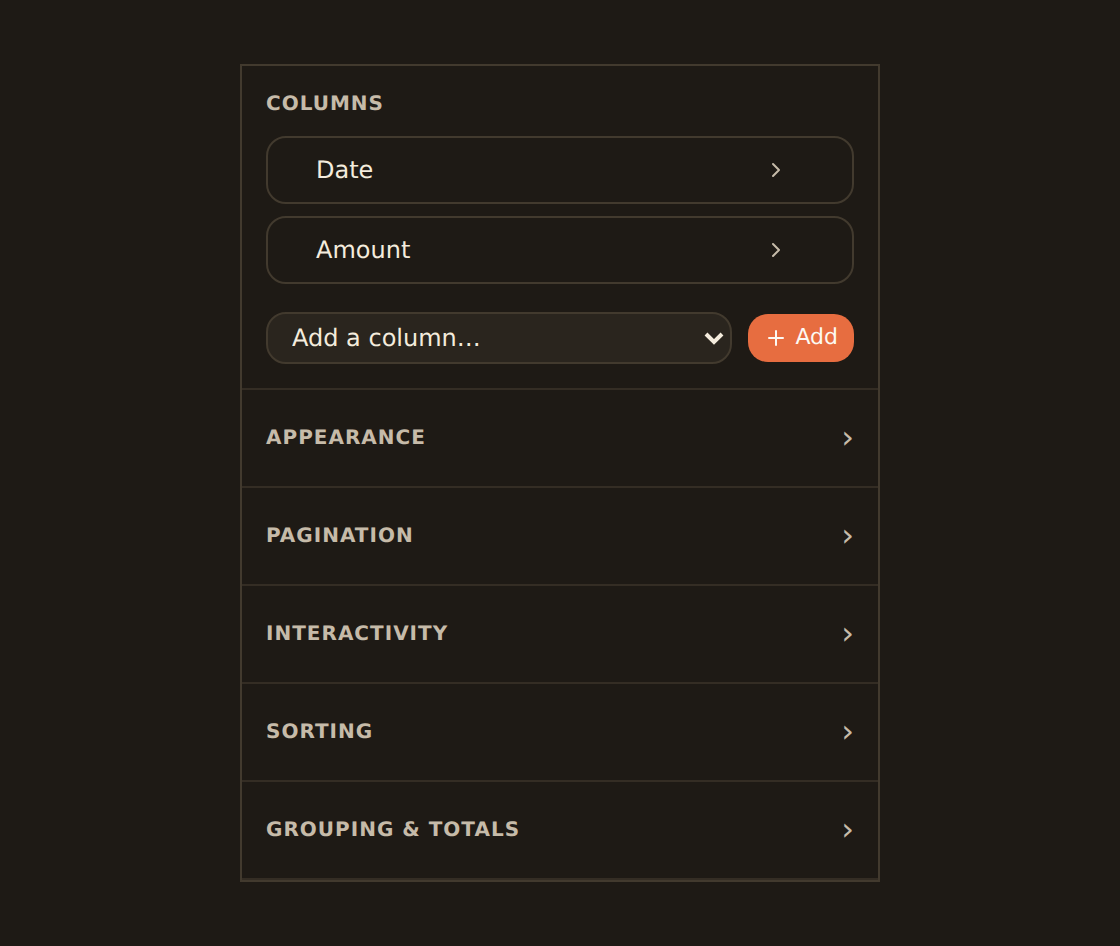
Where these controls live

KPI: one number that matters#
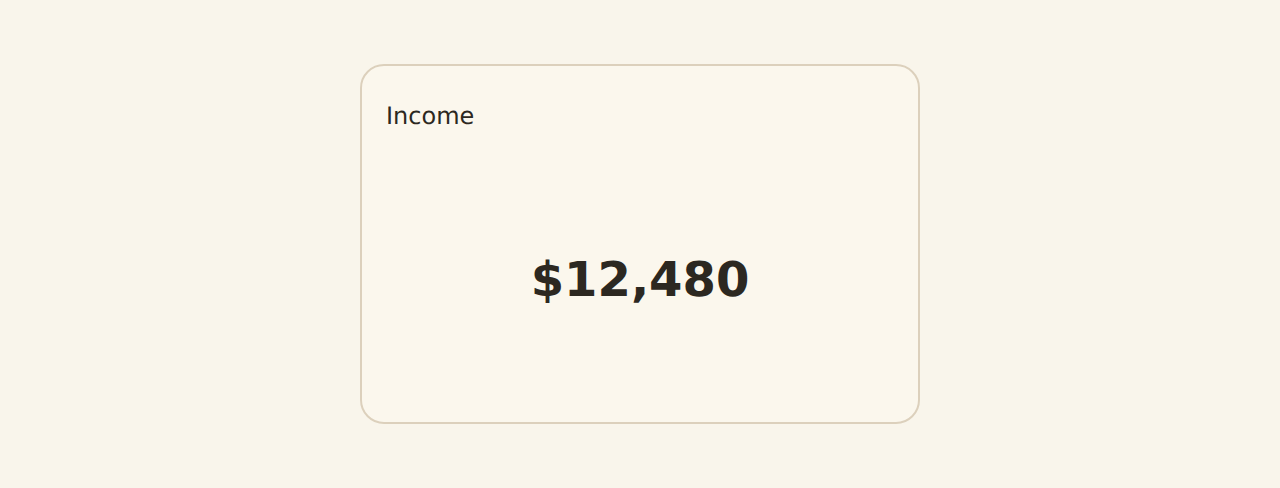
A KPI shows a single big number (this month's spend, total balance, transaction count) with optional context around it.
Value and summary
Pick the field (BankSync limits the picker to measures, the numeric fields it can total), then choose how to summarize the result: Sum, Average, Median, Min, Max, Count of rows, or the latest/earliest row.
Comparison
Show the change against a prior period as an up/down delta, so the number has direction. Compare against the previous period, the previous year, a fixed baseline, or a rolling window.
Sparkline
Add a tiny inline trend line beneath the number for at-a-glance history.
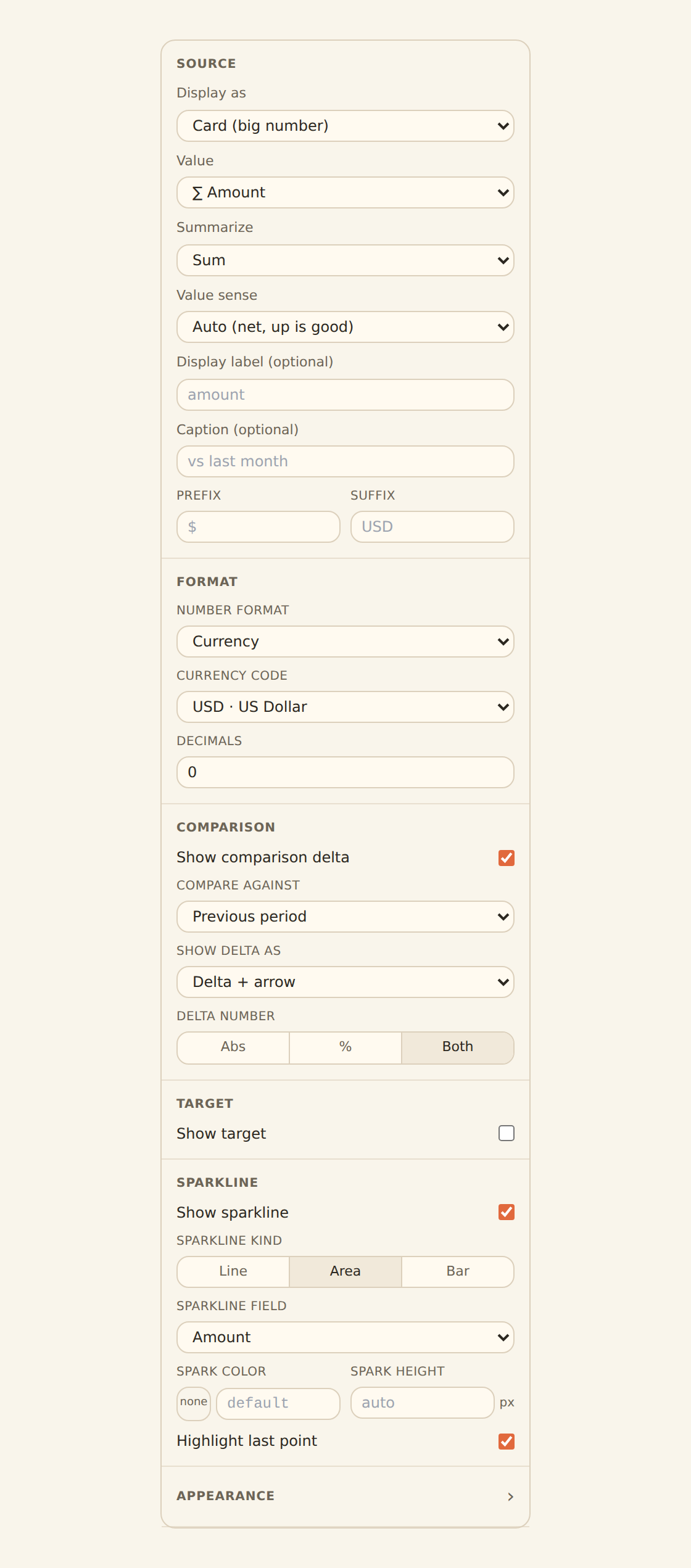
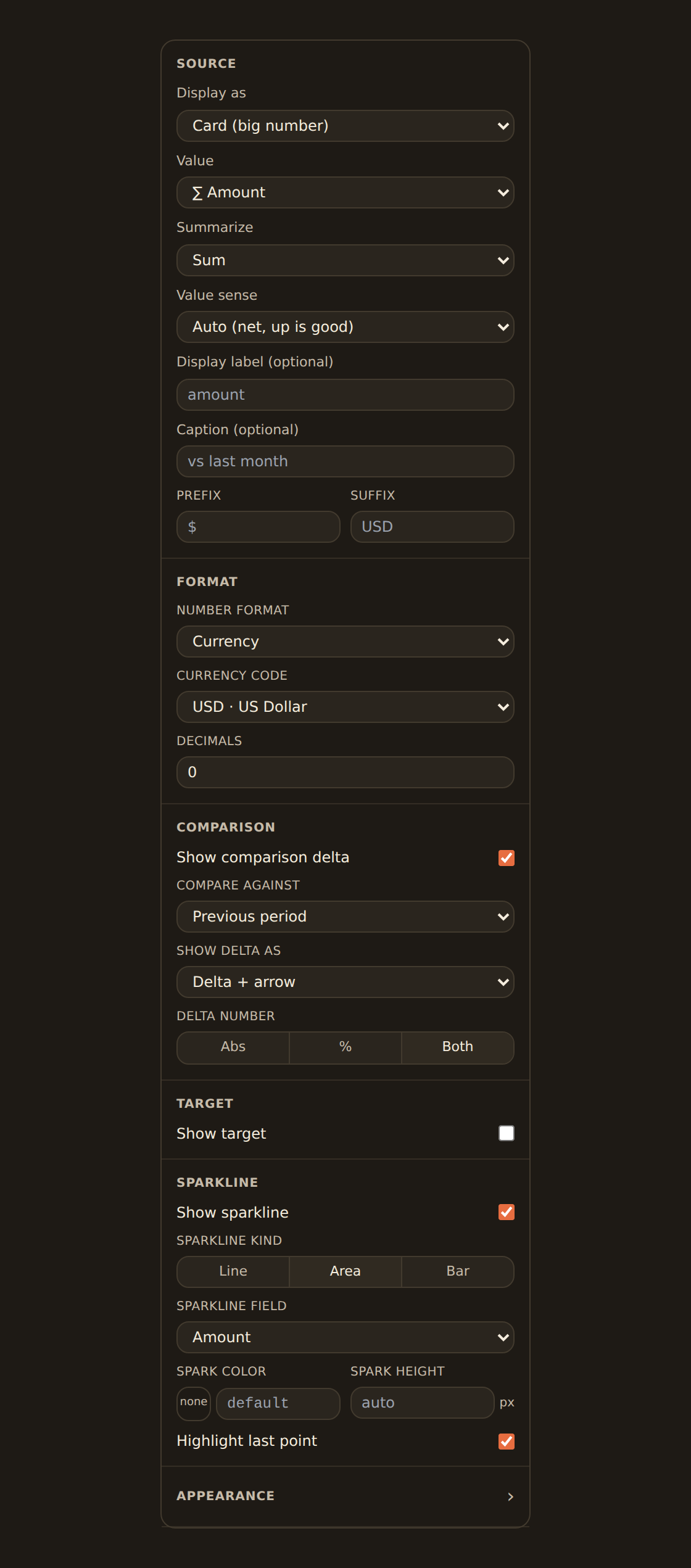
The KPI inspector also lets you choose a Display as style: Card (big number), Delta (change emphasis), or Target. Add a Prefix or Suffix (for example a $ or %), a Display label and a Caption (such as "vs last month"), and set Value sense so the delta is colored the right way round: Spending (down is good) turns a drop in spend green.
Number format and currency#
Under Format, pick Number format: Number, Currency, Percent, or Compact. With Currency, Currency code is a list of valid codes (USD, AUD, GBP, and so on), so a typo cannot break the number. Decimals sets how many places to show; leave it blank for the default.
Following the data's currency#
A widget does not have to name a currency. Transactions and balances carry their own (currency, or isoCurrencyCode from some banks), and a format can follow it instead, which is how a template shows dollars to one person and pounds to another:
| Format | What it writes |
|---|---|
{ "kind": "currency", "currency": "auto" } | The most common currency among the rows the value is computed from. One currency shows its symbol (A$1,234.50); several show the code (1,234.50 AUD). |
{ "kind": "currency", "currencyField": "currency" } | In a table, each row in its own currency. An aggregate (an axis, a tooltip, a KPI) uses the most common one, as auto does. |
{ "kind": "currency", "currencyDisplay": "code" } | Always the code after the number, never a symbol, so $ can't be mistaken for another dollar. |
When the rows carry no currency at all, a following format writes a plain number rather than guess a $. Add "currency": "GBP" beside currencyField to fall back to a fixed code instead. A table cell does the same with "currency": "auto" or "currencyField" on a Currency cell; see Table cell types.
A total never quietly mixes currencies
When a value is too wide for the tile, the KPI switches to a compact form (for example $1.2M), then drops the cents. A negative keeps its sign or its accounting brackets, so -$1,234,567 becomes -$1.2M and ($1,234,567) becomes ($1.2M). Percentages are never compacted. Hover a shortened number to see it in full.
Comparison delta#
Turn on Show comparison delta and set Compare against: Previous period, Previous year, Fixed baseline, or Rolling baseline. Show delta as picks Delta + arrow or Delta only, and Delta number shows the change as Abs, %, or Both. The delta always carries an arrow and "(better)" or "(worse)" for screen readers, so direction never depends on color alone.
Previous period means the previous window, fetched#
When the dashboard has a date-range filter with a value, Previous period reads the window before it as a second query: the same data, the date filter shifted back. The headline and the comparison are reduced the same way. The window follows the calendar:
| Current window | Compared with | Pill says |
|---|---|---|
| A whole month (Sep 1–30) | The month before (Aug 1–31) | vs Aug |
| Several whole months (a quarter) | The same number of months before | vs previous quarter |
| Month to date (Oct 1–10) | The same days last month (Sep 1–10) | vs same days in Sep |
| Any other range (last 30 days) | The equal span just before it | vs previous 30 days |
Previous year fetches the same window a year earlier. Only a server-side date filter is shifted; a filter applied in the browser, or a security filter, is never used. A stat grid fetches one previous window per comparison mode, not one per metric.
Without a date filter value, Previous period falls back to comparing the later half of the fetched rows with the earlier half, and the pill says "vs earlier in range".
Previous point compares the latest row with the one before it, by date. Use it for balances and other levels, where a total of a month makes no sense.
Comparison settings#
| Setting | What it does |
|---|---|
label | What the pill compares to, up to 40 characters ("vs last month"). Default: from the window. |
goodDirection | up, down or none. Default: down for a spending value sense, else up. |
dateFilter | The dashboard date filter to shift. Default: the first server-side date-range filter with a value. |
insufficientLabel | Shown while there is no earlier period to compare with. Default "needs 2 months" or similar. |
{ "comparison": { "enabled": true, "mode": "previous-period", "presentation": "delta-arrow", "goodDirection": "down" }}Not enough history yet#
In your first month there is nothing to compare with. The KPI shows a dash and a note such as "needs 2 months" instead of a delta, never a +100% jump. Previous point says "needs 2 data points" until there are two readings.
A Fixed baseline can also be read from the rows: "baseline": { "field": "budget", "aggregate": "first" }.
Target#
Turn on Show target and enter a Target value. The tile then shows a thin bar under the number that fills toward the target, with a note such as "82% of the $5,000 target". Add Color bands (each an "up to" value and a color) to grade the scale.
The target can come from your data instead of a number: { "field": "budget" } sums that column of the widget's rows, and aggregate (sum, avg, min, max, first, last) or dataset (a named secondary dataset) change what is read. Set goodWhen to below for a budget: past the target the bar turns red and the note says "(over)", so the warning is in words as well as colour.
{ "target": { "enabled": true, "value": { "field": "budget", "aggregate": "max" }, "goodWhen": "below" }}Set a target for budget-vs-actual
Sparkline#
Turn on Show sparkline to draw a small trend under the number. Pick the Sparkline kind (Line, Area, or Bar) and the Sparkline field to plot. Highlight last point marks the latest value.
Stat grid: several KPIs in a row#
A Stat grid shows several KPI cards from one query result, each cell exactly the KPI its metric describes, including comparisons. It is generally available. A fixed column count is a maximum: on a narrow card or a phone, cells wrap to the next row (each at least 140px wide) instead of squeezing. The grid reads as a list to screen readers, named by its title.
What a KPI shows at each size#
A KPI shows what fits. A short tile shows the value and the delta; the sparkline appears once the tile is tall enough, and the target bar once it is taller still. Nothing is cut off: the extras simply wait until there is room.
If every value in the chosen field is blank, the KPI shows — rather than a misleading 0.
A KPI's card hides the small title icon by default so the number has the room. To show it, turn on Show icon under Card on the widget's Style tab.
Worked example: spend this month, vs last month#
- Add a KPI widget and select it to open the inspector.
- Under Value, pick your amount field and set Summarize to Sum.
- Under Comparison, turn on Show comparison delta and set Compare against to Previous period.
- Set Value sense to Spending (down is good), so spending less than last month shows green.
- Optionally turn on Show sparkline for a small trend line, and add the caption "vs last month".
You now have a single headline number with direction, no chart required.
Table: rows with per-column control#
A Table widget lists rows from your data with control over each column.
Shape a table
Choose and order columns
Show the fields you want and drag to reorder them; remove the ones you do not need.
Set how each column reads
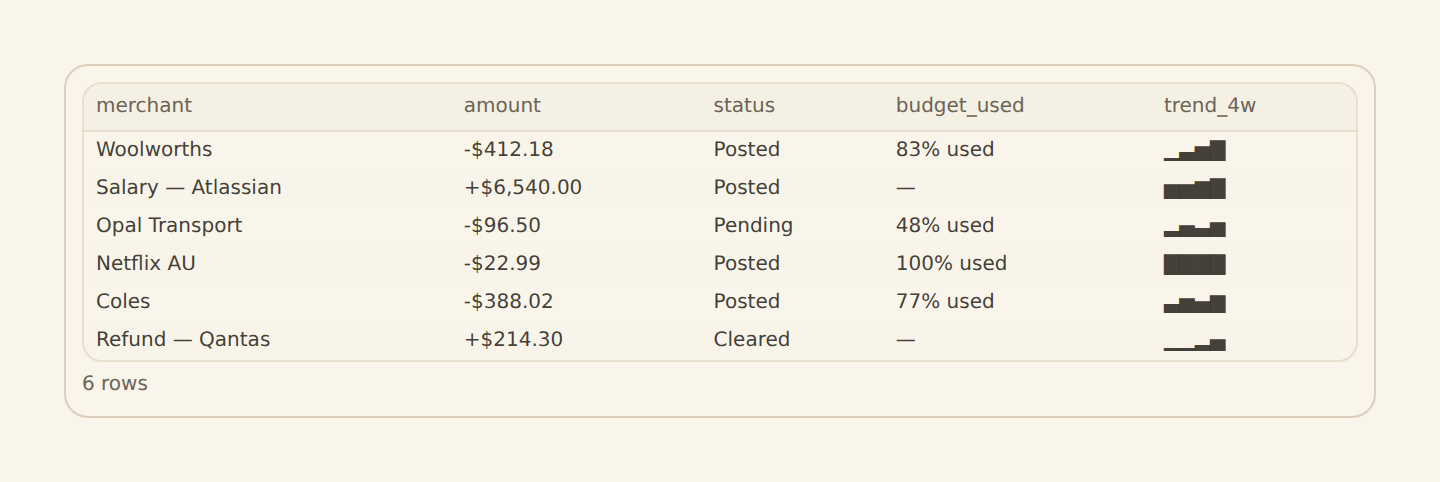
Open a column and pick its Format. The choices are Text, Number, Currency (with a currency picker), Percent, Date, Relative date, Yes/No, Duration, and JSON. BankSync picks a sensible default from the data, and you can override it per column.
Align, pin and size
Per column you can set the alignment (left/right/center), pin it to the left or right edge so it stays in view as you scroll sideways, set a fixed width, and toggle whether the column is sortable.
Rename and pick an icon
Give the widget a clear title and icon so it is easy to find.
Beyond the per-column format, the Appearance section sets the look of the whole table: row density (comfortable/compact/tight), borders, zebra stripes, row numbers, a sticky header, a sticky first column, and whether long text wraps.
Rich cell formats render automatically
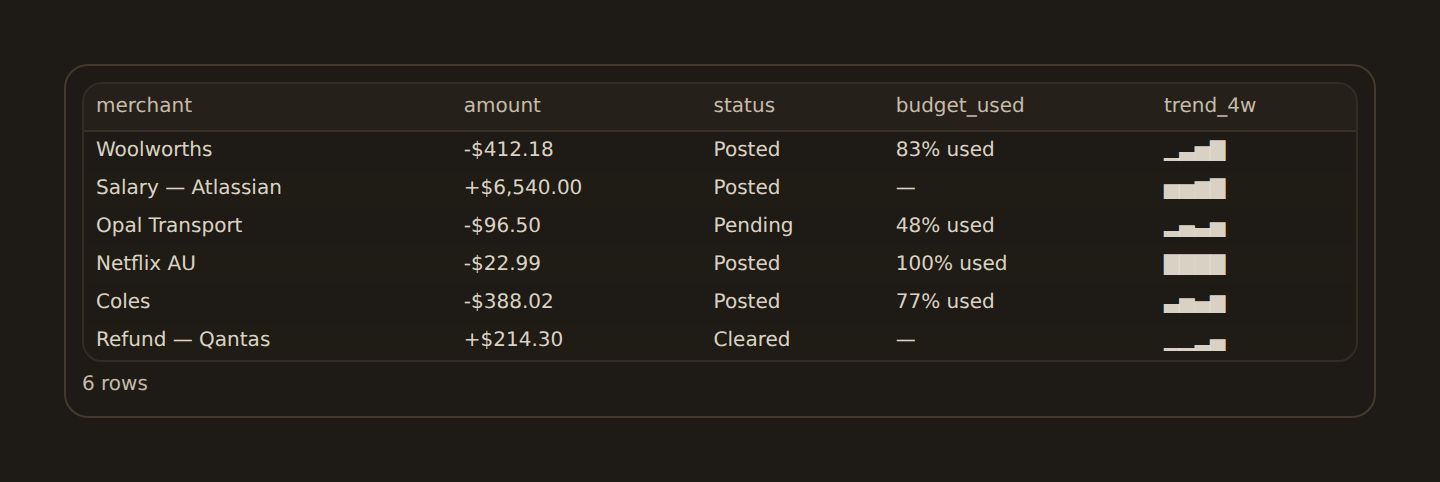
How coloring works
Pagination#
Long results stay readable because the table paginates. The Pagination section lets you choose the mode: Paged (the usual default, with page controls), Virtual (smooth scroll through a long list), or None. When pagination is on, set the rows per page (default 25). Pagination is a setting you can change, not something fixed.
Gauge: a value on a scale#
A Gauge draws a needle on a banded arc, good for a value measured against a target or a healthy range.
Value
Type or pick the result value the needle points to. This is a free-text box with suggestions, not a field dropdown, and the gauge sums the rows for you (there is no separate aggregate choice).
Scale
Set the min and max, the arc shape (half, three-quarter, full), and thickness.
Bands
Add colored bands (for example green, amber, red) so the reading has meaning at a glance.
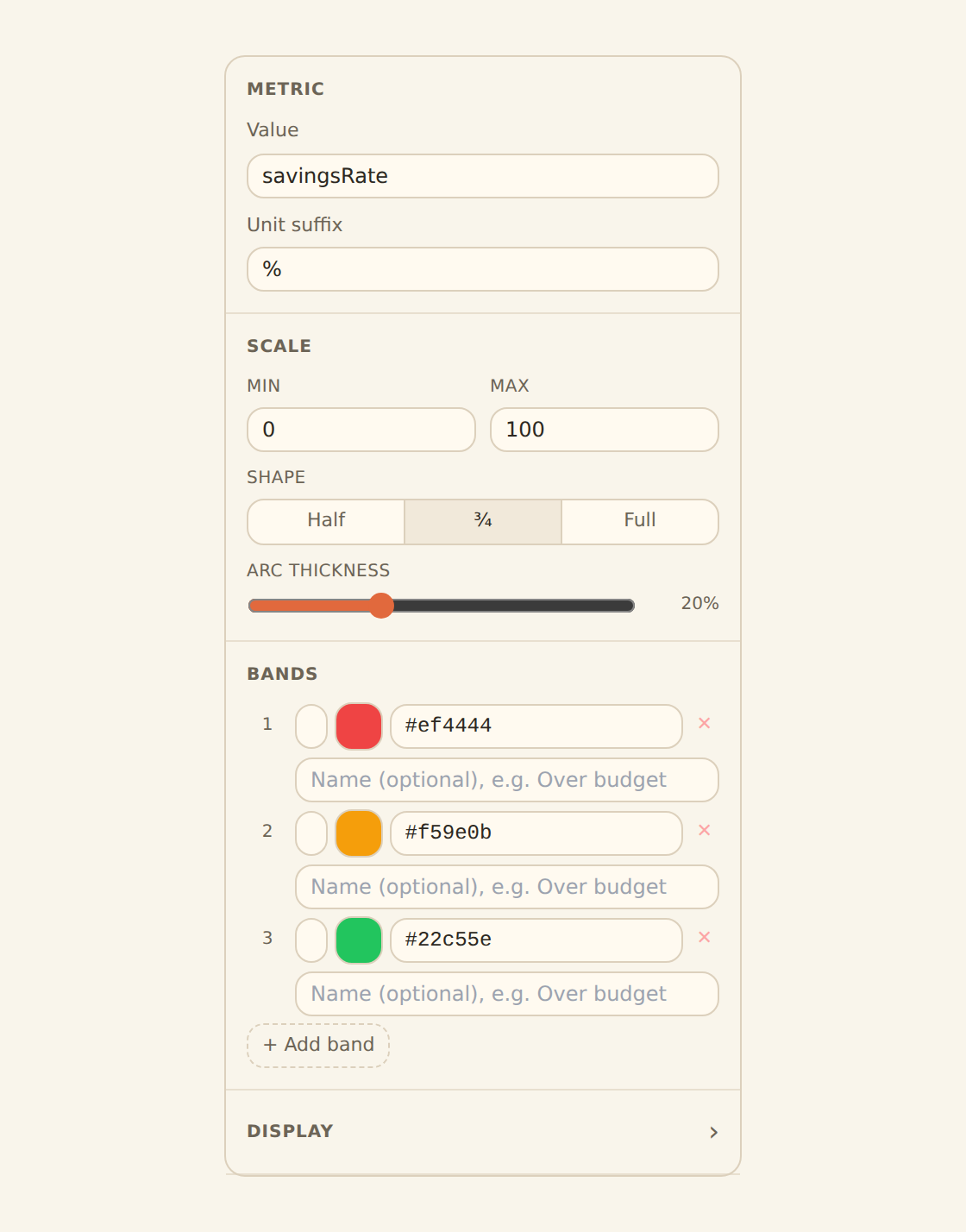
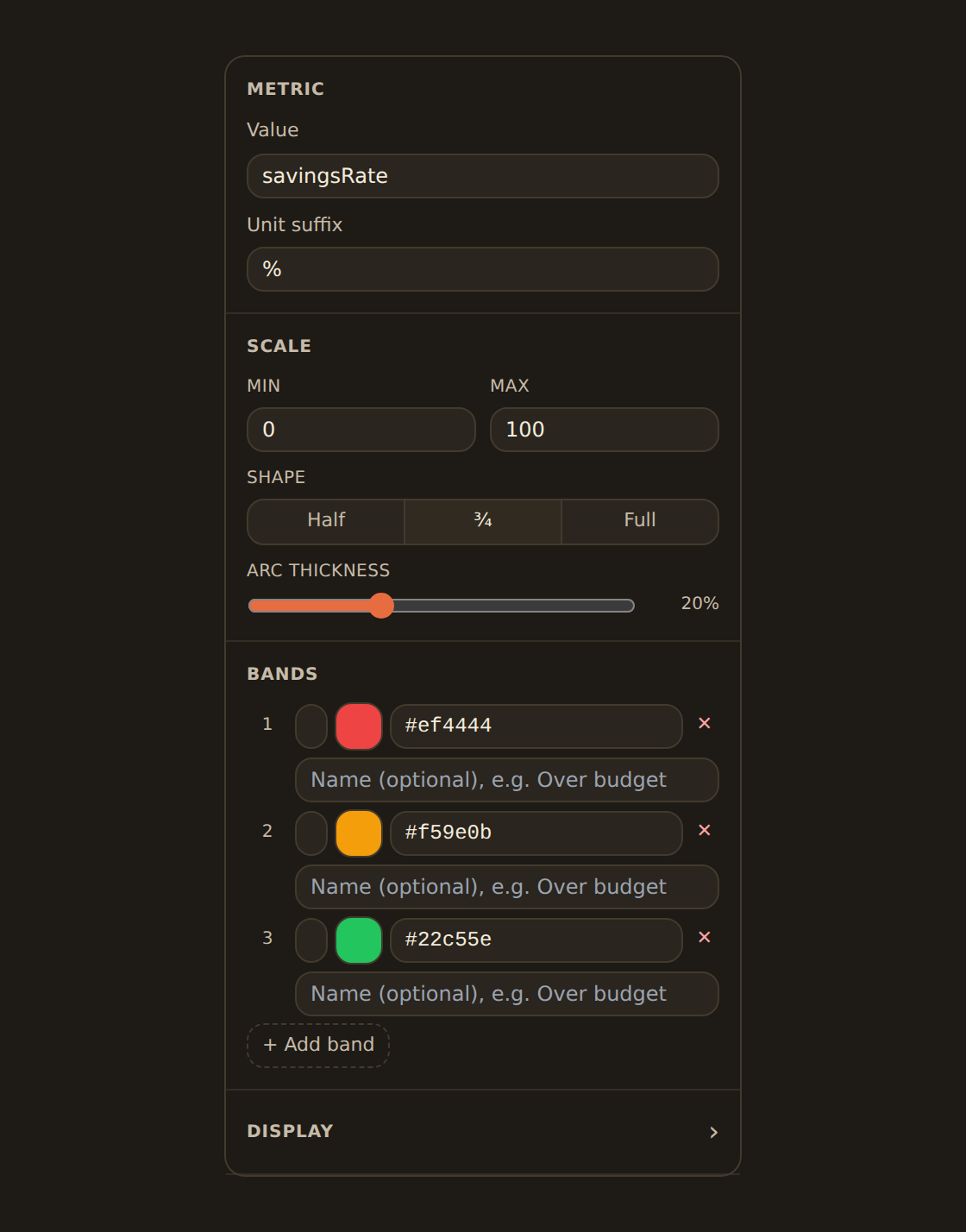
Gauge bands
The Display section turns the value, the scale labels, and the needle on or off, and sets the needle color and value size. When the value falls outside the scale, the needle stops at the end and the gauge says so, for example "over 100%".
Meter and progress: thresholds#
Meter and Progress show one value as a bar (or, for progress, a ring or segments). Instead of bands they use Thresholds, set in the Meter options or Progress options section of the Style tab. Each threshold has a point (a fraction of the target or maximum, from 0 to 1), a color, and an optional label. The fill takes the color of the highest threshold it has reached, and a labelled threshold is marked on the track, so "Warning at 80%" reads straight off the bar.
Data-bound maximums. A progress max and a meter target can be read from the rows with { "field": "budget" }, so one widget follows each category's budget. A progress bar also takes a pace marker (a fraction of the maximum, or a field), for example how far through the month today is, and an overColor the fill turns once the value passes the maximum (the bad status colour by default).
Worked example: savings rate against a 70% target#
- Add a Gauge widget and select it to open the inspector.
- Under Value, type the alias of your savings-rate result (the suggestions list helps); the gauge sums the rows to a single figure.
- Set the Scale min to 0 and max to 100, with a percent unit.
- Add three Bands: red up to 50, amber up to 70, green beyond 70.
The needle now lands in the band that matches your savings rate, so the reading is a status, not just a number.
Related guides#
- Binding data: the Value and summarize controls these widgets share with charts.
- The chart kind catalog: the plotted chart kinds.
- Adding widgets: add a KPI, table, or gauge from the library.
Add dashboard filters
Use this page with your AI assistant
Every BankSync doc is available as plain Markdown for agents and LLMs.