Radar chart
Multi-axis comparison. What the radar chart is for, the data it needs and every option it has.
4 min read
On this page
Multi-axis comparison. It sits in the Radial group of the widget library.
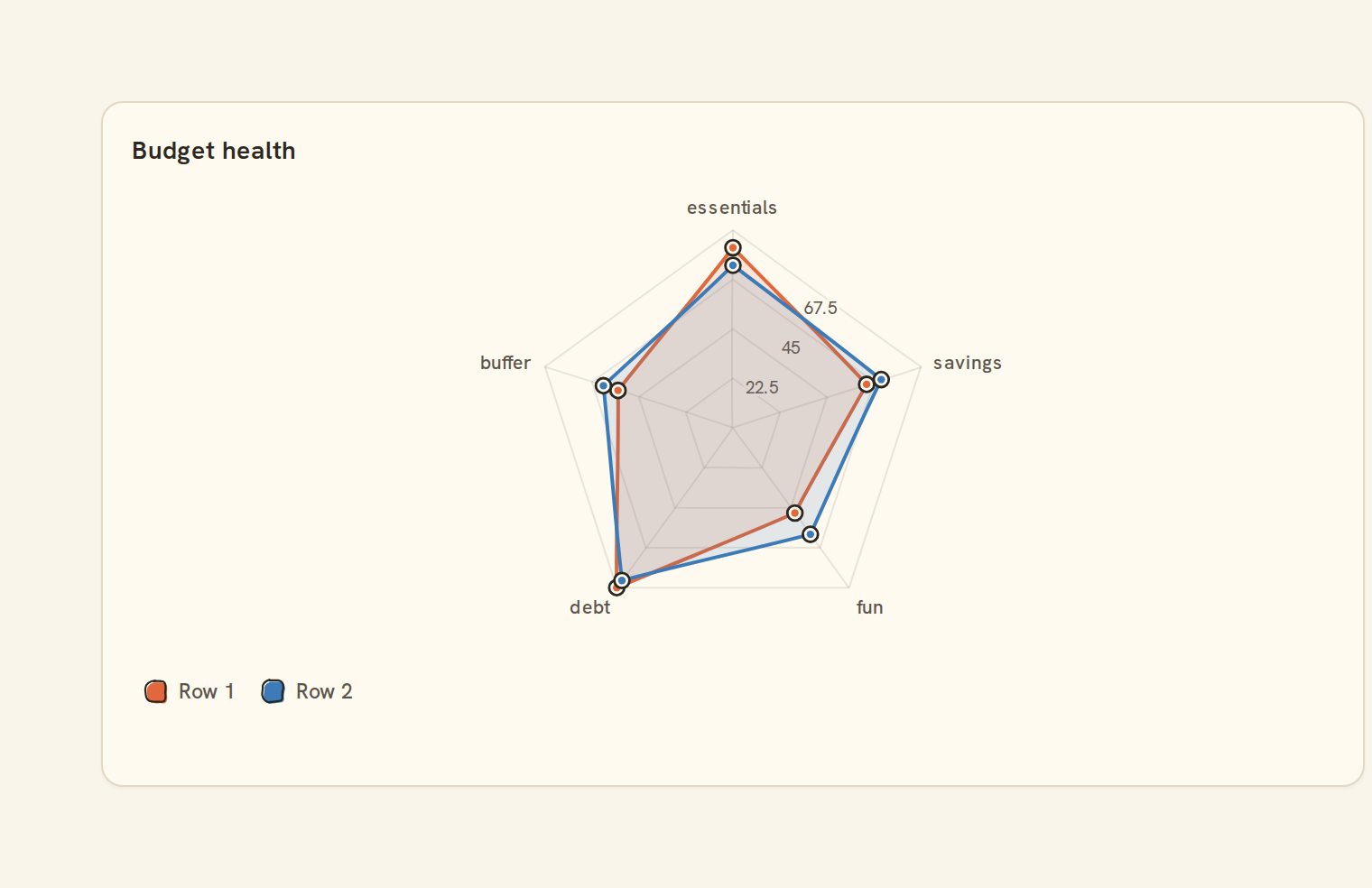
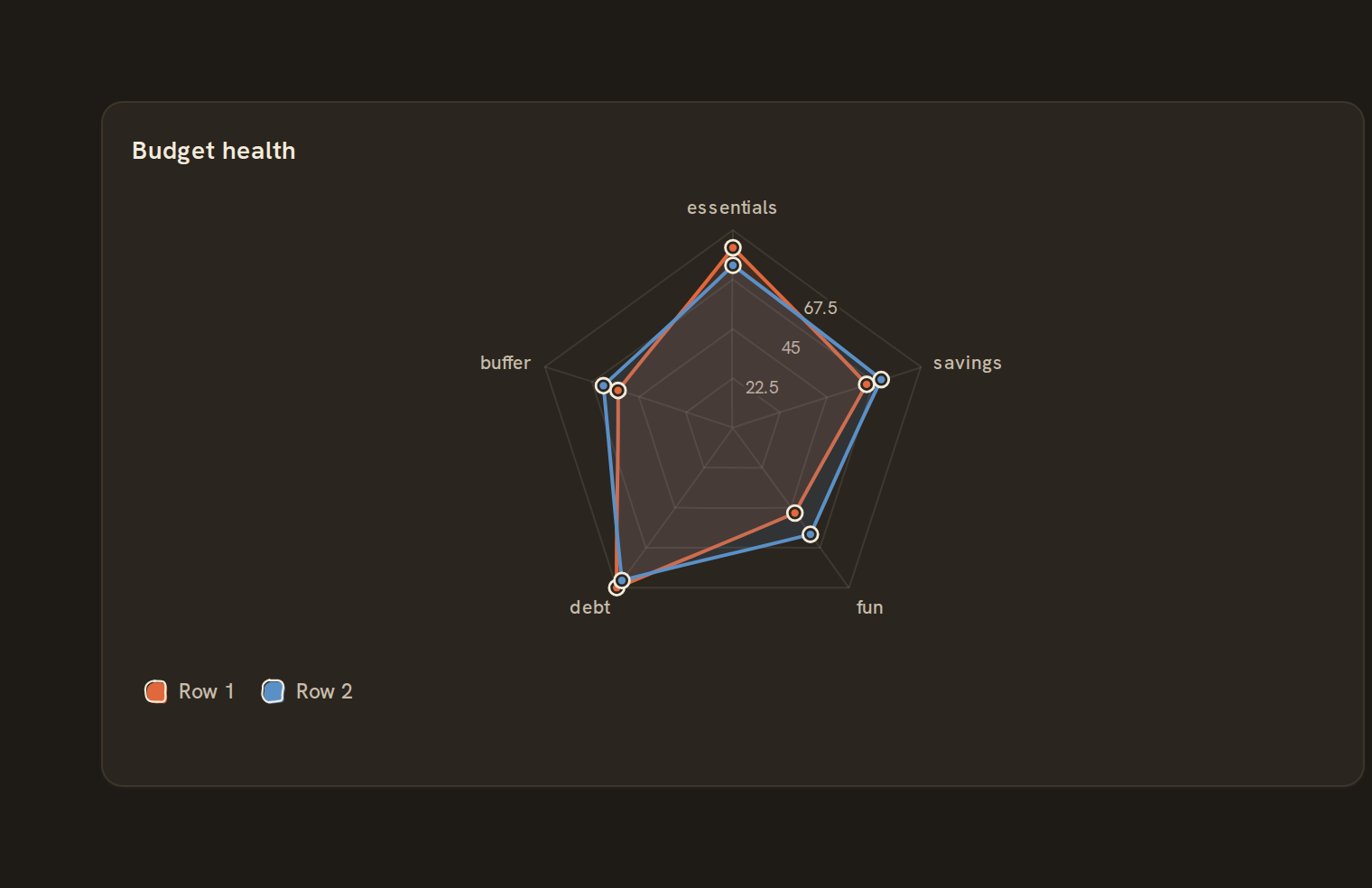
When to use it#
Use a radar chart to compare a few items across three or more measures, one shape per item. For example, compare two accounts across average spend, number of transactions, fees and interest, or this year against last year across several budget lines.
When to pick something else#
- Only one item to show? A Bar chart of the measures is easier to read.
- Measures on very different scales (dollars next to counts)? Use Parallel coordinates.
- Many items to compare? Use a Heatmap with items as rows and measures as columns.
The data it needs#
Pick these in the Data tab of the inspector. BankSync suggests a column for each when your source has an obvious match.
| Field | Needed | Pick | Notes |
|---|---|---|---|
| Axis | Yes | a category | |
| Value | Yes | a number | |
| Series | Optional | a category |
Rows that share a category are combined before drawing: choose Sum, Average, Count, Min or Max on the value field. See Binding data.
Radar chart options#
Set these on the Style tab of the inspector. "Automatic" means BankSync picks a value from the chart's size and data.
| Option | What it does | Values | New charts start with |
|---|---|---|---|
| Fill shapes | Fill the area inside each shape. On by default; turn off for outlines only. | On or off | On |
| Fill opacity | How solid the shape fill is, from 0 (clear) to 1 (solid). | Number, 0 to 1 | Automatic |
| Grid shape | Draw the background rings as polygons that follow the spokes, or as circles. | Polygon, Circle | Automatic |
| Grid rings | Number of background rings, from 1 to 10. | Whole number, 0 to 9007199254740991 | Automatic |
| Show spoke labels | Write the name of each spoke around the outside. On by default. | On or off | Automatic |
| Show points | Draw a dot where each shape meets a spoke. On by default. | On or off | Automatic |
| Smooth outline | Draw each shape with curved edges instead of straight ones. | On or off | Automatic |
Needs history#
Show a note instead of the chart until the rows cover enough periods, so a first week never reads as a trend.
| Option | What it does | Values | New charts start with |
|---|---|---|---|
| Date field | The date column whose distinct periods are counted. | Text | Automatic |
| Period | What counts as one period: a day, week, month, quarter or year. | Day, Week, Month, Quarter, Year | Automatic |
| Periods needed | How many distinct periods the rows must cover before the chart draws (2 to 60). | Whole number, 2 to 60 | Automatic |
| Waiting message | Shown until there is enough history. Leave empty for a message naming the periods. | Text, up to 120 characters | Automatic |
Shared chart styling#
Every chart also has the shared styling options. These apply to this one:
- Legend: position, layout and which series show.
- Axes: titles, tick labels and number format.
- Grid, title, padding and background.
- Value labels on the marks.
- Categories and labels: top N with "Other", sort order, readable labels, the handwritten callout.
- Style: corner radius, line width, opacity and animation.
- Tooltip on hover.
- Click to filter: clicking a mark can filter the rest of the dashboard. See Filters and cross-filtering.
- Colours: follow the dashboard palette or pick one for this chart.
Messy data#
- It needs at least three axes; with fewer you see "Radar needs at least 3 axes".
- Rows for the same item are added together on each axis. An axis with no numbers for an item is drawn at the centre, the same as zero, so a gap looks like a real zero.
- Up to eight shapes are drawn; beyond that the smallest items are combined into "Other".
- All axes share one scale, so a measure in the thousands flattens the others.
On a phone#
The chart shrinks to fit the width and the axis names are shortened; when the chart gets too small they are hidden, which leaves an unlabelled shape. Keep a radar to four to six short axis names, or use a Bar chart on phones.
Related charts#
- Polar chart: Radial categorical
- Circular bar: Bars around a circle
Use this page with your AI assistant
Every BankSync doc is available as plain Markdown for agents and LLMs.