Gauge
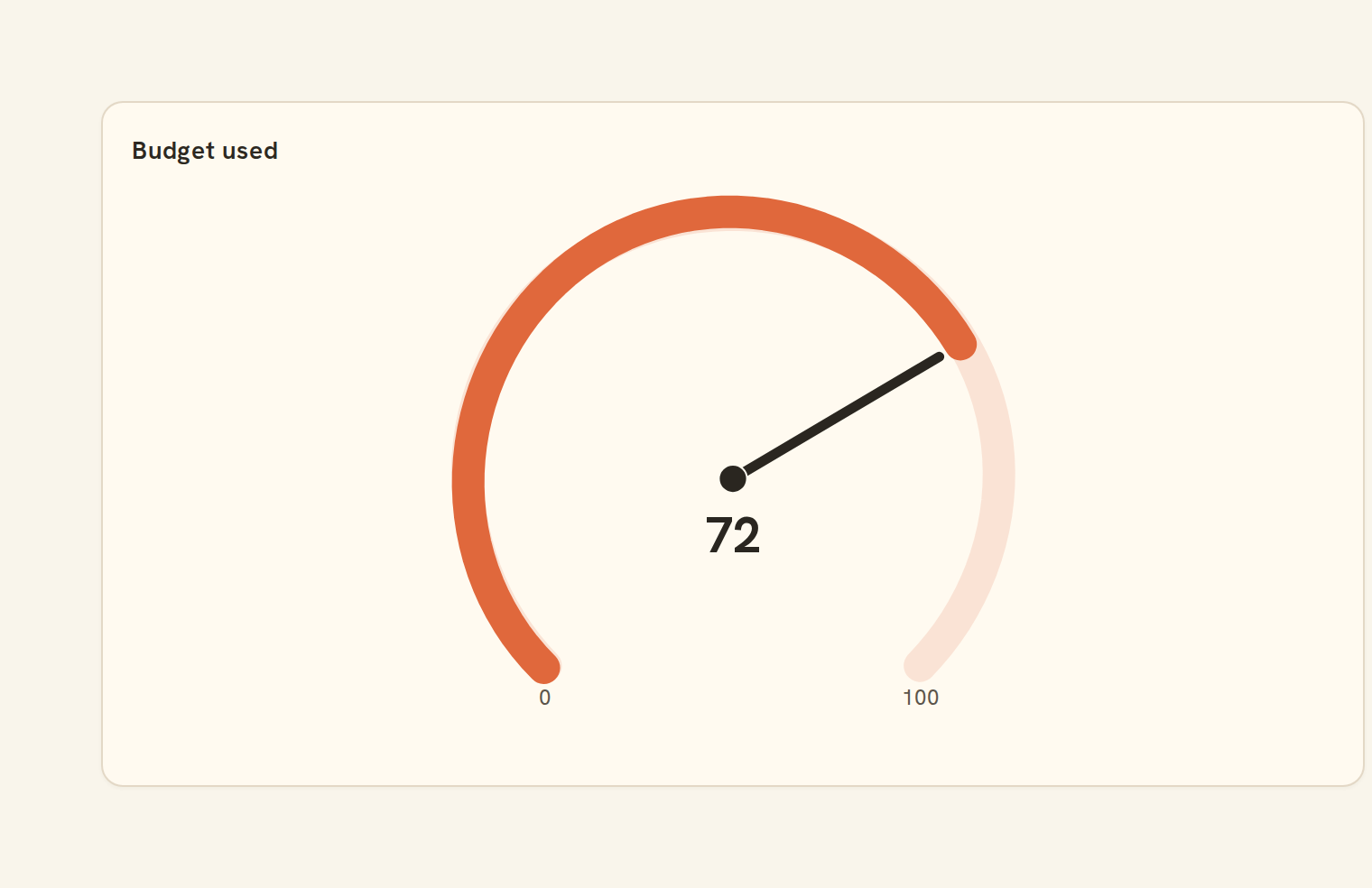
Needle on a band scale. What the gauge is for, the data it needs and every option it has.
6 min read
On this page
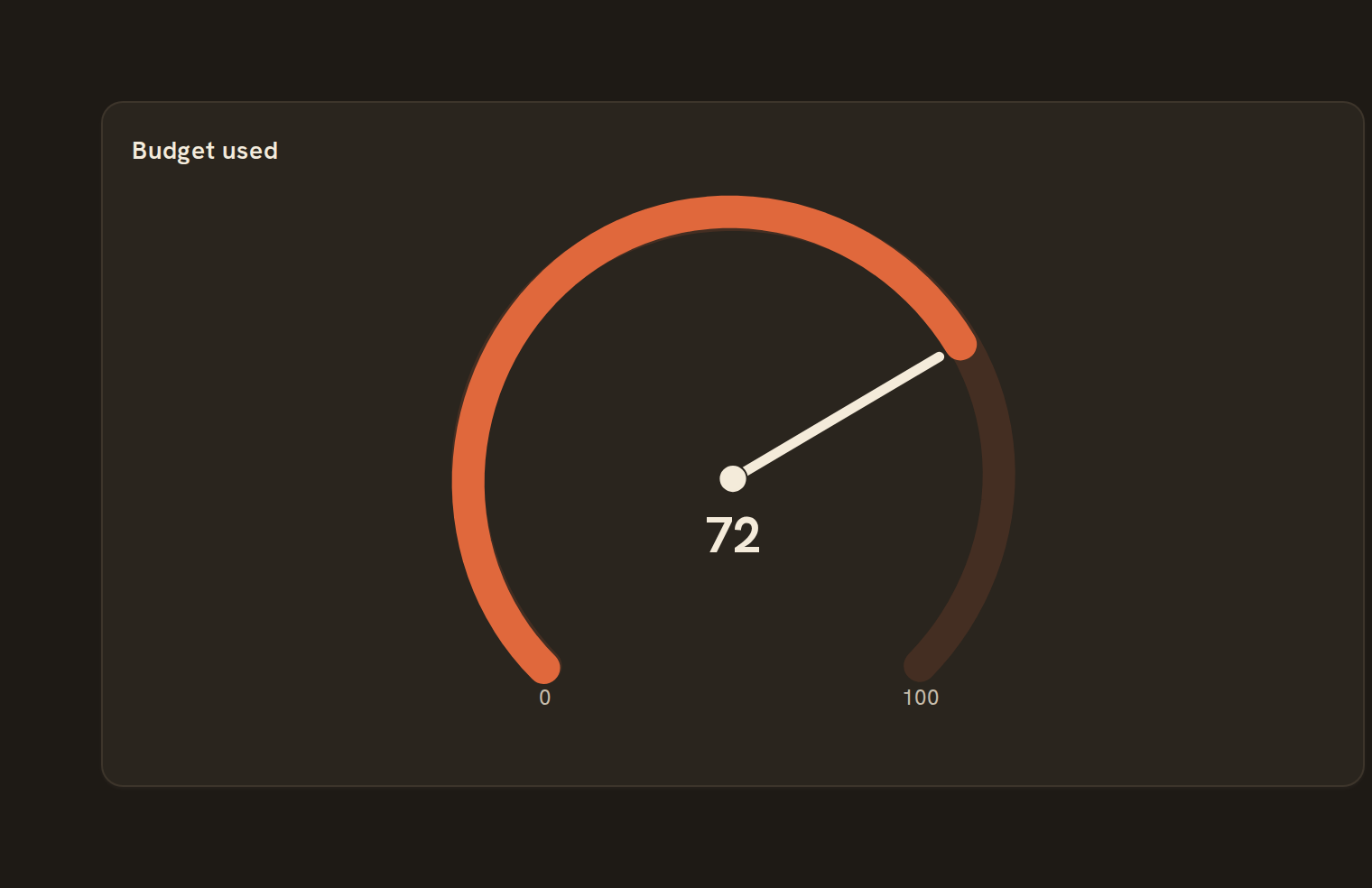
Needle on a band scale. It sits in the Single value group of the widget library.
When to use it#
Use a gauge to show one number against a fixed scale, with coloured bands for good, warning and bad zones. For example, show budget used this month on a 0–100% dial, or savings rate against the bands you set.
When to pick something else#
- Just the number, with a change from last period? Use a KPI.
- Progress towards one goal? Use Progress, which takes less space.
- One value with a target marker and ranges in a straight line? Use a Meter.
- Several items each against their own goal? Use a Bullet chart.
The data it needs#
Pick these in the Data tab of the inspector. BankSync suggests a column for each when your source has an obvious match.
| Field | Needed | Pick | Notes |
|---|---|---|---|
| Value | Yes | a number |
Each row is drawn as it is, so shape the rows first if you need totals. See Shaping data.
Gauge options#
Set these on the Style tab of the inspector. "Automatic" means BankSync picks a value from the chart's size and data.
| Option | What it does | Values | New charts start with |
|---|---|---|---|
| Value column | The column the number comes from. Its values are added up into one number. | Text | value |
| Minimum | The value at the start of the dial. | Number | 0 |
| Maximum | The value at the end of the dial. Values beyond it pin the needle at the end. | Number | 100 |
| Dial shape | A half circle, a three-quarter arc (the default) or a full circle. | Half, Three quarter, Full | Automatic |
| Dial thickness | Thickness of the dial as a fraction of its radius (0 to 1). Values of 1 or more are read as pixels. | Number, 0 to 1 | Automatic |
| Show value | Write the current value in the middle of the dial. On by default. | On or off | Automatic |
| Show scale | Write the minimum and maximum at the ends of the dial. On by default. | On or off | Automatic |
| Show needle | Draw a needle pointing at the current value. On by default. | On or off | Automatic |
| Needle colour | Colour of the needle. | Colour | Automatic |
| Unit | Text added after the value and scale numbers, such as % or GB. | Text | Automatic |
| Value size | Text size of the value, in pixels. | Number | Automatic |
| Value colour | Colour of the value text. | Colour | Automatic |
Needs history#
Show a note instead of the chart until the rows cover enough periods, so a first week never reads as a trend.
| Option | What it does | Values | New charts start with |
|---|---|---|---|
| Date field | The date column whose distinct periods are counted. | Text | Automatic |
| Period | What counts as one period: a day, week, month, quarter or year. | Day, Week, Month, Quarter, Year | Automatic |
| Periods needed | How many distinct periods the rows must cover before the chart draws (2 to 60). | Whole number, 2 to 60 | Automatic |
| Waiting message | Shown until there is enough history. Leave empty for a message naming the periods. | Text, up to 120 characters | Automatic |
Colour bands#
Coloured ranges along the dial, such as on track and over budget. Named bands also appear in a legend. Add as many as you need; each one has:
| Option | What it does | Values | New charts start with |
|---|---|---|---|
| Ends at | The value where this band ends. Each band starts where the previous one ended, or at the minimum. | Number | Automatic |
| Band colour | Colour of this band on the dial. | Colour | Automatic |
| Band name | Optional name, such as "Over budget", shown in the legend and tooltip. | Text | Automatic |
Number format#
How the number is written: currency, percent, decimals and locale.
| Option | What it does | Values | New charts start with |
|---|---|---|---|
| Format | The kind of number: plain, currency, percent, accounting, scientific, compact (1.2K), date, time or duration. Percent expects a fraction, so 0.25 shows 25%. | Number, Currency, Percent, Accounting, Scientific, Compact, Date, Time, Duration | Automatic |
| Locale | Language and region for separators and symbols, such as en-US or en-AU. Defaults to en-US. | Text | Automatic |
| Currency | Three-letter currency code such as USD, AUD or EUR, or auto to use the currency most of the rows are in. Defaults to USD when neither this nor a currency column is set. | Text | Automatic |
| Currency column | The column that holds each row’s currency code, such as currency or isoCurrencyCode, for money in more than one currency. A total is shown in the currency most of its rows are in; when they mix currencies the code is written after the number, such as 1,234.50 AUD, and a KPI says the total adds different currencies. With no code in the rows, a plain number is shown rather than a guessed symbol. | Text, up to 120 characters | Automatic |
| Currency display | Write the currency as its symbol, such as A$1,234.50 (the default), as its code after the number, such as 1,234.50 AUD, which reads the same in every country, or as the bare sign, such as $1,234.50. A dashboard whose money is all in its workspace’s currency uses the bare sign on its own. | Symbol, Code, Narrow | Automatic |
| Decimal places | Show exactly this many digits after the decimal point. | Number | Automatic |
| Sign | When to show a plus or minus sign: automatically, always, for non-zero values only, or never. | Auto, Always, Except zero, Never | Automatic |
| Time zone | Time zone for date and time formats, such as Australia/Sydney. Leave empty for the viewer’s own. | Text | Automatic |
Shared chart styling#
Every chart also has the shared styling options. These apply to this one:
- Legend: position, layout and which series show.
- Axes: titles, tick labels and number format.
- Grid, title, padding and background.
- Value labels on the marks.
- Categories and labels: top N with "Other", sort order, readable labels, the handwritten callout.
- Style: corner radius, line width, opacity and animation.
- Tooltip on hover.
- Colours: follow the dashboard palette or pick one for this chart.
Messy data#
- All rows are added into one value by default; pick another summary, such as latest, for a balance.
- Rows without a number are skipped. If none has a number, the gauge shows its empty state instead of a false zero.
- The scale runs from 0 to 100 unless you set a minimum and maximum. A value past either end fills the dial, shows the true figure and adds an "over" or "under" note. If the minimum equals the maximum you see "Set a maximum above the minimum".
On a phone#
Gauges get a 3-row cell on phones and the dial scales to fit; the end labels disappear when it gets small. A KPI is more compact if you only need the number.
Related charts#
Use this page with your AI assistant
Every BankSync doc is available as plain Markdown for agents and LLMs.