Area chart
Stacked or overlaid area. What the area chart is for, the data it needs and every option it has.
4 min read
On this page
Stacked or overlaid area. It sits in the Time series group of the widget library.
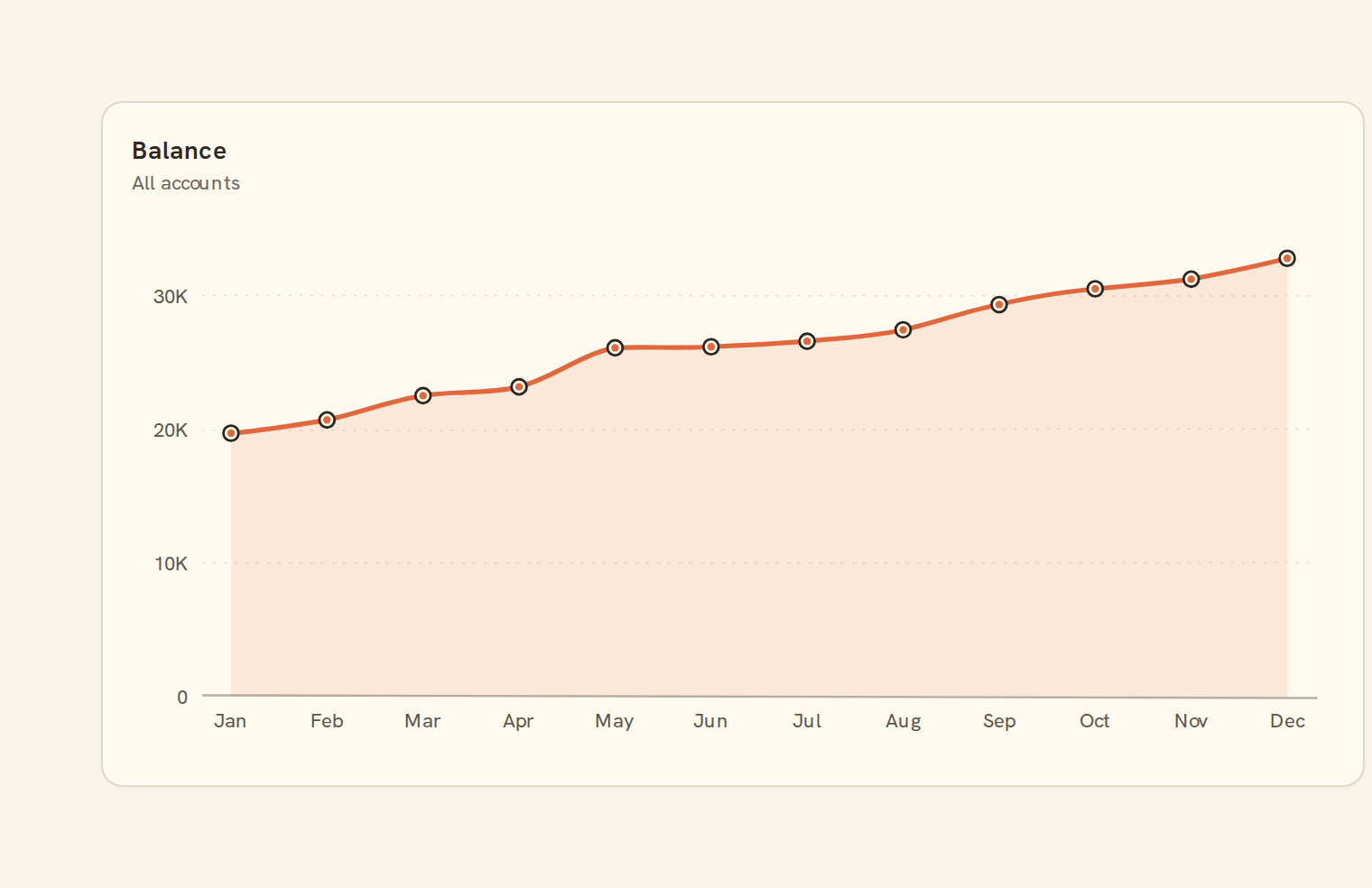
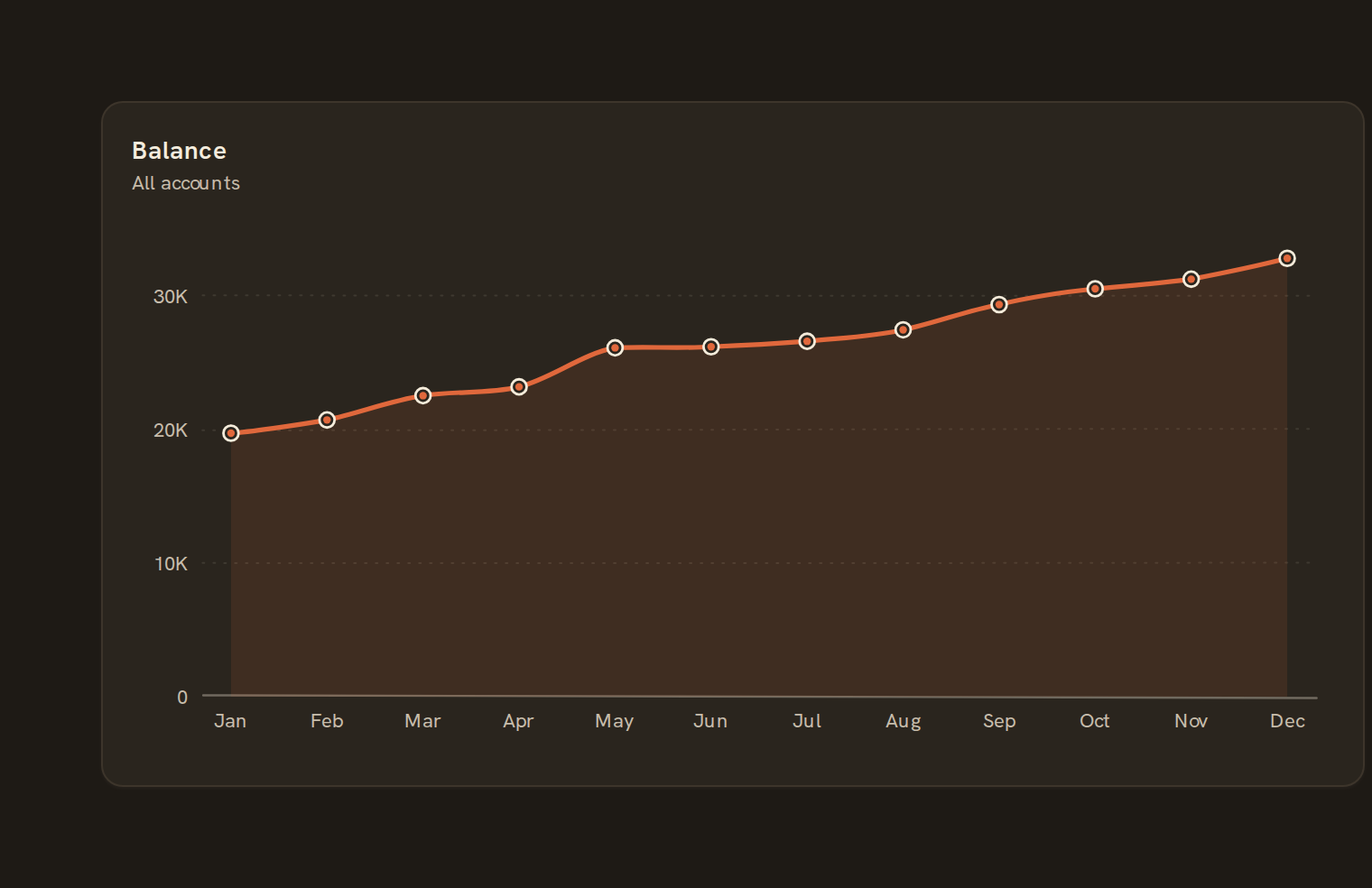
When to use it#
Use an area chart to show a quantity over time where the volume matters: cash on hand across the year, monthly income, or total portfolio value.
When to pick something else#
- Comparing several trends that cross each other? Use a Line chart; overlapping fills hide each other.
- Showing how accounts or categories add up to a total? Use a Stacked area.
- Comparing the share of each part over time? Use a 100% stacked bar.
The data it needs#
Pick these in the Data tab of the inspector. BankSync suggests a column for each when your source has an obvious match.
| Field | Needed | Pick | Notes |
|---|---|---|---|
| X axis | Yes | a date or a category or a number | |
| Y axis | Yes | a number | You can pick several. |
| Series | Optional | a category | |
| Color | Optional | a category |
Rows that share a category are combined before drawing: choose Sum, Average, Count, Min or Max on the value field. See Binding data.
Area chart options#
Set these on the Style tab of the inspector. "Automatic" means BankSync picks a value from the chart's size and data.
| Option | What it does | Values | New charts start with |
|---|---|---|---|
| Smooth lines | Draw the top edge as a gentle curve. On by default; turn off for straight segments. | On or off | Automatic |
| Stacking | None overlaps the areas, Zero stacks them, Normalize stacks them to 100%, Stream centres the stack into a flowing shape. | None, Zero, Normalize, Stream | None |
| Fill opacity | How solid the area fill is, from 0 (clear) to 1 (solid). | Number, 0 to 1 | Automatic |
| Show points | Draw a dot at every point on the top edge. Leave unset to show dots only when they have room. | On or off | Automatic |
Needs history#
Show a note instead of the chart until the rows cover enough periods, so a first week never reads as a trend.
| Option | What it does | Values | New charts start with |
|---|---|---|---|
| Date field | The date column whose distinct periods are counted. | Text | Automatic |
| Period | What counts as one period: a day, week, month, quarter or year. | Day, Week, Month, Quarter, Year | Automatic |
| Periods needed | How many distinct periods the rows must cover before the chart draws (2 to 60). | Whole number, 2 to 60 | Automatic |
| Waiting message | Shown until there is enough history. Leave empty for a message naming the periods. | Text, up to 120 characters | Automatic |
Shared chart styling#
Every chart also has the shared styling options. These apply to this one:
- Legend: position, layout and which series show.
- Axes: titles, tick labels and number format.
- Grid, title, padding and background.
- Value labels on the marks.
- Categories and labels: top N with "Other", sort order, readable labels, the handwritten callout.
- Style: corner radius, line width, opacity and animation.
- Tooltip on hover.
- Click to filter: clicking a mark can filter the rest of the dashboard. See Filters and cross-filtering.
- Colours: follow the dashboard palette or pick one for this chart.
Examples#
Open the live chart above to switch between these examples:
- Balance: All accounts
- Spending mix
Messy data#
- More than two series are stacked automatically, because overlapping fills from one baseline become unreadable. Two or fewer overlap.
- The value axis always includes zero, so the area has a true baseline.
- A missing value leaves a hole in the fill instead of a wedge down to zero.
- Negative values fill below zero; for net cash flow a Column chart is usually clearer.
- Values on the same date are summed by default. For balances, set the value's aggregate to Last.
- Dates are evenly spaced in order; a period with no rows is skipped.
On a phone#
A single-series area reads well at full phone width. With several series, the legend moves below the chart on narrow widths and eats into the height, so keep phone versions to one or two series.
Related charts#
- Line chart: Time series over any field
- Sparkline: Tiny inline trend
- Stacked area: Series stacked over time
- Stream graph: Centered stacked area
- Step line: Discrete jumps over time
Use this page with your AI assistant
Every BankSync doc is available as plain Markdown for agents and LLMs.