Volume profile
Volume traded per price. What the volume profile is for, the data it needs and every option it has.
3 min read
On this page
Volume traded per price. It sits in the Financial group of the widget library.
When to use it#
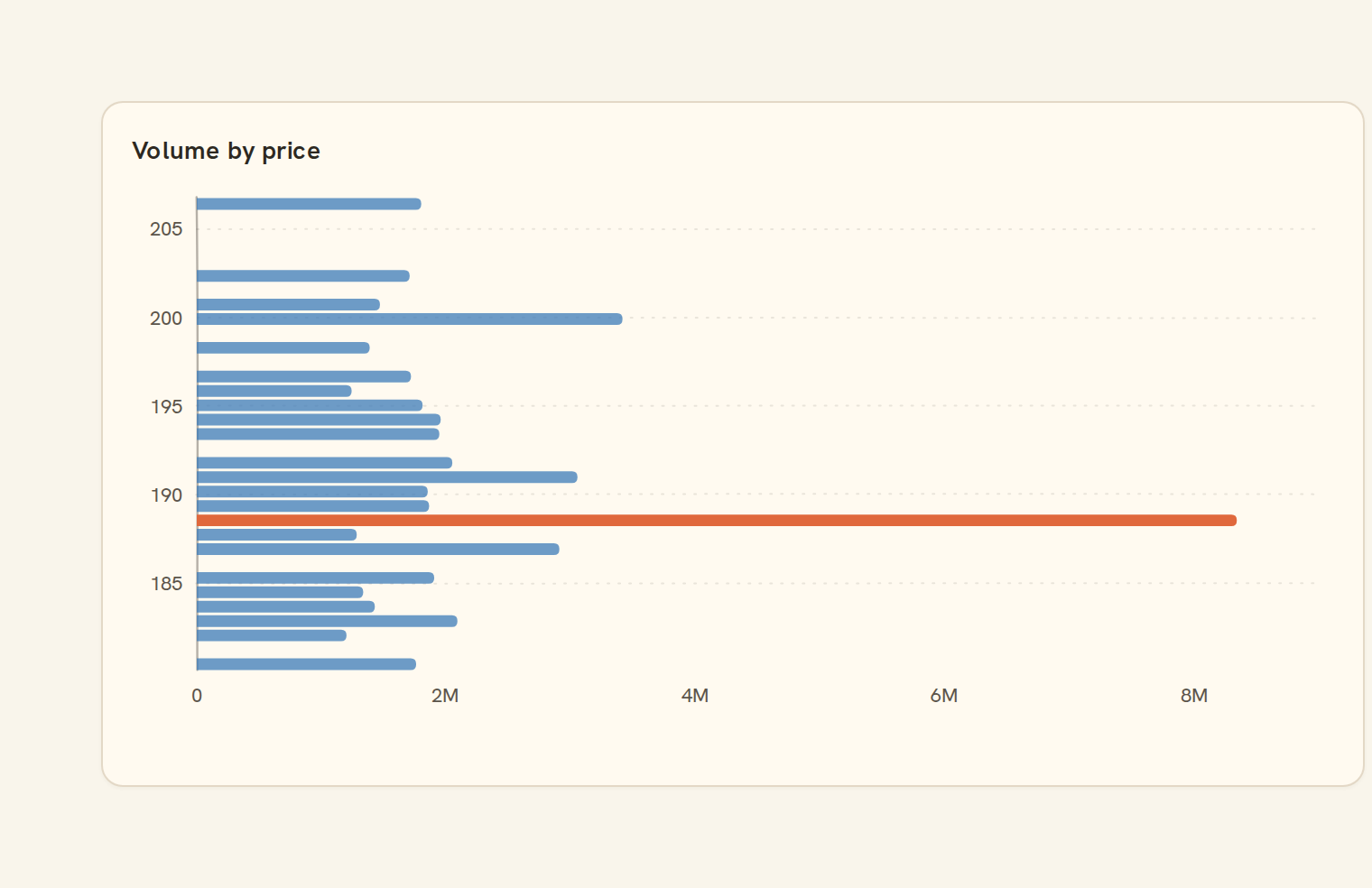
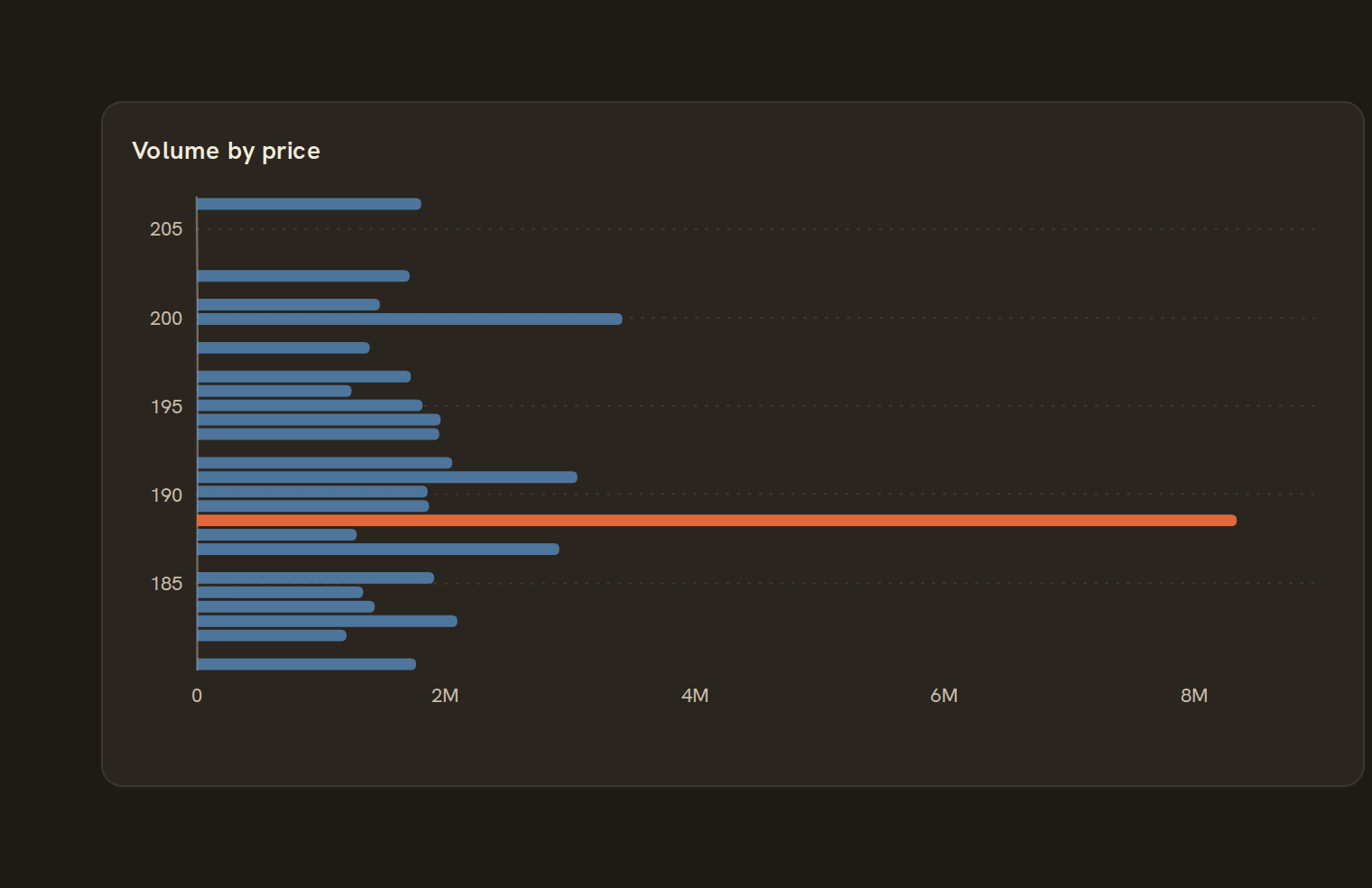
A Volume profile shows which price levels saw the most trading. Horizontal bars show the volume in each price band, and the busiest band is drawn strongest. It answers "where did most of the trading in this holding happen?". Each row needs a price and a volume, and the chart sorts them into bands.
When to pick something else#
- Want price movement over time? Use a Candlestick or OHLC.
- Want the spread of one number, like transaction amounts? Use a Histogram.
- Comparing totals across named groups? Use a Bar chart.
The data it needs#
Pick these in the Data tab of the inspector. BankSync suggests a column for each when your source has an obvious match.
| Field | Needed | Pick | Notes |
|---|---|---|---|
| Date | Yes | a date | Open/High/Low/Close are read from columns named o/h/l/c — shape them in the query. |
Each row is drawn as it is, so shape the rows first if you need totals. See Shaping data.
Volume profile options#
Set these on the Style tab of the inspector. "Automatic" means BankSync picks a value from the chart's size and data.
| Option | What it does | Values | New charts start with |
|---|---|---|---|
| Price bands | How many price ranges the volume is grouped into (2 to 100). Leave empty to fit the chart height. | Whole number, 0 to 9007199254740991 | Automatic |
| Show busiest price | Draw a line at the price band with the most volume, known as the point of control. | On or off | Automatic |
| Busiest price colour | Colour of the point-of-control line. | Colour | Automatic |
| Show value area | Shade the price bands around the busiest price that hold most of the volume. | On or off | Automatic |
| Value area share | Share of all volume the value area covers, from 0 to 1. 0.7 (70%) is the usual choice. | Number, 0 to 1 | Automatic |
Needs history#
Show a note instead of the chart until the rows cover enough periods, so a first week never reads as a trend.
| Option | What it does | Values | New charts start with |
|---|---|---|---|
| Date field | The date column whose distinct periods are counted. | Text | Automatic |
| Period | What counts as one period: a day, week, month, quarter or year. | Day, Week, Month, Quarter, Year | Automatic |
| Periods needed | How many distinct periods the rows must cover before the chart draws (2 to 60). | Whole number, 2 to 60 | Automatic |
| Waiting message | Shown until there is enough history. Leave empty for a message naming the periods. | Text, up to 120 characters | Automatic |
Shared chart styling#
Every chart also has the shared styling options. These apply to this one:
- Legend: position, layout and which series show.
- Axes: titles, tick labels and number format.
- Grid, title, padding and background.
- Value labels on the marks.
- Categories and labels: top N with "Other", sort order, readable labels, the handwritten callout.
- Style: corner radius, line width, opacity and animation.
- Tooltip on hover.
- Colours: follow the dashboard palette or pick one for this chart.
Messy data#
- Rows with a missing price, or a missing or negative volume, are skipped. With none left you see "No prices with volume to show".
- If every volume is zero you see "Everything is zero for this period".
- Unless you set a band count, the chart uses one price band per 8 pixels of height, from 8 to 40 bands. Empty bands are left blank.
- When every row has the same price, the range widens slightly so the single band still shows.
On a phone#
The band count follows the card's height, so a phone card shows fewer, wider bands than a tall desktop cell. Horizontal bars suit a narrow card, so this kind holds up well on phones.
Related charts#
- Candlestick: OHLC price candles
- OHLC: Open-High-Low-Close bars
- Waterfall: Walk from a start to an end amount, step by step (P&L, net-worth change)
Use this page with your AI assistant
Every BankSync doc is available as plain Markdown for agents and LLMs.