Bullet chart
Single value with target bands. What the bullet chart is for, the data it needs and every option it has.
2 min read
On this page
Single value with target bands. It sits in the Comparison group of the widget library.
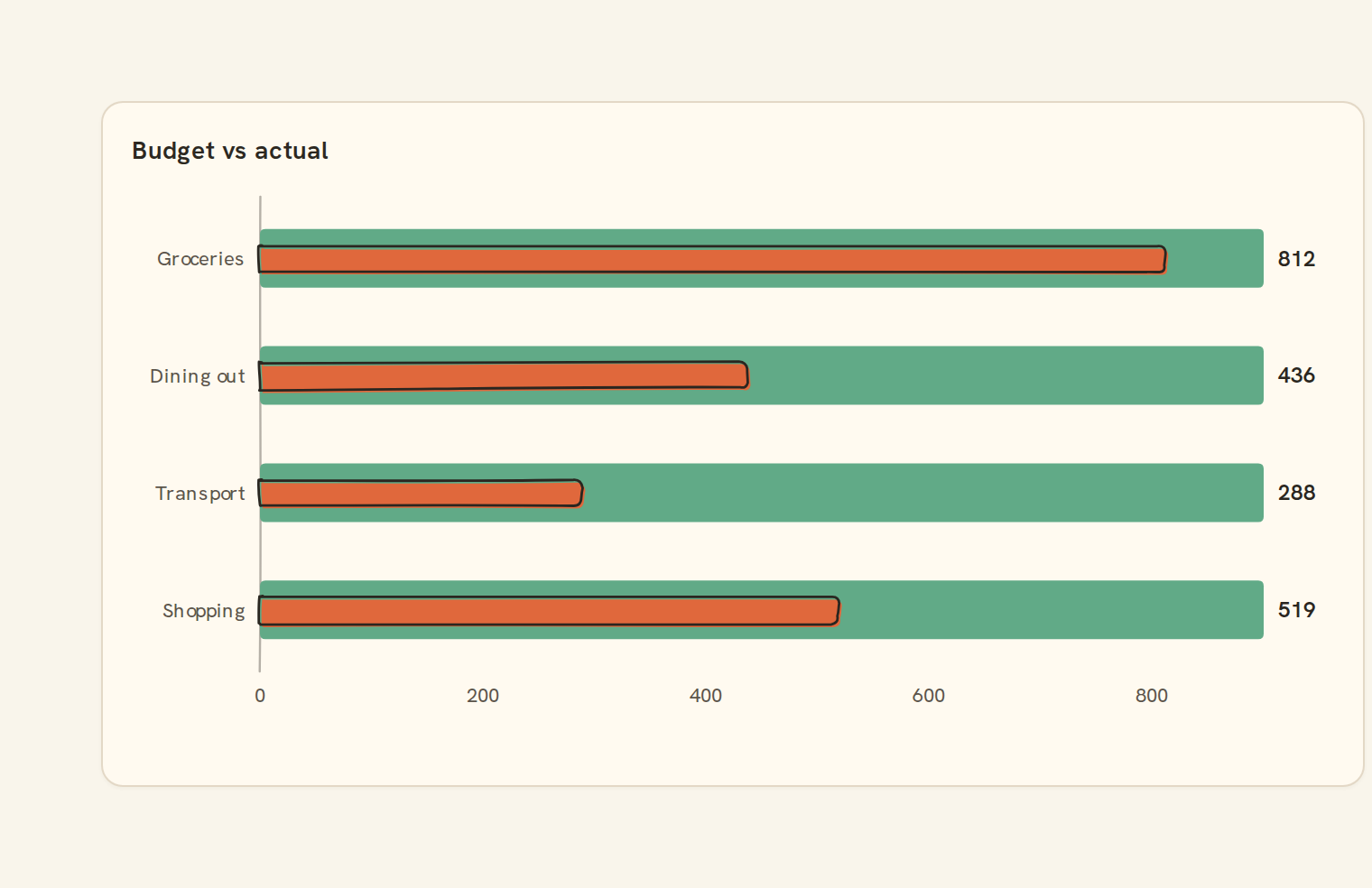
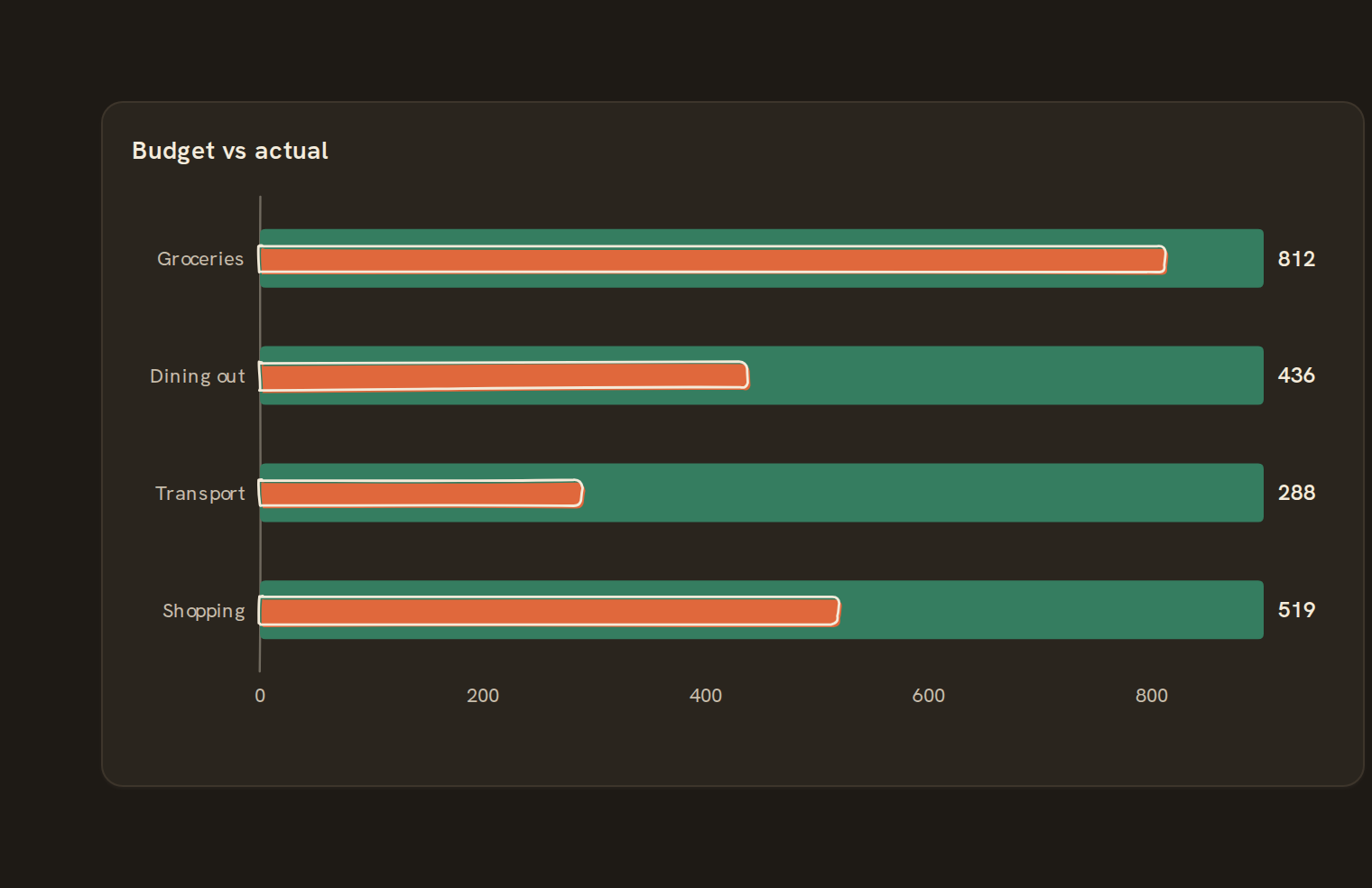
When to use it#
Use a bullet chart to show how far a figure has got against a goal, such as spending so far against this month's budget, or savings against a target. Each bullet is a thick bar over a shaded track, with the value printed on the right; a target, when your rows carry one, is a tick.
When to pick something else#
- One number against a goal? Use a Progress bar or Gauge.
- Comparing totals with no target? Use a Bar chart or Lollipop.
- Showing budget against actual over several months? Use a Layered chart with bars and a line.
The data it needs#
Pick these in the Data tab of the inspector. BankSync suggests a column for each when your source has an obvious match.
| Field | Needed | Pick | Notes |
|---|---|---|---|
| X axis | Yes | a category or a date | |
| Y axis | Yes | a number | |
| Series | Optional | a category | |
| Color | Optional | a category |
Rows that share a category are combined before drawing: choose Sum, Average, Count, Min or Max on the value field. See Binding data.
Bullet chart options#
This chart has no options of its own; everything on its Style tab is the shared chart styling below.
Shared chart styling#
Every chart also has the shared styling options. These apply to this one:
- Legend: position, layout and which series show.
- Axes: titles, tick labels and number format.
- Grid, title, padding and background.
- Value labels on the marks.
- Categories and labels: top N with "Other", sort order, readable labels, the handwritten callout.
- Style: corner radius, line width, opacity and animation.
- Tooltip on hover.
- Click to filter: clicking a mark can filter the rest of the dashboard. See Filters and cross-filtering.
- Colours: follow the dashboard palette or pick one for this chart.
Messy data#
- Each category becomes one bullet, with its rows added together. With no category chosen, every row becomes its own bullet.
- Rows without a number are skipped. If none remain you see "No numbers to show".
- Rows that don't fit the card height are cut off rather than folded into "Other".
- When rows are on very different scales (more than ten times apart), each row gets its own scale and the shared axis is hidden. Compare the printed values instead.
On a phone#
Bullets suit a narrow card: each row reads left to right with its label on the left and value on the right. Long labels get shortened to leave room for the values.
Related charts#
- Bar chart: Horizontal categorical bars
- Column chart: Vertical categorical bars
- Grouped bar: Side-by-side bars per series
- Stacked bar: Composition per category
- 100% stacked bar: Composition as percentage
- Lollipop: Bars with circle endpoints
- Dot plot: Discrete category dots
Use this page with your AI assistant
Every BankSync doc is available as plain Markdown for agents and LLMs.