Punchcard
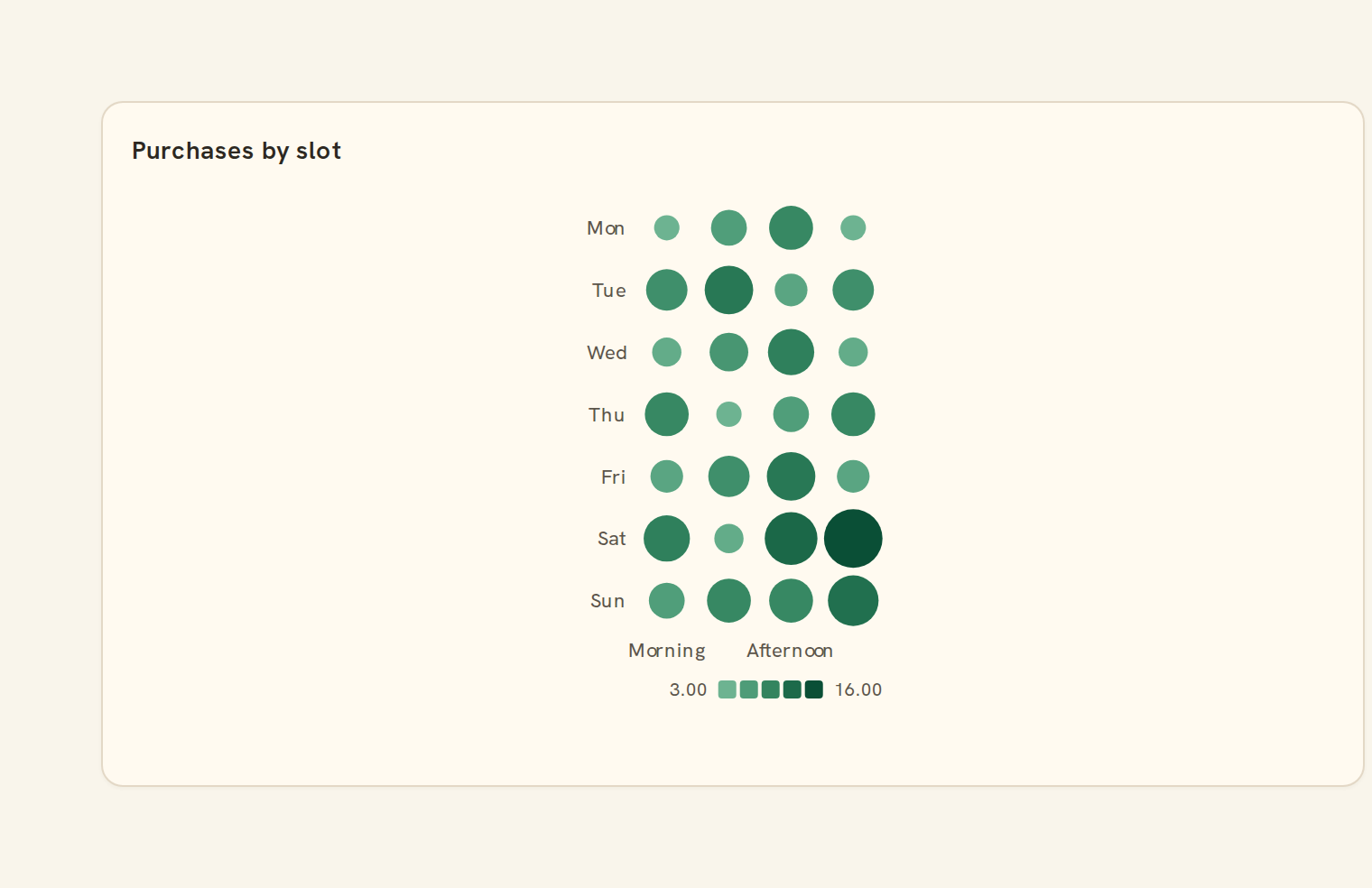
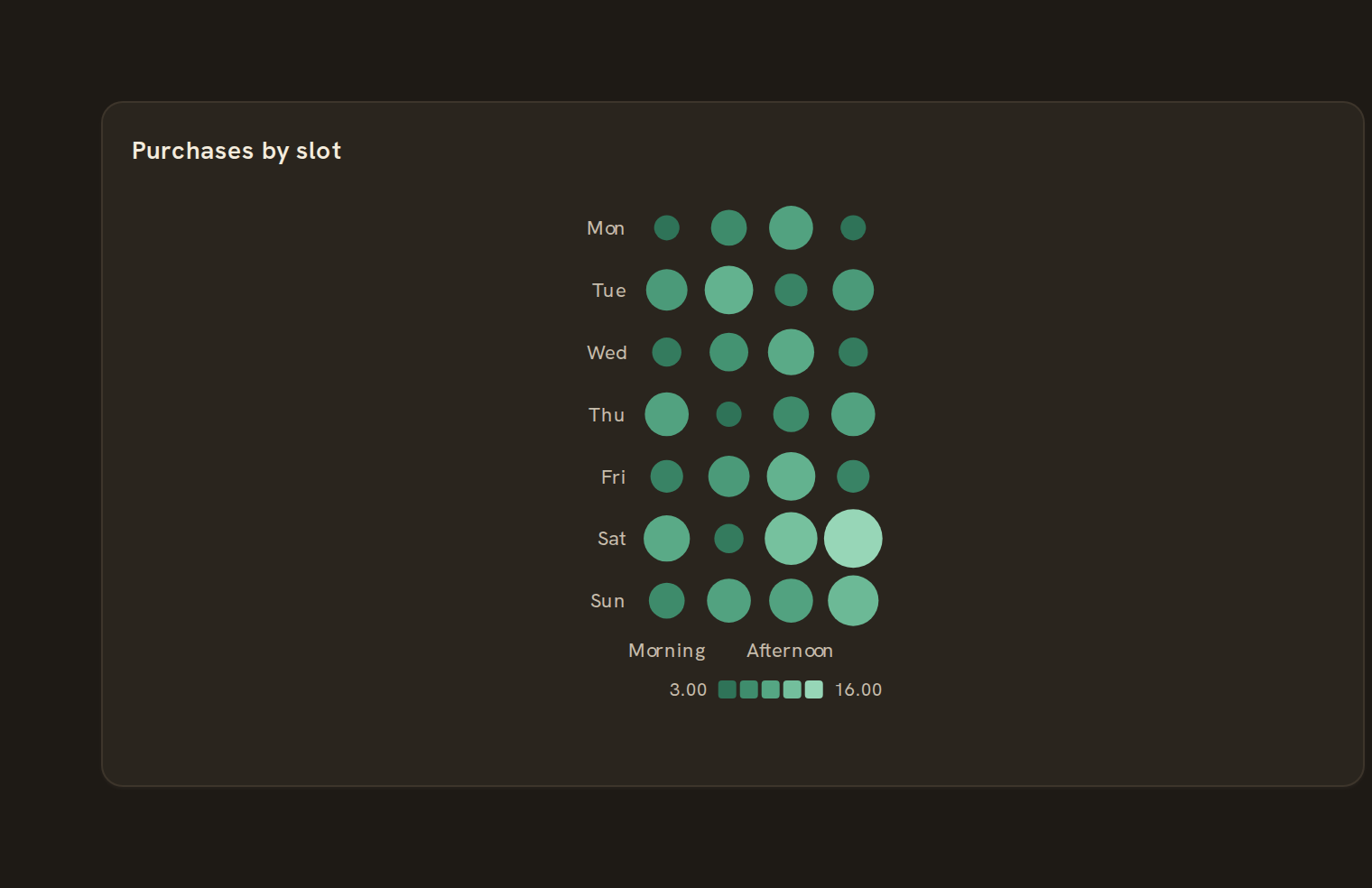
Dot intensity grid. What the punchcard is for, the data it needs and every option it has.
3 min read
On this page
Dot intensity grid. It sits in the Matrix group of the widget library.
When to use it#
Use a punchcard to show a value across two categories as dots, where a bigger dot means a bigger value. The classic example is activity by weekday and hour, such as when card transactions happen, but it works for any two short lists like category by month.
When to pick something else#
- Want smooth colour rather than dot size? Use a Heatmap.
- The value is tied to calendar days? Use a Calendar heatmap.
- Need exact figures? Use a Table.
- Only one category list? Use a Column chart.
The data it needs#
Pick these in the Data tab of the inspector. BankSync suggests a column for each when your source has an obvious match.
| Field | Needed | Pick | Notes |
|---|---|---|---|
| X axis | Yes | a category or a date | |
| Y axis | Yes | a category | |
| Value | Yes | a number |
Rows that share a category are combined before drawing: choose Sum, Average, Count, Min or Max on the value field. See Binding data.
Punchcard options#
Set these on the Style tab of the inspector. "Automatic" means BankSync picks a value from the chart's size and data.
| Option | What it does | Values | New charts start with |
|---|---|---|---|
| Largest marker size | Radius of the marker for the biggest value, in pixels. Markers never outgrow their cell. | Number, 0 or more | Automatic |
| Marker shape | Draw each value as a circle, square or diamond. | Circle, Square, Diamond | Automatic |
| Show values | Write each value inside its marker when there is room. | On or off | Automatic |
Needs history#
Show a note instead of the chart until the rows cover enough periods, so a first week never reads as a trend.
| Option | What it does | Values | New charts start with |
|---|---|---|---|
| Date field | The date column whose distinct periods are counted. | Text | Automatic |
| Period | What counts as one period: a day, week, month, quarter or year. | Day, Week, Month, Quarter, Year | Automatic |
| Periods needed | How many distinct periods the rows must cover before the chart draws (2 to 60). | Whole number, 2 to 60 | Automatic |
| Waiting message | Shown until there is enough history. Leave empty for a message naming the periods. | Text, up to 120 characters | Automatic |
Shared chart styling#
Every chart also has the shared styling options. These apply to this one:
- Legend: position, layout and which series show.
- Axes: titles, tick labels and number format.
- Grid, title, padding and background.
- Value labels on the marks.
- Categories and labels: top N with "Other", sort order, readable labels, the handwritten callout.
- Style: corner radius, line width, opacity and animation.
- Tooltip on hover.
- Click to filter: clicking a mark can filter the rest of the dashboard. See Filters and cross-filtering.
- Colours: follow the dashboard palette or pick one for this chart.
Messy data#
- Rows with a blank or non-numeric value are left out; with none left you see "No numbers to show".
- Duplicate cells are added together. Empty combinations and zero values show as tiny grey dots.
- Dot size follows the size of the value, so a negative value draws as large as the same positive one; the colour tells them apart.
- When columns would be narrower than about 6 pixels, neighbouring columns are merged and summed, and their labels become a range such as "Mon–Wed".
On a phone#
On a narrow phone card many columns get merged, so 24 hours may show as a few blocks of hours. Put the longer list on the rows, or use a Heatmap on phones.
Related charts#
- Heatmap matrix: X/Y categorical heat
- Calendar heatmap: GitHub-style year grid
- Heatmap: Color-coded grid
- Correlation: Field-by-field correlation
Use this page with your AI assistant
Every BankSync doc is available as plain Markdown for agents and LLMs.