Calendar heatmap
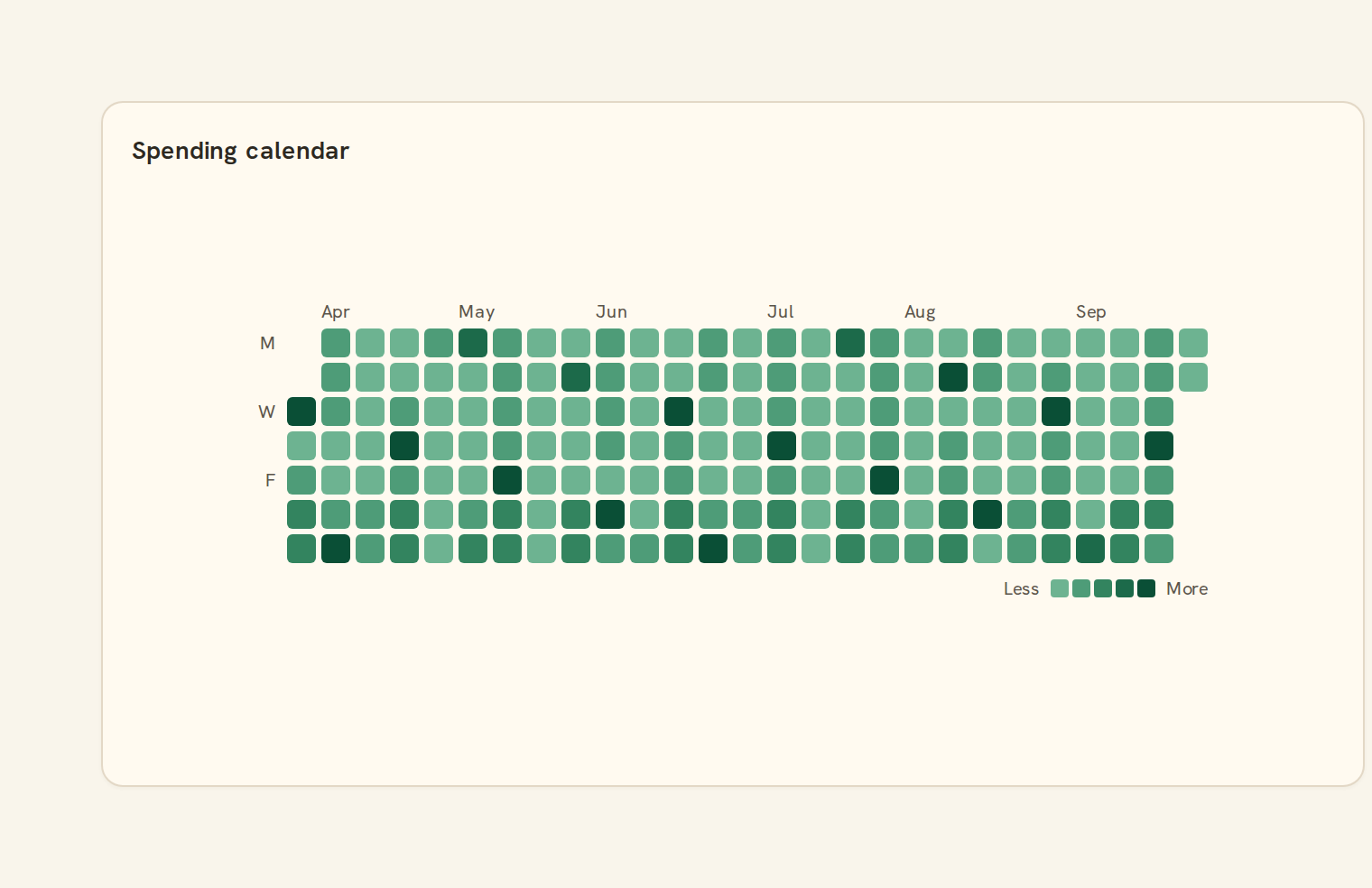
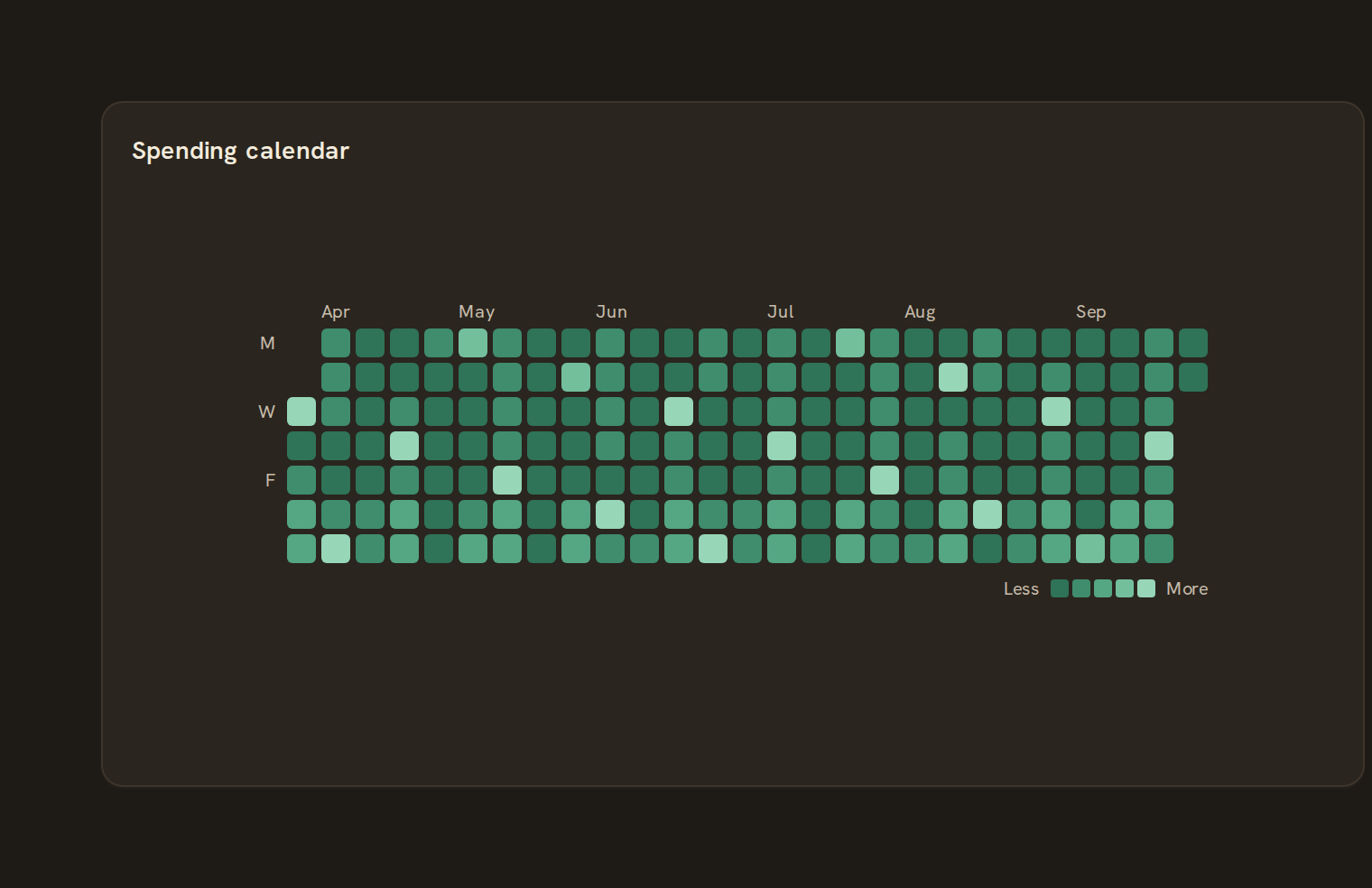
GitHub-style year grid. What the calendar heatmap is for, the data it needs and every option it has.
4 min read
On this page
GitHub-style year grid. It sits in the Matrix group of the widget library.
When to use it#
Use a calendar heatmap to show a daily value laid out like a calendar, one column per week and one row per weekday. It makes habits and gaps obvious: which days you spend the most, when payday lands, or which days a feed brought in no transactions.
When to pick something else#
- Want the trend over time, not day-by-day texture? Use a Line chart or Column chart.
- Care about weekday or hour patterns across many weeks? Use a Punchcard or Heatmap.
The data it needs#
Pick these in the Data tab of the inspector. BankSync suggests a column for each when your source has an obvious match.
| Field | Needed | Pick | Notes |
|---|---|---|---|
| Date | Yes | a date | |
| Value | Yes | a number |
Rows that share a category are combined before drawing: choose Sum, Average, Count, Min or Max on the value field. See Binding data.
Calendar heatmap options#
Set these on the Style tab of the inspector. "Automatic" means BankSync picks a value from the chart's size and data.
| Option | What it does | Values | New charts start with |
|---|---|---|---|
| Cell corner radius | Rounds the corners of each cell, in pixels. | Number, 0 or more | Automatic |
| Cell gap | Space between cells, in pixels. | Number, 0 or more | Automatic |
| Week starts on | The weekday shown in the first row. Monday by default. | Monday, Sunday | Automatic |
| Show month labels | Write the month names above the weeks. | On or off | Automatic |
| Show weekday labels | Write the weekday names down the side. | On or off | Automatic |
Needs history#
Show a note instead of the chart until the rows cover enough periods, so a first week never reads as a trend.
| Option | What it does | Values | New charts start with |
|---|---|---|---|
| Date field | The date column whose distinct periods are counted. | Text | Automatic |
| Period | What counts as one period: a day, week, month, quarter or year. | Day, Week, Month, Quarter, Year | Automatic |
| Periods needed | How many distinct periods the rows must cover before the chart draws (2 to 60). | Whole number, 2 to 60 | Automatic |
| Waiting message | Shown until there is enough history. Leave empty for a message naming the periods. | Text, up to 120 characters | Automatic |
Colour settings#
Fine-tune the colours used for cell values and their legend.
| Option | What it does | Values | New charts start with |
|---|---|---|---|
| Colour scheme | A palette name, or your own colours separated by commas, running from low to high. | Text | Automatic |
| Reverse colours | Flip the colour scale so the low end uses the high colour. | On or off | Automatic |
| Show colour legend | Show the bar that explains which colour means which value. | On or off | Automatic |
Shared chart styling#
Every chart also has the shared styling options. These apply to this one:
- Legend: position, layout and which series show.
- Axes: titles, tick labels and number format.
- Grid, title, padding and background.
- Value labels on the marks.
- Categories and labels: top N with "Other", sort order, readable labels, the handwritten callout.
- Style: corner radius, line width, opacity and animation.
- Tooltip on hover.
- Click to filter: clicking a mark can filter the rest of the dashboard. See Filters and cross-filtering.
- Colours: follow the dashboard palette or pick one for this chart.
Messy data#
- Rows without a readable date or number are skipped; with none left you see "No dated numbers to show".
- Several rows on the same day are added together. Days are grouped in UTC so everyone sees the same day.
- A day with no data, a day that totals zero and a negative day each look different, and the key gains a negative swatch when needed.
- Colour steps are relative to your biggest day, so one large payment like rent can make every other day look pale.
- When the range is too long for the width, only the most recent weeks that fit are shown.
On a phone#
At full phone width about a year of weeks fits with small cells; longer ranges show only the latest weeks. The colour key hides when the card is short.
Related charts#
- Heatmap matrix: X/Y categorical heat
- Punchcard: Dot intensity grid
- Heatmap: Color-coded grid
- Correlation: Field-by-field correlation
Use this page with your AI assistant
Every BankSync doc is available as plain Markdown for agents and LLMs.