
Enrichments overview
What enrichments are, the sixteen types grouped by Transform, Guard, Watch and AI, the order they run in during a sync, and which plan each type needs.
7 min read
On this page
Enrichments are the processing steps BankSync runs on your data while a feed syncs, before anything is written to your sheet, database, or table. They fill in fields, keep junk rows out, split or pair records, and notify you when something matters — so the data that lands is already the data you wanted.
There are sixteen enrichment types. This page is the map: what each one does, the order they run in, and which plan carries them. Each type then has its own guide.
Where enrichments live
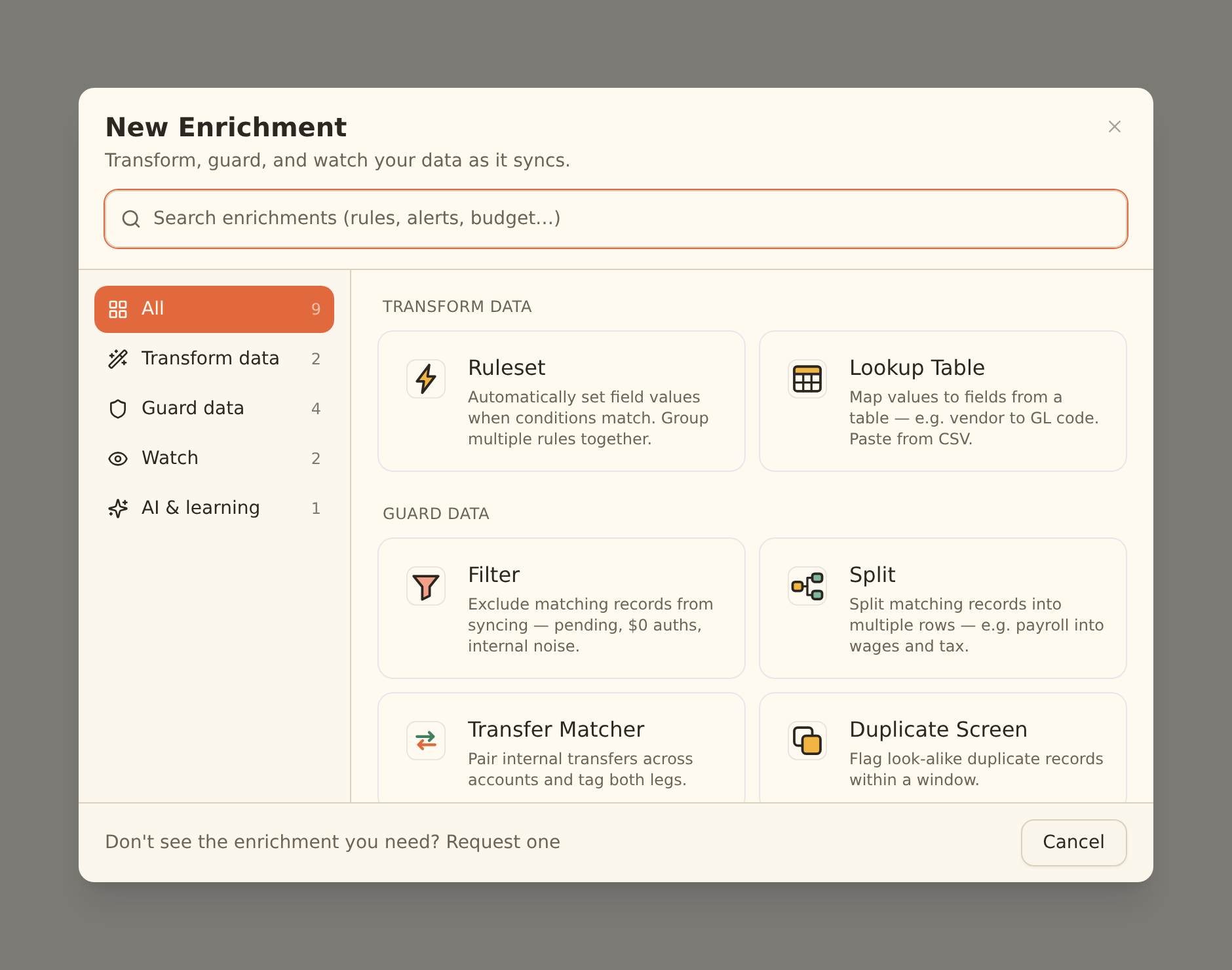

The four categories#
Transform data
Fill field values as records sync. Ruleset applies your When/Then rules; Lookup Table applies a big key-value mapping like vendor to GL code.
Guard data
Change which rows reach your destination. Filter excludes matching records, Split replaces one record with several, Transfer Matcher pairs internal transfers, Duplicate Screen flags look-alikes.
Watch
Notify without touching data. Alert, Feed Monitor, Budget, Recurring Registry, Fee Ledger, Anomaly Detector and Digest watch records, feeds and totals.
AI & learning
Fill what nothing else could. Memory learns from your corrections; the AI Categorizer and Merchant Cleanup work on still-empty fields, with low-confidence results parked in the Review Queue.
Every type at a glance#
Transform data — set field values.
| Type | What it does | Runs on |
|---|---|---|
| Ruleset | When these conditions match, set this field to this value. Rules run in order. | Transactions, trades, loans, receipts |
| Lookup Table | Maps one field to another from a table you paste in (exact, normalized, or contains). | Transactions, trades, loans, receipts |
Guard data — change which rows land.
| Type | What it does | Runs on |
|---|---|---|
| Filter | Keeps matching records out of your destination entirely. | Every data type |
| Split | Replaces one record with several lines that add up to the original, to the cent. | Transactions, trades |
| Transfer Matcher | Detects money moving between your own accounts and tags (or suppresses) both legs. | Transactions |
| Duplicate Screen | Flags look-alike duplicates — same account, amount and description inside a window. | Transactions |
Watch — notify, never mutate.
| Type | What it does | Runs on |
|---|---|---|
| Alert | Emails, Slacks or webhooks you when a synced record matches your conditions. | Every data type |
| Feed Monitor | Tells you when a feed stops syncing, or keeps syncing but stops producing records. | Feeds (no data type) |
| Budget | Alerts when spend, income, count or a balance crosses a threshold for a period. | Workspace totals |
| Recurring Registry | Tracks subscriptions and bills; flags price increases, new ones, and missed charges. | Transactions |
| Fee Ledger | Classifies bank fees and interest, and alerts when a month's fees creep upward. | Workspace totals |
| Anomaly Detector | Flags big first-time merchants, amount spikes against history, and transaction bursts. | Transactions |
| Digest | Sends a scheduled daily, weekly or monthly summary of everything above. | Workspace totals |
AI & learning — fill what is still empty.
| Type | What it does | Runs on |
|---|---|---|
| Memory | Learns how you categorize records in your destination and reapplies it next sync. | Transactions, trades |
| AI Categorizer | Fills empty categories from your taxonomy, gated by a confidence threshold. | Transactions, trades |
| Merchant Cleanup | Turns raw bank descriptors into clean, canonical merchant names. | Transactions |
| Review Queue | Not a type — the inbox where below-threshold AI suggestions wait for your decision. | Transactions |
Some types have no data type
The order things run in#
Enrichments do not simply run top to bottom of the grid. Each type belongs to a stage, stages run in a fixed order, and your drag-and-drop order decides the sequence within a stage. That is what makes the results predictable no matter how the grid is arranged:
Guard
Filter, Duplicate Screen, Transfer Matcher and Split decide which records continue. A suppressed record never reaches a later stage, never teaches Memory, and never fires an alert.
Memory
Memory fills fields that are still empty, from what you have corrected before.
Lookup
Lookup Tables apply their mapping — early, so your rules can still override them.
Rules
Rulesets apply. Later rules win over earlier ones, so put the most specific rules first.
AI fill
The AI Categorizer and Merchant Cleanup fill only what is still empty, and only above your confidence threshold. Everything else goes to the Review Queue.
Observe
Alerts, budgets, recurring and fee tallies, and anomaly scoring read the final records. They notify and count; they never change a value.
Between the rules and the AI fill there is one more stage, transform, which rewrites derived values (templates, regex extraction, upper/lower/title case, absolute/negate/round). Rules evaluate before it, and everything in the observe stage sees the transformed result. The in-app rule editor writes plain set-a-value actions, so today these derived actions are authored over the REST API.
Watch types that look at feed health or a whole period (Feed Monitor, Budget, Fee Ledger, Digest, and the Recurring and Anomaly alerts) are also evaluated on a scheduled hourly pass, so they can fire between syncs.
Preview before you sync#
Every feed's Mapping tab has a Live Preview that runs your real records through the whole pipeline without writing anything:
- The Data tab shows the rows as your destination will receive them, with enrichment-changed cells highlighted.
- Rows a Guard enrichment would exclude are struck through and labelled with the enrichment that suppressed them, and Split children appear indented under their parent.
- Alerts show as "would fire (dry run)" instead of sending.
- The Enrichments tab shows each enrichment with the number of records it matched.
After a sync, the job's execution summary in job history records the same thing for what actually ran: which enrichments fired, how many records each touched, and whether alerts were delivered.
What each plan includes#
Enrichment types come in tiers. Every plan can create the basics; higher plans add the rest.
| Plan | Enrichment types |
|---|---|
| Free, Starter | Ruleset, Alert, Memory, Filter, Feed Monitor |
| Standard | The above, plus Lookup Table, Split, Transfer Matcher, Duplicate Screen, Budget, Recurring Registry, Fee Ledger, Anomaly Detector, Digest |
| Professional and above | Everything, including the AI Categorizer and Merchant Cleanup |
How the tier is enforced
AI types and credits
Next steps#
Build your first enrichment — a ruleset that categorizes transactions as they sync.
Create your first enrichment
Related guides#
- Creating enrichments: the create → configure → preview → enable walkthrough, using a Ruleset.
- Memory: let BankSync learn your categorizations instead of writing rules for them.
- Alerts: email, Slack and webhook notifications on matching records.
- Review Queue: accept, edit or reject the AI suggestions that fell below your threshold.
- Configuring field mappings: decide which columns enriched values land in.
- Changing your plan: what each tier includes, and how upgrades apply.
Use this page with your AI assistant
Every BankSync doc is available as plain Markdown for agents and LLMs.