Creating Enrichments
Build a rule that auto-fills fields like category on your synced bank data, preview it against real records, then apply it to a feed.
8 min read
On this page
Enrichments transform your bank data as it syncs, so the records that land in your connected sheet, database, or table are already cleaned up and categorized. A Rule enrichment (a ruleset) automatically sets a field value (like category) whenever a record matches the conditions you define. For example: when the description contains "UBER", set Category to "Transport".

This guide walks through creating a Ruleset, previewing it against your real transactions, and applying it to a feed.
Before you start
What an enrichment does#
The New Enrichment picker groups the enrichment types by what they do to your data. This guide focuses on Ruleset, the most common type; every other type has its own guide (linked below and at the end), and the enrichments overview lists all sixteen with the order they run in and the plan each one needs.
Transform data
Fill in field values as records sync. Ruleset (this guide) applies your explicit When/Then rules; Lookup Table applies a big key-value mapping like vendor to GL code.
Guard data
Change which rows reach your destination. Filter excludes matching records; Split breaks one record into several; Transfer Matcher pairs internal transfers across accounts; Duplicate Screen flags look-alike duplicates.
Watch
Notify without touching data. Alert messages you when records match conditions; Feed Monitor tells you when a feed stops syncing; Budget watches totals against thresholds; Recurring Registry tracks subscriptions; Fee Ledger tracks bank fees; Anomaly Detector flags unusual activity; Digest sends a scheduled summary.
AI & learning
Fill what nothing else could. Memory learns from your corrections; AI Categorizer and Merchant Cleanup use AI on still-empty fields, gated by confidence.
A Ruleset is a list of rules. Each rule is read as "When these conditions match, Then set a field to a value." Rules run top to bottom, so order matters when more than one could apply.
Step 1: Create a Ruleset#
You can start from the Enrichments page or from inside a feed. Starting from the feed is convenient because the new enrichment is automatically attached to that feed.
Open a feed and go to Mapping
Open the feed you want to enrich and select the Mapping tab.
Open the Enrichments subtab
Inside Mapping, switch to the Enrichments subtab (next to Fields).
Create the enrichment
Click Create enrichment (or the + Create new link). In the New Enrichment dialog, choose Ruleset.
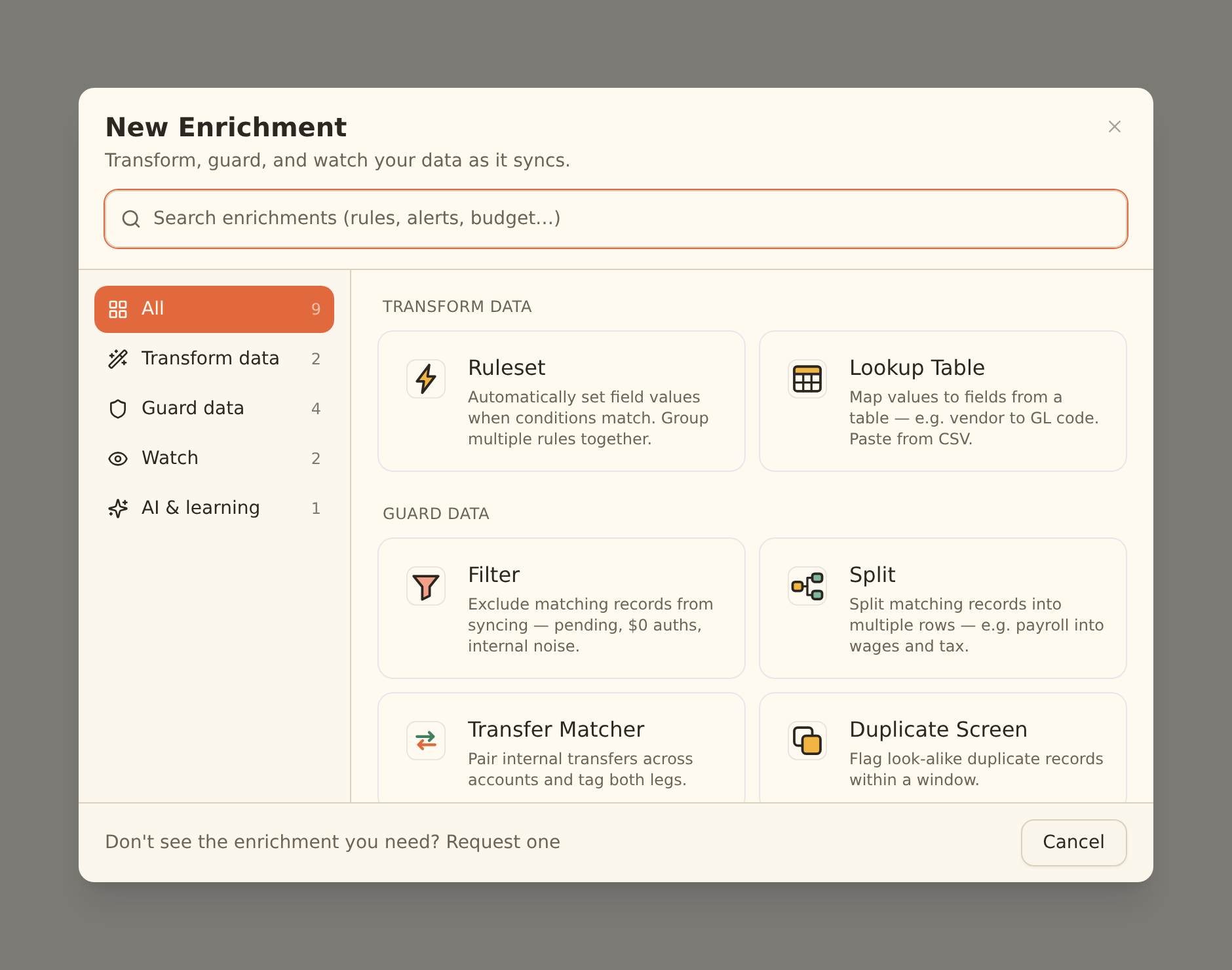
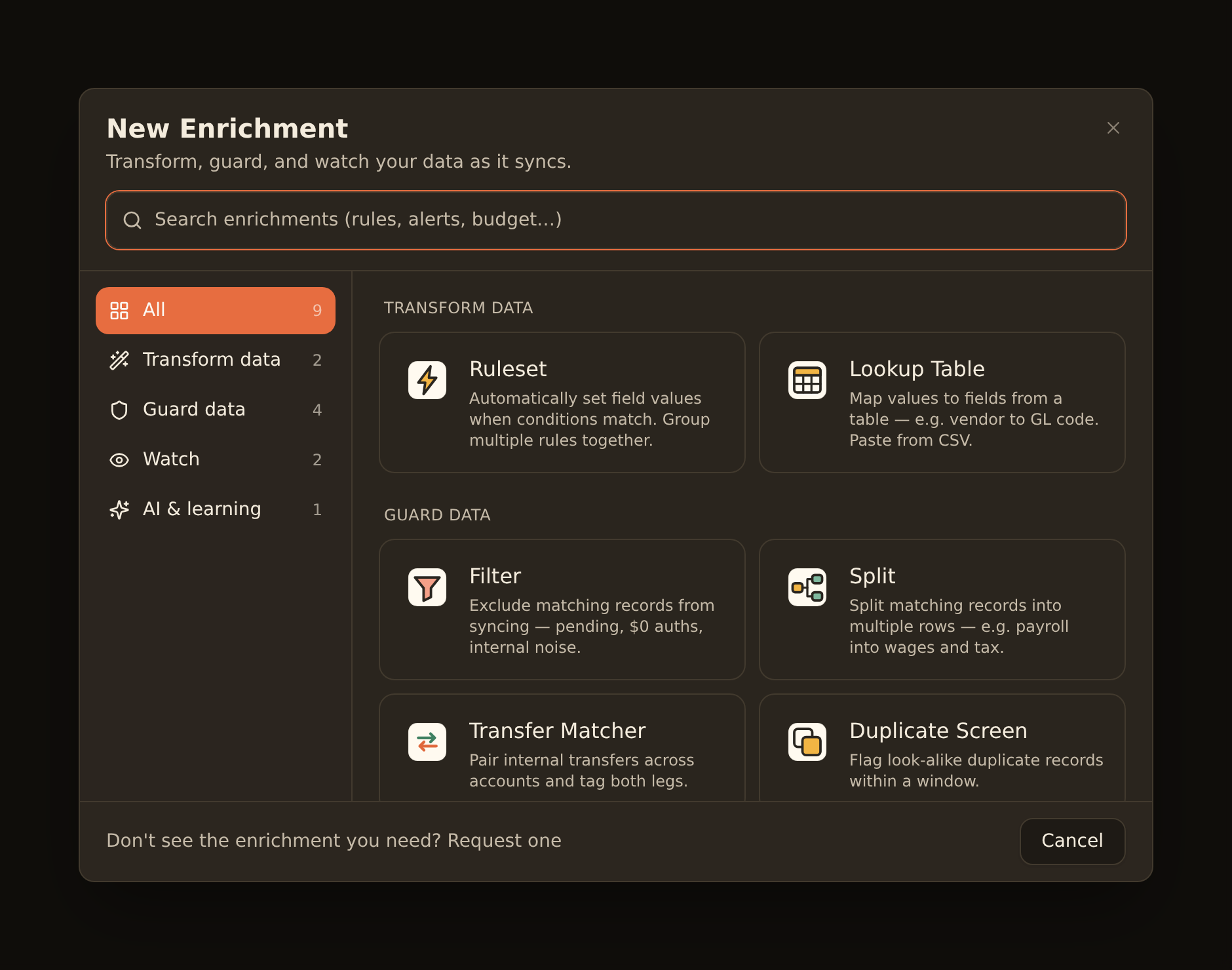
BankSync creates the Ruleset, attaches it to the current feed (left disabled until you finish configuring it), and opens its detail view.
Starting from the Enrichments page instead
Need something that is not in the list?
Each enrichment also has an icon. New ones start with their type's icon; click the icon next to the name on the card or the detail view to pick a different one — any icon or emoji, including the icons for the other enrichment types.
Step 2: Set the data type#
In the enrichment detail view, the Configuration tab shows a Data type selector at the top. Choose the data type the rule should apply to (for most categorization, this is Transactions). The data type determines which fields are available in your conditions and actions.
Data types an enrichment cannot work on are shown disabled with the reason — a Ruleset needs at least one auto-fill field, so Balances and Holdings are unavailable; a Duplicate Screen needs a description and a Duplicate Flag field, so it is Transactions-only. Watch enrichments that observe feeds or workspace totals (Feed Monitor, Budget, Fee Ledger, Digest) have no data type at all and show no selector.
Changing data type clears your rules
Step 3: Build the rule#
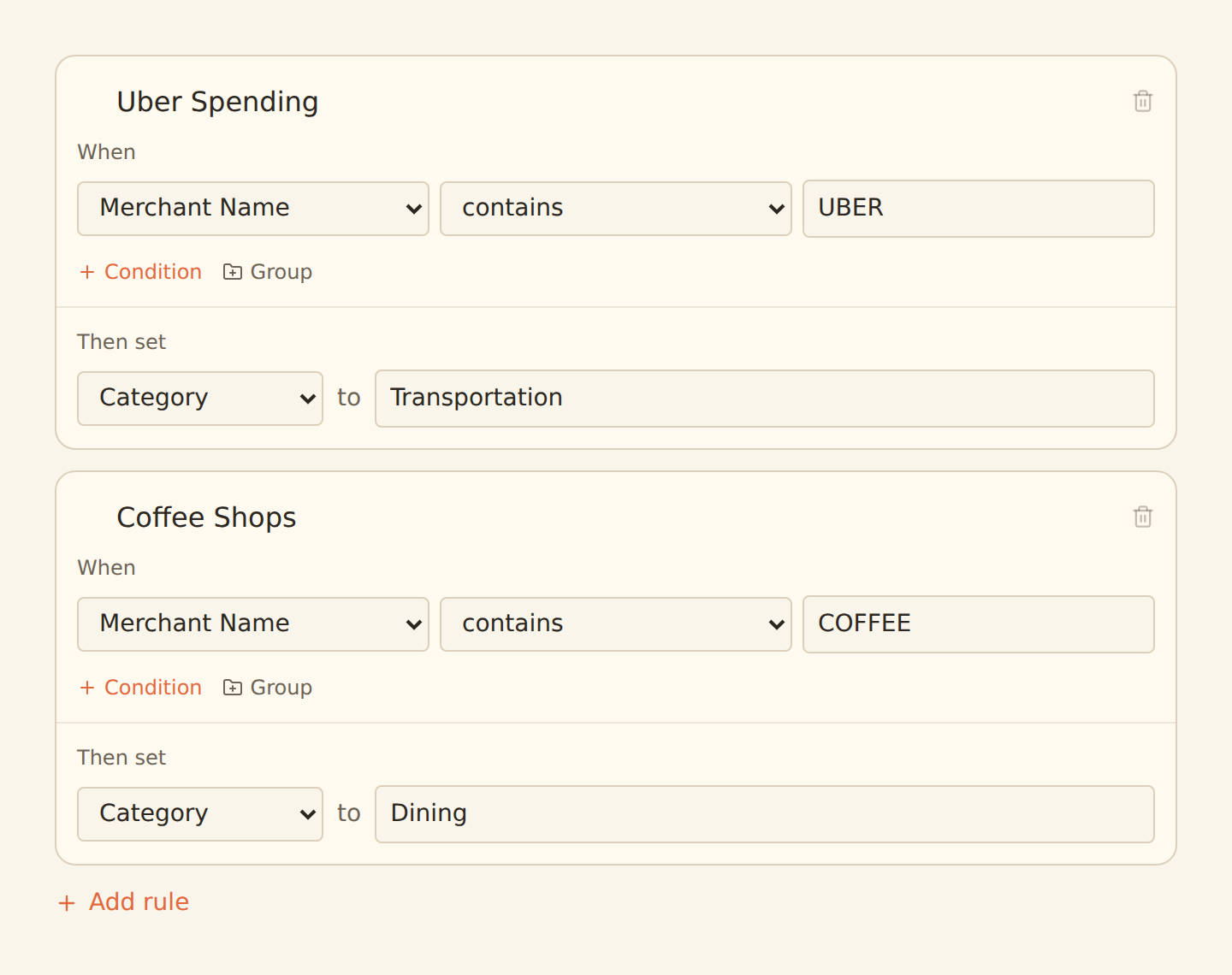
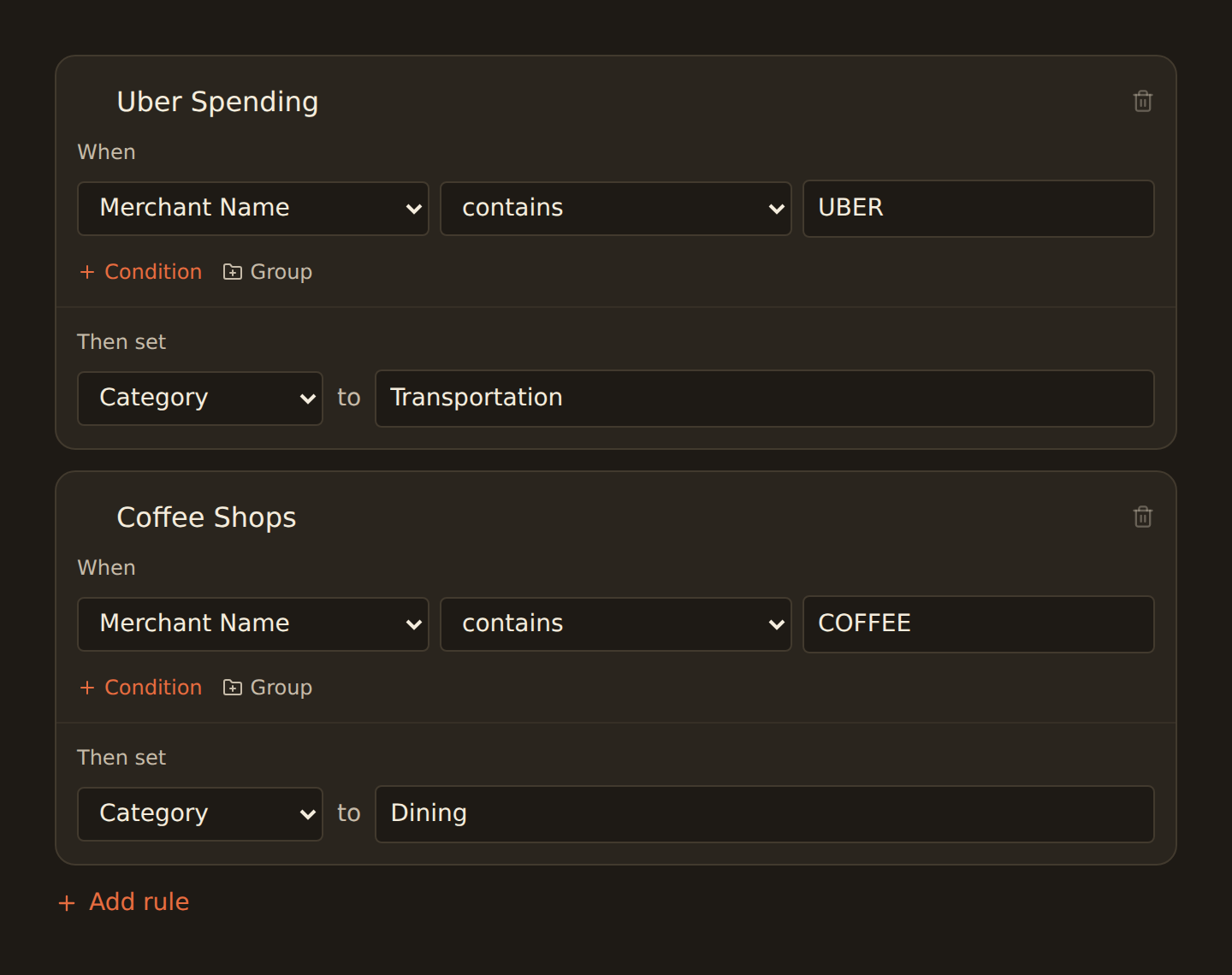
Each rule card has two parts: a When section (the conditions) and a Then set section (the action).
Set the condition (When)
In the When section, pick the field (for example Description), an operator (for example contains), and type the value to match (for example UBER).
Add more conditions (optional)
Click Condition to add another row. The AND / OR badge between rows controls whether all conditions must match or any of them. Use Group to nest a set of conditions.
Set the action (Then set)
In the Then set section, choose the field to fill (for example Category) and type the value to write into it (for example Transport).
Add more rules (optional)
Click Add rule to add another rule to the Ruleset. Drag rule cards by their handle to reorder them; rules run top to bottom, so put the most specific rules first.
Name the rule
Click the rule's title to rename it (for example "Rideshare") so the Ruleset is easy to scan later.
Changes save automatically; the badge at the top of the dialog shows the save status. There is no separate Save button.
Operators worth knowing#
Beyond the basics (equals, contains, greater than, is empty), text conditions also support does not start with, ends with, and matches regex, and both text and number fields support is any of / is none of, which take a comma-separated list of values — one condition instead of a chain of ORs.
Regex patterns are safety-checked at save
Step 4: Apply the Ruleset to a feed#
A Ruleset only runs on the feeds it is attached to, and only when it is enabled.
Attach to feeds
Open the Dependencies tab in the enrichment detail view. Check the feeds you want this Ruleset to run on. Only feeds whose data type matches the enrichment are selectable; others show as incompatible.
Enable it
At the bottom of the dialog, flip the switch from Disabled to Enabled.
Toggle from the feed instead
Step 5: Preview against real data#
The feed's Mapping tab has a Live Preview panel at the bottom that runs your current configuration (including enrichments) against your actual records, so you can check the result before syncing.
Open Live Preview
Go to the feed's Mapping tab and scroll to Live Preview. Pick a date range that contains transactions you expect to match.
Check the Data tab
The Data tab shows how rows will look in your connected sheet, database, or table. Cells changed by an enrichment are highlighted.
Check the Enrichments tab
Switch to the Enrichments tab to see each rule and how many records it matched. The count badge tells you at a glance whether your rule is firing.
Confirm it worked#
You have a working enrichment when:
- The Ruleset shows as Enabled and is attached to your feed (it appears under Active Enrichments in the feed's Enrichments subtab).
- In Live Preview, the Enrichments tab shows a non-zero match count for your rule.
- In the Data Live Preview tab, the target field (for example Category) shows your value on the matching rows, with the changed cells highlighted.
After the next sync, those enriched values appear in your connected sheet, database, or table.
Troubleshooting
Beyond Rulesets: the other enrichment types#
Rules edit your data with explicit logic. The other enrichment types use the same machinery — the same New Enrichment dialog, the same Dependencies tab, the same enable switch, and (where they take conditions) the same condition builder — for different jobs:
- Transform data: a Lookup Table applies a big key-value mapping (vendor → GL code) instead of hand-written rules, and runs just before rules so your rules can override it.
- Guard data: a Filter excludes matching records from syncing; a Split replaces one record with several that add up exactly; the Transfer Matcher pairs internal transfers across accounts; the Duplicate Screen flags look-alike duplicates.
- Watch: an Alert notifies you (email, Slack, or webhook) when a record matches during a sync, without changing it; a Budget alerts when spending, income, or a balance crosses a threshold over a period; the Recurring Registry tracks subscriptions and flags price hikes and missed charges; the Fee Ledger tracks bank fees and alerts when they creep upward; the Anomaly Detector flags unusual activity like big first-time merchants and transaction bursts; a Digest sends a scheduled summary of it all; and the Feed Monitor alerts when a feed stops syncing or silently stops producing records.
- AI & learning: Memory learns from how you correct records in your destination and reapplies those values; the AI Categorizer and Merchant Cleanup use AI to fill whatever Memory and your rules leave empty, with low-confidence suggestions parked in the Review Queue.
Next steps#
Refine where enriched values land by reviewing your field mappings.
Configure field mappings
Related guides#
- Enrichments overview: all sixteen types, the stage order they run in, and the plan tiers.
- Lookup Tables: map vendors to values at scale, with CSV paste.
- Alert enrichments: get notified when records matching your conditions sync.
- Budgets: threshold alerts on totals — spend, income, count, or balance over a period.
- Memory: auto-learn: let BankSync learn your categorizations and apply them automatically.
- AI Categorizer and Merchant Cleanup: AI fills for whatever your rules leave empty.
- Configuring field mappings: control which columns your enriched values land in.
- Creating your first feed: build a feed first so there is data to enrich and preview.
Use this page with your AI assistant
Every BankSync doc is available as plain Markdown for agents and LLMs.