Configuring Field Mappings
Learn how to map bank data fields to the columns in your sheet, table, or database for precise data synchronization.
3 min read
On this page
The Mapping tab is where you configure exactly what data gets synced and which columns it lands in. This guide walks through the interface and all available options.
Prerequisites

Step 1: Choose What to Sync#
At the top of the Mapping tab, you'll see visual cards for each feed type. Each feed carries one data type; select the one you want:
Transactions
Individual transaction records with dates, amounts, descriptions
Balances
Account balance snapshots, tracked over time or kept current
Trades
Investment transactions (buys, sells, dividends)
Holdings
Current investment positions in your portfolio
Loans
Mortgages, credit lines, and other liabilities
Orders
Open and pending brokerage orders
Account Compatibility
Step 2: Balance Sync Mode#
When syncing balances (or other point-in-time data like holdings and loans), choose how updates are written:
Append
Adds a new row each sync with a timestamp. Use this to track changes over time and build historical data.
Overwrite
Updates the same rows in place, keeping only the most recent value for each account. Best for dashboards showing current state.
Step 3: Map Your Fields#
The field mapping section shows two areas:
Mapped Fields (Top)#
Shows fields currently included in your feed. Each row displays:
Source Field
The bank data field (e.g., Date, Description, Amount)
Target Column
The column or property it maps to in your sheet, table, or database
Drag Handle
Reorder fields by dragging
Remove Button
Click X to remove a field from the mapping
Available Fields (Bottom)#
Shows fields not yet added to your mapping. Click the plus icon or drag a field card to add it.
Using Auto-Fill#
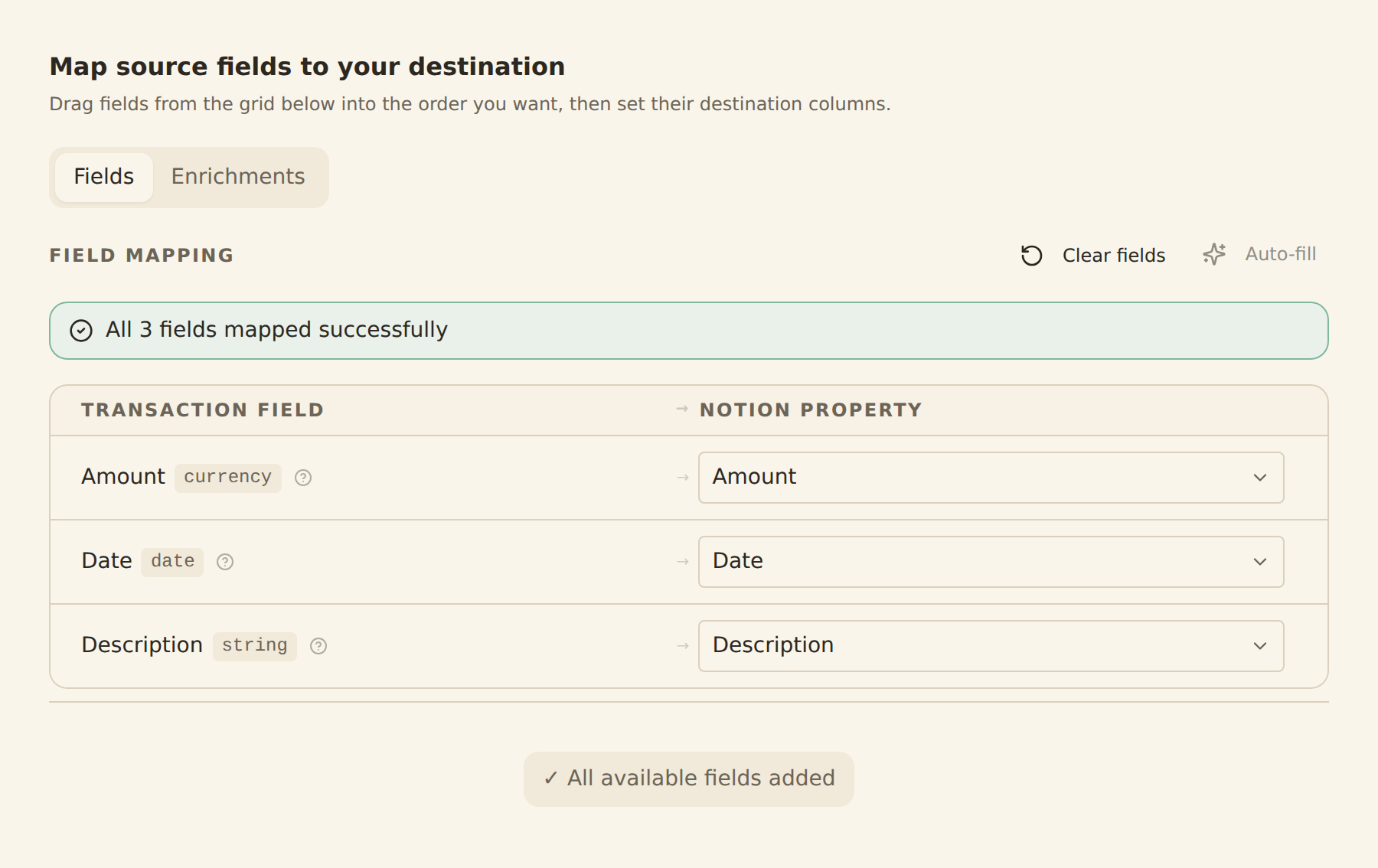
Click the Auto fill button (with sparkle icon) to automatically match source fields to the columns in your sheet or table:
- For Google Sheets: Auto-assigns sequential column letters (A, B, C...) to each field
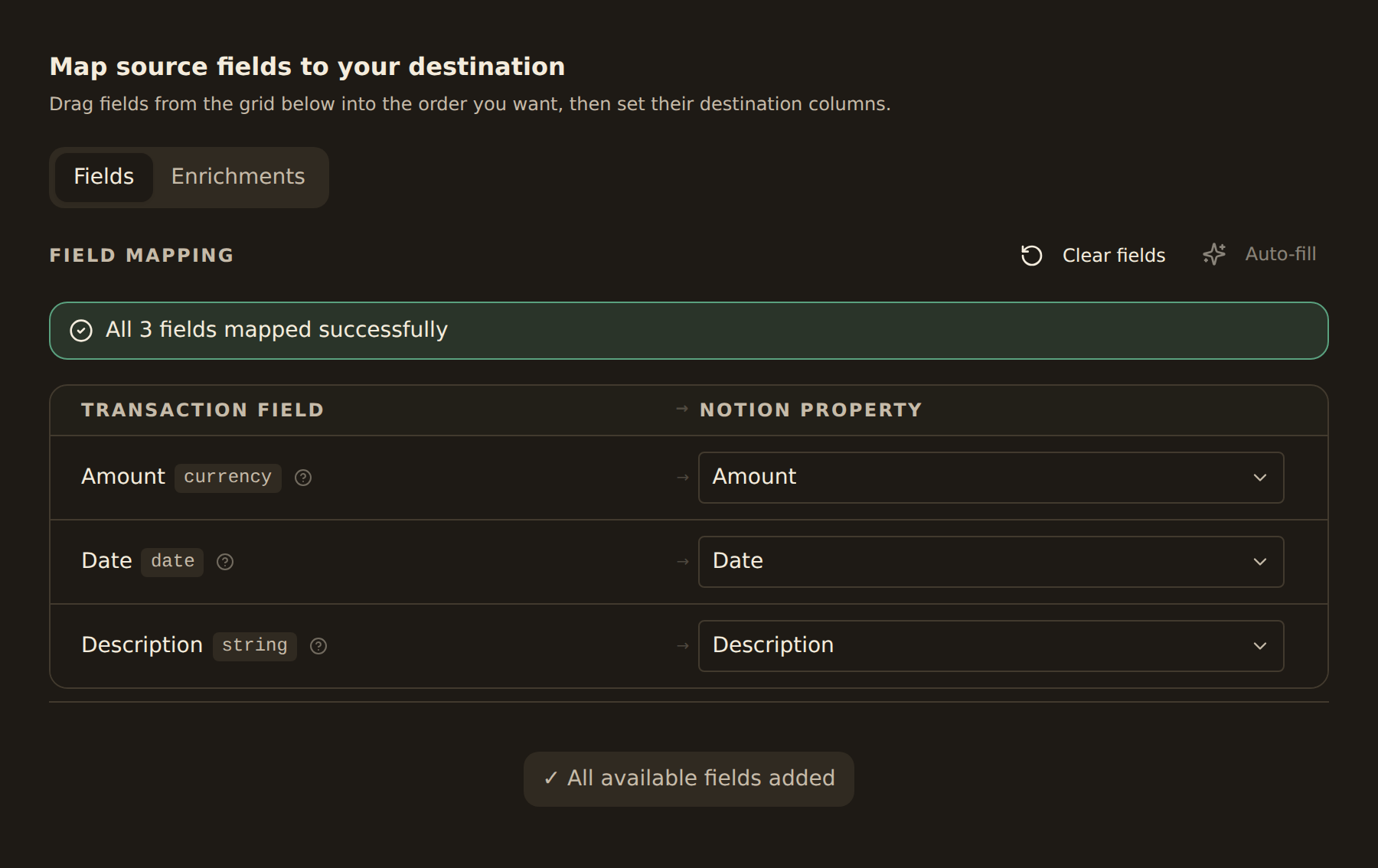
- For Notion/Airtable: Matches fields by name similarity (e.g., "Date" → "Date" column)
Auto-Fill Behavior
Mapping by Integration#
How you target columns depends on which integration the feed writes to.
Google Sheets#
You map each field to a column reference (A, B, C, etc.). The order of your field mappings determines which data goes in which column.
Date → A
Transaction date
Description → B
Merchant name
Debit → C
Money out
Credit → D
Money in
A nuance worth knowing: column references are positional. If you insert or delete columns in your sheet later, the mapped letters keep pointing at the same positions, so revisit the Mapping tab after restructuring a sheet.
Notion & Airtable#
You map to specific database properties. BankSync fetches your database schema and shows a dropdown of available properties:
- BankSync validates field type compatibility (date → date, number → number)
- Warnings appear if types don't match
- Used properties show as greyed out to prevent duplicate mappings
Because properties are referenced by name rather than position, renaming or deleting a property in Notion or Airtable breaks the mapping until you re-select it.
Transaction Fields Reference#
Date
Transaction date (Date type)
Description
Transaction description (Text)
Credit Amount
Amount credited (Number)
Debit Amount
Amount debited (Number)
Category
Transaction category (Text)
Type
Transaction type (Text)
Bank
Bank name (Text)
Account
Account name (Text)
ID
Unique identifier (Text)
Tips for Effective Field Mapping#
Start with essential fields
For transactions, Date, Description, and Amount fields are usually most important. Add more fields as needed.
Use Bank and Account for filtering
If syncing multiple accounts, include these fields to easily filter and analyze data by source.
Match field types when possible
Mapping number fields to number columns enables sorting and calculations in your sheet or database.
Save incomplete mappings
Not ready to finish? Your configuration auto-saves, and you can return to complete it later.
Next Steps
Related guides#
- Setting Up Scheduled Feeds: the next step after mapping
- Creating Your First Feed: the end-to-end setup walkthrough this tab belongs to
- Creating Enrichments: transform and categorize data before it reaches your columns
- Troubleshooting Guide: fixes for property mismatches and broken mappings
View Scheduling Guide
Use this page with your AI assistant
Every BankSync doc is available as plain Markdown for agents and LLMs.