How to Sync Loan Data
Learn how to set up loan feeds to track mortgage, auto loan, and other liability balances.
2 min read
On this page
Loan feeds track your liability balances including mortgages, auto loans, student loans, and credit lines. Monitor your debt paydown progress and include liabilities in your net worth calculations.
Mortgages
Home loan balances
Auto Loans
Vehicle financing
Student Loans
Education debt
Credit Lines
HELOC and personal lines

Loan Data Fields#
Balance
Current loan balance
Original Amount
Initial loan amount
Interest Rate
Current APR
Payment
Monthly payment
Due Date
Next payment due
Loan Type
Mortgage, auto, etc.
Lender
Institution name
Term End
Loan maturity date
Field availability varies by lender
Append vs. Overwrite#
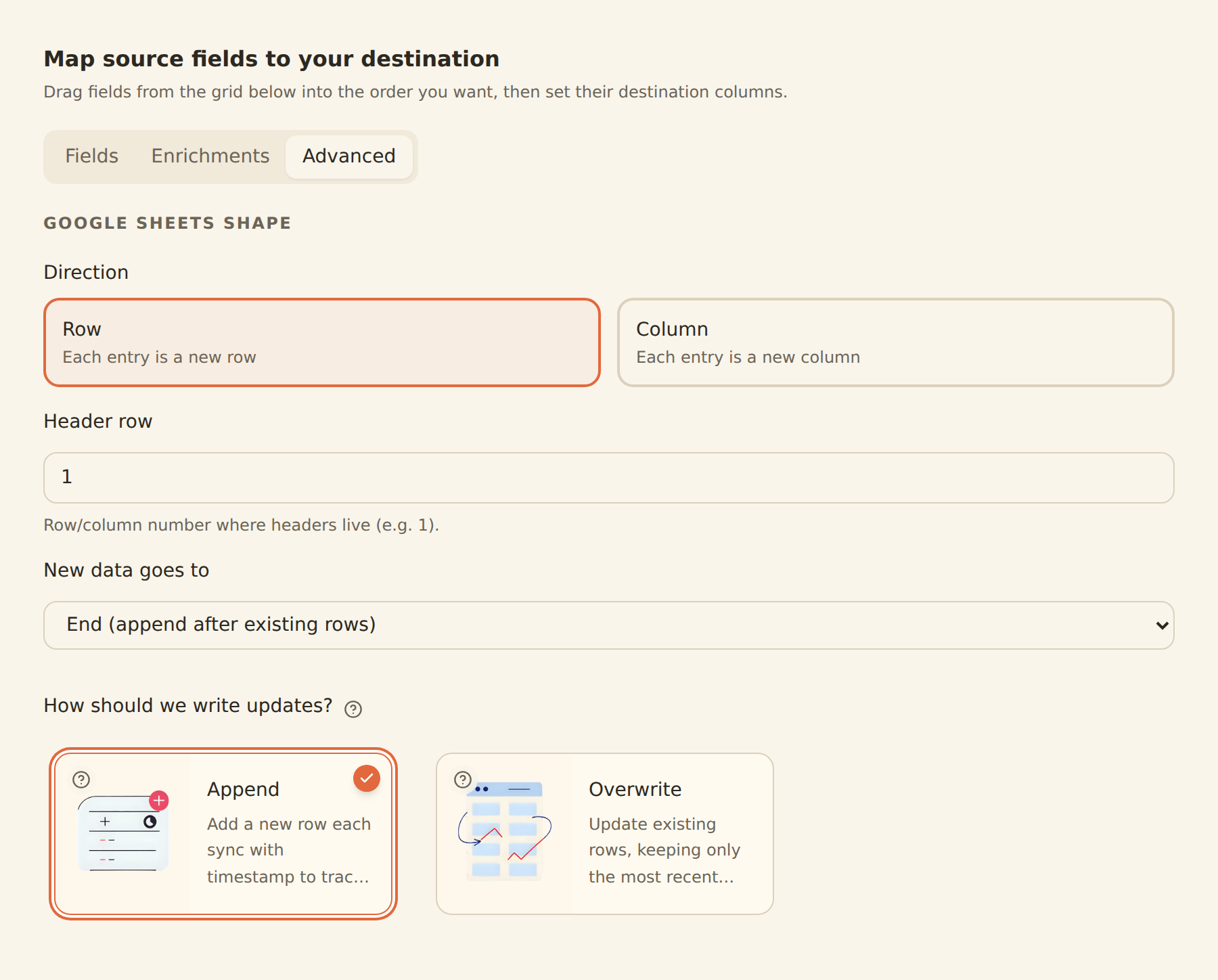
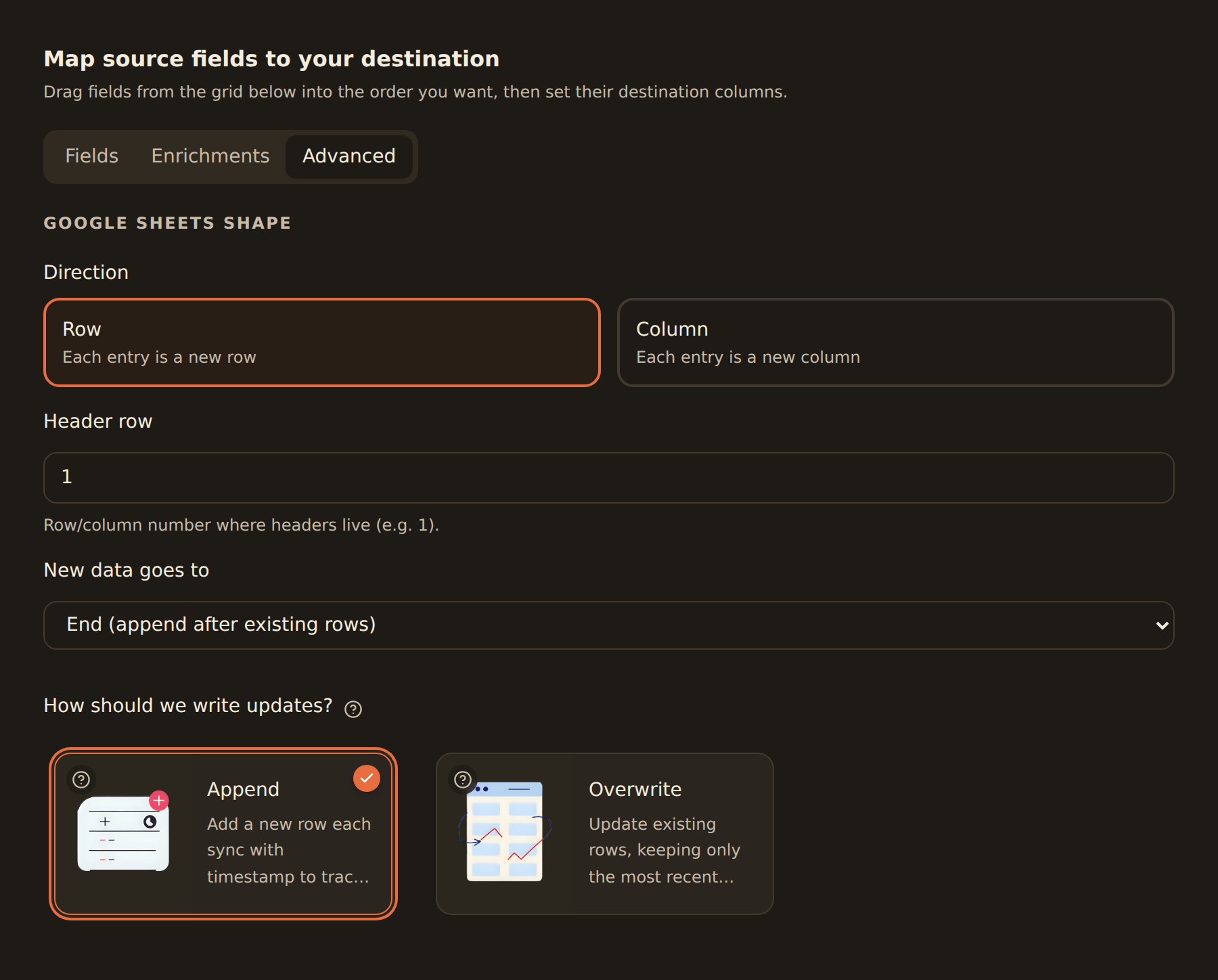
Loan data is point-in-time, like balances: each sync captures the loan's state as it is right now, and history cannot be backfilled. Choose how each sync is written in the Mapping tab:
Append
Adds a new timestamped row per loan each sync. This is how you build a paydown history: a steady record of the balance shrinking sync after sync.
Overwrite
Updates the same rows in place, keeping only current values. Best for net worth dashboards that need current liability totals.
In a BankSync table: one row per loan per day
When an Append feed writes to a BankSync table, it keeps one row per loan per day: a later sync on the same day replaces that day's row with the newer values instead of adding another, so an hourly feed grows by one row a day, not 24. Each row's As of date says when it was read. Overwrite keeps one row per loan, updated in place. Rows the table already holds are left as they are. Spreadsheets and other destinations still add a row on every sync.
Setting Up a Loan Feed#
Setup Steps
Connect your lender
Go to the Banks tab and connect the institution that holds your loan.
Create a loan feed
Click Create Feed and select 'Loans' as the feed type in the Sources tab.
Select loan accounts
Choose which loan accounts to track.Choose Append or Overwrite
Use Append to track paydown progress over time, Overwrite for a current-state dashboard.
Pick an integration and map fields
In the Destination tab, choose which integration receives the data, then map loan fields to the columns in your sheet or table.
Set a schedule
Weekly usually matches how often loan balances change, and it is available on every plan.
What happens on each sync#
- First sync: one row per selected loan is written with its current state.
- Subsequent syncs: Append adds a fresh row per loan each run; Overwrite refreshes the existing rows.
- Cadence sets your history's resolution: loan balances typically change once a month (when a payment posts), so a weekly Append feed captures every payment without cluttering your sheet.
Common Use Cases#
Debt Payoff Tracking
Visualize your debt reduction progress over time
Net Worth Calculation
Include liabilities in your complete financial picture
Payment Scheduling
Track due dates and payment amounts
Paydown history with Append
Related guides#
- How to Sync Balance Data: track asset balances for the other half of net worth
- Setting Up Scheduled Feeds: cadences, UTC timing, and plan gating
- Configuring Field Mappings: full reference for the Mapping tab, including Append and Overwrite
- Connecting Banks: link the institutions that hold your loans
Track Account Balances
Use this page with your AI assistant
Every BankSync doc is available as plain Markdown for agents and LLMs.