Troubleshooting Guide
Solutions for common issues with bank connections, feed syncs, integrations, and data problems.
5 min read
On this page
This guide helps you diagnose and resolve common issues you might encounter when using BankSync. Find solutions for connection problems, sync failures, and data issues.
Connection Issues
Problems connecting to banks or integrations
Sync Failures
Feeds not running or completing properly
Integration Errors
Issues writing to Notion, Sheets, or Airtable
Data Problems
Missing, duplicate, or incorrect data

Bank Connection Issues#
Connection Troubleshooting Steps
Check your bank's status
Visit your bank's website or app to ensure online banking is working. Some banks have maintenance windows.
Verify your credentials
Ensure you're using the correct username and password. Try logging into your bank directly first.
Complete any MFA challenges
Look for text messages, emails, or app notifications for verification codes.
Reconnect if needed
Go to the Banks tab, find the connection, and click Reconnect to re-authenticate.
Security Lockouts
Common Bank Connection Errors#
Invalid Credentials
Double-check username/password. Some banks use different credentials for third-party access.
Session Timeout
The connection took too long. Try again when you have a stable internet connection.
MFA Required
Complete the multi-factor authentication challenge sent to your phone or email.
Bank Maintenance
Your bank may be performing maintenance. Try again in a few hours.
For region-specific connection guidance, see the guides for US banks, Canadian banks, and Australian banks.
Feed Sync Issues#
If a sync reports that the banking provider took too long to respond, wait and retry later; changing browsers or reconnecting a valid bank connection will not resolve that server-side delay. Contact support if it persists. Cancellation stops an attempt but does not remove rows already written to your destination.
Feed Troubleshooting Steps
Check feed status
Go to your Feeds tab and look for error indicators. Red status means a failure occurred.
Review the sync job
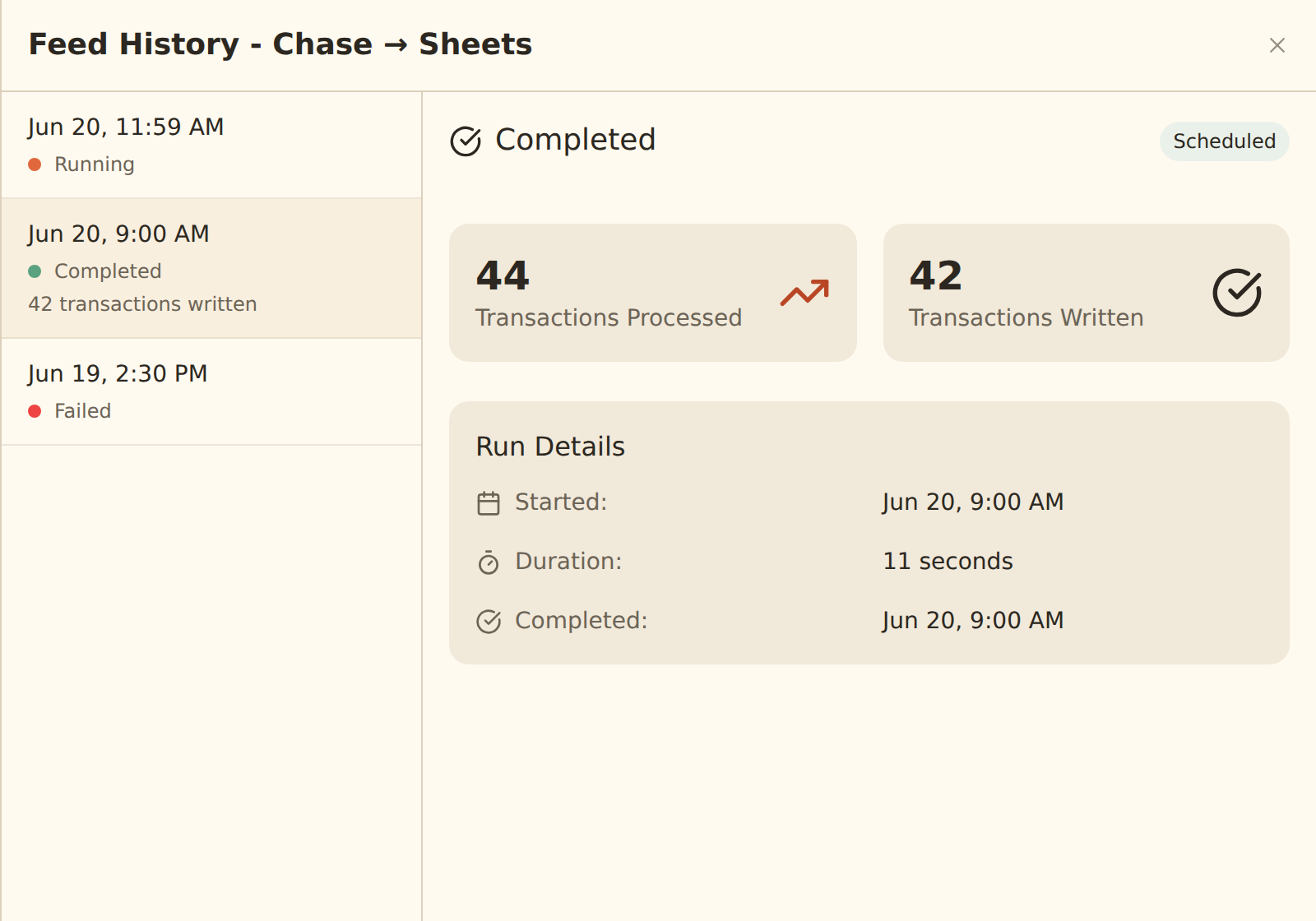
Click on the feed, then "History", to see the latest sync job details and any error messages with remediation suggestions.
Verify bank connection
Ensure the underlying bank connection is healthy in the Banks tab. Expired bank connections are the most common cause of failed syncs.
Check the integration
Verify the integration the feed writes to (Google Sheets, Excel, Notion, Airtable, or a database) is still authorized in the Integrations tab.
Retry the sync
Use the Run Now button to manually trigger a new sync attempt. Retried jobs restart failed chunks only, and deduplication prevents already-written rows from being duplicated.
Pro Tip
Scheduled syncs not running#
If a scheduled feed doesn't seem to fire when you expect:
- Check the time zone: the Run at picker uses the local time zone shown beside it. Check that zone and the Schedule Forecast; BankSync converts the selected hour to UTC behind the scenes.
- Check the cadence is allowed on your plan: Free and Starter plans support Weekly schedules, Standard adds Daily, and Hourly requires Professional or above. See Setting Up Scheduled Feeds.
- Check the toggle: the "Automatically sync periodically" toggle in the Schedule tab must be on.
Integration Issues#
Notion#
Permission Denied
Re-authorize Notion and ensure BankSync has access to the target database.
Database Not Found
The database may have been deleted or moved. Select a new database in your feed's Destination tab.
Property Mismatch
Database properties changed. Update your field mappings to match the current schema.
Rate Limited
Notion API limits reached. The sync will automatically retry later.
Google Sheets#
Access Revoked
Re-authorize Google Sheets in the Integrations tab to restore access.
Sheet Not Found
The spreadsheet may have been deleted or unshared. Select a new sheet in your feed's Destination tab.
Row Limit Reached
Google Sheets has a 10 million cell limit. Archive old data or use a new sheet.
Quota Exceeded
Google API quota reached. Syncs will resume automatically.
Airtable#
Token Expired
Re-authorize Airtable in the Integrations tab.
Base Not Found
The base may have been deleted. Select a different base for your feed.
Field Type Mismatch
Field types changed in Airtable. Update your mappings to match.
Record Limit
Free Airtable plans have record limits. Upgrade or archive old data.
Data Issues#
Missing Data#
Resolving Missing Data
Check the sync window
Run Sync Now first: it picks up anything new since the last run. If data is still missing, use "Start from the beginning" in the Sync Now dialog to re-fetch all available history (note: this can create duplicate rows for data that was already written).
Verify bank data
Check if the transactions appear in your bank's online portal. A bank can take a day or more to post new transactions.
Consider pending transactions
If the feed filters pending transactions, recent purchases appear only once they post. Australian (CDR), UK and European bank connections filter pending transactions by default because their IDs can change when the transaction posts. UK and European banks can hold a transaction as pending for several days, even after your banking app shows it as completed.
Review filters and mappings
Check whether a Filter, Duplicate Screen or Transfer Matcher enrichment is excluding records (the feed's Live Preview strikes suppressed rows through and names the enrichment that did it), whether feed settings narrow the window, and that the relevant fields are mapped to columns.
Duplicate Data#
How Deduplication Works
Fixing Duplicates
Check for duplicate feeds
Ensure only one feed syncs a given bank account into each sheet, table, or database.
Clean up your sheet or table
Remove the duplicate rows manually or with filters.
Reset the feed
If duplicates persist, you may need to delete the feed and create a new one.
Sign-in and email link issues#
Verification link expired
Links work once; a verification link expires after three days. The page an expired verification link opens offers Send a new link while you are signed in; otherwise sign in and select Resend Verification Email in Settings, Security.
Authenticator code refused
Codes change every 30 seconds; wait for the next one. If every code is refused, your phone's clock is probably off. Enable automatic time in your phone settings and try again.
Lost your authenticator
There are no backup codes. Select Contact support on the code screen, or email support@banksync.io; after verifying the account is yours, support removes the authenticator so you can set up a new one.
Password reset email never arrives
Check spam. The sign-in page shows the same confirmation whether or not an address has an account, so a typo in the address sends nothing. Several requests in a few minutes pause further reset emails to that address for about ten minutes.
Getting More Help#
Contact Support
Open support in the app
Can't get into the app? Email support@banksync.io from the address you sign in with.
See Contact support in the app for how to start a conversation, include useful details and answer a reply.
Related guides#
- Managing Sync Jobs: job statuses, chunking, pause/resume, and retries in depth
- Reconnecting a Bank: the fix for the most common sync failure
- Managing Integrations: re-authorize Google Sheets, Excel, Notion, Airtable, and databases
- Setting Up Scheduled Feeds: local-time scheduling and plan-gated cadences
Use this page with your AI assistant
Every BankSync doc is available as plain Markdown for agents and LLMs.