Setting Up Scheduled Feeds
Automate your feeds with hourly, daily, or weekly schedules, in your own time zone, with email notifications when a run fails.
4 min read
On this page
BankSync can run your feeds automatically on a schedule, so your spreadsheet, database, or Notion workspace stays current without you having to click anything. This guide covers the available cadences, how plan limits affect them, and how to pick settings that match how you use your data.

Schedule Options#
Open a feed from the Feeds tab and go to the Schedule tab. You choose one of four modes:
Hourly
Every hour, around the clock. For near-real-time dashboards.
Daily
Once a day, at a time you choose
Weekly
Once a week, on a day you choose
Manual
Only when you trigger it with Sync Now
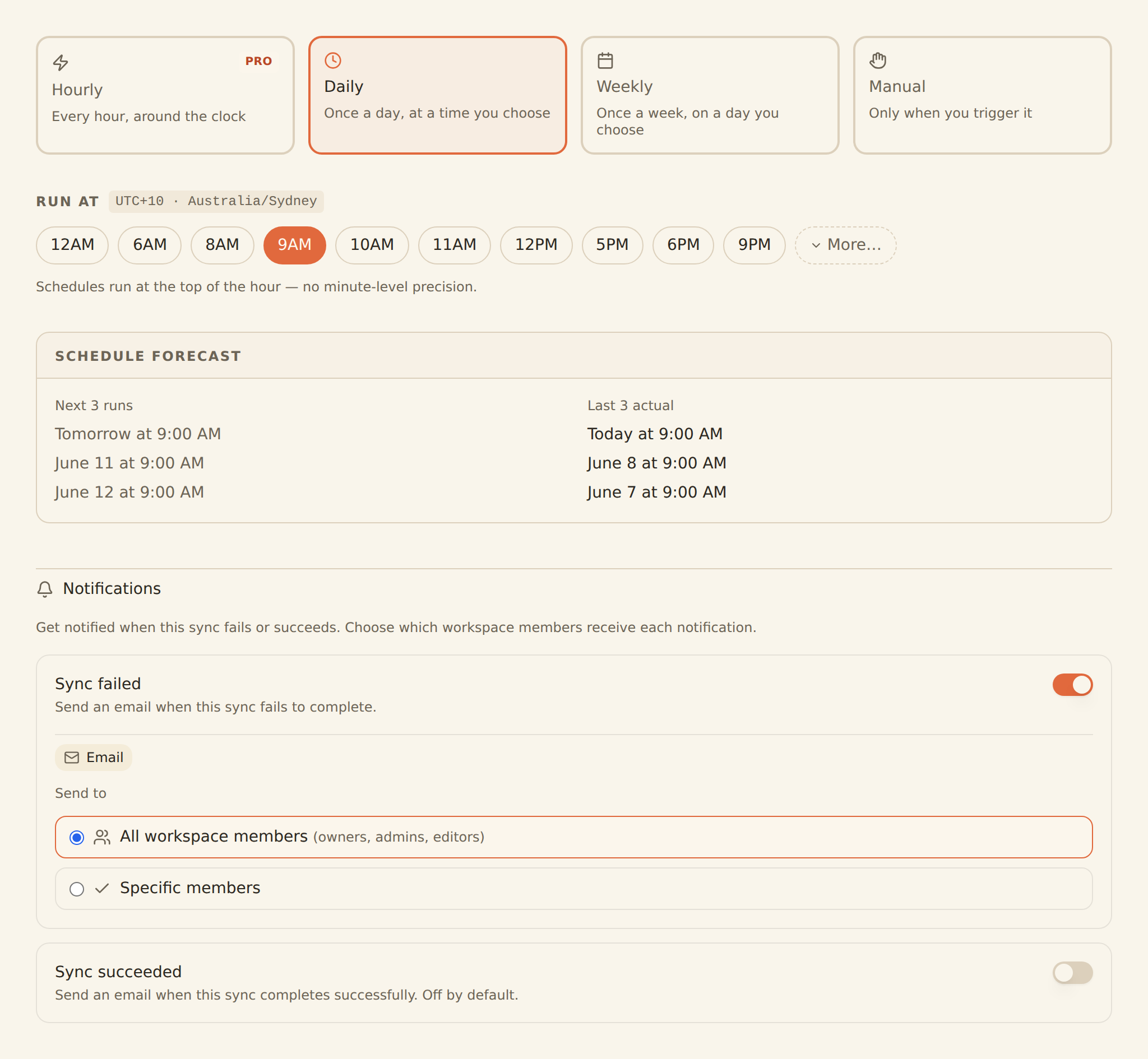
Selecting Manual simply turns scheduling off: the feed only runs when you click Sync Now, and your cadence settings are kept for when you re-enable a schedule.
Cadences by plan#
Which cadences you can choose depends on your workspace plan. Gated cadences appear locked in the Schedule tab (Hourly carries a PRO badge):
| Plan | Scheduled cadences |
|---|---|
| Free | Weekly |
| Starter | Weekly |
| Standard | Daily, Weekly |
| Professional | Hourly, Daily, Weekly |
| Business | Hourly, Daily, Weekly |
| Enterprise | Hourly, Daily, Weekly |
Need a faster cadence?
Times are in your time zone#
The Run at hour picker works in your local time zone, which is shown right next to it (for example, "UTC+10 · Australia/Sydney"). Pick the hour you want; BankSync converts it to UTC behind the scenes and keeps the run time stable.
- Schedules run at the top of the hour. There is no minute-level precision.
- Hourly feeds ignore the time-of-day setting entirely; they simply run about once an hour.
- Weekly feeds add a day-of-week picker alongside the hour picker.
The Schedule Forecast#
Below the pickers, the Schedule Forecast panel shows the next three planned runs and the last three actual runs, so you can confirm the schedule does what you expect before leaving the tab.
Email notifications#
The Schedule tab also has per-feed notification toggles:
- Sync failed: send an email when this sync fails to complete (on by default, and worth keeping on for any scheduled feed).
- Sync succeeded: send an email when this sync completes successfully (off by default; useful while testing a new feed).
Setting Up a Scheduled Feed#
Edit Your Feed
From your Feeds tab, find the feed you want to schedule and click to open it.
Open the Schedule tab
Click the "Schedule" tab in the feed editor.Pick a cadence
Choose Hourly, Daily, or Weekly. Choosing Manual disables automatic runs.
Pick a time
For Daily and Weekly, choose the hour (in your local time zone). For Weekly, also pick the day of the week.
Check the forecast
Confirm the next runs in the Schedule Forecast panel look right.
Set notifications
Decide whether you want an email on failure (recommended) or on success.
Auto-Save
How scheduled runs behave#
- The first run after you enable a schedule behaves like any other sync: it picks up from where the feed's last sync left off (or performs the initial backfill if the feed has never synced).
- Scheduled syncs and manual Sync Now runs use the same read path and the same deduplication, so mixing them never creates duplicates.
- Each run appears in the feed's History list, exactly like a manual run. See Managing Sync Jobs for monitoring details.
- Feeds created before cadence options changed may still show a legacy Monthly schedule; they keep running monthly until you pick a new cadence.
Recommended Configurations#
Personal Finances
Daily sync in the morning, so overnight transactions are waiting for you
Business Accounts
Daily sync around midday, after most banks have posted morning settlements
Live Dashboards
Hourly sync (Professional and above) for boards and screens that stay open
Important Notes#
Keep Connections Active
- You can still run manual syncs at any time, even with scheduling enabled
- Switching to Manual pauses automatic runs without losing your cadence configuration
- Balance, holdings, and loan feeds capture point-in-time values, so the schedule cadence directly determines how granular your history is (a weekly balance feed gives you one data point per week)
Related guides#
- Managing Sync Jobs: monitor, pause, and retry the jobs your schedule creates
- Managing Your Feeds: everything else about editing and running feeds
- Reconnecting a Bank: fix the most common cause of failed scheduled syncs
- Managing Your Plan: unlock Daily and Hourly cadences
View Managing Feeds Guide
Use this page with your AI assistant
Every BankSync doc is available as plain Markdown for agents and LLMs.