How to Sync Holdings Data
Learn how to set up holdings feeds to track your investment portfolio positions and values.
3 min read
On this page
Holdings feeds track your current investment positions. Monitor your portfolio composition, track position values, and build investment dashboards that update automatically.
Portfolio Positions
All securities you own
Market Values
Current position values
Scheduled Updates
Track value changes over time

Holdings Data Fields#
Symbol
Stock or fund ticker
Security Name
Full security name
Quantity
Shares or units held
Price
Current price
Market Value
Total position value
Cost Basis
Original purchase cost
Gain/Loss
Unrealized P&L
Account
Brokerage account
Field availability varies by brokerage
Append vs. Overwrite#
Holdings are a point-in-time picture of your portfolio: each sync captures your positions as they are right now. The sync mode decides how that picture lands in your sheet or table:
Append
Writes a new timestamped set of rows (one per position) each sync. Use this to track how your portfolio composition and values change over time.
Overwrite
Updates the existing rows in place with current values. Best for live portfolio dashboards that should always show the present state.
In a BankSync table: one row per holding per day
When an Append feed writes to a BankSync table, it keeps one row per holding per day: a later sync on the same day replaces that day's row with the newer values instead of adding another, so an hourly feed grows by one row a day, not 24. Each row's As of date says when it was read. Overwrite keeps one row per holding, updated in place. Rows the table already holds are left as they are. Spreadsheets and other destinations still add a row on every sync.
Like balances, holdings history can't be backfilled: your record starts from the first sync and accumulates with each scheduled run, so the cadence you pick determines the resolution of your history.
Setting Up a Holdings Feed#
Setup Steps
Connect your brokerage
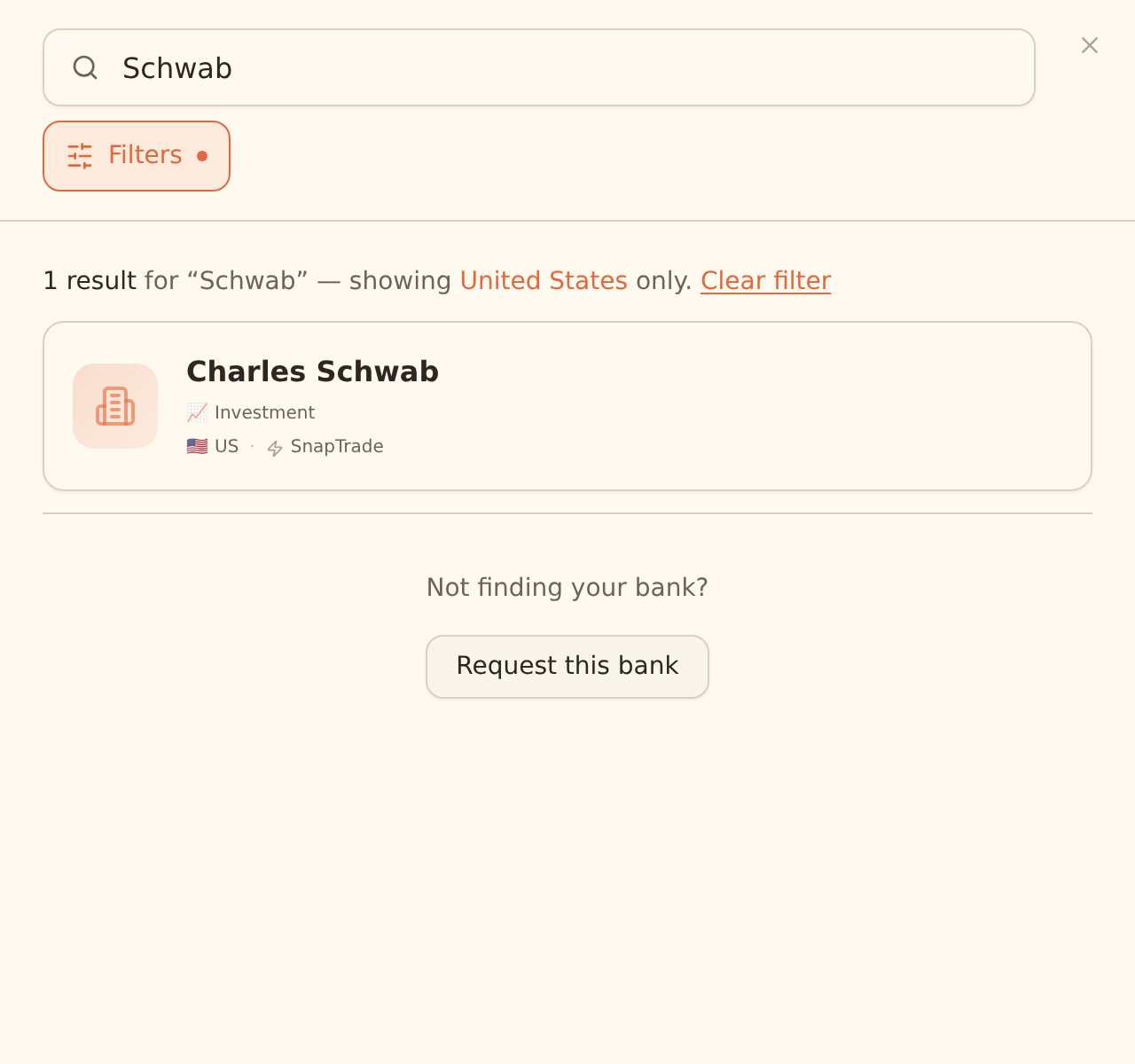
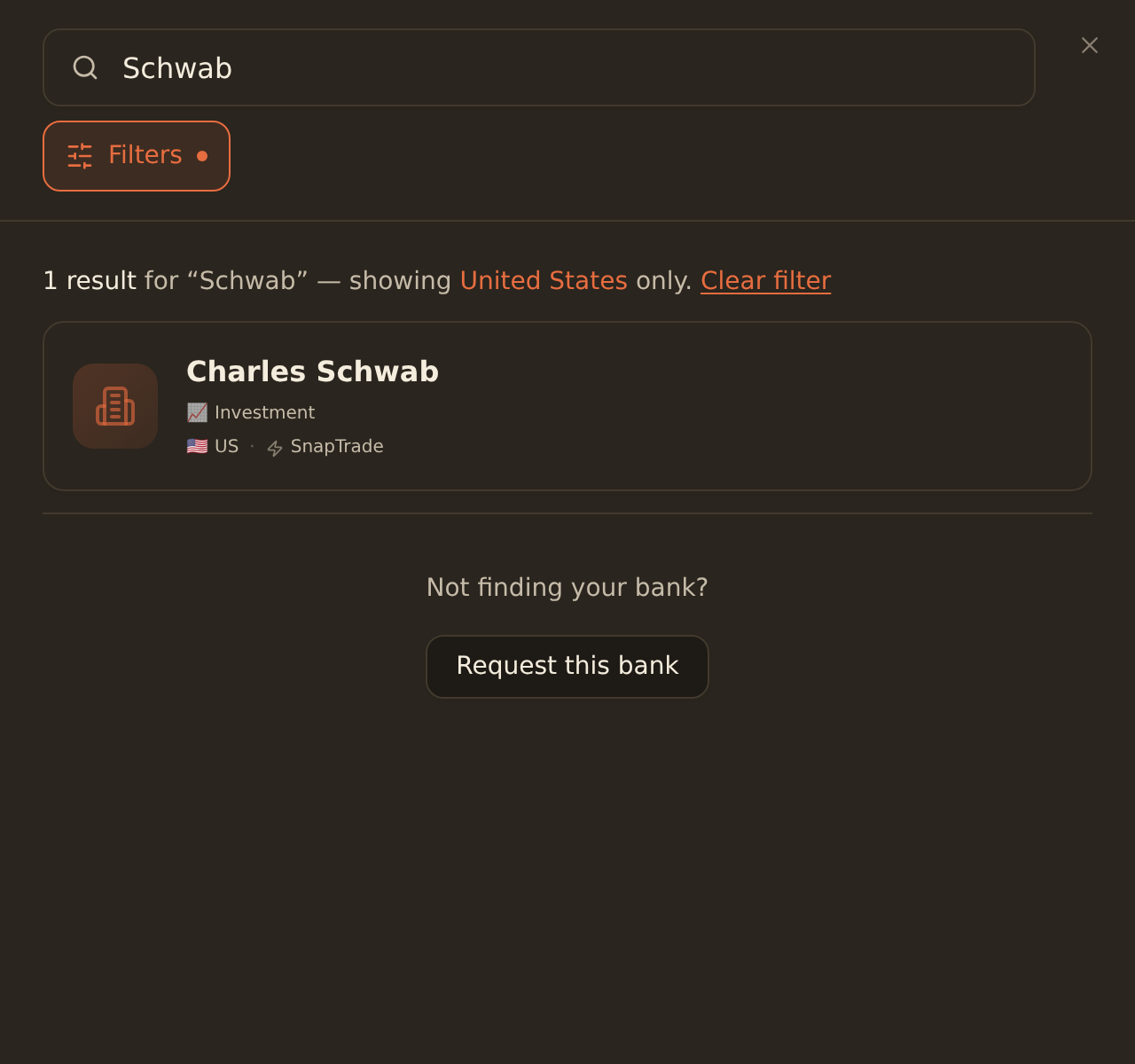
Ensure your investment account is connected in the Banks tab. Brokerages connect through the same flow as banks; see Connecting Brokerages if yours isn't linked yet.
Create a holdings feed
Click Create Feed and select 'Holdings' as the feed type in the Sources tab.
Select investment accounts
Choose which brokerage accounts to track. Investment accounts can't be mixed with checking/savings accounts in the same feed.
Choose Append or Overwrite
Use Overwrite for dashboards, Append for historical tracking.
Pick an integration and map fields
In the Destination tab, choose which integration receives the data, then map holdings fields to the columns in your sheet or table.
Set a schedule
Daily is typical for portfolio tracking (requires the Standard plan or higher; see the scheduling guide for plan gating).
What happens on each sync#
- First sync: one row per position is written for each selected account.
- Subsequent syncs: Append adds a fresh set of position rows each run; Overwrite refreshes the existing rows. Positions you've fully sold stop appearing in new Append snapshots.
- Number of rows varies: unlike balances (one row per account), a holdings sync writes one row per position, so a 30-position portfolio adds 30 rows per Append run. Factor that in when choosing your cadence.
Common Use Cases#
Portfolio Dashboard
A current view of all investment positions
Asset Allocation
Track diversification across asset classes
Performance Tracking
Monitor gains and losses over time
Combine with Trades
Related guides#
- How to Sync Trade Data: the transaction-level complement to holdings snapshots
- Connecting Brokerages: link Fidelity, Schwab, and other investment accounts
- Setting Up Scheduled Feeds: cadences, UTC timing, and plan gating
- Configuring Field Mappings: full reference for the Mapping tab, including Append and Overwrite
Sync Trade Data
Use this page with your AI assistant
Every BankSync doc is available as plain Markdown for agents and LLMs.