How to Sync Balance Data
Learn how to set up balance feeds to track your account balances over time in Notion, Google Sheets, or Airtable.
3 min read
On this page
Balance feeds track your account balances over time. Build net worth dashboards, monitor cash flow, and maintain a historical record of your financial position.
Current Balance
Point-in-time account balance snapshots
Historical Tracking
Track balance changes over time
Multiple Accounts
Monitor all accounts in one place

Balance Data Fields#
Current Balance
The account's current balance
Available Balance
Funds available to spend
Account Name
Account identifier
As Of Date
Balance snapshot date
Currency
Account currency
Account Type
Checking, savings, etc.
Append vs. Overwrite#
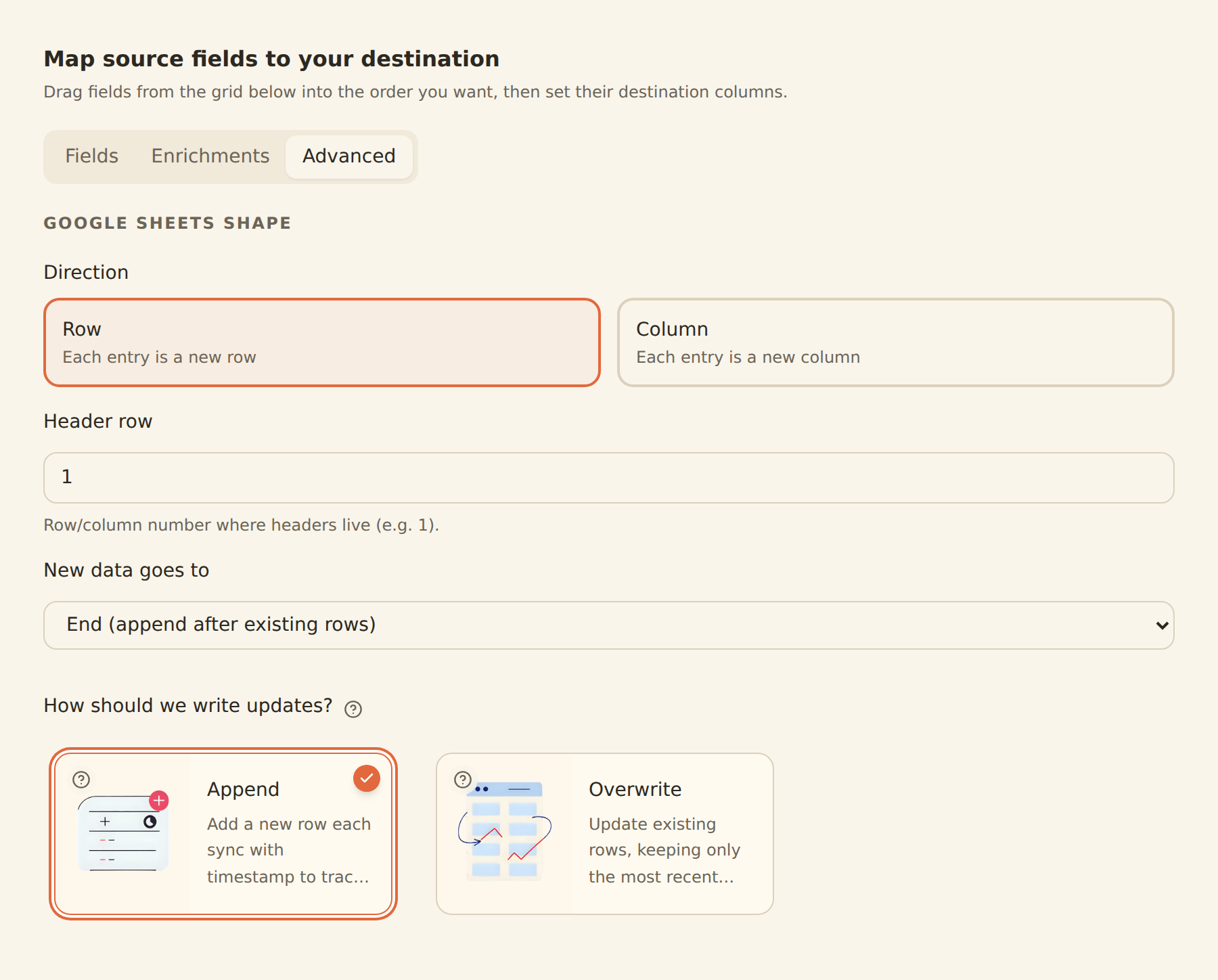
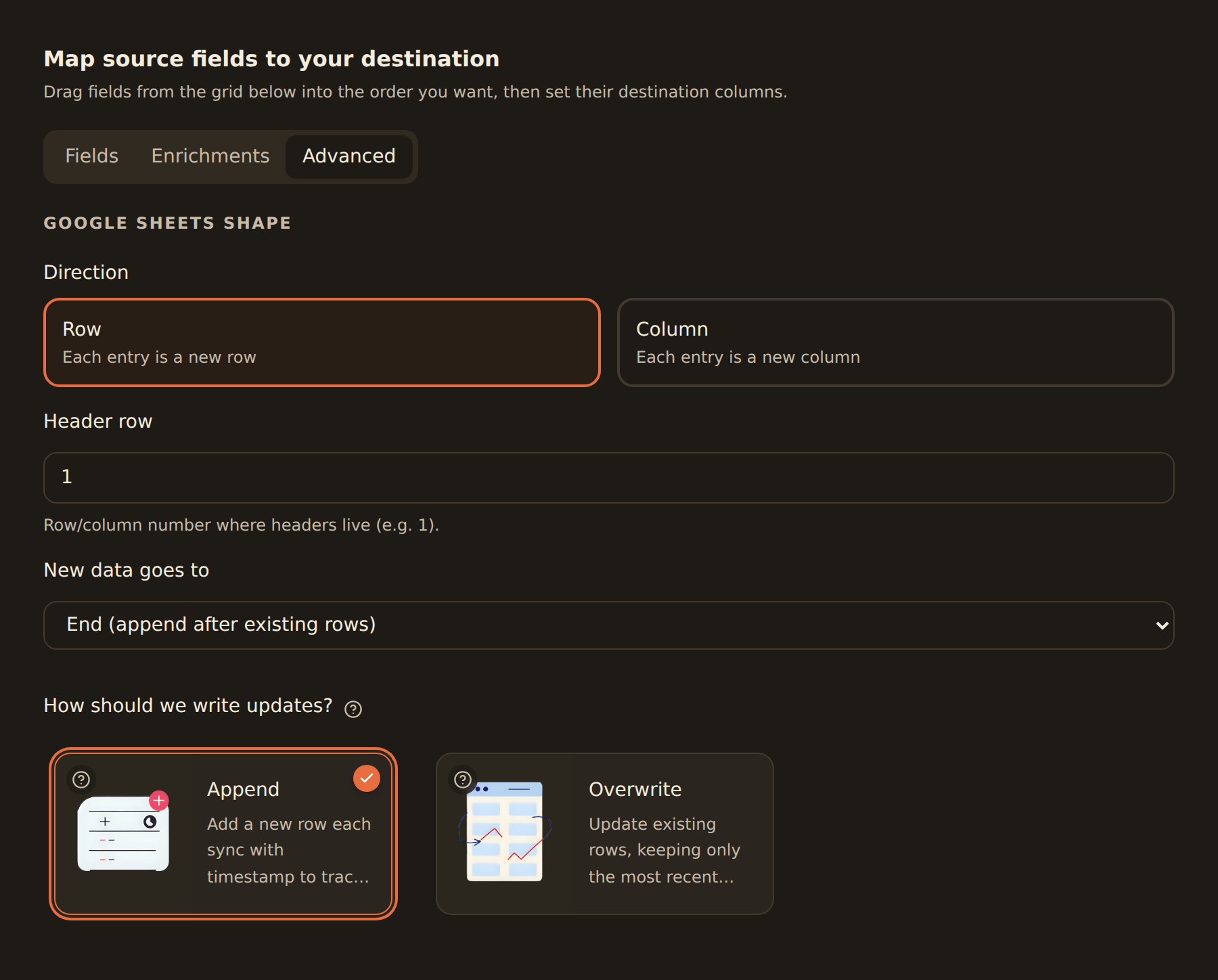
Balances are point-in-time values, not a history your bank stores for you. Each sync captures the balance as it is right now, and the sync mode you pick in the Mapping tab decides what happens to that value in your sheet or table:
Append
Adds a new timestamped row each sync, one per account. Your history builds up sync by sync, so this is how you get balance-over-time charts.
Overwrite
Updates the same rows in place, keeping only the latest balance for each account. Best for dashboards that show current state only.
In a BankSync table: one row per account per day
When an Append feed writes to a BankSync table, it keeps one row per account per day: a later sync on the same day replaces that day's row with the newer values instead of adding another, so an hourly feed grows by one row a day, not 24. Each row's Date says when it was read. Overwrite keeps one row per account, updated in place. Rows the table already holds are left as they are. Spreadsheets and other destinations still add a row on every sync.
History starts when the feed starts
Setting Up a Balance Feed#
Setup Steps
Connect your bank
Ensure the bank account is connected in the Banks tab.Create a balance feed
Click Create Feed and select 'Balances' as the feed type in the Sources tab.
Select accounts
Choose which accounts to track balances for. You can include accounts from multiple banks in one feed.
Pick an integration
In the Destination tab, choose which integration receives the data, then map balance fields to the columns in your sheet or table.
Choose Append or Overwrite
Select Append for history or Overwrite for a current-state view.
Configure schedule
Set how often to capture balances. Daily is the sweet spot for net worth tracking; note that Daily requires the Standard plan or higher (see the scheduling guide).
What happens on each sync#
- First sync: one balance value is written per selected account.
- Subsequent syncs: in Append mode, a new row per account is added each run; in Overwrite mode, each account's existing row is updated in place.
- Cadence determines granularity: a weekly Append feed produces one data point per account per week. You can't fill the gaps later, so pick the cadence that matches the resolution you want.
Common Use Cases#
Net Worth Tracking
Sum all account balances to track total net worth over time
Cash Flow Monitoring
Watch checking account balances to manage cash flow
Financial Dashboard
Build a central dashboard showing all account balances
Daily Append snapshots
Common pitfalls#
- Picking Overwrite when you wanted history: Overwrite keeps only the latest value. If your chart only ever shows one point per account, switch the feed to Append.
- Editing Append rows manually: the feed adds rows below (or alongside) existing data; reordering or deleting synced rows in your sheet can make the history confusing. Do analysis in a separate tab that references the synced sheet.
- Including loan accounts: liabilities have their own feed type with loan-specific fields. See How to Sync Loan Data.
Related guides#
- How to Sync Loan Data: track liability balances for the other half of net worth
- Setting Up Scheduled Feeds: cadence options, UTC timing, and which plans get Daily and Hourly
- Configuring Field Mappings: full reference for the Mapping tab, including Append and Overwrite
- Creating Your First Feed: the end-to-end feed setup walkthrough
Create Your First Feed
Use this page with your AI assistant
Every BankSync doc is available as plain Markdown for agents and LLMs.