How to Sync Trade Data
Learn how to set up trade feeds to sync your investment transactions from brokerage accounts.
2 min read
On this page
Trade feeds sync your investment transactions including stock purchases, sales, dividends, and other brokerage activity. Track your trading history across multiple accounts.
Buy & Sell Orders
Track all equity trades
Dividends
Dividend payments received
Transfers
Deposits and withdrawals
Options & More
Complex trade types

Trade Data Fields#
Trade Date
When the trade executed
Symbol
Stock ticker symbol
Type
Buy, sell, dividend, etc.
Quantity
Number of shares
Price
Price per share
Total
Total trade value
Fees
Commission and fees
Account
Brokerage account
Setting Up a Trade Feed#
Setup Steps
Connect your brokerage
Go to the Banks tab and connect your brokerage account (Fidelity, Schwab, etc.).
Create a trade feed
Click Create Feed and select 'Trades' as the feed type in the Sources tab.
Select accounts
Choose the investment accounts to sync trades from. Investment accounts can't be mixed with checking/savings accounts in the same feed.
Pick an integration
In the Destination tab, choose which integration receives the data (Google Sheets, Excel, Notion, Airtable, or a database).
Map fields
Configure which trade fields map to the columns in your sheet or table.
Schedule or backfill
Set a recurring schedule for ongoing activity. For history, use "Start from the beginning" in the Sync Now dialog on a fresh feed to pull in all available past trades.
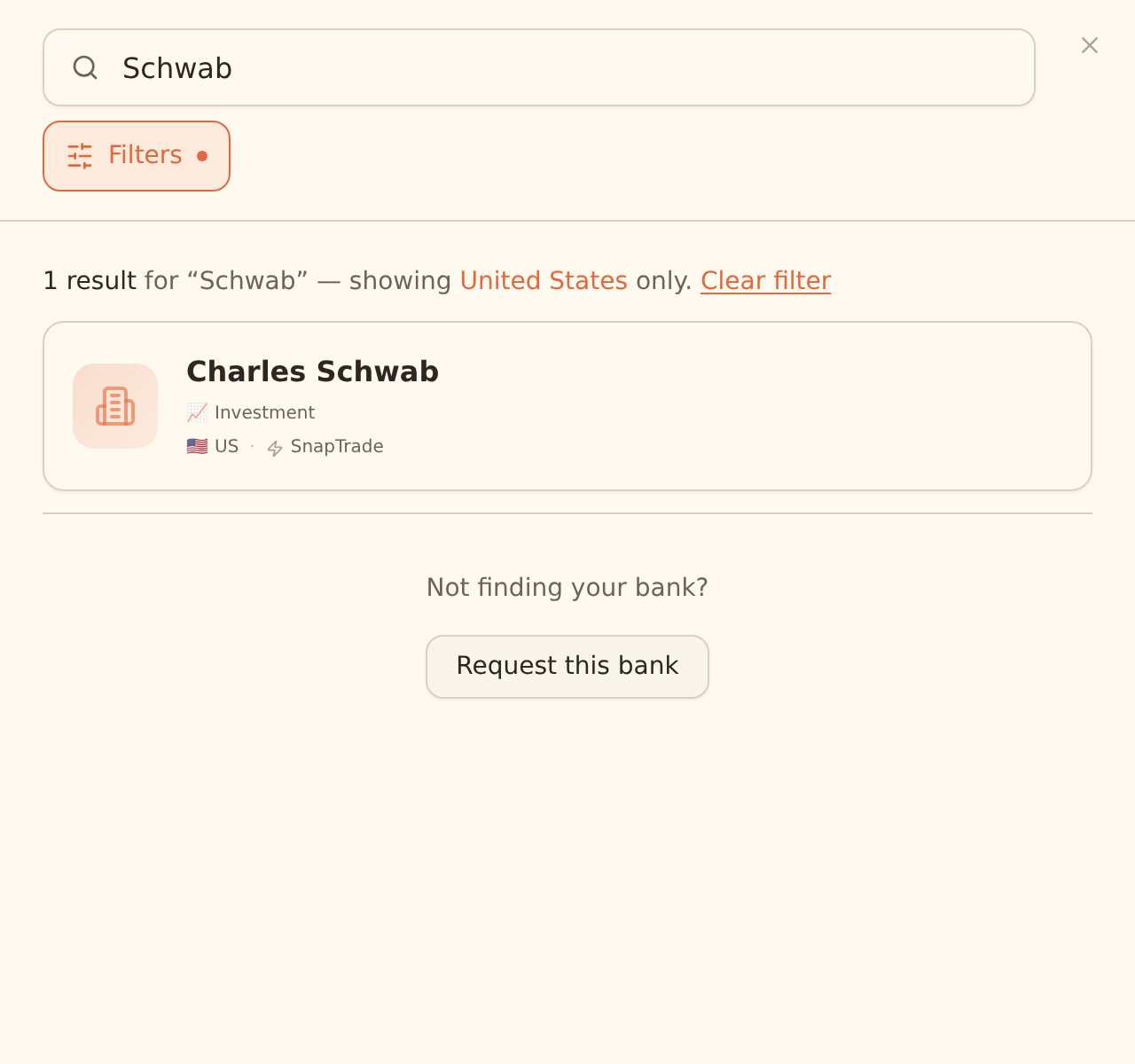
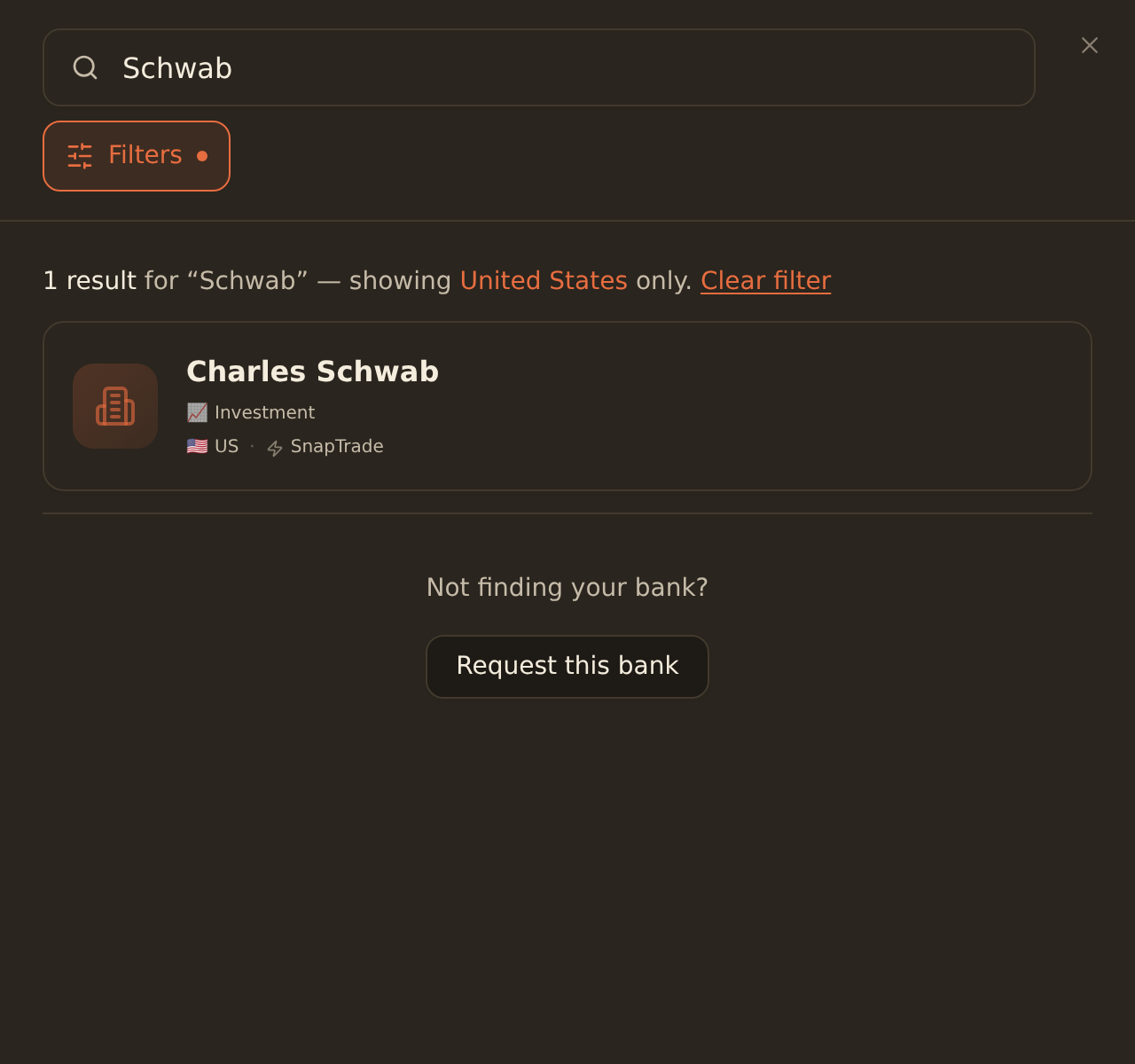
Brokerage Support
How trade syncs behave#
- First sync: trades are event records like transactions, so they can be backfilled. On a new feed the first sync backfills available history; long backfills are processed in 7-day chunks (see Managing Sync Jobs).
- Subsequent syncs: incremental runs pick up new activity since the last sync.
- Deduplication: each trade is keyed on the provider's unique identifier, so overlapping date ranges and manual re-runs don't create duplicate rows.
- One data type per feed: trades, holdings, and balances are separate feed types. Pair a trade feed with a holdings feed if you want both activity and current positions.
Common Use Cases#
Trade Journal
Keep a detailed log of all investment decisions
Tax Reporting
Track cost basis and gains for tax preparation
Performance Analysis
Analyze trading patterns and results
Related guides#
- Connecting Brokerages: link your investment accounts first
- How to Sync Holdings Data: current positions to pair with your trade history
- Managing Sync Jobs: how backfills are chunked, paused, and retried
- Configuring Field Mappings: full reference for the Mapping tab
Connect Your Brokerage
Use this page with your AI assistant
Every BankSync doc is available as plain Markdown for agents and LLMs.