Managing Your Feeds
Learn how to create, configure, and manage your feeds effectively.
4 min read
On this page
Feeds are the core of BankSync: each feed defines how one type of data flows from your bank accounts into one of your integrations (Google Sheets, Excel, Notion, Airtable, or a database). This guide covers the day-to-day work of editing, running, and monitoring feeds after you've created your first one.

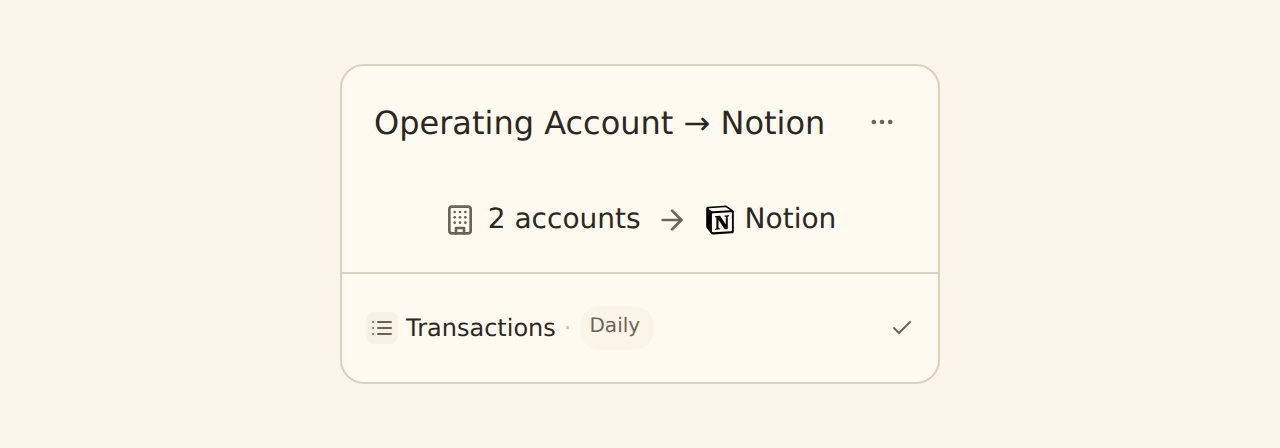
Every feed appears as a card on the Feeds tab, so you can read its health without opening it:
Anatomy of a feed#
A feed carries exactly one data type: Transactions, Balances, Holdings, Trades, Orders, or Loans. If you want both transactions and balances from the same accounts, create two feeds. Each feed is configured across four steps in the feed editor, with an Overview tab summarizing the whole setup:
1. Sources
Select bank accounts
2. Destination
Choose which integration receives the data
3. Mapping
Map data fields to columns
4. Schedule
Set automation
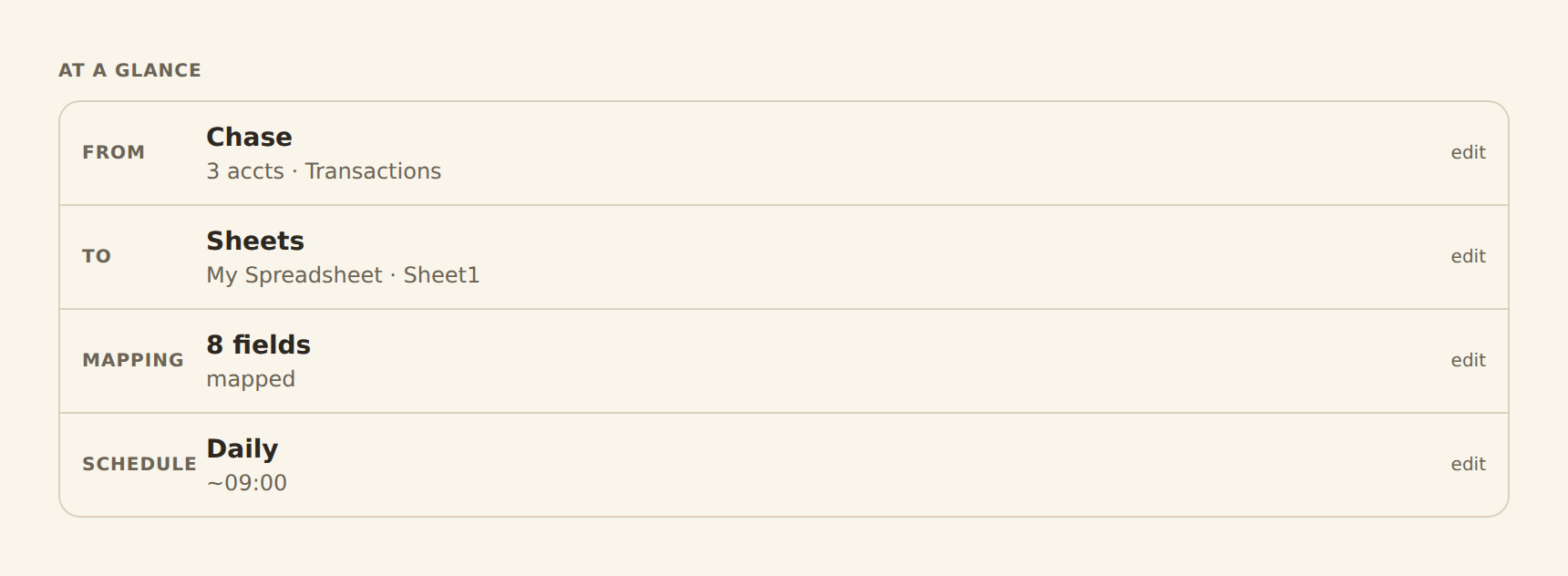
The feed editor's At a glance panel shows whether each step is complete. A feed only runs once every row shows a real value.
Sources tab#
Choose accounts from multiple banks
Select any combination of accounts from your connected banks. Investment accounts can't be mixed with checking/savings accounts in the same feed.
Choose a data type
Select Transactions, Balances, Trades, Holdings, Orders, or Loans from the types available for the accounts you selected. Each feed carries one type.
View account balances and types
See current balances and account types (Checking, Savings, Credit Card, etc.).
Save and continue later
Your progress auto-saves; return to finish if banks aren't connected yet.
Destination tab#
Select an integration
In the Destination tab, choose which of your connected integrations receives the data.
Specify the exact target
Select the specific spreadsheet and sheet, database, base and table, or workbook within that integration.
For Notion: search databases by name
Use the search field to find databases quickly.
Mapping tab#
- Use "Auto fill" for automatic field suggestions
- Drag and drop to reorder fields
- Add or remove fields as needed
- For balance-style feeds, choose Append (a new timestamped row each sync) or Overwrite (update the same rows in place)
See Configuring Field Mappings for the full walkthrough.
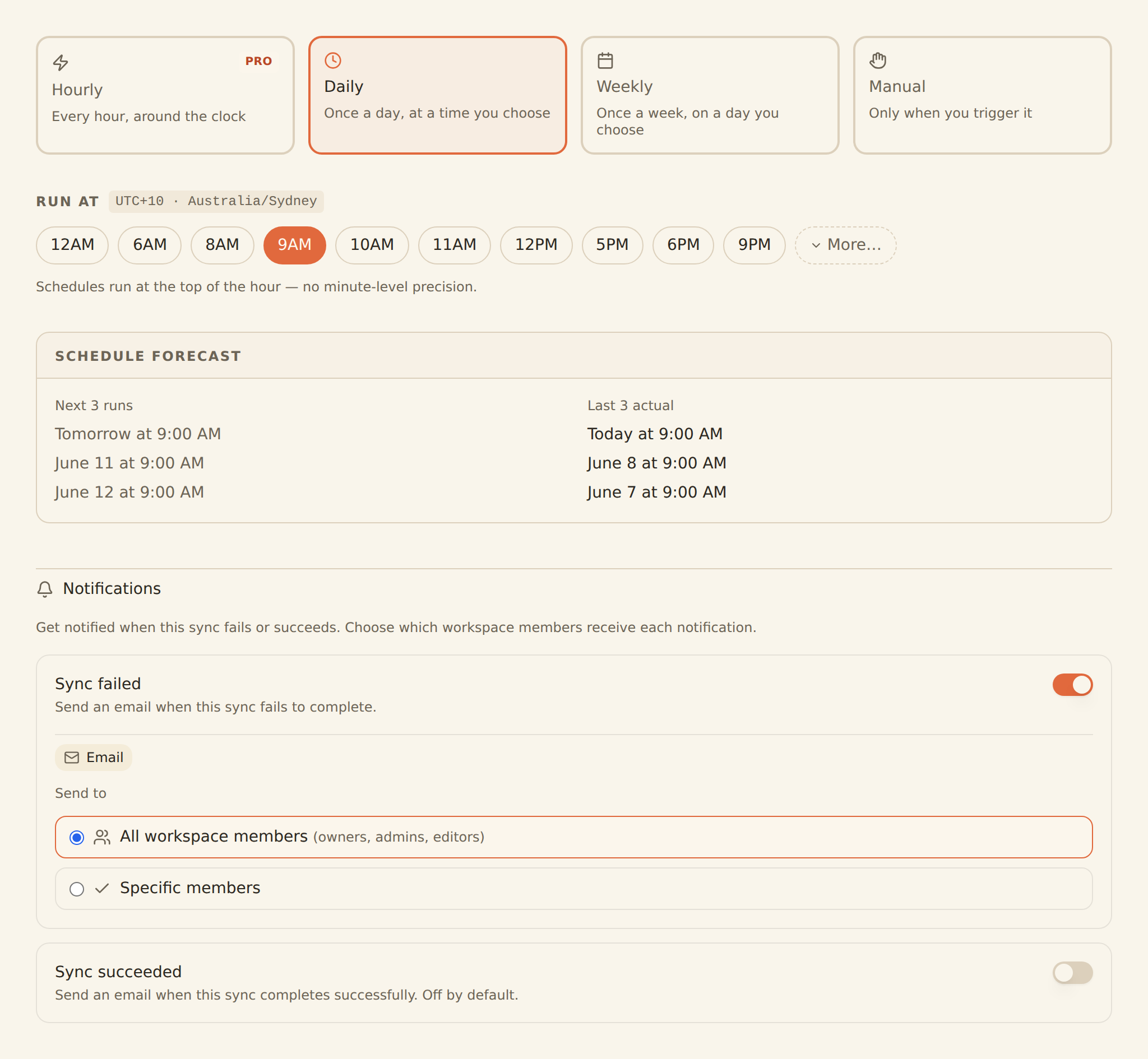
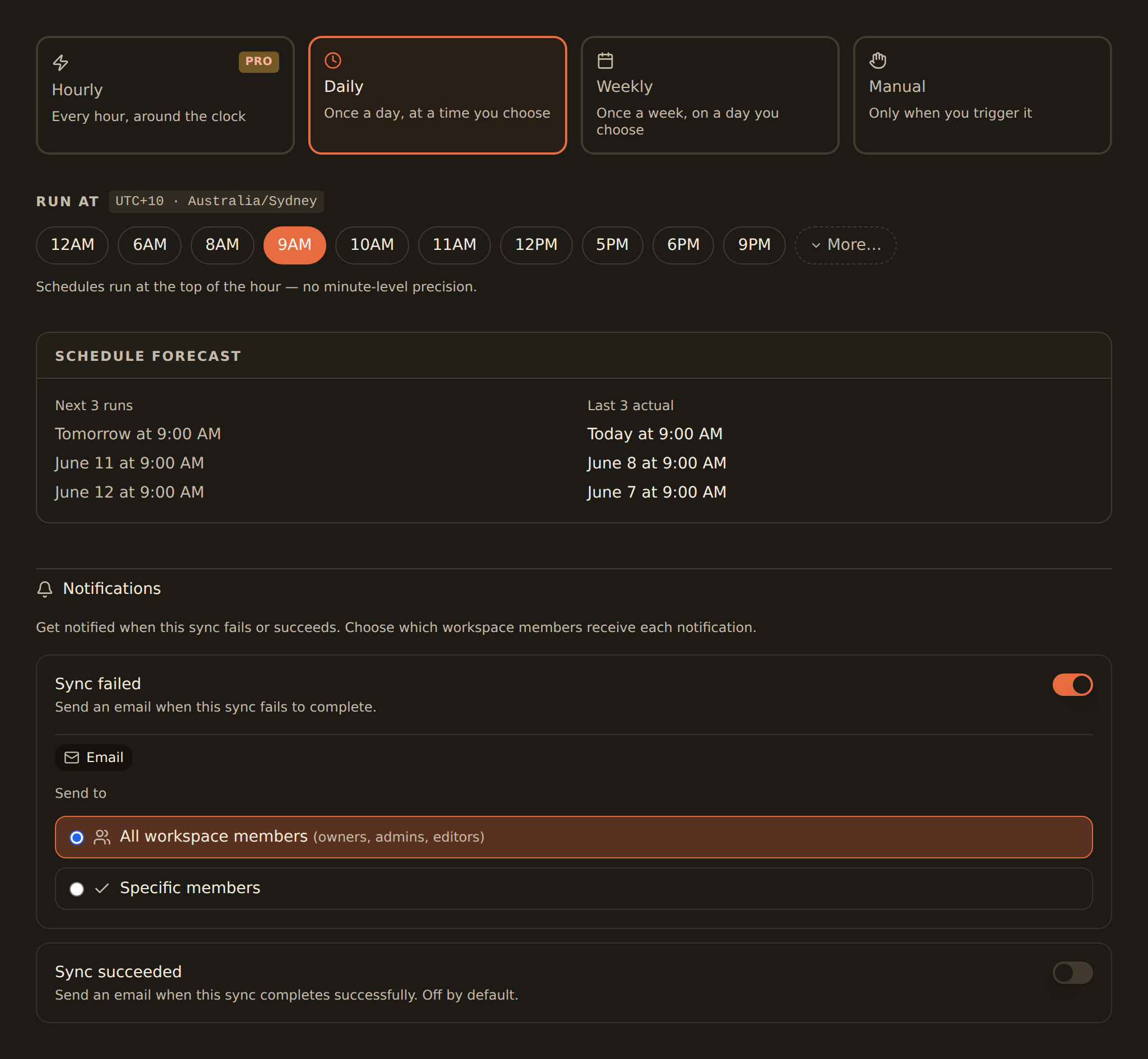
Schedule tab#
- Enable or disable scheduled syncing
- Choose a cadence: Hourly, Daily, or Weekly, or Manual (Hourly and Daily are gated by plan; see Setting Up Scheduled Feeds)
- Pick the run hour (in your local time zone, shown next to the picker)
How many feeds can I have?#
Feed limits depend on your workspace plan: Free allows 1 feed, Starter 2, Standard 5, and Professional, Business, and Enterprise have no feed limit. If you've hit your cap, the create button will tell you; see Managing Your Plan.
Running Feeds#
Incremental Sync
Syncs only new records since the last sync. Fast, avoids duplicates, and maintains cursor state. This is what scheduled runs do.
Start from the beginning
An optional Sync Now checkbox that re-fetches all available data from scratch. Useful if you suspect a gap, but it can duplicate rows that were already written.
A few behaviors worth knowing:
- First run vs. later runs: the first run of a new feed backfills the history available from your bank. Every run after that is incremental.
- Manual and scheduled runs mix safely: "Sync Now" uses the same read path and deduplication as scheduled syncs, so triggering a manual run never creates duplicates.
- Overlap is safe: deduplication is keyed on the bank's unique record IDs, so re-running an already-synced date range writes nothing new.
Recommendation
Monitoring Sync Jobs#
Click "History" on any feed to view sync history and job details:
Job Status#
Running
Job is processing
Completed
Finished successfully
Failed
Encountered errors
Paused
Paused by user
Job Metrics#
- Records processed
- Records written to your sheet, table, or database
- Execution duration
- Error details (if any), with remediation suggestions
For pausing, resuming, and retrying jobs, see Managing Sync Jobs.
Common pitfalls#
- Editing the mapped columns: if you rename or delete columns in your sheet or database properties in Notion/Airtable, the feed's mapping can break. Update the Mapping tab after restructuring your sheet or table.
- Two feeds, one account, one sheet: each feed deduplicates independently, so two feeds syncing the same account into the same sheet will double up rows. Keep one feed per account per target.
- Expired connections: a feed silently depends on its bank connection and its integration staying authorized. If runs start failing, check the Banks tab and the Integrations tab first.
Pro Tips
Related guides#
- Managing Sync Jobs: pause, resume, and retry the jobs your feeds create
- Configuring Field Mappings: the full Mapping tab reference
- Setting Up Scheduled Feeds: cadences, UTC timing, and plan gating
- Troubleshooting Guide: when a feed stops working
View Sync Jobs Guide
Use this page with your AI assistant
Every BankSync doc is available as plain Markdown for agents and LLMs.