Managing Sync Jobs
Learn how to manage, monitor, and troubleshoot your sync jobs for smooth data processing.
3 min read
On this page
Every time a feed runs (manually with Sync Now, or automatically on a schedule) BankSync creates a sync job. The job is the unit of work you can watch, pause, resume, and retry. This guide explains how jobs work and how to manage them.

Understanding Sync Jobs#
Each job moves data from your bank accounts to the integration configured in the feed's Destination tab:
Job Processing Steps
Divides into chunks
For backfills, your date range is split into manageable 7-day periods. A short incremental sync may be a single chunk.
Processes sequentially
Each chunk is processed one at a time.Fetches records
Transactions (or balances, holdings, trades, or loans, depending on the feed's data type) are retrieved from your bank for each period.
Deduplicates
Records that were already written by a previous sync are skipped, so overlapping date ranges and re-runs are safe.
Maps the data
Data is transformed according to your field mappings.Writes to your integration
Processed rows are sent to your sheet, table, or database.
Provides updates
Real-time progress is shown throughout.
First sync vs. subsequent syncs#
- First sync: there's no sync history yet, so the job performs the initial backfill of all available history. Long historical backfills are chunked into 7-day periods, which is why a multi-year backfill shows many chunks and takes longer.
- Subsequent incremental syncs: the job picks up from where the last successful sync left off, so it's usually a single fast chunk.
- Manual vs. scheduled: a manual "Sync Now" uses exactly the same read path and deduplication as a scheduled run. Running one manually never causes duplicates alongside the schedule.

How deduplication works#
BankSync keys each record on the unique identifier issued by the bank provider and skips records it has already written for that account. This is why you can safely overlap date ranges, retry failed jobs, or run a manual sync minutes before a scheduled one. The exceptions: two different feeds writing the same account to the same sheet are deduplicated independently (each feed keeps its own history), and rows you edit or delete in your sheet or table are not re-detected. See the Troubleshooting Guide if you're seeing duplicates.
Viewing Job Status#
Access Job History
Open your feed
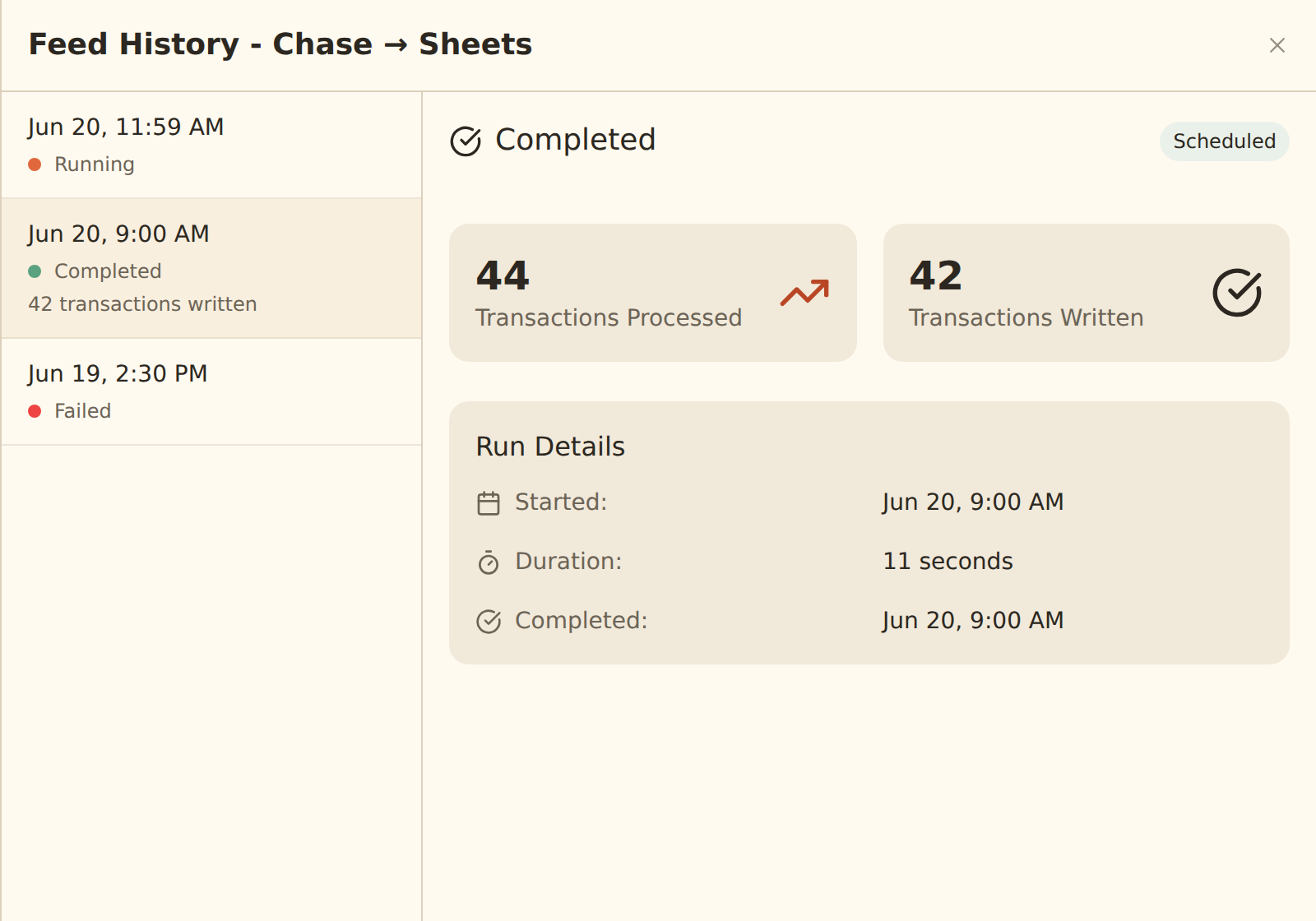
From the Feeds tab, click on the feed you want to check.Click "History"
View all past and current sync jobs for this feed.Click a job for details
See progress percentage, the date range covered, record counts, and any errors.
Job Status Indicators#
Created
Job created but not yet started
In Progress
Job is actively processing chunks
Completed
All chunks processed successfully
Paused
Job paused by user
Failed
Job encountered errors
A completed job with 0 rows isn't necessarily a problem
Job Control Actions#
Pausing a Job#
Open the job details
Click on the running job in the history list.Click the "Pause" button
The pause option appears for in-progress jobs.Job stops after current chunk
The job finishes its current chunk before pausing, so no chunk is left half-written.
Resuming a Job#
Open the paused job
Find the paused job in the history list.Click "Resume"
The resume button appears for paused jobs.Job continues from where it stopped
Processing resumes from the next unprocessed chunk; completed chunks are never redone.
Retrying a Failed Job#
Review error messages
Open the failed job to understand what went wrong. Error details include remediation suggestions where possible.
Resolve the issue
Fix the problem first (for example, reconnect the bank in the Banks tab if the connection expired, or re-authorize the integration in the Integrations tab).
Click "Retry"
The job restarts failed chunks while preserving successful ones, and deduplication prevents any rows written before the failure from being written twice.
Troubleshooting Tips#
Bank Connection Issues
If a job fails due to bank authentication, reconnect your bank in the Banks tab, then retry the job.
Rate Limits
Some banks and integrations limit API calls. Wait a few minutes before retrying if you hit a rate limit.
Large Date Ranges
Processing years of transactions takes time because each 7-day chunk is fetched and written separately. Consider backfilling in stages (for example, one year at a time).
Integration Connectivity
Ensure the integration this feed writes to (Google Sheets, Excel, Notion, Airtable, or a database) is healthy in the Integrations tab.
Quick Fix for Most Issues
Related guides#
- Troubleshooting Guide: diagnose connection, sync, and data issues in depth
- Setting Up Scheduled Feeds: the schedules that create jobs automatically
- Reconnecting a Bank: fix the most common cause of failed jobs
- Managing Integrations: re-authorize the integrations your feeds write to
View Troubleshooting Guide
Use this page with your AI assistant
Every BankSync doc is available as plain Markdown for agents and LLMs.