Managing your integrations
Rename, reorder, reconnect, and delete the integrations (Google Sheets, Excel, Notion, Airtable, databases) that feeds write to.
8 min read
On this page
An integration is a connected tool that BankSync writes your bank data into: a Google spreadsheet, an Excel workbook, a Notion database, an Airtable base, or your own SQL or document database. This page is the home for everything that happens after you connect one: renaming, reordering, reconnecting an expired connection, and disconnecting. To set up a brand new integration, follow the dedicated guide for the tool you use (linked below); to manage the ones you already have, stay here.
Before you start

Supported integrations#
BankSync connects to two kinds of integration. OAuth integrations authorize through a sign-in popup with the provider. Database integrations connect through a connection form with host, credentials, and TLS settings.
| Integration | Type | Connects via | Setup guide |
|---|---|---|---|
| Google Sheets | OAuth | Google sign-in popup | Connecting Google Sheets |
| Microsoft Excel | OAuth | Microsoft / OneDrive sign-in popup | Connecting Excel |
| Notion | OAuth | Notion authorization popup | Connecting Notion |
| Airtable | OAuth | Airtable authorization popup | Connecting Airtable |
| PostgreSQL | Database | Connection form | Database integrations |
| MySQL | Database | Connection form | Database integrations |
| MongoDB | Database | Connection form | Database integrations |
One connection, many feeds
How many integrations can I connect?
Connect a new integration#
The same flow adds every integration type. OAuth providers open a sign-in popup; databases open a connection form.
Add a connection
Open the Integrations tab
From your workspace, click the Integrations tab, then click "Add Connection". The integration picker opens.
Find your integration
Search by name (for example "Postgres", "Notion", or "Sheets") or pick from the grouped list under "Spreadsheets & docs" and "Databases".
Authorize or fill in the form
For Google Sheets, Excel, Notion, or Airtable, click "Open Authorization Link", sign in, and grant access in the popup. BankSync detects the completed authorization and closes the dialog automatically. For PostgreSQL, MySQL, or MongoDB, enter your connection details and click "Test connection", then "Connect".
Database least-privilege user
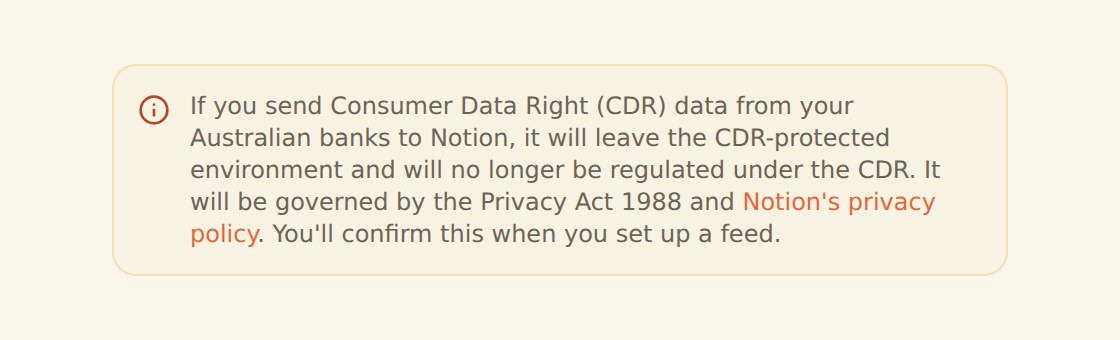
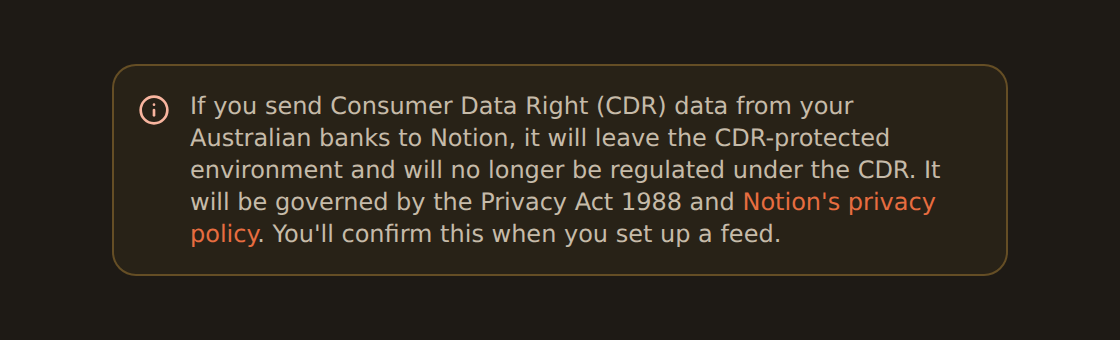
Sending Australian (CDR) bank data to an integration
Rename an integration#
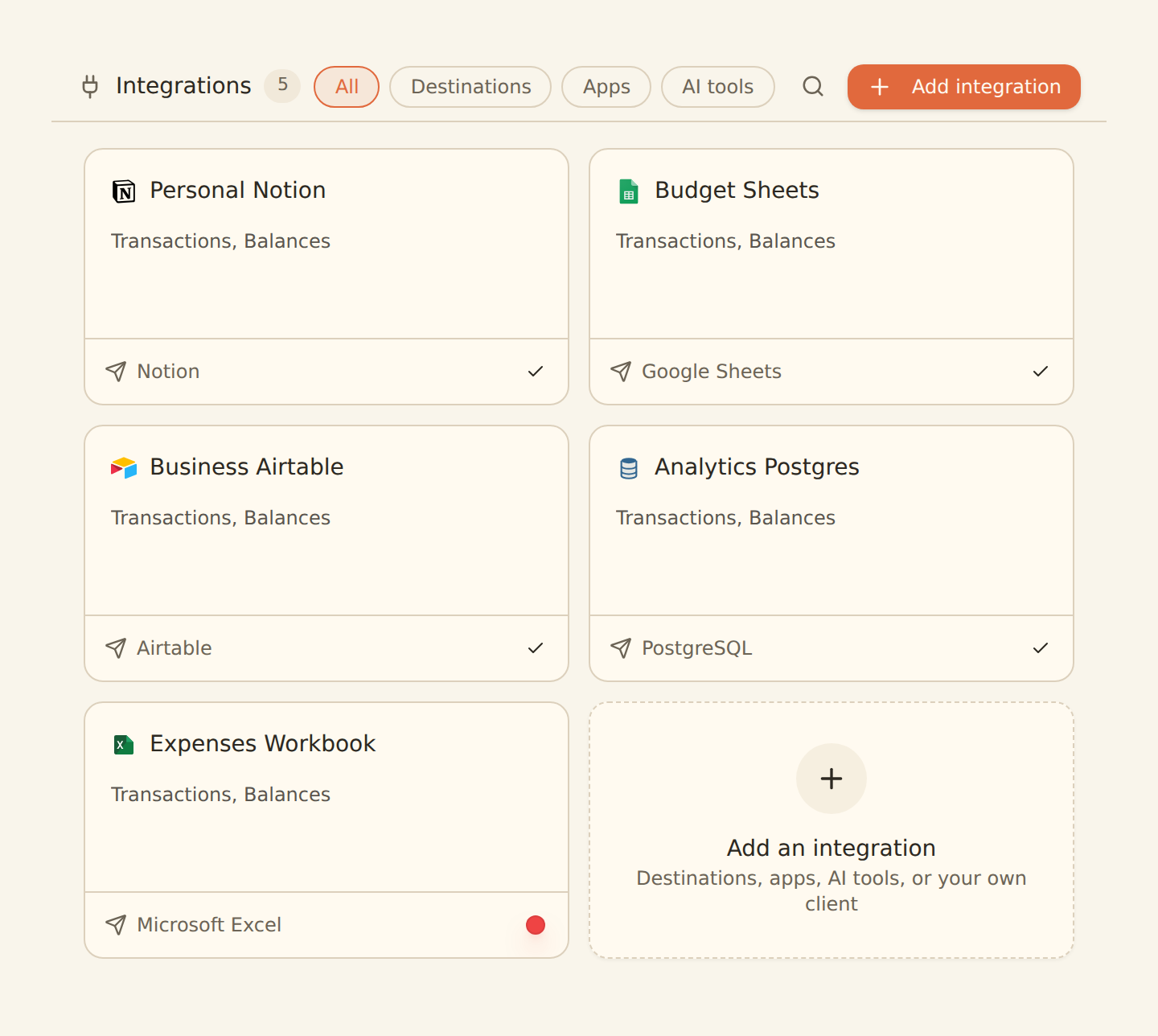
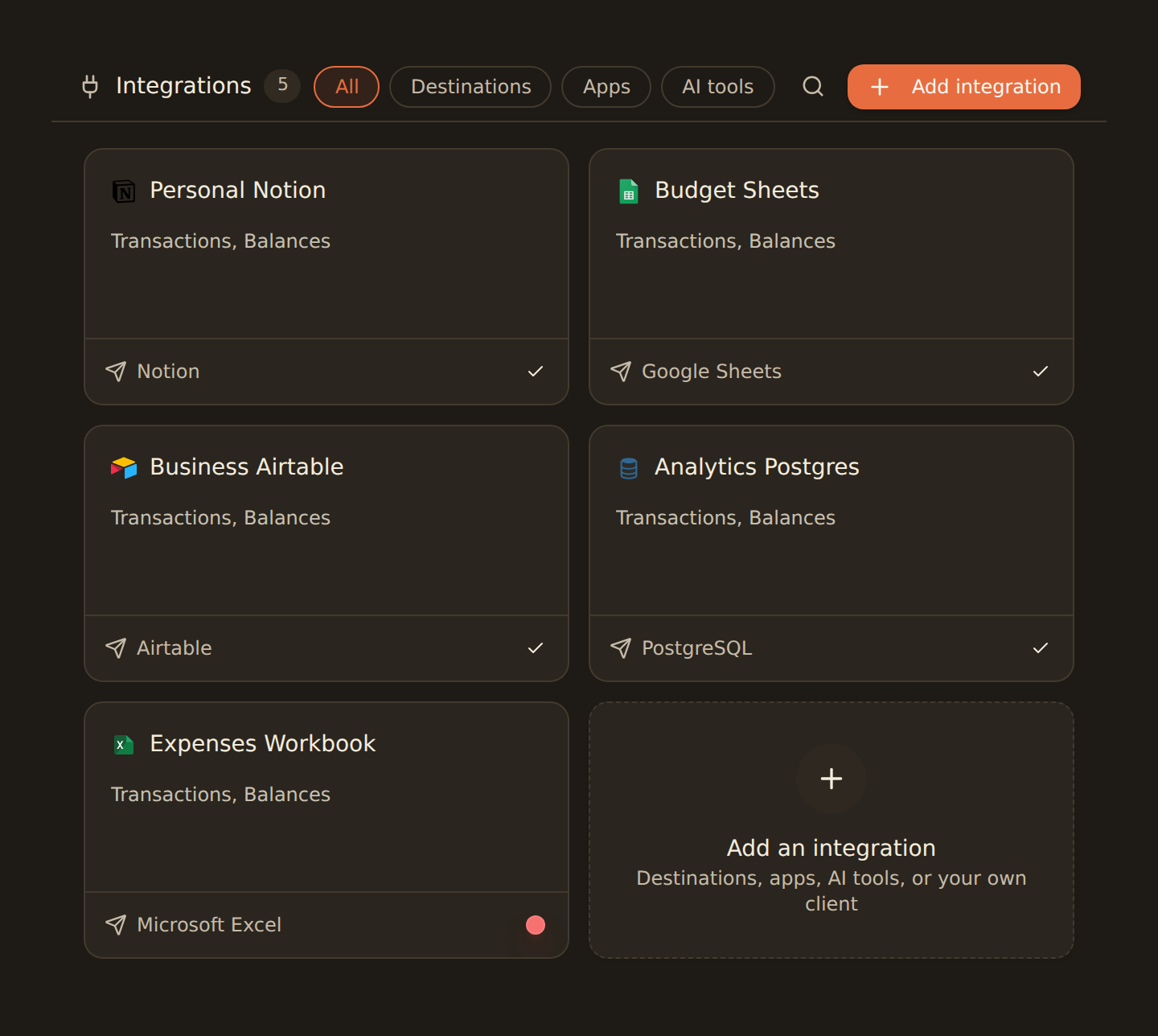
Renaming makes connections easy to tell apart, for example "Personal Notion" versus "Business Airtable". The name is cosmetic and does not affect any feed that already uses the connection.
Rename a connection
Open the connection
On the Integrations tab, click the integration card you want to rename. Its detail pane opens.
Edit the title
Click the name at the top of the pane (the editable title) and type a new name.
Save by clicking away
Click outside the field or press Enter. BankSync saves the new name as soon as the field loses focus and the card updates immediately.
Reorder integrations#
The Integrations tab shows your integrations as draggable cards. Reordering is purely visual: it controls the order they appear in, so you can put your most-used integrations first.
Change the order
Grab a card
Click and hold an integration card on the Integrations tab.Drag it into place
Drag the card to its new position. The other cards shift to make room.
Drop to save
Release the card. The new order is saved automatically in one batch and persists for everyone in the workspace.
Reconnect an expired connection#
OAuth tokens (Google, Microsoft, Notion, Airtable) can expire, or you may revoke BankSync's access from the provider's own settings. When that happens the connection is still listed, but feeds that use it stop writing and you will see an error when BankSync tries to write to your sheet or page, such as a message asking you to reconnect Google Sheets.
What an expired connection looks like
Reconnect an OAuth integration
Open the connection
On the Integrations tab, click the card with the red dot. Its Info tab says what needs attention.
Click Reconnect
Click "Reconnect" (beside the reason, or in the bottom-right of the pane), sign in, and grant access. This mints a fresh token for the same connection, so its name, icon and feeds stay as they were.
Confirm the feed recovers
Open the Dependencies tab to see each feed that writes to this connection and its last run, then trigger a sync from the feed.
Database connections don't use tokens
What the connection pane shows#
Clicking any card opens its pane. Every kind of connection uses the same layout: tabs across the top, and a footer with "Disconnect" on the left.
- Setup — only for connections with settings of their own: a database's connection details, or a webhook's endpoint.
- Access — for apps and AI tools: what leaves BankSync and to whom, what it can see, and who connected it.
- Dependencies — for destinations, the feeds that write to it, where each one writes, and its last run. For apps, the tables and feeds the app added to your workspace.
- Info — whether the connection is working and, if not, why; plus the account it is connected as, who connected it, and when.
Disconnect an integration#
Disconnecting removes the connection from your workspace.
Effect on feeds
Disconnect a connection
Open the connection
On the Integrations tab, click the integration you want to remove.
Click Disconnect
In the detail pane, click the red "Disconnect" button in the bottom-left of the footer.
Confirm
Confirm in the dialog (it warns that this will disconnect all feeds using the integration). BankSync shows an "Integration disconnected" confirmation and the card disappears from the list.
Confirm it worked#
Connected
A new connection appears as a card on the Integrations tab and is selectable in a feed's Destination tab when you build or edit a feed.
Renamed
The card and its detail pane show the new name immediately, with no page reload needed.
Reordered
The cards stay in your chosen order after a refresh, for everyone in the workspace.
Reconnected
After re-authorizing, the picker in a feed's Destination tab can list your files / tables again, and the next sync writes new rows.
Troubleshooting#
| Problem | Likely cause | Fix |
|---|---|---|
| The authorization popup closed without finishing | Sign-in was cancelled, or your organization requires admin approval | Click "Try again". For Excel / OneDrive, use "My IT admin needs to approve first" to send your admin a consent link. |
| A feed fails with a permission or authorization error | The OAuth token expired or access was revoked at the provider | Reconnect the integration by re-running the "Add Connection" flow for that provider (see above). |
| "Test connection" fails for a database | Wrong host or port, bad credentials, TLS mode, or BankSync's IP is not allowed by your firewall | Re-check the fields, confirm your database accepts connections from BankSync, and adjust the SSL / TLS mode. The error message under the form names what failed. |
| Can't add or change a connection | You have Viewer access | Ask a workspace owner for Editor access or higher. See Roles and permissions. |
| Don't see the integration you need | It isn't a wired integration yet (Coda, Zapier, and Make are not connectable here) | In the picker, click "Don't see your integration? Request one" to send us a request. |
Changing where a feed writes
Related guides#
- Creating your first feed: route bank data into a connected integration via the feed's Destination tab.
- Per-tool setup: Google Sheets, Excel, Notion, Airtable, and databases: connect a new integration end to end.
- Connect a bank: add a data source if you still need one to sync from.
- Workspaces and roles: control who can manage integrations.
Use this page with your AI assistant
Every BankSync doc is available as plain Markdown for agents and LLMs.