Connecting Notion
Connect your Notion workspace, share the right databases, and configure how BankSync writes bank data into Notion.
3 min read
On this page
Notion is a powerful place to organize and analyze your bank data. Connect your Notion workspace once, choose which pages and databases to share, then point feeds at a shared database. This guide covers connecting Notion, the database requirements, and how sharing and reconnecting work.
Looking for what BankSync can sync into Notion and how the connection works before you set it up? See Sync bank transactions to Notion.
This guide covers

Connect Notion#
Notion connects via OAuth: you authorize BankSync in a Notion popup and pick which pages and databases to share. BankSync can only ever see the databases you explicitly share during this step.
Connect Notion
Open the Add Connection dialog
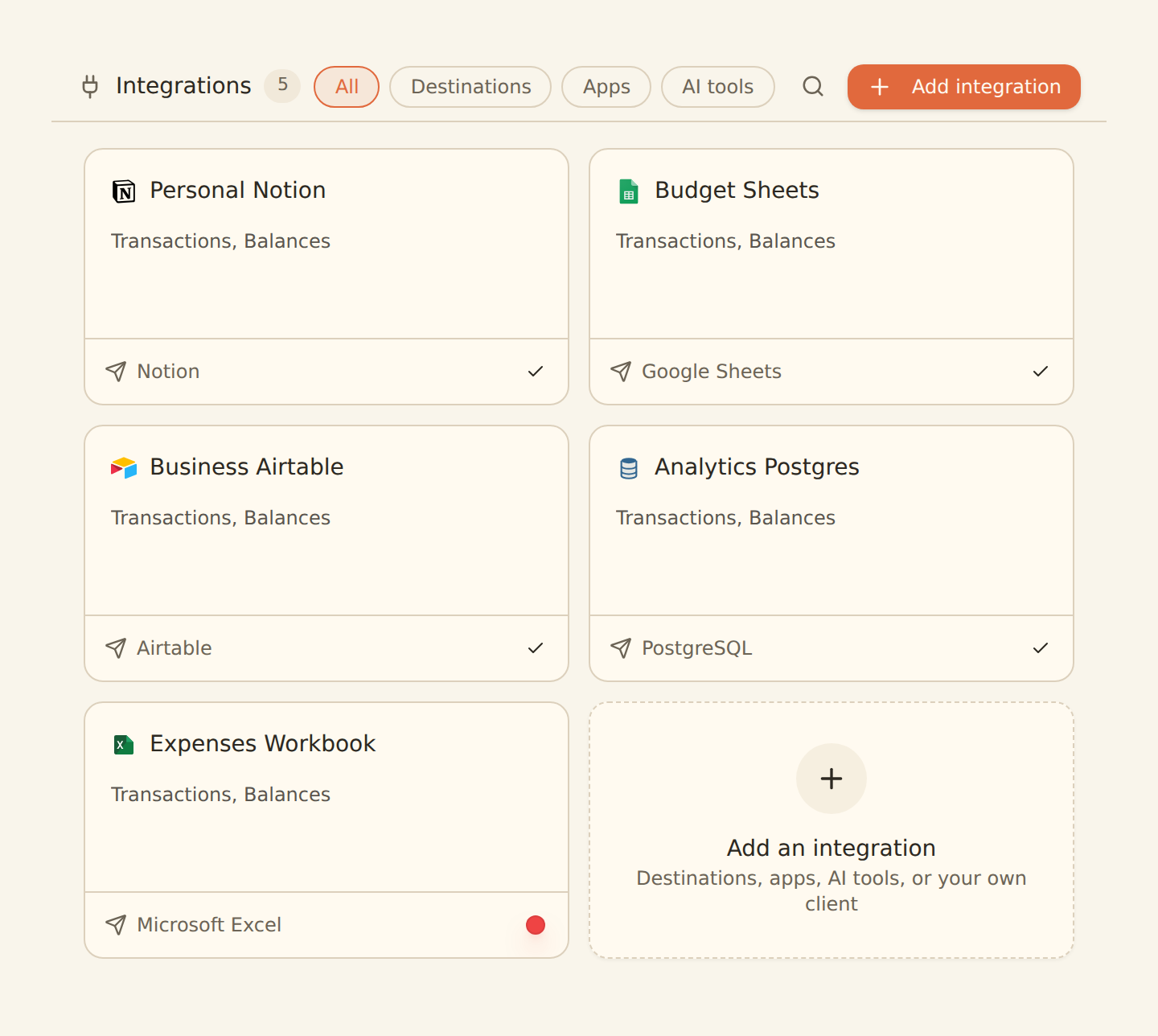
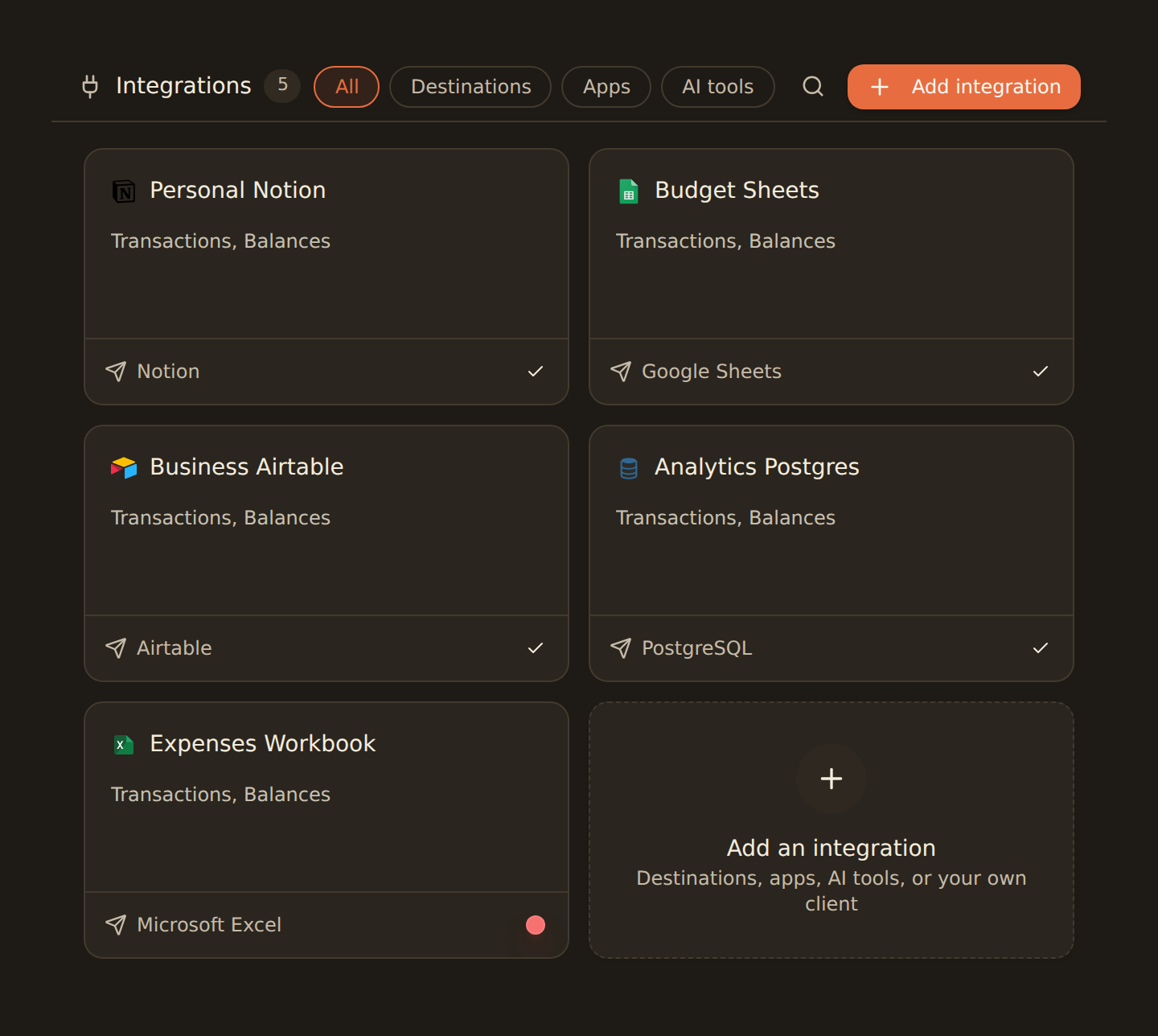
Go to the Integrations tab and click the add card ("Connect to an Integration"). The "Add Connection" dialog opens.
Pick Notion
Find Notion under "Spreadsheets & docs" (or type "notion" in the search box) and click it.
Open the authorization link
Click "Open Authorization Link". Notion's authorization popup opens.
Choose what to share and grant access
Sign in to the right Notion workspace, select the pages and databases BankSync may access, and approve. BankSync detects the completed authorization and closes the dialog automatically.
When it finishes, Notion appears as a card on your Integrations tab with a Connected status.
Select only what you need
Notion database requirements#
In the feed's Destination tab you select one of the shared Notion databases as the target. Make sure that database has appropriate property types for your data:
Date Fields
Use Notion's Date property type for transaction dates
Description
Use Title or Text property type for transaction descriptions
Amounts
Use Number property type for debit and credit amounts
Categories
Use Select or Multi-select property type for transaction categories
Field mapping for Notion#
BankSync fetches your database schema and shows available properties in a dropdown. The system validates that your field types are compatible.
Type Validation
BankSync validates field type compatibility. A Date field should map to a Date property, not Text.
Auto-Fill
Click "Auto fill" to automatically match fields by name similarity.
Select Properties
If your Notion connection expires#
Notion access can stop working if the token expires or someone revokes the BankSync connection from Notion's Settings (under Connections). When that happens, feeds writing to Notion stop adding pages and the picker in a feed's Destination tab can't list your databases.
Reconnect Notion
Re-run the connect flow
On the Integrations tab, click "Add Connection" and pick Notion again.
Authorize again
Click "Open Authorization Link", sign in, re-select the databases to share, and approve. This mints a fresh token.
Confirm the feed recovers
Open a feed that writes to Notion, confirm its Destination tab lists your databases again, then trigger a sync. Feeds, their target databases, and field mappings stay intact; pages already created in Notion are never deleted.
Tips for Notion#
Best practices
Create a dedicated database
Keep synced transactions in their own database for cleaner organization.
Use views for analysis
Create filtered views for expenses by category, monthly summaries, or specific accounts.
Add formula properties
Create formula columns for net amount, running totals, or expense flags.
Link to related databases
Use Notion relations to connect transactions to budgets, projects, or categories.
Next steps#
Once you've connected Notion, you're ready to create your first feed.
Connect Notion
Related guides#
- Creating your first feed: the complete walkthrough from bank to Notion database.
- Configuring field mappings: map bank fields onto your Notion properties.
- How to sync transactions: the most common Notion feed, step by step.
- Managing your integrations: rename, reorder, reconnect, or disconnect this connection later.
Use this page with your AI assistant
Every BankSync doc is available as plain Markdown for agents and LLMs.