Connecting Airtable
Connect your Airtable workspace, grant access to the right bases, and configure how BankSync writes bank data into a table.
3 min read
On this page
Airtable combines the simplicity of spreadsheets with the power of a database. Connect your Airtable account once, grant access to the bases you want to use, then point feeds at a table inside one of those bases. This guide covers connecting Airtable, the base and table structure, and Airtable-specific mapping behavior.
Looking for what BankSync can sync into Airtable and how the connection works before you set it up? See Sync bank transactions to Airtable.

This guide covers
Connect Airtable#
Airtable connects via OAuth: you authorize BankSync in an Airtable popup and choose which bases to grant access to. BankSync can only see the bases you grant.
Connect Airtable
Open the Add Connection dialog
Go to the Integrations tab and click the add card ("Connect to an Integration"). The "Add Connection" dialog opens.
Pick Airtable
Find Airtable under "Spreadsheets & docs" (or type "airtable" in the search box) and click it.
Open the authorization link
Click "Open Authorization Link". Airtable's authorization popup opens.
Choose bases and grant access
Sign in, select which bases BankSync may access, and approve. BankSync detects the completed authorization and closes the dialog automatically.
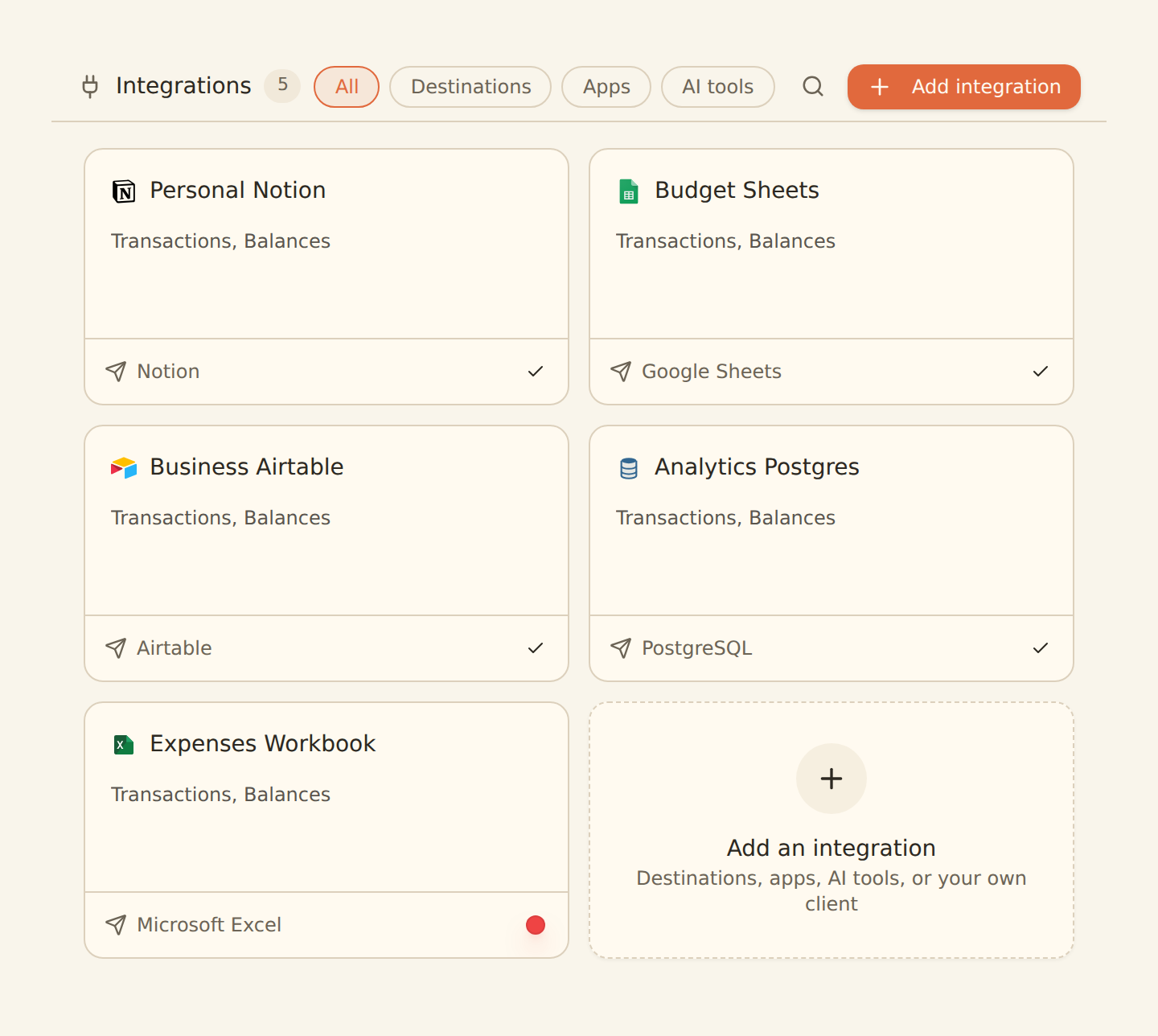
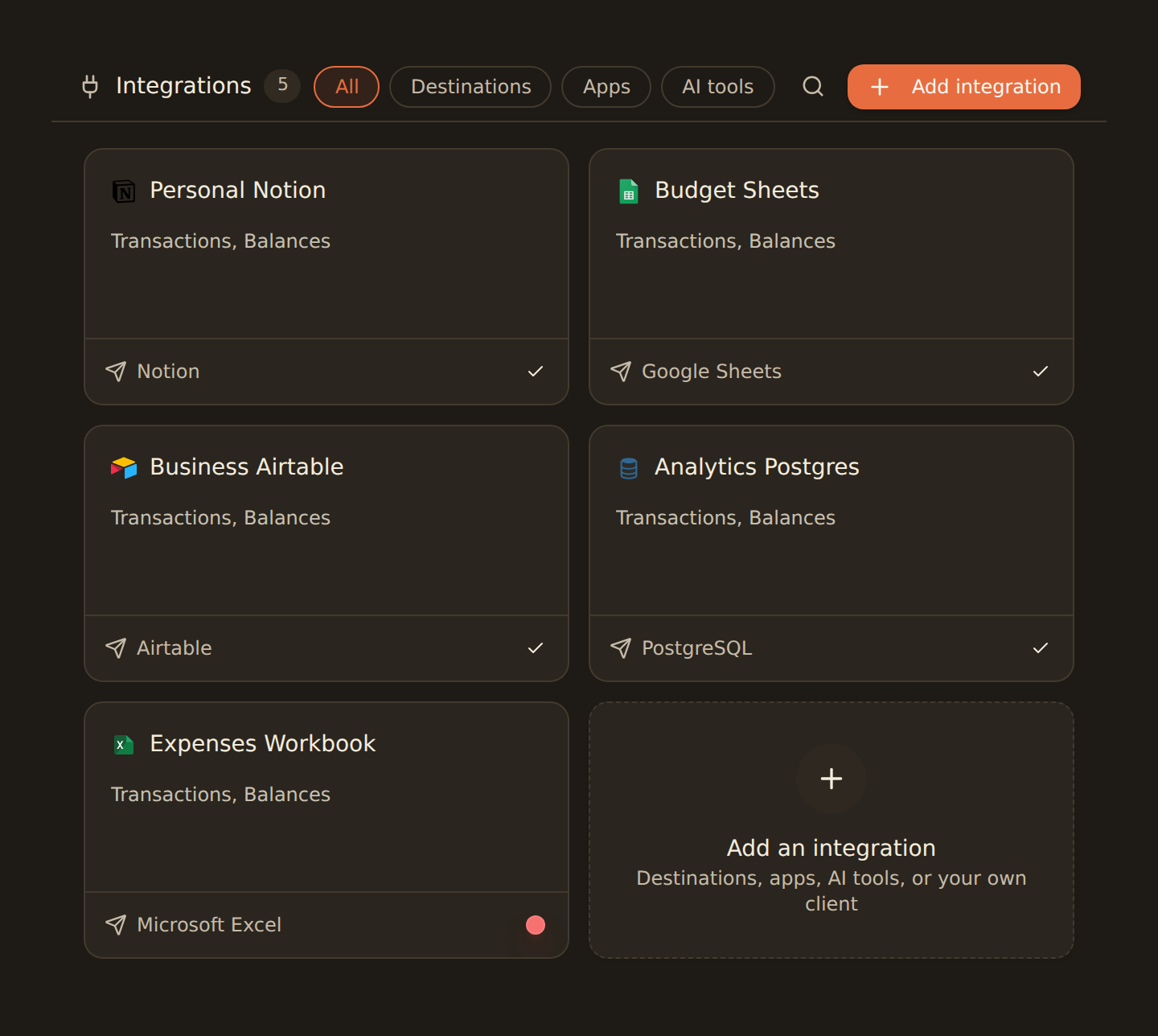
When it finishes, Airtable appears as a card on your Integrations tab with a Connected status.
Add more bases later
Airtable structure#
Airtable organizes data in a hierarchy. In the feed's Destination tab you select: Base → Table. BankSync then shows the fields available in that table for mapping.
Workspace
Top-level container for all your bases
Base
A database containing related tables
Table
Where your synced records go
Airtable field types#
Ensure your Airtable table has the appropriate field types:
Date
Use Date field type for transaction dates
Description
Use Single line text or Long text for descriptions
Amount
Use Number or Currency field type for amounts
Category
Use Single select or Multiple select for categories
Field mapping for Airtable#
Type Validation
BankSync validates field type compatibility. Mapping a number field to a text field will show a warning.
Auto-Fill
Click "Auto fill" to automatically match fields by name. "Amount" will match to "Amount" or "Transaction Amount".
Batch Processing
BankSync syncs records in batches of 10 to respect Airtable's API limits and ensure reliable syncing.
If your Airtable connection expires#
Airtable access can stop working if the OAuth token expires or you revoke BankSync from your Airtable account settings. Feeds writing to Airtable then stop adding records, and the picker in a feed's Destination tab can't list your bases.
To fix it, re-run the connect flow from the Integrations tab (Add Connection, Airtable, Open Authorization Link) and re-grant your bases. Your feeds, their target tables, and field mappings stay intact, and records already written to Airtable are never deleted; the next sync simply resumes.
Tips for Airtable#
Best practices
Create a dedicated base for finances
Keep your financial data organized separately from other projects.
Use Currency field type for amounts
This enables proper formatting and currency symbol display.
Create views for different analyses
Filter by category, group by month, or sort by amount to gain insights.
Use Airtable automations
Set up automations to notify you of large transactions or create monthly summaries.
Airtable Features
Next steps#
Once you've connected Airtable, you're ready to create your first feed.
Connect Airtable
Related guides#
- Creating your first feed: the complete walkthrough from bank to Airtable table.
- Configuring field mappings: map bank fields onto your Airtable fields.
- How to sync balances: track account balances in an Airtable table.
- Managing your integrations: rename, reorder, reconnect, or disconnect this connection later.
Use this page with your AI assistant
Every BankSync doc is available as plain Markdown for agents and LLMs.