Connecting Excel (Microsoft 365 / OneDrive)
Connect Microsoft OneDrive, pick an Excel workbook and worksheet in a feed's Destination tab, and sync bank data into it.
3 min read
On this page
BankSync can write your bank data straight into an Excel workbook stored on Microsoft OneDrive. Connect once with your Microsoft account, then point a feed at a specific workbook and worksheet.
Looking for what BankSync can sync into Excel and how the connection works before you set it up? See Sync bank transactions to Excel.
Before you start
What this guide covers

Connect OneDrive#
Connect Microsoft Excel
Open the Add Connection dialog
Go to the Integrations tab and click the add card ("Connect to an Integration"). The "Add Connection" dialog opens.
Pick Microsoft Excel
In the "Add Connection" dialog, find Microsoft Excel under "Spreadsheets & docs" (or type "excel" in the search box) and click it.
Open the authorization link
On the "Connect to OneDrive" screen, click "Open Authorization Link". A Microsoft sign-in popup opens.
Sign in and grant access
Sign in to the Microsoft account that holds your workbook, then approve access to your OneDrive files. BankSync detects the completed authorization automatically and the dialog closes.
When it finishes you'll see a "Successfully connected to OneDrive!" message, and Microsoft Excel appears on your Integrations tab.
Work and school accounts (SharePoint)
Point a feed at your workbook#
The workbook and worksheet are chosen while you build the feed, not at connect time.
Point a feed at a workbook
Start a feed and open its Destination tab
Create or edit a feed and open the feed's Destination tab. Select your Microsoft Excel connection there.
Pick the workbook
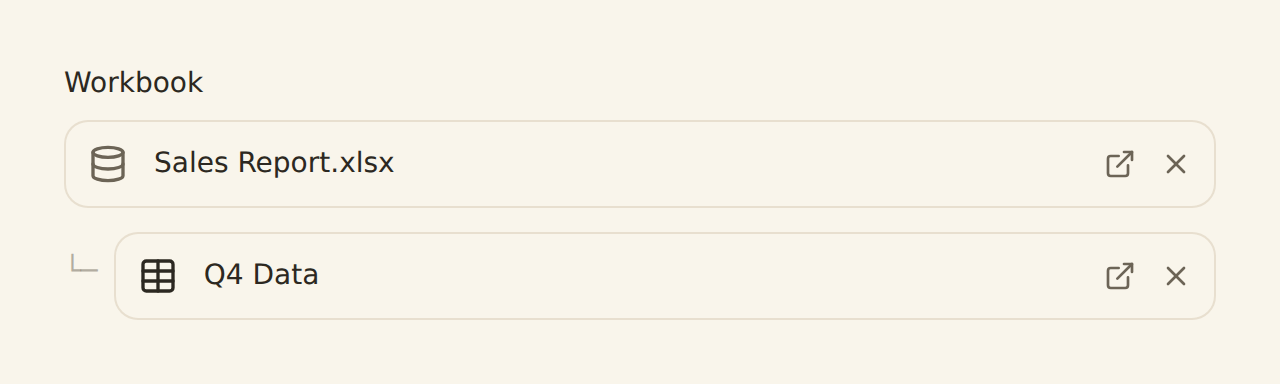
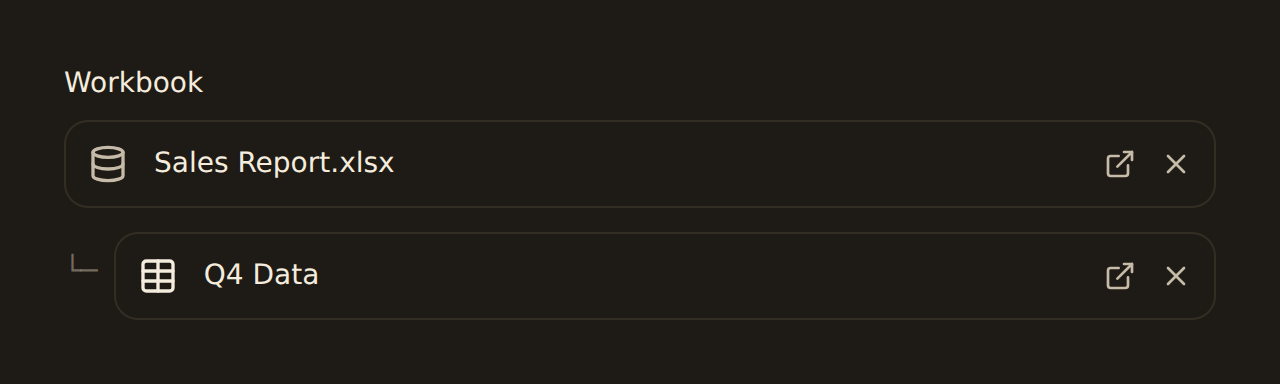
Use the "Search for Excel workbooks..." field to find the workbook on your OneDrive, then select it.
Pick the worksheet
Use the "Search worksheets in [workbook]..." field to choose the worksheet (tab) where rows should be written.
Map your fields
Continue to the Mapping step to match bank fields to columns. BankSync can also set up the columns for you from the data type. Row vs column direction and the header row live under Mapping, Advanced.
Let BankSync set up the columns
If your Microsoft connection expires#
Microsoft OAuth tokens can expire, and an organization admin can also revoke BankSync's access. When that happens, feeds writing to Excel stop adding rows and the workbook picker in a feed's Destination tab can't list your files. To fix it, re-run the connect flow from the Integrations tab (Add Connection, Microsoft Excel, Open Authorization Link) and sign in again. Re-authorizing refreshes access in place: your feeds, their chosen workbook and worksheet, and field mappings are untouched, and rows already written are never deleted.
Confirm it worked#
- Microsoft Excel shows on the Integrations tab.
- In the feed's Destination tab, the workbook name and worksheet name both appear as selected (not the search placeholders).
- After the feed runs its first sync, open the workbook in OneDrive: new rows appear on the worksheet you chose.
Troubleshooting#
If the connection or sync fails
Next steps#
With OneDrive connected, build the feed that writes into your workbook.
Create your first feed
Related guides#
- Creating your first feed: the complete walkthrough from bank to workbook.
- Configuring field mappings: control which bank fields land in which columns.
- Managing your integrations: rename, reconnect, or disconnect the Excel connection later.
- Troubleshooting guide: diagnose a feed that stops writing rows.
Use this page with your AI assistant
Every BankSync doc is available as plain Markdown for agents and LLMs.