Connecting Google Sheets
Connect your Google account, pick a spreadsheet in a feed's Destination tab, and configure how BankSync writes rows into Google Sheets.
4 min read
On this page
Google Sheets is one of the most popular places to sync bank data into. Connect your Google account once, then point any number of feeds at the spreadsheets and sheets (tabs) you want BankSync to write to. This guide covers connecting the account, the Sheets-specific feed options, and what to do when the connection expires.
Looking for what BankSync can sync into Google Sheets and how the connection works before you set it up? See Sync bank transactions to Google Sheets.

This guide covers
Connect Google Sheets#
Google Sheets connects via OAuth: you sign in with Google in a popup and grant BankSync permission to view and update spreadsheets. Your Google password is entered on Google's page, never in BankSync.
Connect Google Sheets
Open the Add Connection dialog
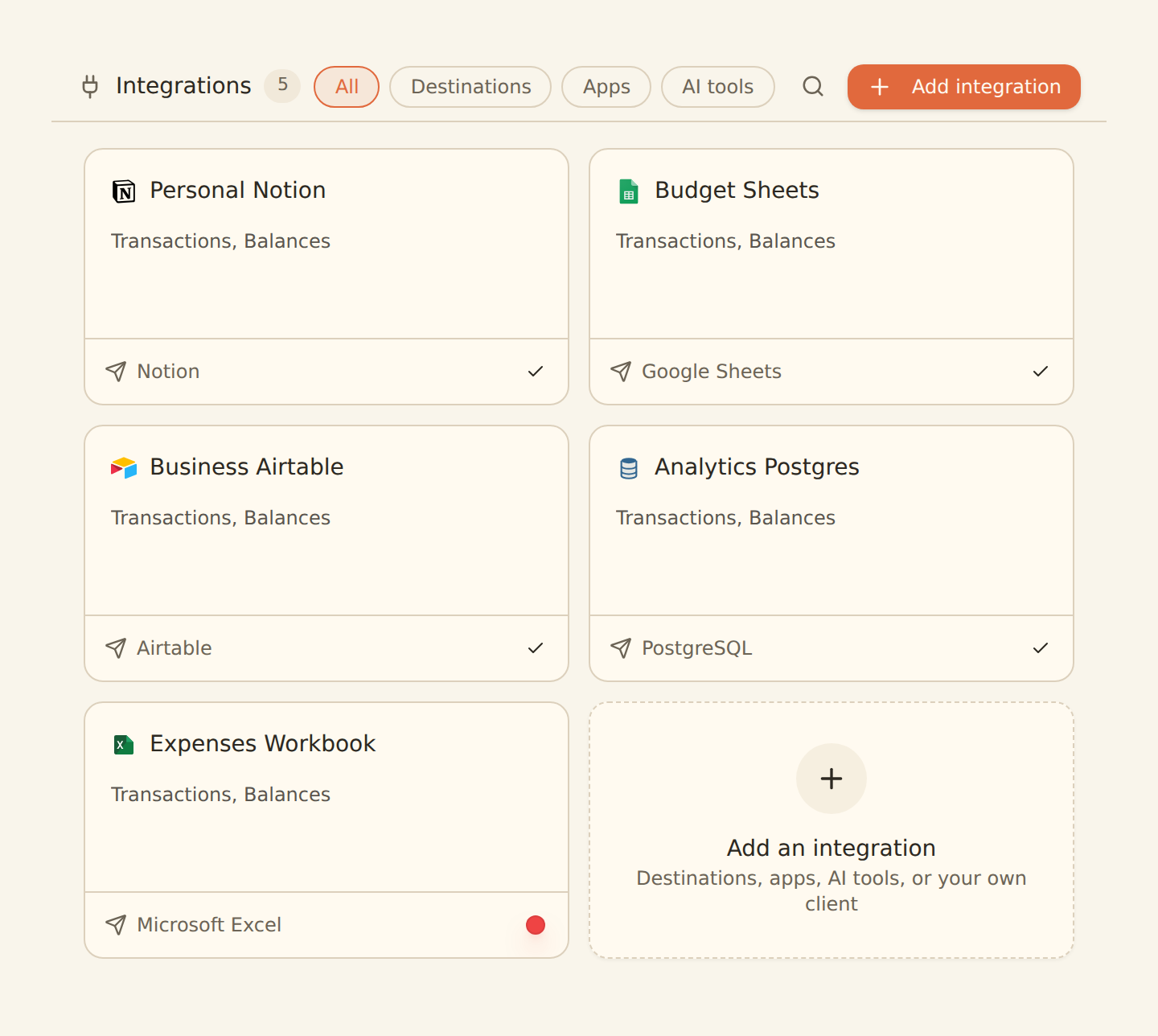
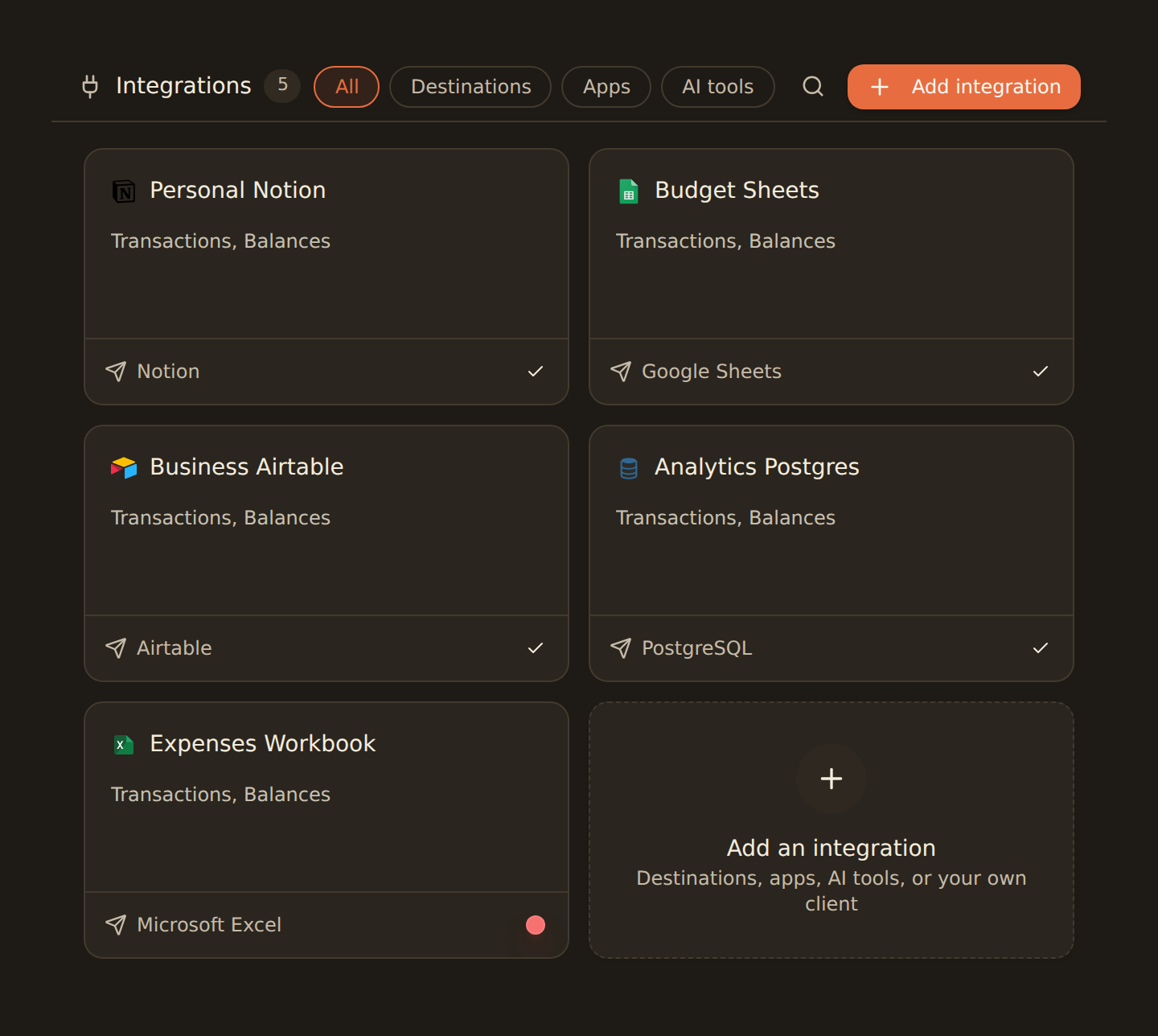
Go to the Integrations tab and click the add card ("Connect to an Integration"). The "Add Connection" dialog opens.
Pick Google Sheets
Find Google Sheets under "Spreadsheets & docs" (or type "sheets" in the search box) and click it.
Open the authorization link
Click "Open Authorization Link". A Google sign-in popup opens.
Sign in and grant access
Choose the Google account that owns (or can edit) the spreadsheets you want to write to, then approve the requested permissions. BankSync detects the completed authorization and closes the dialog automatically.
When it finishes, Google Sheets appears as a card on your Integrations tab with a Connected status.
Pick the right Google account
Choose the spreadsheet in your feed#
The spreadsheet and sheet are chosen while you build a feed, not at connect time. In the feed's Destination tab, select your Google Sheets connection, then search for the spreadsheet and pick the sheet (tab) where rows should land. One connection can power many feeds, each writing to a different spreadsheet or sheet.
Google Sheets configuration options#
When a feed writes to Google Sheets, you'll configure these Sheets-specific options:
Spreadsheet & Sheet Selection
Choose the specific spreadsheet and sheet (tab) where your data will be written.
Direction
By Row (recommended): Each transaction is a new row. By Column: Each transaction is a new column, useful for time-series data.
Header Row
Specify which row contains your headers (default: 1). BankSync will start adding data after this row.
Push Location
End (recommended): New data added after existing data. Beginning: New data inserted at top, most recent first.
Field mapping for Google Sheets#
With Google Sheets, you map fields to column letters (A, B, C, etc.). The Field Mapping tab includes an Auto fill button that assigns sequential columns automatically.
Example Mapping
If your Google connection expires#
Google OAuth tokens can expire, and you can also revoke BankSync's access from your Google account's security settings. When that happens, feeds that write to Sheets stop adding rows and you may see an error like "Your Google connection is missing permission to access spreadsheets. Please reconnect...".
Reconnect Google Sheets
Re-run the connect flow
On the Integrations tab, click "Add Connection" and pick Google Sheets again.
Authorize again
Click "Open Authorization Link", sign in with the same Google account, and grant access. This mints a fresh token.
Confirm the feed recovers
Open a feed that writes to Sheets and confirm the picker in its Destination tab can list your spreadsheets again, then trigger a sync.
Reconnecting keeps your feeds intact
Tips for Google Sheets#
Best practices
Use a dedicated sheet for synced data
Keep your synced transactions separate from analysis formulas and charts.
Add formulas in separate columns
Don't add formulas to synced columns: use columns after your mapped fields instead.
Use conditional formatting
Highlight expenses vs income, or flag transactions over a certain amount.
Create pivot tables on a separate sheet
Analyze spending by category, track monthly totals, and more.
Google Sheets Add-on
Next steps#
Once Google Sheets is connected, you're ready to create your first feed.
Connect Google Sheets
Related guides#
- Creating your first feed: the complete walkthrough from bank to spreadsheet.
- Google Sheets Add-on: manage feeds without leaving your spreadsheet.
- Configuring field mappings: fine-tune which bank fields land in which columns.
- Managing your integrations: rename, reorder, reconnect, or disconnect this connection later.
Use this page with your AI assistant
Every BankSync doc is available as plain Markdown for agents and LLMs.