
How to Sync Transaction Data
Learn how to set up and configure transaction feeds to sync your bank transaction data to Notion, Google Sheets, or Airtable.
4 min read
On this page
Transaction feeds are the most common feed type in BankSync. Sync your checking, savings, and credit card transactions to keep track of spending, categorize expenses, and build financial dashboards.
All Transactions
Deposits, withdrawals, purchases, transfers
Automatic Updates
Sync runs automatically on schedule
Rich Data
Merchant, amount, date, category, and more
Historical Data
The first sync backfills available history automatically

Available Transaction Fields#
Transaction feeds provide the following data fields for mapping:
Date
Transaction date
Merchant
Merchant or payee name
Amount
Transaction amount
Category
Auto-categorized type
Account
Source account name
Status
Pending or posted
Type
Debit, credit, transfer
Description
Bank-provided description
Setting Up a Transaction Feed#
Quick Setup Guide
Connect your bank
Go to the Banks tab and connect the bank account containing your transactions.
Create a new feed
Click Create Feed and select 'Transactions' as the feed type in the Sources tab.
Select accounts
Choose which bank accounts to pull transactions from. You can include accounts from multiple banks in one feed.
Pick an integration
In the Destination tab, choose which integration receives the data (Google Sheets, Excel, Notion, Airtable, or a database).
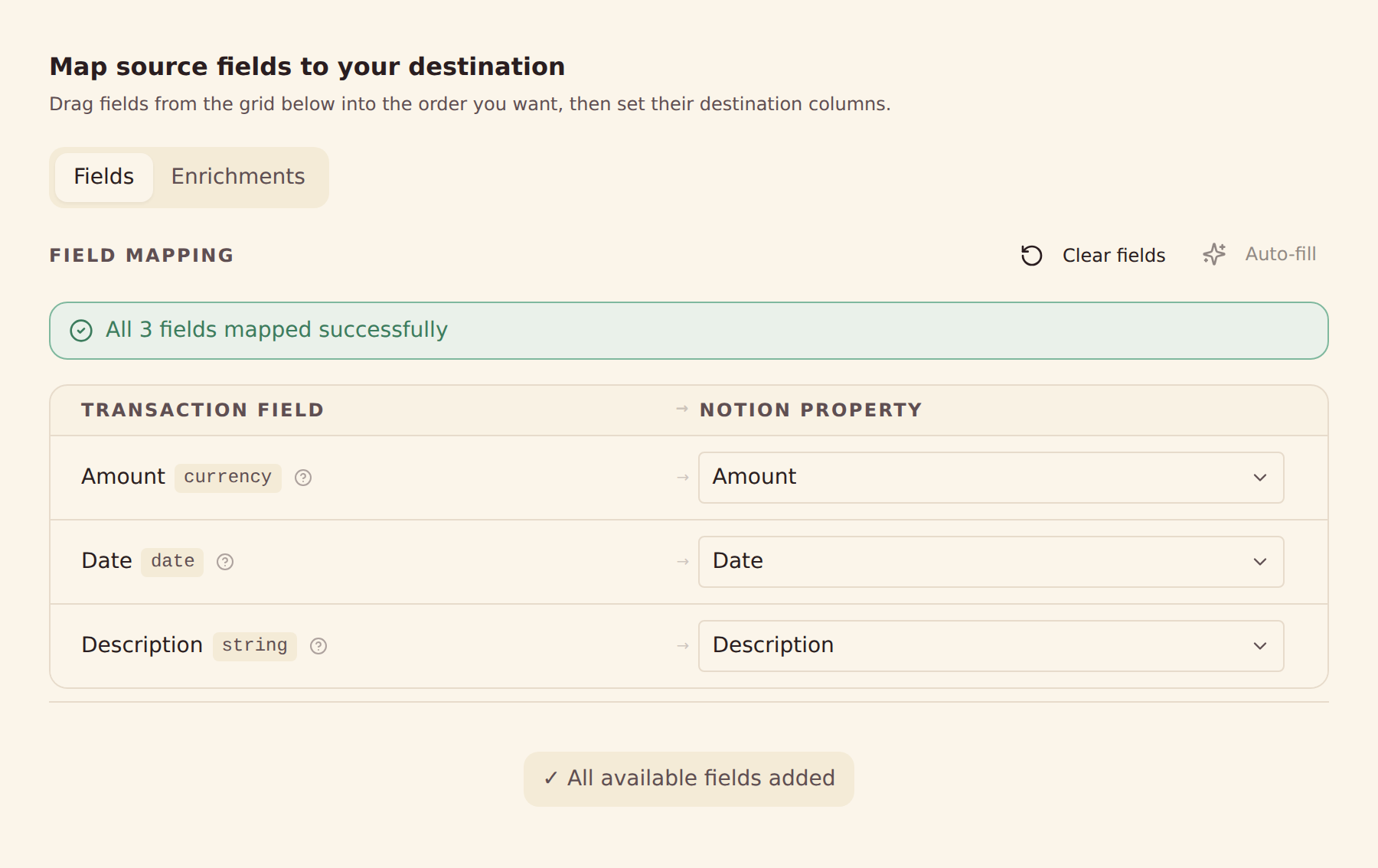
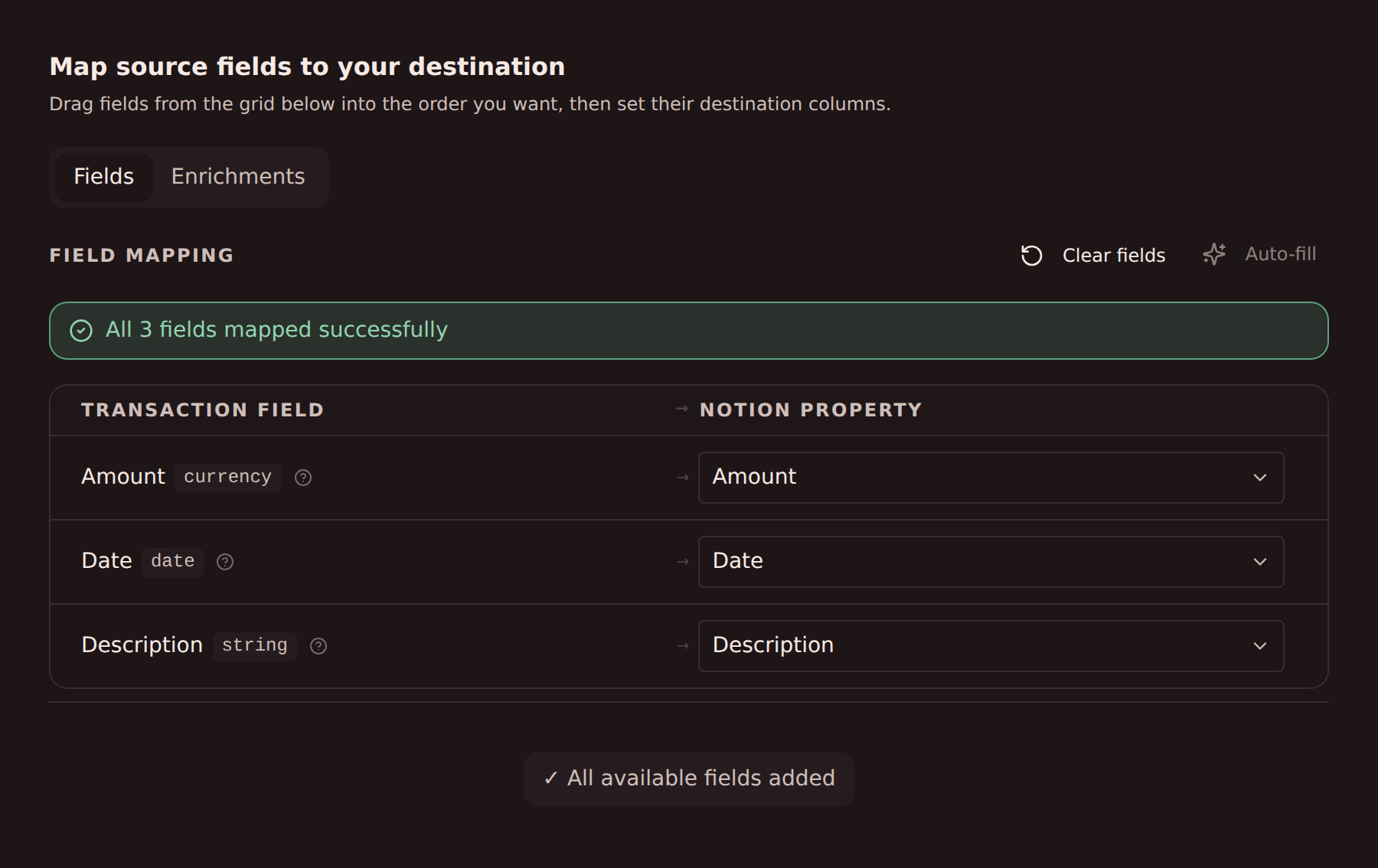
Configure mappings
Map transaction fields to the columns in your sheet or table.
Set schedule
Choose a cadence: Hourly, Daily, or Weekly. Hourly and Daily are gated by plan; see the scheduling guide. You can also leave the feed on Manual and sync it yourself.
First sync vs. ongoing syncs#
- First sync (backfill): the first run pulls in available historical transactions. A multi-year backfill is read in periods within one job, so it takes a while; see Managing Sync Jobs. How far back history goes varies by bank and provider.
- Ongoing syncs: incremental runs (manual or scheduled) pick up only what's new since the last sync. Manual "Sync Now" uses the same read path as scheduled runs, so mixing them is safe.
- Deduplication: BankSync keys each transaction on the bank provider's unique transaction ID, so overlapping runs and retries don’t create duplicate rows.
Handling pending transactions#
Banks report transactions in two stages: a pending entry when the charge is authorized, then a posted entry when it settles (often with a corrected amount or description). BankSync has pending-transaction handling modes that control whether pending entries are synced or filtered out until they post.
Why Australian, UK and European connections filter pending by default
Practical implications:
- If a recent card purchase hasn't appeared in your sheet from an Australian, UK or European bank, it's likely still pending; it will sync once it posts. UK and European banks can hold a transaction as pending for several days (American Express about 4, Nationwide about 3), even after your banking app shows it as completed.
- If you sync pending transactions, expect details like amount or merchant name to be finalized only when the transaction posts (restaurant tips are the classic example).
Changing the setting#
- In the app: open the feed and go to the Mapping step. For spreadsheet and database destinations the setting is on the Advanced tab; for webhook and app destinations it sits below the payload preview. YNAB feeds always sync posted transactions only.
- Through the API: set
dataTypeOptions.pendingModeonPUT /v1/feeds/{id}tosync_all(include pending) orfilter_pending(posted only). The oldertransactionSyncOptions.pendingTransactionModefield is still accepted and kept in step.track_and_updateis not available yet and is rejected. - A pending transaction and its posted version arrive as separate rows, and for Australian (Fiskil), UK and European (Salt Edge) connections the posted row has no link back to the pending one. BankSync never updates or removes the pending row.
- For UK and European (Salt Edge) connections, pending transactions arrive on scheduled, Sync Now and backfill runs; Live Preview shows posted transactions only.
Best Practices#
One Feed Per Target
Avoid two feeds syncing the same account into the same sheet or table; each feed deduplicates independently, so overlapping feeds double up rows.
Daily Sync Schedule
Daily syncs balance freshness with the load each bank tolerates. Use Hourly (Professional plan and up) only if near-real-time data is critical. Scheduled syncs don't count toward your API rate limit.
Consistent Categories
Use bank-provided categories, or build your own with enrichments — rulesets and lookup tables, Memory learning from your edits, and AI filling whatever is left.
Late-posting coverage
Each run re-checks a window behind your last sync, so transactions that banks post a day or two late are still picked up; dedup makes the overlap safe.
Common Use Cases#
Expense Tracking
Monitor spending across categories with automatic updates
Budget Dashboard
Build budget vs. actual spending views that stay current
Tax Preparation
Track deductible expenses for easy tax filing
Related guides#
- Configuring Field Mappings: the full Mapping tab reference for transaction fields
- Setting Up Scheduled Feeds: cadences, local-time scheduling, and plan gating
- Creating Enrichments: rename, categorize, and tag transactions before they reach your sheet
- Troubleshooting Guide: missing or duplicate transaction fixes
Configure Field Mappings
Use this page with your AI assistant
Every BankSync doc is available as plain Markdown for agents and LLMs.