Reconnecting a bank
Reauthenticate a bank whose connection has expired or errored so data syncs again, without losing history.
6 min read
On this page
When a bank connection stops working, BankSync flags it as needing attention and you fix it by reconnecting. Reconnecting reopens your provider's secure window so you can re-enter your login or re-confirm consent, which refreshes the connection and resumes syncing without losing any of the history already pulled in.
Reconnecting never erases your history
Before you start

Spot a bank that needs attention#
A healthy bank shows its connection date (for example "Connected: 1/14/2026"). A bank that needs re-authentication is clearly flagged on its card on the Banks page.
Find the flagged bank
Open the Banks page
Select Banks from the navigation. Every connected institution appears as a card.
Look for the amber 'Reconnection needed' label
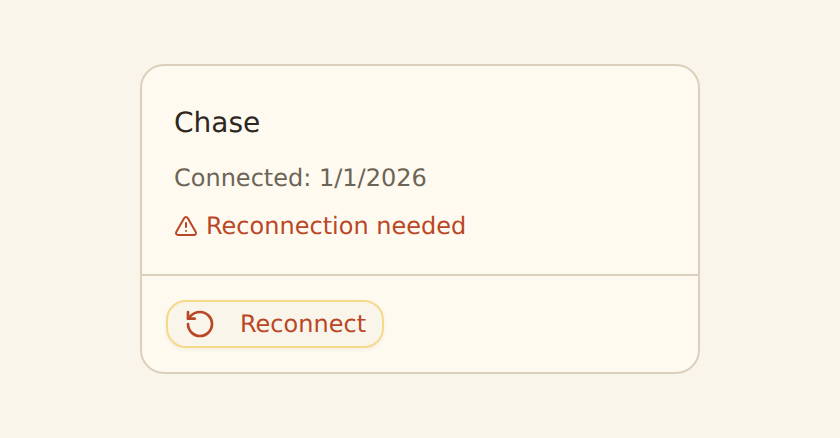
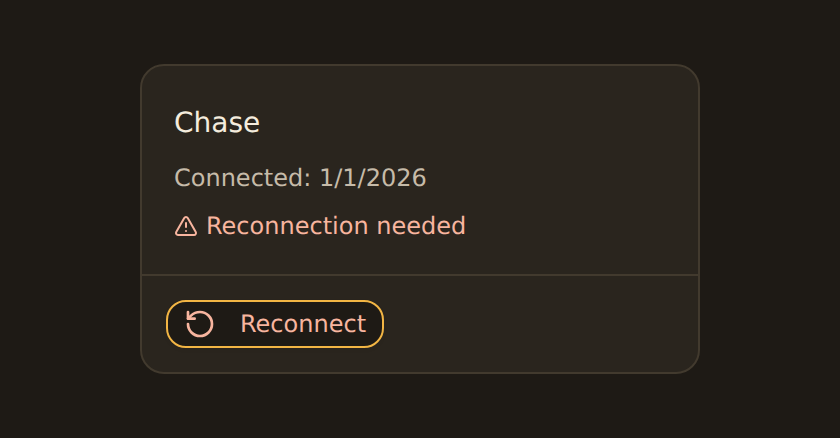
A bank that needs attention shows an amber warning triangle with the text "Reconnection needed" in its card body, and a "Reconnect" button appears in the bottom-left of the card.
BankSync classifies why a connection broke and surfaces the appropriate action. The common states are:
| State on the connection | What it means | What to do |
|---|---|---|
| Requires re-authentication | Credentials or consent need refreshing (expired consent, changed password, revoked access, or a broken provider session). This is the most common, user-fixable state. | Reconnect (re-enter your login or re-confirm consent) |
| Awaiting your action | The provider paused mid-flow and needs a response, such as a multi-factor challenge or a consent confirmation. | Reconnect and complete the prompt the provider shows |
| Provider temporarily unavailable | The bank or provider is degraded or in an outage. This is not your fault and the scheduler backs off automatically. | Wait and retry later; reconnect only if the flag persists |
What triggers a reconnect
Reconnect the bank#
You can start the reconnect straight from the card, or open the bank to see the full re-authentication banner first. Both run the same flow: BankSync reopens your provider's secure window in update mode so you can refresh access.
Re-authenticate the connection
Click 'Reconnect' on the card
On the Banks page, click the "Reconnect" button on the flagged bank's card. Alternatively, click the card to open it.
(If you opened the bank) review the banner and click 'Reconnect Now'
The bank's edit panel shows an amber banner titled "Bank Connection Requires Re-authentication" with the message "Your bank requires you to verify your login credentials." Click the "Reconnect Now" button. You can also use the "Reconnect / Add Accounts" button at the bottom of the accounts list.
Sign in or re-confirm consent in the provider window
The provider's own secure window opens. Re-enter your online banking credentials and complete any verification step (such as an SMS or email code), or re-confirm your data-sharing consent. You enter everything in the provider's window, not in BankSync.
Keep your existing account selection
Because reconnecting runs in update mode, your previously shared accounts are preserved. If the provider shows the account picker, leave your existing accounts selected (you can also tick additional accounts here if you want to add more).
Finish and return to BankSync
When the provider window completes, it closes and returns you to BankSync. The connection is refreshed and a fresh sync begins.
Reconnecting from an existing-connection screen
Per-provider notes#
The reconnect button is the same everywhere, but the window it opens differs by provider.
Plaid (US and Canada)
When Plaid reports the connection needs a login, the bank shows "Reconnection needed". Reconnect reopens Plaid's window in update mode so you re-enter your credentials and any MFA. Your existing account selection is preserved, and the account picker is available if you want to add accounts at the same time.
Fiskil (Australia, CDR)
A CDR consent has a fixed lifetime and lapses on expiry. Reconnect re-runs the CDR consent flow at your bank, granting a fresh consent. Because it is a re-consent, the bank asks you to select accounts again: tick every account you still want to share so it carries over.
SnapTrade (brokerages)
A brokerage connection can go stale or degraded provider-side, where the last cached snapshot keeps being served but stops updating. Reconnect re-authorizes the brokerage session so live positions and balances refresh again.
Mid-flow prompts
Some banks pause mid-flow for a multi-factor or consent confirmation ("Awaiting your action"). Reconnect resumes that flow so you can complete the prompt and restore access.
Brokerage feeds can look healthy while stale
Confirm it worked#
You have reconnected successfully when:
- The amber "Reconnection needed" label is gone from the bank's card on the Banks page.
- The card again shows the normal connected state instead of the re-authentication banner.
- The accounts you had selected are still attached to the bank, with their existing history intact.
- A fresh sync runs and new data starts appearing in any feeds reading from that bank.
Force an immediate sync
Troubleshooting#
If reconnecting doesn't stick
Manage your feeds
Related guides#
- Managing your open banking consents (UK and Europe): renewal for time-limited PSD2 and UK Open Banking consents.
- Connect a bank: how connections are first established for every provider.
- Managing feeds: run syncs on demand and check the run log after reconnecting.
- Removing a bank: disconnect an institution you no longer want to keep reconnecting.
- Client portals: how reconnection works for client-managed banks.
Use this page with your AI assistant
Every BankSync doc is available as plain Markdown for agents and LLMs.