Connecting Australian banks
Connect Australian bank accounts through Fiskil and the Consumer Data Right (CDR) open banking consent flow.
6 min read
On this page
Australian banks connect to BankSync through Fiskil using the Consumer Data Right (CDR), Australia's Open Banking framework. You search for your bank, complete a CDR consent flow in your bank's own secure window, and choose exactly which accounts and data you want to share. This guide covers the AU-specific parts of the flow on top of the general Connect a bank steps.
Before you start
CDR keeps you in control

Search for your Australian bank#
You do not pick a country first. Type your bank's name and BankSync searches every supported provider and region at once, then routes Australian institutions through Fiskil automatically.
Find your institution
Open the Banks page
Select Banks from the navigation, then click the dashed "Connect a new bank" tile. The "Connect Bank" dialog opens with a search box.
Type your bank name
In the "Search institutions" box, enter at least 2 characters (for example "CommBank", "Westpac", "NAB", or "ANZ"). Matching institutions appear as cards as you type.
(Optional) narrow the results
Click the filter button next to the search box and set Provider to "Fiskil" or Country to "Australia" to show only Australian institutions.
Check the result card carefully
Each card shows the institution name, the account types it supports, a country flag, and the provider name. Pick the exact entity you bank with (see the CommBank vs CommBiz note below).
Select your institution
Click the matching card. BankSync detects the Australian region and Fiskil provider automatically, shows a "Preparing connection..." overlay, and opens the secure CDR consent window shortly.
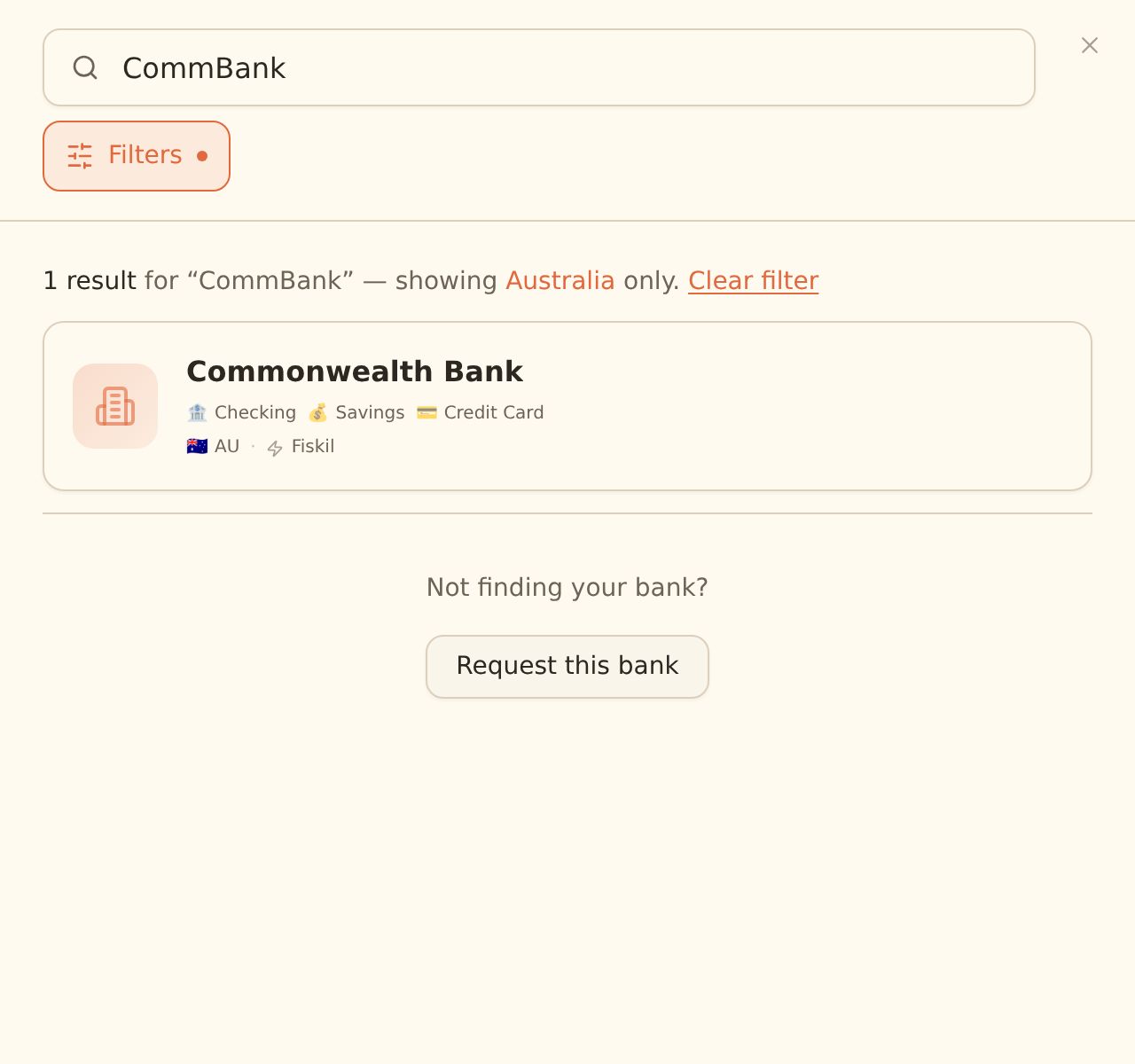
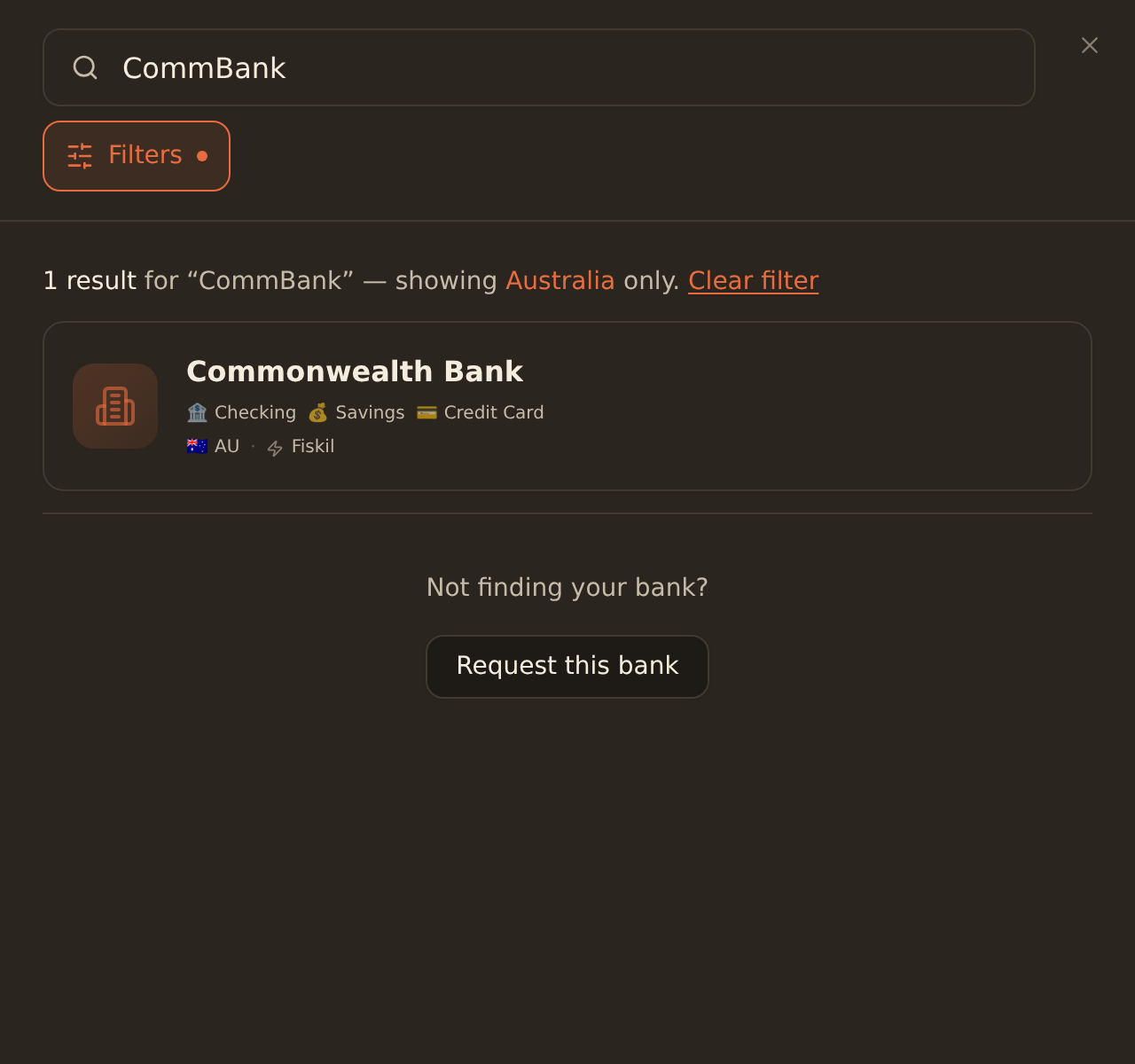
CommBank and CommBiz are separate institutions
Complete the CDR consent flow#
After you select an Australian institution, your bank's own CDR window opens. The exact screens are controlled by your bank, but the consent always asks you to confirm three things: what data you are sharing, which accounts it covers, and for how long.
Authorise data sharing
Confirm the data you are sharing
The consent screen lists the data types being requested, typically account details, balances, and transactions. Review them before continuing.
Sign in to your bank
Enter your online banking identifier and complete your bank's verification step (often a one-time code sent by SMS). You do this inside the bank's CDR window, not in BankSync.
Select which accounts to share
Tick only the accounts you want BankSync to access. Accounts you leave unticked are never shared.
Set the consent duration
Choose how long the consent lasts (CDR consents are time-limited, for example up to 12 months). When it reaches the end of that period it lapses and must be renewed.
Confirm and return
Approve the consent. The CDR window closes and returns you to BankSync.
What data Australian banks share#
| Data type | Shared via CDR | Notes |
|---|---|---|
| Account details | Yes | Account name, type, and identifiers for the accounts you select. |
| Balances | Yes | Current and available balance. |
| Transactions | Yes | Posted transactions within the history the bank exposes (see the history note below). |
| Account types | Transaction and deposit accounts | Everyday, savings, offset, and credit/card accounts where the bank exposes them under CDR. |
How fresh is CDR data?
Some banks only expose a limited history window
Confirm it worked#
When the CDR window finishes, BankSync shows an "Authorization Successful" dialog. Click "Continue".
You have connected your Australian bank successfully when:
- The institution appears as a card on the Banks page (no longer just the "Connect a new bank" tile).
- The accounts you ticked in the CDR window are linked to that bank.
- The bank shows an active state, not a "Requires re-authentication" or "Scheduled for deletion" label.
With the bank connected and active, you can build a feed to sync its transactions and balances to your spreadsheet or database. See Create your first feed.
Troubleshooting#
Common Australian-bank issues
When a CDR consent lapses or your bank flags the connection, the bank's card shows a "Requires re-authentication" state. Open the bank and use "Reconnect / Add Accounts" to start a fresh CDR consent. Because reconnecting an Australian bank is a re-consent, your bank's CDR window asks you to select accounts again: tick every account you still want to share, or it will drop out of the new consent. Your already-synced history and your feeds are untouched either way. See Reconnecting a bank for the full flow.
Managing and withdrawing your consent#
Once connected, you can view, renew, and withdraw your CDR consents from Settings → Data sharing. When you send this data to a destination such as a spreadsheet or Notion, BankSync first asks you to confirm a disclosure: data that leaves BankSync is no longer regulated under the CDR and is instead governed by the Privacy Act 1988 and the destination's own privacy policy. Withdrawal takes effect immediately. See Managing your CDR consents and data sharing for the full walkthrough.
Next steps#
Connect a bank
The general connection flow for every country and provider.
Read guide
Manage CDR consents
View, renew, and withdraw your data sharing consents.
Read guide
Reconnect a bank
Renew a lapsed CDR consent or re-authenticate.
Read guide
Related guides#
- Managing your CDR consents and data sharing: view, renew, and withdraw consents, and understand what happens to shared data.
- Reconnecting a bank: renew a lapsed CDR consent, including re-selecting your accounts.
- Creating your first feed: sync the connected bank's transactions and balances.
- Scheduling feeds: pick a sync time that suits the roughly daily CDR refresh.
- Managing feeds: run syncs on demand and keep connections healthy.
Use this page with your AI assistant
Every BankSync doc is available as plain Markdown for agents and LLMs.