Connecting US banks
Connect US bank, card, loan, and investment accounts through Plaid, including OAuth bank logins and account selection.
6 min read
On this page
US banks connect to BankSync through Plaid, a trusted banking provider that supports thousands of US institutions. You search for your bank, sign in through Plaid's secure window (large banks send you to their own bank-hosted login), pick the accounts you want to share, and the connected bank then appears on your Banks page ready to power a feed.
Your credentials stay with your bank
Before you start

Search for your US bank#
You do not pick a region first. Type your bank's name and BankSync detects that it is a US institution and routes it through Plaid automatically.
Find your institution
Open the Banks page
Select Banks from the navigation. This is where all your connected institutions live.
Start a new connection
Select the "Connect a new bank" tile (the dashed card with the plus icon). The "Connect Bank" dialog opens with the subtitle "Search and connect your financial institution".
Type your bank name
In the "Search institutions" box, enter at least 2 characters (for example "Chase", "Bank of America", "Wells Fargo", "Citibank", or "TD Bank"). Matching institutions appear as cards as you type.
(Optional) filter to Plaid
Click the filter button next to the search box, then under Provider select "Plaid" and under Country select "US" to restrict results to US Plaid institutions.
Select your institution
Click the matching card. A "Preparing connection..." overlay appears with the message "The secure login window will open shortly", then the Plaid window opens.
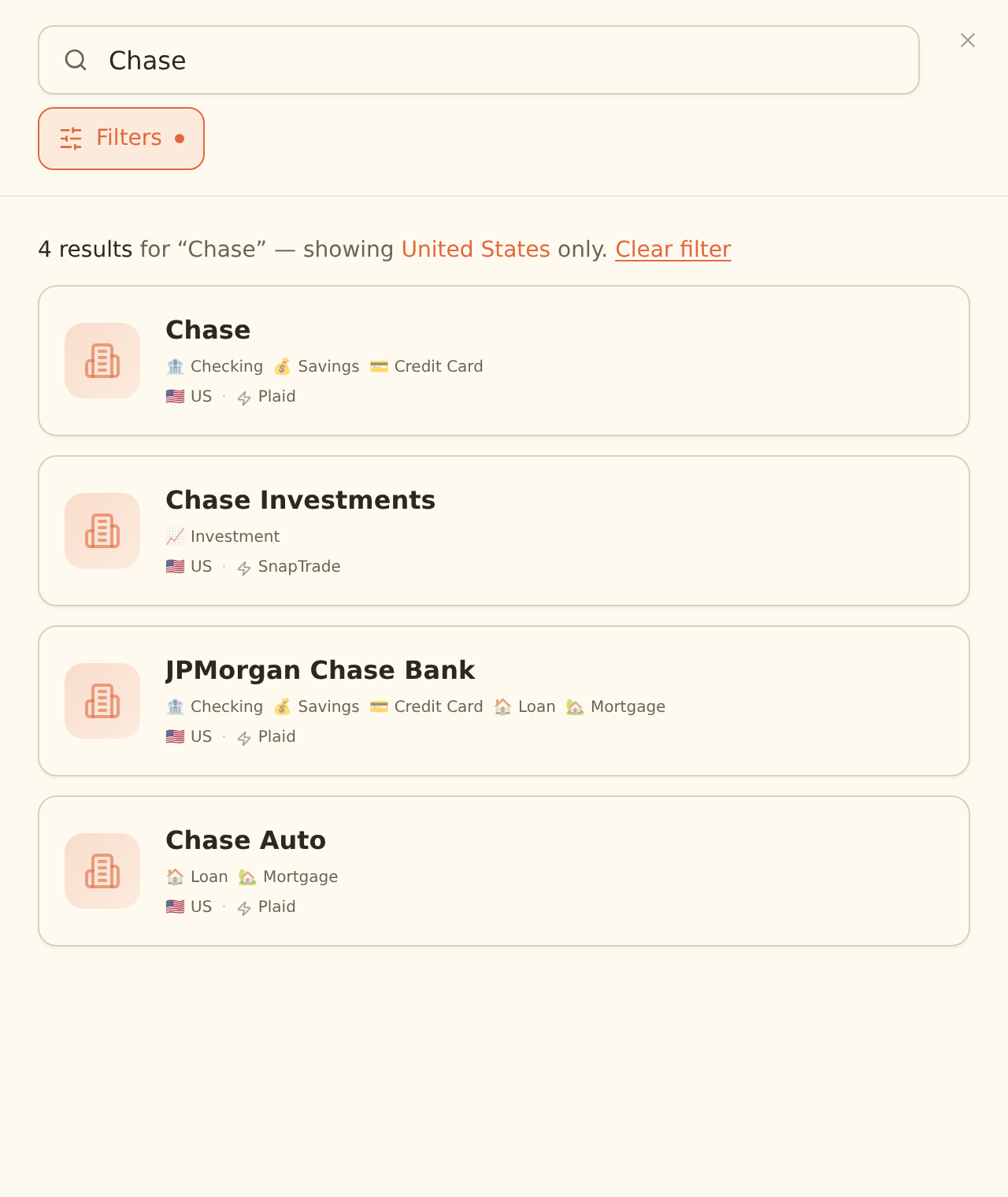
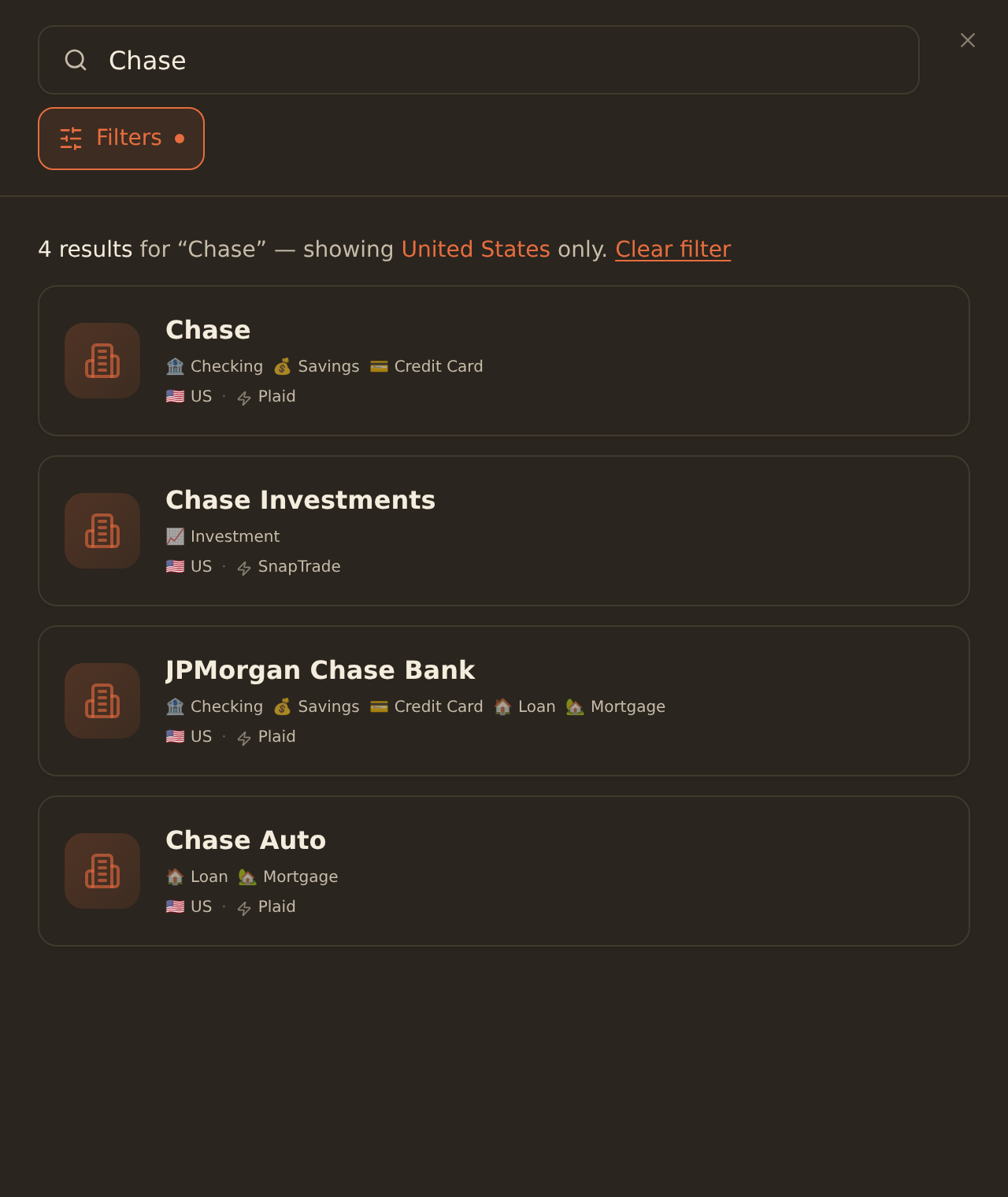
Each result card shows the institution name, a US flag with the provider name (Plaid), and tags for the account types that institution supports.
| Account type tag | Covers |
|---|---|
| Checking | Everyday checking accounts |
| Savings | Savings and money-market accounts |
| Credit Card | Credit card balances and charges |
| Loan | Personal, auto, and student loans |
| Mortgage | Home loans |
| Investment | Brokerage and investment accounts, where the institution exposes them |
What US institutions can share
Sign in through Plaid#
After you select the institution, Plaid's secure window takes over. The exact screens depend on your bank.
Complete the secure login
Confirm the institution
Plaid shows the bank you picked. Confirm it is correct to continue.
Sign in
For most banks you enter your online banking username and password directly in the Plaid window. Large US banks use OAuth: instead of typing your password into Plaid, you are handed to the bank's own hosted login page (the same one you use on the bank's website) to sign in there.
Complete verification
If your bank requires it, complete the multi-factor step (an SMS code, an email code, a security question, or an authenticator approval). OAuth banks handle this on their own page.
Approve access
Confirm that you allow read-only access to your account data. OAuth banks show their own account-selection and approval screen before returning you to BankSync.
OAuth banks open their own login window
Choose which accounts to share#
You select which accounts to connect inside the Plaid (or bank-hosted) window, not in BankSync.
Pick your accounts
Review the account list
Plaid lists the accounts at that institution: checking, savings, credit cards, loans, and any investment accounts the bank exposes.
Select the ones you want
Tick only the accounts you want to sync (for example just your business checking and a credit card). Only the accounts you select are shared with BankSync.
Finish
Confirm your selection to close the secure window and return to BankSync.
Connecting more accounts later
Confirm it worked#
When the secure window finishes, BankSync shows an "Authorization Successful" dialog confirming "You have successfully authorized access to your bank account." Click "Continue".
You have connected your US bank successfully when:
- The institution appears as its own card on the Banks page, no longer just the "Connect a new bank" tile.
- The accounts you selected in the Plaid window are listed under that bank.
- The bank shows an active state, not a "Requires re-authentication" or "Scheduled for deletion" label.
Troubleshooting#
| Symptom | What it usually means | What to do |
|---|---|---|
| Bank not in search results | The institution is not yet in coverage, or you searched a nickname | Try the full legal name or parent company. When few results return, a "Not finding your bank?" prompt appears with a "Request this bank" button. On a no-match, "No banks found" shows the same button. Submit the request so the team can look into adding it. |
| Login or MFA loops | The bank is repeatedly asking for credentials or a code | Confirm you can sign in on the bank's own website first. For OAuth banks, make sure pop-ups are allowed so the bank's login page can open, then retry. Wait out any temporary lockout from too many attempts before reconnecting. |
| An account or card is missing after connecting | The bank excludes that specific product at its data-sharing layer | Some credit cards and most business cards are not shareable even though they show in your bank's login. Re-run the connection and check whether the account is offered in the selection list. If it never appears, that product is not available through the bank's data sharing. |
| Investment account did not connect | The institution does not expose investments through Plaid | If the result card has no Investment tag, that bank does not share brokerage data here. Search for the brokerage arm instead and connect it through SnapTrade; see Connecting brokerages. |
| "Requires re-authentication" on the bank card | The bank's consent expired or credentials changed | Open the bank on the Banks page and use "Reconnect / Add Accounts" to refresh access. Reconnecting keeps your accounts, history, and feeds intact; see Reconnecting a bank. |
Ticket email and login email can differ
Next steps#
With your US bank connected, the next step is to build a feed that syncs its data to your spreadsheet or database.
Create your first feed
Related guides#
- Connect a bank: the general connection flow for every country and provider.
- Connecting brokerages: US investment accounts that connect through SnapTrade instead of Plaid.
- Reconnecting a bank: fix a connection flagged "Requires re-authentication" without losing history.
- Managing feeds: keep syncs healthy once the bank is connected.
Use this page with your AI assistant
Every BankSync doc is available as plain Markdown for agents and LLMs.