Connecting Canadian banks
Connect Canadian chequing, savings, credit, and investment accounts through Plaid.
5 min read
On this page
Canadian institutions connect to BankSync through Plaid, which covers Canadian banks alongside the United States. The flow is the same as connecting any other bank: search for your institution, sign in through Plaid's secure window, pick the accounts you want to share, and the bank appears on your Banks page ready to power a feed.
Before you start
Your credentials stay with your bank

Open Banks and add a bank#
Start the connection
Go to the Banks page
Open BankSync and select Banks from the navigation. This is where all your connected institutions live.
Click 'Connect a new bank'
Select the dashed "Connect a new bank" tile (the card with the plus icon). The "Connect Bank" dialog opens with a "Search and connect your financial institution" subtitle and a search box.
Search for and select your Canadian bank#
You do not choose a region first. Type your bank's name and BankSync searches across every supported country and provider at once, then routes Canadian results to Plaid automatically.
Find your bank
Type your bank name
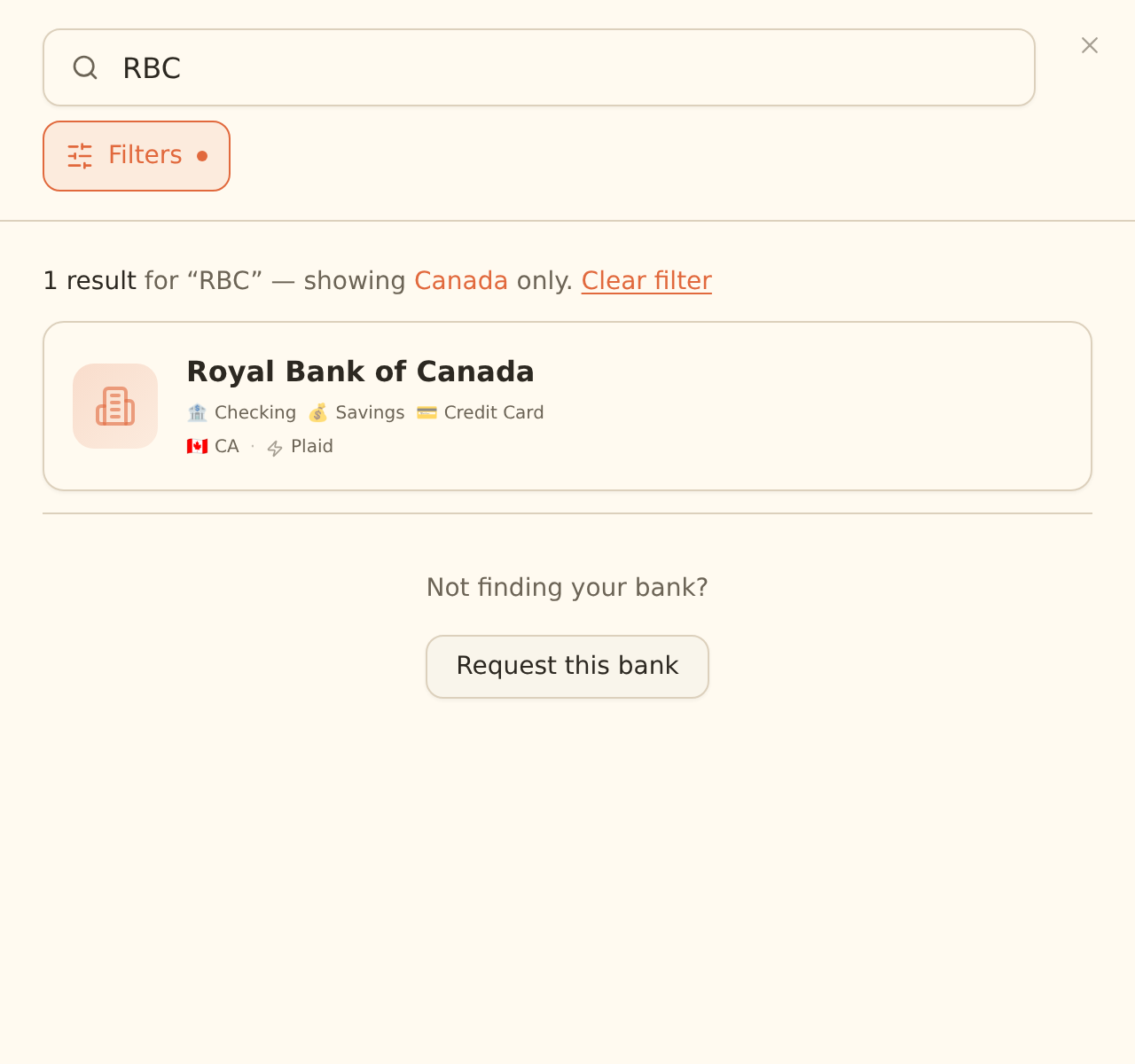
In the "Search institutions" box, enter at least 2 characters of your bank's name (for example "RBC", "TD", "Scotiabank", or "BMO"). Matching institutions appear as cards as you type.
(Optional) narrow to Canada
Click the filter button next to the search box to open Filters, then under Country select the 🇨🇦 CA chip. You can also leave Provider on "All" or set it to Plaid. Leave both on "All" if you are not sure.
Read each result card
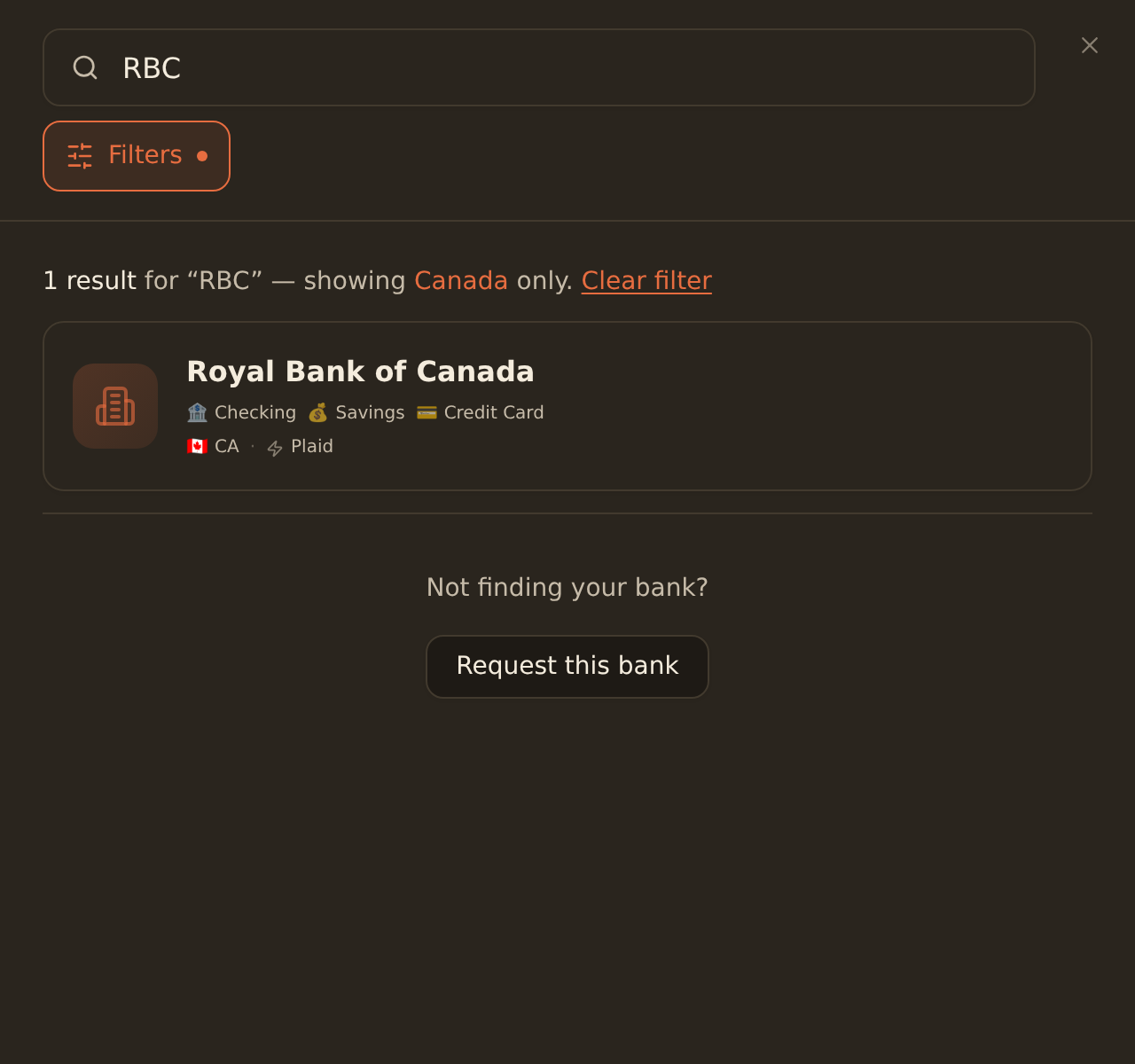
Each Canadian result shows the institution name, the account types it supports, and a 🇨🇦 CA flag next to the provider name (Plaid). Use these to confirm you are picking the right institution.
Select your institution
Click the matching card. BankSync detects that the institution is Canadian and selects Plaid for you, so there is no separate region step. A "Preparing connection..." overlay appears and Plaid's secure login window opens shortly.
Picking the right TD entity
Supported Canadian account types#
BankSync surfaces whatever account types Plaid exposes for the institution. The result card lists them so you know what you can sync before you connect.
| Account type | Card label | Notes for Canadian institutions |
|---|---|---|
| Chequing | Checking | Day-to-day transaction accounts. Most common Canadian connection. |
| Savings | Savings | High-interest and regular savings accounts. |
| Credit card | Credit Card | Visa, Mastercard, and store cards where the issuer shares them through Plaid. |
| Investment | Investment | Available where the bank shares investment holdings through Plaid. For standalone brokerages, connect through SnapTrade instead. |
| Loan / Mortgage | Loan / Mortgage | Shown only where the institution exposes loan or mortgage data. |
Where account selection happens
Sign in and give consent#
After you select the institution, Plaid's own secure window opens. Confirm the institution, enter your Canadian online banking credentials, complete any verification step (such as an SMS or email code), and select the accounts to share.
If you already have a connection to the same institution, BankSync shows an "Existing Connections" screen instead of opening a fresh login:
- Choose "Create New Connection" to link a separate set of accounts (Plaid supports multiple connections to the same bank).
- Choose "Add Accounts" next to an existing connection to share more accounts on that same connection.
- Choose "Reconnect" if a connection is flagged as needing re-authentication.
Multi-currency CAD and USD accounts
Confirm it worked#
When Plaid's window finishes, BankSync shows an "Authorization Successful" dialog confirming "You have successfully authorized access to your bank account." and "Your bank has been added and transactions will be synced automatically." Click "Continue".
You have connected your Canadian bank successfully when:
- The institution appears as a card on the Banks page (no longer just the "Connect a new bank" tile).
- The card shows the 🇨🇦 CA flag and the accounts you selected in Plaid's window are linked to that bank.
- The bank shows an active state rather than a "Requires re-authentication" or "Scheduled for deletion" label.
Troubleshooting#
Bank not listed
Accounts missing after connecting
This is a brokerage, not a bank
Connection failed or needs re-authentication
Next steps#
With your Canadian bank connected, the next step is to build a feed that syncs its data to your spreadsheet or database.
Create your first feed
Related guides#
- Connecting brokerages: standalone Canadian investment platforms connect through SnapTrade, not Plaid.
- Connect a bank: the general connection flow across all countries.
- Reconnecting a bank: refresh a connection that needs re-authentication without losing history.
- Managing feeds: keep syncs healthy once the bank is connected.
Use this page with your AI assistant
Every BankSync doc is available as plain Markdown for agents and LLMs.