Connecting brokerages
Connect brokerage and investment accounts through SnapTrade to sync holdings, trades, and balances.
5 min read
On this page
Brokerages and investment accounts connect to BankSync through SnapTrade, a provider built specifically for investment data. You search for your brokerage, sign in through SnapTrade's secure window, and BankSync then has access to your positions, trades, balances (including settled cash), and account details, ready to power a holdings or trades feed.

Your credentials stay with your brokerage
Before you start
Open Banks and search for your brokerage#
Brokerages live alongside your banks. You search the same way, and BankSync routes investment institutions through SnapTrade automatically.
Find your brokerage
Go to the Banks page
Open BankSync and select Banks from the navigation. This is where every connected institution, including brokerages, appears.
Click 'Connect a new bank'
Select the dashed "Connect a new bank" tile. The "Connect Bank" dialog opens with the subtitle "Search and connect your financial institution".
Type your brokerage name
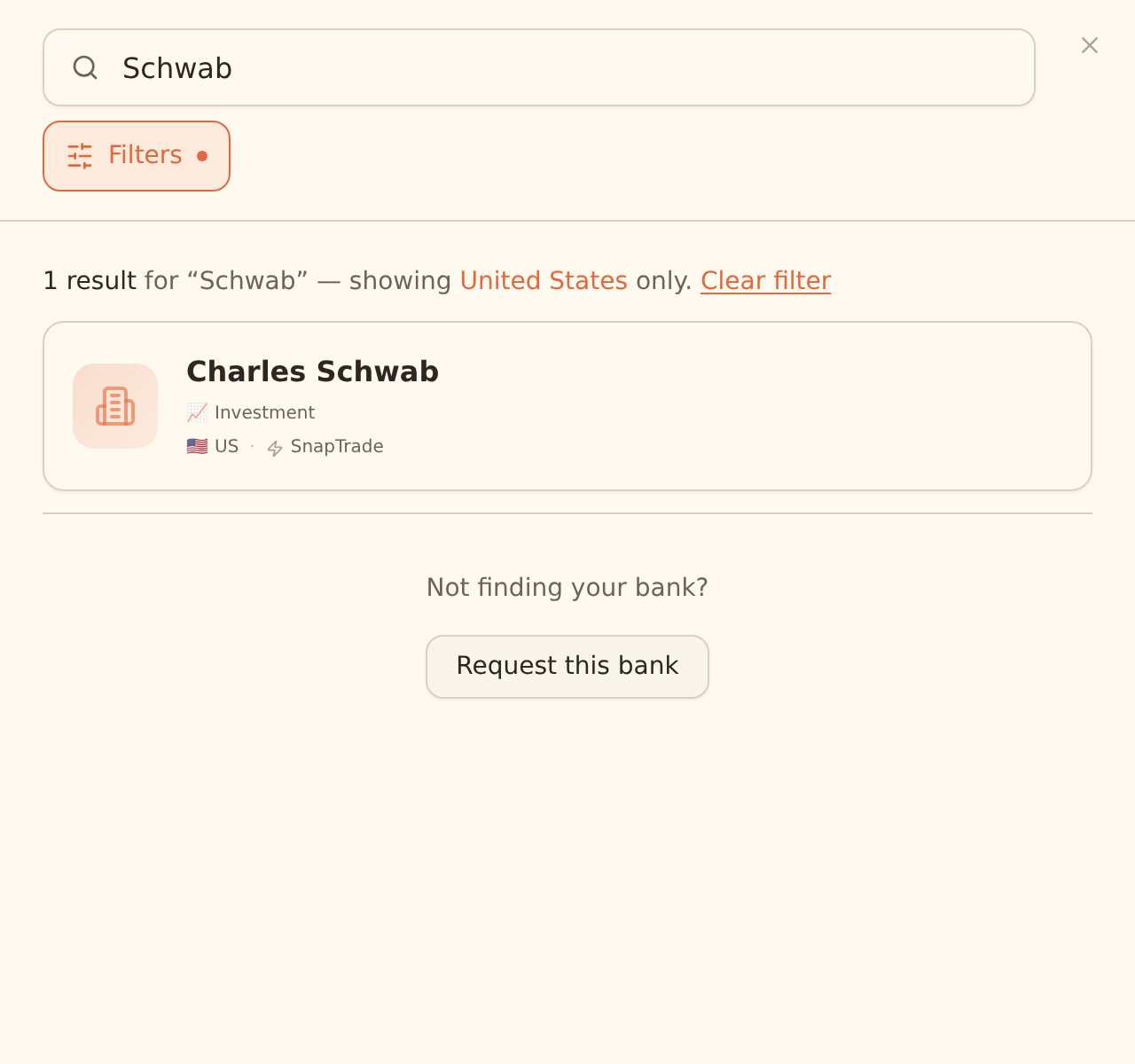
In the "Search institutions" box, enter at least 2 characters (for example "Schwab", "Fidelity", "Robinhood", or "Questrade"). Matching institutions appear as cards as you type.
(Optional) filter to SnapTrade
Click the filter button next to the search box to open Filters, then under Provider tap "SnapTrade" to show only brokerage results. The provider chips are All, Plaid, SnapTrade, SaltEdge, and Fiskil.
Confirm the result is a brokerage
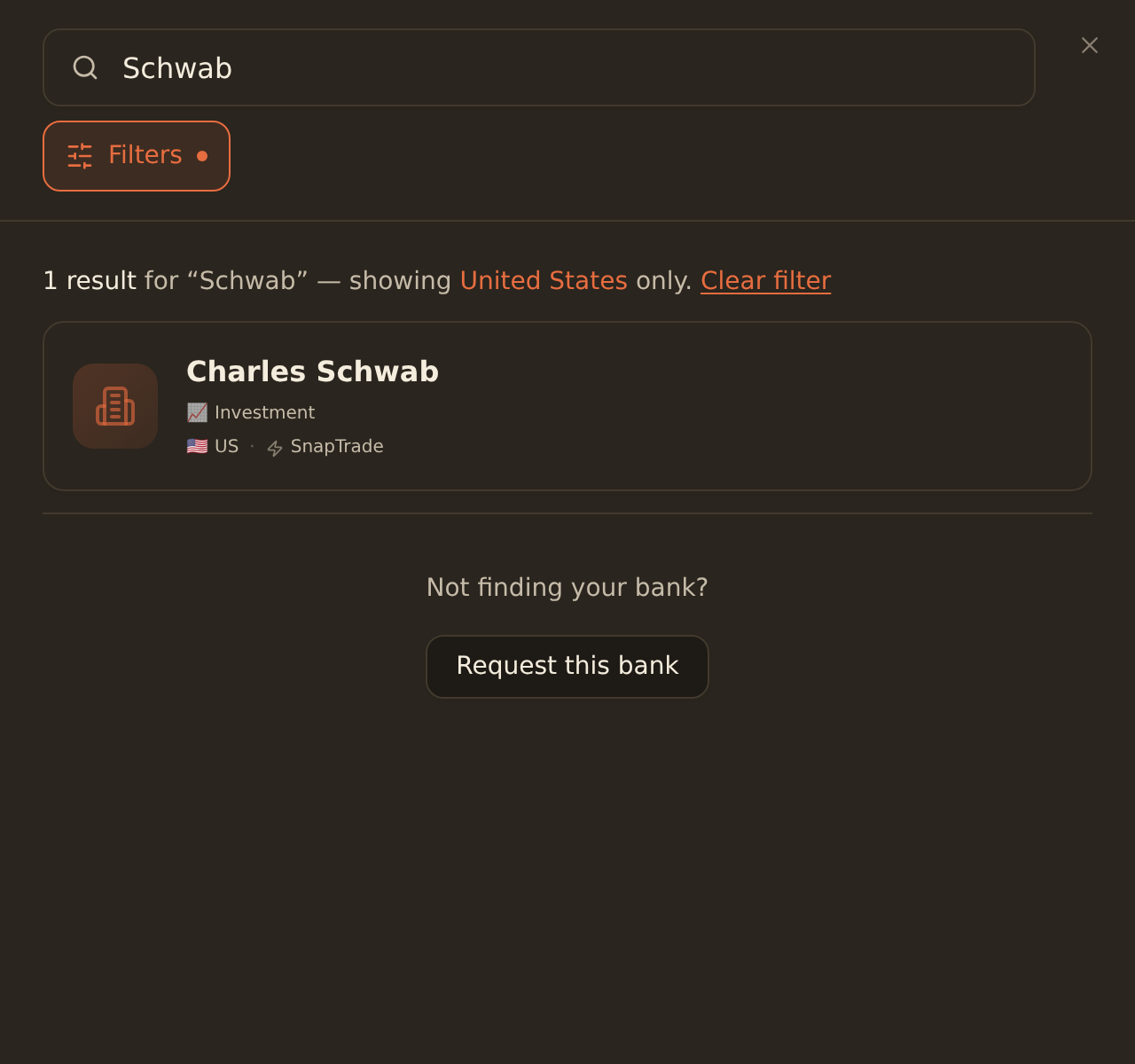
A brokerage card shows an "Investment" account-type tag (the chart icon) and "SnapTrade" as its provider. Click the card to start the connection.
Brokerages skip the region step
Sign in through SnapTrade#
After you select a brokerage, SnapTrade's secure connection window opens. Because you already chose the institution in BankSync, SnapTrade takes you straight to that broker's sign-in.
Authorize the connection
Sign in to your broker
Enter your brokerage credentials in the SnapTrade window. This is your broker's own login, handled by SnapTrade.
Complete verification
Approve any two-factor prompt your broker requires, such as an SMS code, email code, or an authenticator approval.
Grant read access
Confirm the read-only data permission so SnapTrade can share your positions, balances, and activity with BankSync.
Return to BankSync
When the window finishes, BankSync confirms the connection and the brokerage appears as a card on your Banks page.
If you already have a connection to the same brokerage, BankSync shows an "Existing Connections" screen. Choose "Reconnect" to refresh the existing connection rather than opening a fresh login.
What investment data you get#
Once connected, BankSync reads four kinds of investment data from the brokerage. Each one maps to a feed type you can sync to your spreadsheet, database, or other integration.
| Data | What it contains | Feed type |
|---|---|---|
| Holdings (positions) | Every security you hold: symbol, security name, quantity, current price, market value, cost basis, and unrealized gain/loss | Holdings |
| Trades (activity) | Buys, sells, dividends, transfers, and other account activity, with date, symbol, quantity, price, total, and fees | Trades |
| Balances | Account-level totals including settled cash | Holdings / balances |
| Account details | Each investment account on the connection and its account type | All investment feeds |
Settled cash appears in your holdings
Real-time vs cached data#
How fresh your investment data is depends on the broker. For supported brokerages, BankSync reads live positions and balances at sync time. For others, data reflects the broker's most recent snapshot rather than a tick-by-tick view. Either way, BankSync delivers the latest data the broker makes available when the feed runs.
A degraded connection can serve stale data
Confirm it worked#
You have connected your brokerage successfully when:
- The brokerage appears as a card on the Banks page (no longer just the "Connect a new bank" tile).
- Opening the brokerage shows its investment accounts and their account types.
- Your holdings (positions) and balances appear, including any settled cash as a cash position.
- The connection shows an active state rather than a "Requires re-authentication" label.
If holdings and balances are populated, you are ready to build a feed.
Troubleshooting#
Common issues
Next steps#
With your brokerage connected, set up feeds to sync its investment data on a schedule.
Sync holdings
Track current positions, values, and settled cash.
Sync trades
Capture buys, sells, dividends, and other activity.
Sync holdings
Related guides#
- How to sync holdings: track positions, values, and settled cash in a feed.
- How to sync trades: capture buys, sells, dividends, and other activity.
- Reconnecting a bank: refresh a stale or degraded brokerage session without losing history.
- Connect a bank: the equivalent flow for everyday bank accounts.
Use this page with your AI assistant
Every BankSync doc is available as plain Markdown for agents and LLMs.