
Digests: A Scheduled Summary of Your Data
Create a Digest enrichment that sends a daily, weekly, or monthly summary of activity, top movers, review-queue backlog, and watch findings to email or Slack.
2 min read
A Digest is the one Watch enrichment that runs on a calendar instead of a condition: on the schedule you choose, it sends a summary of what happened — activity totals, the categories that moved, suggestions waiting in the Review Queue — to email, Slack, or a webhook. It is the standing rhythm ("what happened this week?") to the alerts' interrupts ("this just happened").
Digests are not limited to one per workspace: create several with different cadences and audiences — a daily pulse for yourself, a monthly summary for a client. A Digest has no data type — it summarizes workspace activity, so every feed you attach contributes, whatever it carries.

What a digest contains#
Activity
How many records synced this period, with inflow, outflow, and net totals.
Top movers
The categories whose totals moved most versus the prior period, with the delta.
Review queue
How many AI suggestions are waiting for review — a nudge to keep the backlog at zero.
Watch findings
A count of monitor and watch findings from the period.
Sections with nothing to say are simply omitted, and by default a completely quiet period sends nothing at all (skip when quiet, on by default) — "no news" emails train people to ignore the digest. Turn the toggle off if you prefer a heartbeat even on quiet periods.
Built from totals, never from your destination
Scheduling#
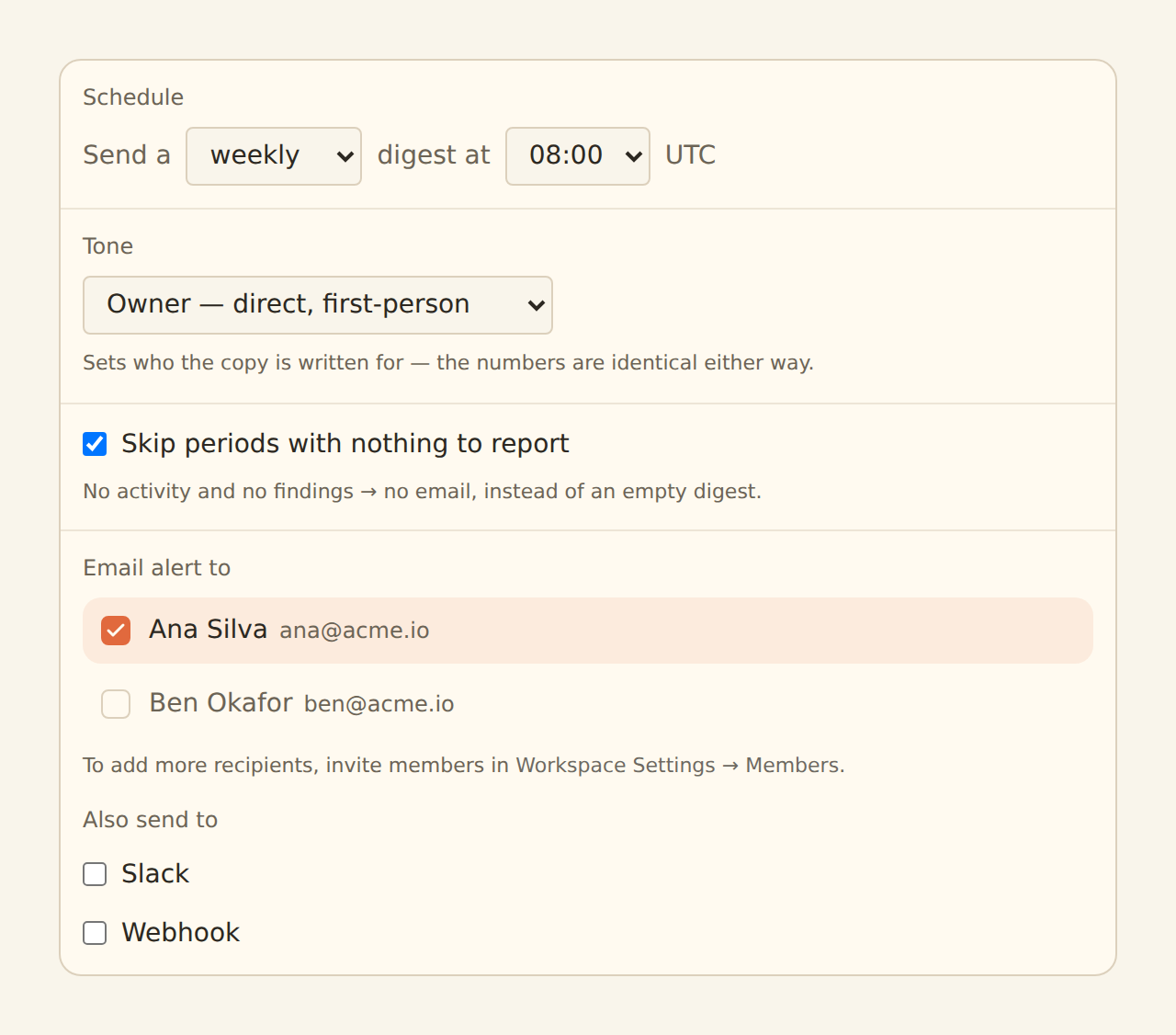
- Cadence: daily, weekly, or monthly. Weekly digests send on Mondays; monthly digests send on the 1st of the month.
- Send hour: any hour of the day, in UTC (default 08:00 UTC). Pick the UTC hour that matches your morning.
- Exactly once per period: each digest is sent at most once for a given day or month, even across retries — you will never receive the same digest twice.
- Tone: owner, advisor, or team — sets the audience framing of the digest.
Setting one up#
Create it
On the Enrichments tab, click "Add an enrichment" and choose Digest in the Watch group.
Pick the schedule
Cadence and send hour (UTC). The default is weekly at 08:00 UTC.
Pick the tone
Owner for your own inbox, advisor for a client-facing summary, team for a shared channel.
Choose where it goes
Email recipients, a Slack incoming webhook, or a webhook endpoint — a Slack channel digest is a nice team ritual.
Target the feeds and enable
In the Dependencies tab, tick the feeds whose activity should be summarized, then flip the switch to Enabled.
The digest is only as rich as your totals
Related guides#
- Budgets: threshold alerts on the same running totals the digest summarizes.
- Review Queue: the backlog the digest counts — and how to clear it.
- Alert enrichments: interrupt-style notifications for things that cannot wait for the digest.
Use this page with your AI assistant
Every BankSync doc is available as plain Markdown for agents and LLMs.