Alert Enrichments: Get Notified on Matching Data
Set up an Alert enrichment that notifies you by email, Slack, or webhook when synced records match your conditions, with a cooldown to prevent notification floods.
5 min read
On this page
An Alert enrichment watches the data flowing through your feeds and notifies you when a record matches your conditions — by email, in a Slack channel, or via a webhook to a system of your own. Unlike a Ruleset, an Alert never changes your data: it only notifies. Typical uses: flag any transaction over a threshold, watch for a specific merchant, or get pinged when a refund lands.

Before you start
How alerts fire#
Alerts are evaluated while a sync runs. Each record the sync processes is checked against the alert's conditions; matching records trigger a notification to your configured recipients. That has one practical consequence: an alert can only be as fresh as the feed it is attached to. A daily feed produces at most daily alerts, while an hourly feed (Professional and above) gets you close to real-time.
Creating an Alert#
Create the enrichment
On the Enrichments tab, click "Add an enrichment" and choose Alert in the New Enrichment dialog. (You can also create one from a feed's Mapping → Enrichments subtab, which attaches it to that feed automatically.)
Pick the data type
Choose which data type the alert watches (for most people, Transactions). The data type determines which fields you can use in conditions.
Build the condition (When)
Use the condition builder to describe what should trigger the alert. For example: Amount greater than 1000. Conditions can combine with AND/OR and nest into groups, exactly like Ruleset conditions, and they can use any field, not just enrichable ones.
Choose destinations
Pick where the alert goes. Email: tick the workspace members who should receive it (to alert someone who isn't listed, invite them in Settings → Members first). Slack: paste an incoming-webhook URL for the channel. Webhook: enter an HTTPS endpoint of your own.
Set a cooldown (optional)
Cooldown (minutes) is the minimum time between alerts for the same pattern. 0 means every match sends a notification.
Attach and enable
In the Dependencies tab, tick the feeds this alert should watch (or leave it on all compatible feeds), then flip the switch at the bottom from Disabled to Enabled.
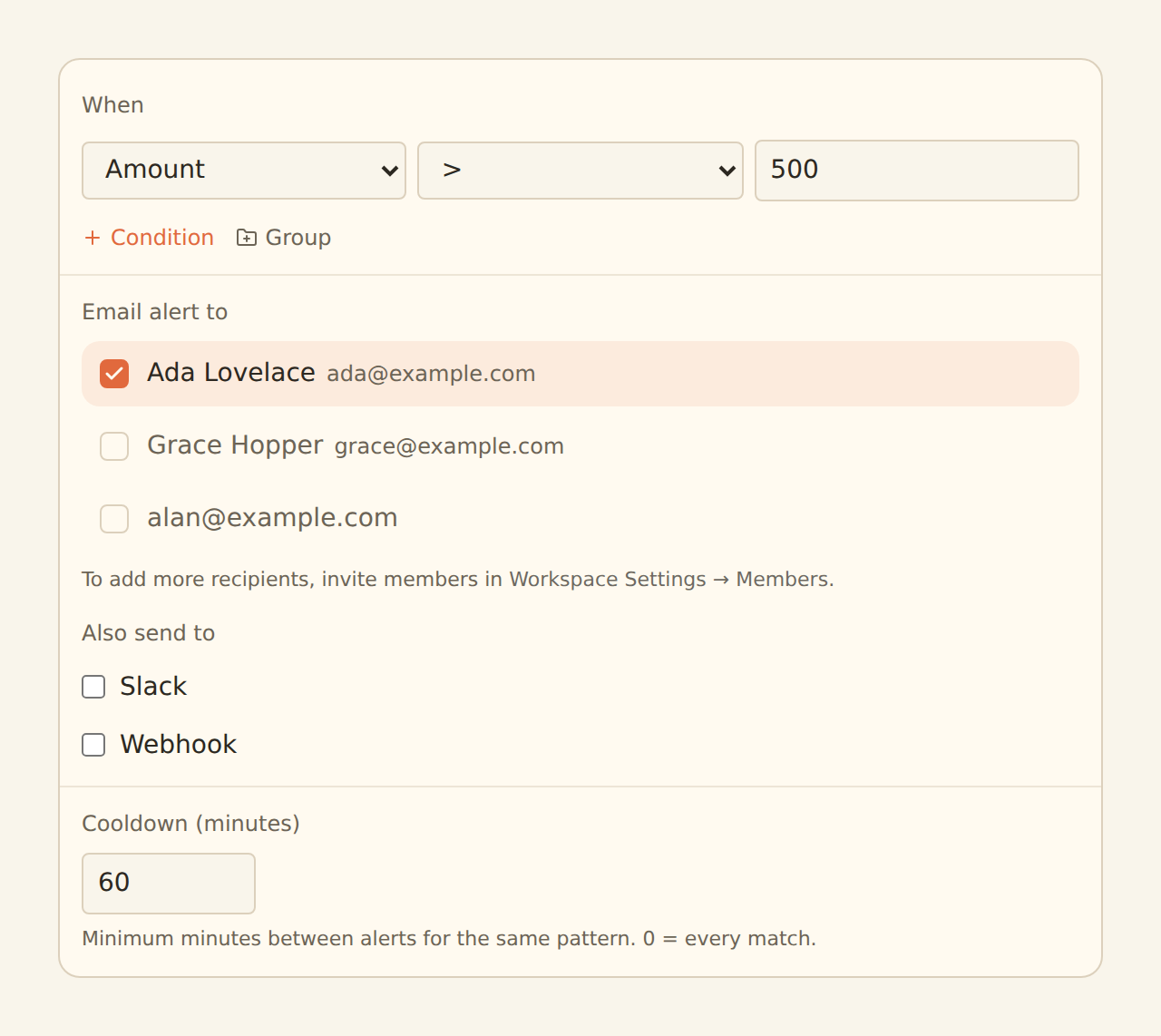
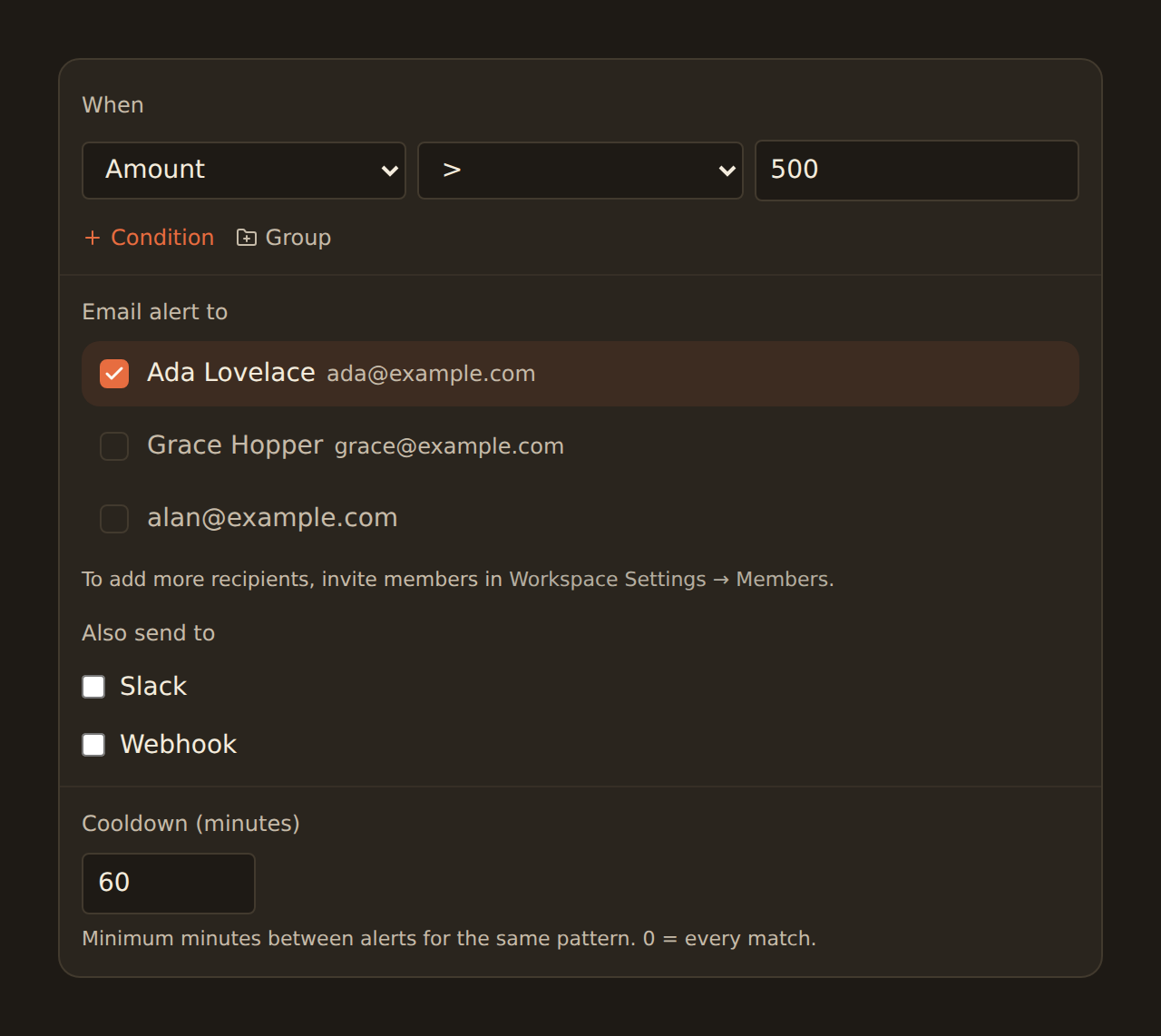
Cooldown prevents floods
Where alerts can go#
Sent to the workspace members you tick. The default, and still the right choice for alerts a person should read.
Slack
Posted to a channel via a Slack incoming webhook. Create the webhook in Slack (Add apps → Incoming WebHooks, or a Slack app with an incoming webhook), pick the channel there, and paste the URL into the alert.
Webhook
A JSON POST to an HTTPS endpoint you control, carrying the alert type and the matched record's details — the building block for piping alerts into your own tooling. Optional custom headers let you add your own authentication.
An alert can have several destinations at once, and each destination is delivered independently — one failing endpoint never blocks the others. The cooldown applies to the alert as a whole, not per destination.
Treat the Slack webhook URL as a secret
What the notification contains#
Whatever the channel, the alert identifies which alert fired and includes the matching record's key details, such as the description, amount, date, category, and account name, so you can usually act without opening BankSync.
Verifying webhook alerts#
Webhook alerts are signed, so your endpoint can prove a POST came from BankSync and not from anyone who learned your URL. BankSync uses the same Standard Webhooks format as feed deliveries, so one verifier covers both. Each request carries:
webhook-id: 01JABCD…-0webhook-timestamp: 1718270000webhook-signature: v1,g0Q1…base64…==content-type: application/jsonThe signature is HMAC-SHA256 over the string {webhook-id}.{webhook-timestamp}.{body}, base64-encoded, keyed by the base64-decoded payload of your whsec_ secret — byte for byte the scheme described in the Webhooks Reference. If the header ever carries two space-separated signatures, the delivery is valid if either verifies.
Each webhook destination gets its own secret, issued the first time you ask for it or the first time the alert fires, whichever comes first. A workspace owner or admin can read it with:
GET /api/workspaces/:wid/enrichments/:eid/alert-destinations/:dest/signing-secret:dest is the destination's position in the alert's destination list (0, 1, …). The response also returns a destinationKey — a stable id for that destination that you can use in place of the index, and which does not move when the list is reordered. Editing a destination's URL issues a new secret, because a new endpoint is a new trust relationship.
// Node (npm i standardwebhooks)import { Webhook } from 'standardwebhooks'
const wh = new Webhook(process.env.BANKSYNC_ALERT_SECRET) // "whsec_..."app.post('/alerts/banksync', express.raw({ type: 'application/json' }), (req, res) => {  try {    const alert = wh.verify(req.body, {      'webhook-id': req.header('webhook-id'),      'webhook-timestamp': req.header('webhook-timestamp'),      'webhook-signature': req.header('webhook-signature'),    })    // alert.type is "banksync_app_enrichment_alert"; alert.vars holds the details  } catch {    return res.sendStatus(400) // bad signature — do not process  }  res.sendStatus(200)})
Reject stale timestamps
Slack destinations are not signed
Examples worth copying#
Large transactions
Amount greater than 1,000: catch big debits the day they sync.
Watched merchant
Description contains a vendor you're keeping an eye on.
Refund landed
Description contains "REFUND" and Amount greater than 0.
Troubleshooting#
Alert not firing?
Related guides#
- Creating Enrichments: the Ruleset guide, including the shared condition builder.
- Budgets: alerts on totals over a period ("spending this month over 10,000") rather than single records.
- Feed Monitor: alerts about sync health rather than record content, using the same delivery channels.
- Memory: auto-learn: the enrichment type that learns your categorizations.
- Setting Up Scheduled Feeds: sync cadence determines how fresh your alerts are.
Use this page with your AI assistant
Every BankSync doc is available as plain Markdown for agents and LLMs.