
Lookup Tables: Map Vendors to Values at Scale
Build a Lookup Table enrichment that maps one field to another at scale, like vendor names to GL codes, with exact, normalized, or contains matching and CSV paste.
4 min read
On this page
A Lookup Table enrichment applies a keyed mapping to your syncing records: when a record's match field contains a known key, the mapped value is written into a target field. The classic use is a bookkeeper's vendor list — hundreds of "vendor name → GL code" (or class, or tax code) rows pasted straight from a chart of accounts, applied automatically on every sync.
Where a Ruleset is a handful of hand-written conditions, a Lookup Table is a big flat list. Use rules for logic ("amount over 1,000 and description contains X"), and a lookup for volume ("these 400 vendors map to these codes").
Before you start

How a lookup runs#
Each syncing record is checked against your table:
Read the match field
The value of the field you chose to match on (usually Description or Merchant Name).
Find the table entry
The entry whose match text fits, per the match mode you picked (below).
Write the value
The entry's value is written into the target field (for example Category or a GL code column).
By default a lookup only fills empty fields. If the target field already has a value (from the provider, from Memory, or from your own edits), the lookup leaves it alone. Flip on Overwrite existing values to replace whatever is there instead.
Where lookups sit in the pipeline
The three match modes#
Exact
The record field equals the match text, ignoring case and surrounding whitespace. Predictable; best when your source data is clean.
Normalized
Both sides are normalized first, which ignores store numbers, reference digits, and other noise. STARBUCKS #1234 and STARBUCKS #5678 both match a single Starbucks entry. Best for raw bank descriptors.
Contains
The match text appears anywhere in the record field, ignoring case. When several entries match the same record, the longest match wins, so AMAZON PRIME beats AMAZON.
Start with normalized for merchant descriptors: it is the same normalization Memory uses to recognize merchants, so a single entry covers every store number and location variant. Use contains when your keys are fragments rather than full descriptors, and exact when you are matching a clean field you control.
Building the table#
Create the enrichment
On the Enrichments tab, click "Add an enrichment" and choose Lookup Table in the Transform data group. (Or create it from a feed's Mapping → Enrichments subtab to attach it to that feed automatically.)
Pick the match field and mode
Choose which field to match on (Description or Merchant Name for most tables) and one of the three match modes.
Pick the target field
Choose the enrichable field the values should land in, for example Category.
Add entries
Add rows by hand in the two-column grid, or open the Paste CSV panel and paste "match,value" lines straight from a spreadsheet export. Each line splits on the first comma, so values may contain commas.
Attach and enable
In the Dependencies tab, tick the feeds this table applies to, then flip the switch from Disabled to Enabled.
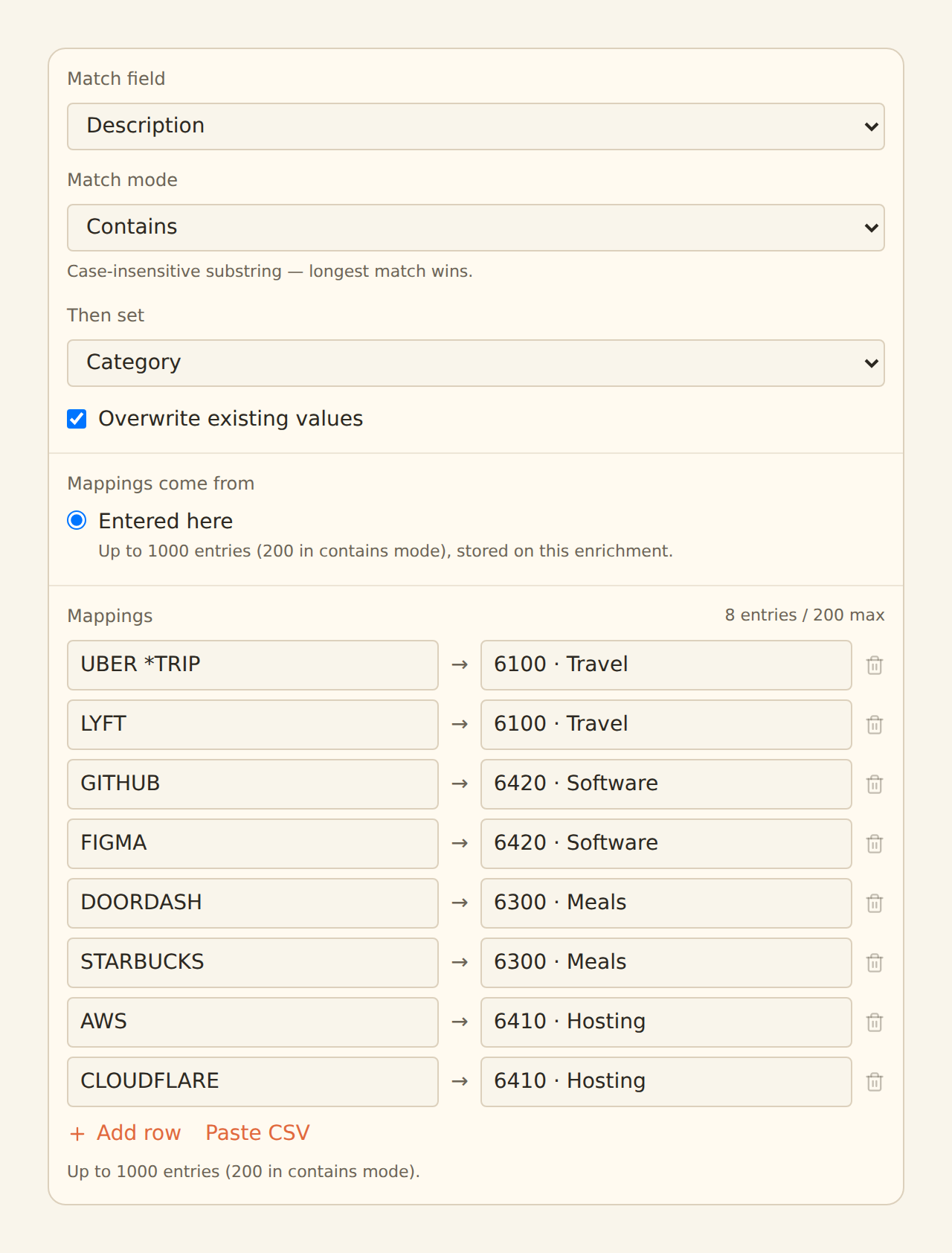
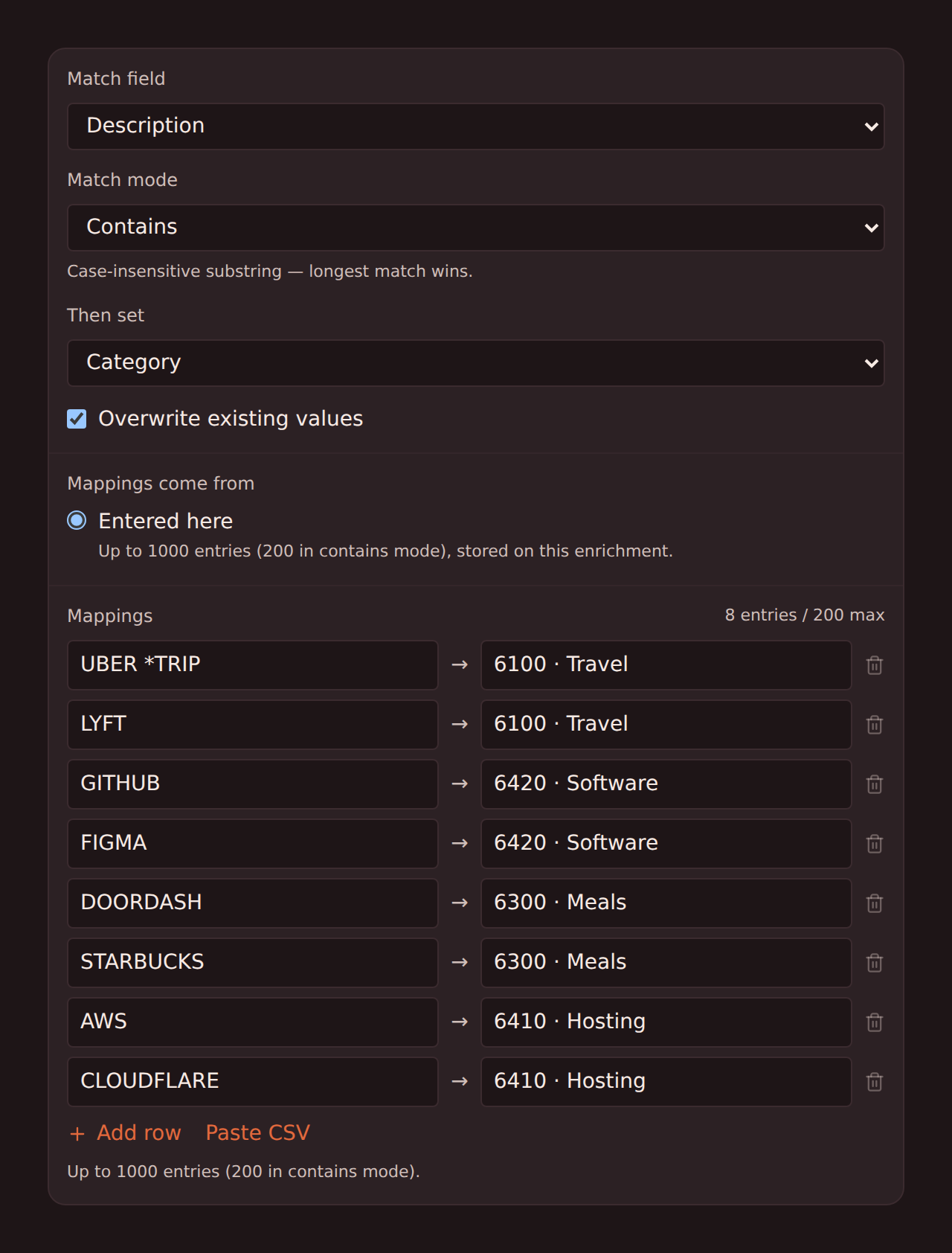
Preview the result in the feed's Live Preview panel: the Enrichments tab shows how many records the table matched, and changed cells are highlighted in the Data tab.
Limits and validation#
- A table holds up to 1,000 entries — except in contains mode, which is capped at 200 (every record has to be scanned against every needle, so the cap keeps syncs fast).
- Duplicate keys are rejected at save. Two entries whose match text collides (case-insensitively, or after normalization in normalized mode) would silently mean only one applies, so the editor flags the collision and points at both rows.
- Every entry needs both a match text and a value. An empty value is not "clear the field" — clearing values is not something a lookup does.
Pasting from your chart of accounts
Lookup vs. Ruleset vs. Memory#
Ruleset
A few explicit conditions with logic. Runs after lookups, so rules win conflicts.
Lookup Table
Hundreds of key-value rows, maintained as data. Fill-empty by default.
Memory
Learned from your corrections, no maintenance at all. Runs before lookups.
They stack: Memory fills what it has learned, the lookup fills the mapped vendors, rules override where you have written explicit logic.
Related guides#
- Creating Enrichments: the Ruleset guide and the shared enrichment workflow.
- Memory: auto-learn: the learning layer that runs before lookups.
- Configuring field mappings: make sure the target field is mapped to a column.
Use this page with your AI assistant
Every BankSync doc is available as plain Markdown for agents and LLMs.