Changing or canceling your plan
Upgrade, downgrade, or cancel your BankSync plan, including the downgrade checklist and how plan caps change.
8 min read
On this page
Your plan can change as your needs do. This guide walks through upgrading to a higher tier, downgrading to a lower one (and clearing anything that blocks it), and canceling without losing access before your period ends. Everything happens on the Billing Overview tab in Settings.


Before you start
What changes between plans#
When you move up or down a tier, your workspace limits change immediately. These are the caps that the upgrade and downgrade flows check against.
| Plan | Bank connections | Feeds | Members (seats) | Sync cadence | Roles |
|---|---|---|---|---|---|
| Free | 0 | 1 | 1 | Weekly | Owner only |
| Starter | 1 | 2 | 1 | Weekly | Owner only |
| Standard | 5 | 5 | 1 | Daily, Weekly | Owner, Viewer |
| Professional | 15 | Unlimited | 5 | Hourly, Daily, Weekly | Owner, Admin, Editor, Viewer |
| Business | 30 | Unlimited | 10 | Hourly, Daily, Weekly | Owner, Admin, Editor, Viewer |
A few more limits also change with the tier:
| Plan | Integrations | Documents / month | Client portals | API rate | MCP rate |
|---|---|---|---|---|---|
| Free | 1 | 10 | 0 | No API access | No MCP access |
| Starter | 3 | 30 | 0 | No API access | No MCP access |
| Standard | 3 | 100 | 0 | 10 req/min | 20 req/min |
| Professional | Unlimited | 1,000 | Unlimited | 20 req/min | 40 req/min |
| Business | Unlimited | 2,000 | Unlimited | 30 req/min | 60 req/min |
Client portals have no per-portal charge. Every bank connected inside a portal counts against your plan's bank connection quota, and clients you invite into a portal don't use a team seat. During a trial, your portals can hold up to 5 bank connections in total. Workspaces your clients share with your firm, and portals you hand over to a client, are on the client's own plan and don't count against yours.
Sharing your own workspace with an accountant or bookkeeper works on every plan, Free included, and their staff don't use your seats. A firm below Professional can work with up to 3 clients who share their own workspace; Professional and above have no limit.
The monthly document quota covers the Document Extractor and resets on the 1st of each month.
Enrichment types are tiered too. Every plan gets the basics; higher tiers unlock the rest (the enrichments overview explains what each type does):
| Plan | Enrichment types available |
|---|---|
| Free, Starter | Ruleset, Alert, Memory, Filter, Feed Monitor |
| Standard | The above, plus Lookup Table, Split, Transfer Matcher, Duplicate Screen, Budget, Recurring Registry, Fee Ledger, Anomaly Detector, Digest |
| Professional, Business | Everything, including the AI Categorizer and Merchant Cleanup |
Types your plan does not carry appear locked in the New Enrichment dialog. If you downgrade, enrichments you already created keep running — except the AI types, which stop spending model time right away and resume when an AI-carrying plan is active again.
Need more without changing tiers
Upgrade to a higher plan#
Upgrading is the quick path: pick the tier, confirm, and the new limits apply right away.
Move up a tier
Open Settings → Billing
In the settings sidebar, under the Workspace group, click Billing. The page opens on the Overview tab.
Find the plan grid
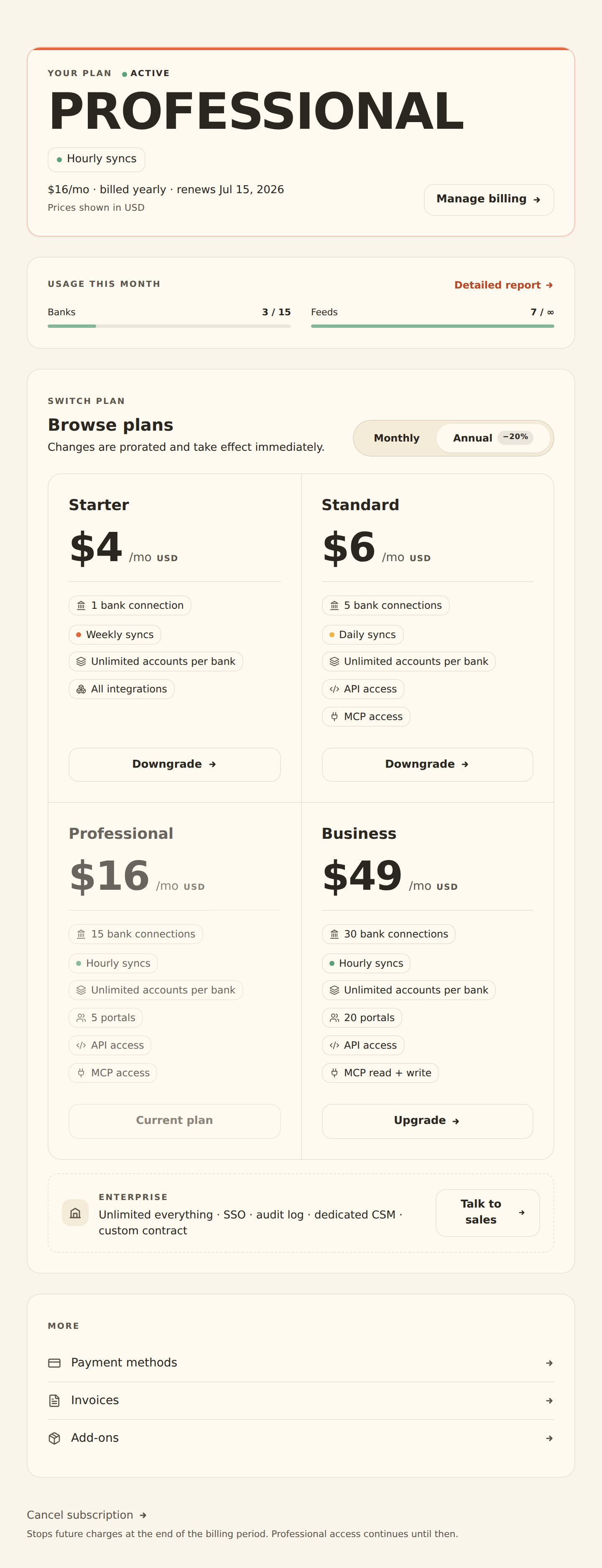
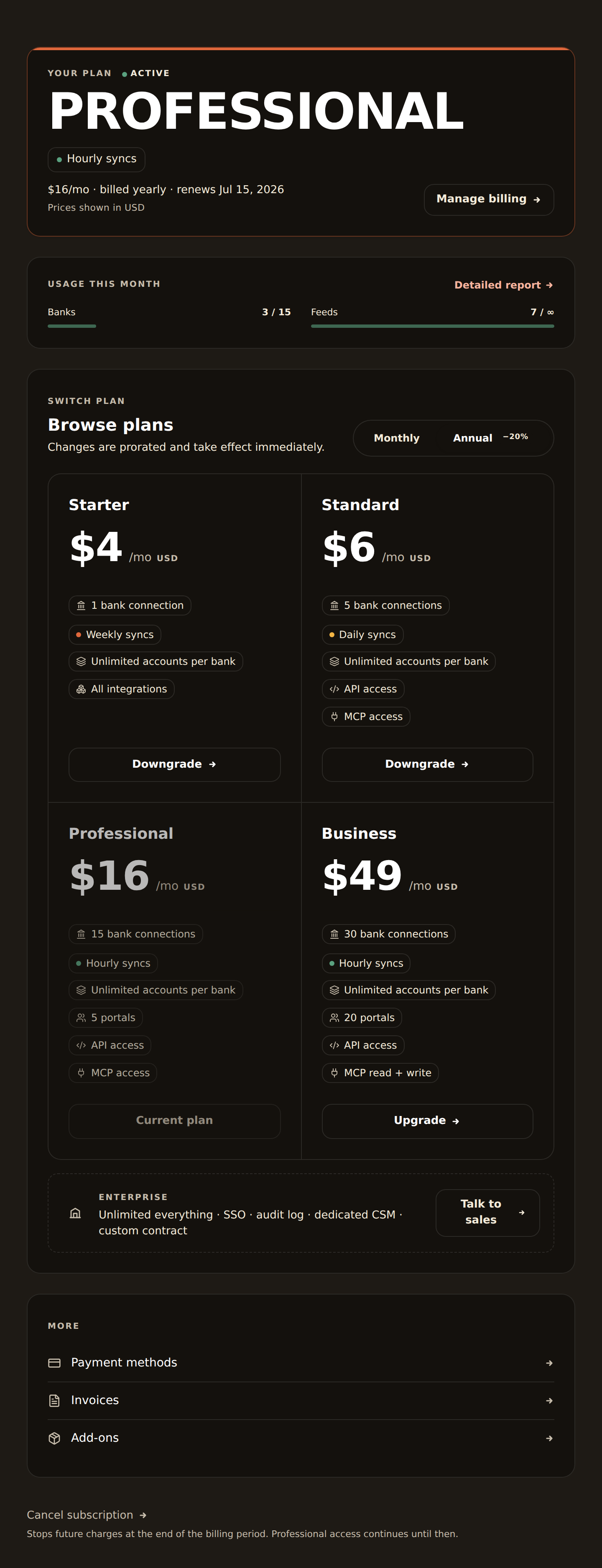
Scroll to the Browse plans / Switch plan grid. Use the monthly/yearly toggle to compare prices (yearly is the cheaper per-month rate). Your current plan's card shows a disabled "Current plan" button.
Click the higher plan
Pick Standard, Professional, or Business. An upgrade goes straight to a confirmation dialog that lists what changes (higher caps, new roles, faster sync) and the prorated charge.
Add a card if prompted
If you have no payment method on file, you're routed to a secure card form first. Enter your card details to continue; BankSync stores the card with Stripe, not in BankSync itself.
Confirm the change
Click the confirm button on the consequences screen. The subscription is created and the plan activates immediately. A "Plan switched" message confirms the new tier.
When a payment is due
Downgrade to a lower plan#
Downgrades run a validation checklist before anything changes, because a smaller plan may not fit your current usage. Some issues are fixed for you; over-cap issues you must clear yourself.
Move down a tier
Click the lower plan in the grid
On the Billing Overview tab, pick a tier below your current one. BankSync calls its precheck and, if there is anything to resolve, opens the validation checklist instead of going straight to confirmation.
Review the checklist
Each item is grouped by severity. Auto-fixable items can be resolved in place; over-cap items must be cleared by you; informational and acknowledge-only items just need your consent.
Apply the auto-fixes
For an incompatible role (for example, Admins or Editors when the target plan does not allow them), click the offered fix to demote those members to Viewer. For a sync schedule that the lower plan can't run (such as Hourly on a plan that tops out at Daily), the fix relaxes those feeds to an allowed cadence. Applying the fix unblocks Continue.
Resolve over-cap items yourself
If you have more banks, feeds, members, or client portals than the lower plan allows, those rows are a hard block with no auto-fix. Click Resolve manually to jump to the relevant page, remove items down to the cap, then return to the checklist.
Continue and confirm
Once every must-resolve item is cleared, Continue enables. Confirm the consequences screen to commit the downgrade. A clean downgrade (nothing over cap, no incompatible roles or schedules) skips the checklist entirely and goes straight to confirmation.
The checklist sorts work into three kinds:
| Item kind | Example | How it's resolved |
|---|---|---|
| Auto-fixable (role) | Admins or Editors on a plan that allows only Owner and Viewer | One-click demote to Viewer |
| Auto-fixable (schedule) | A feed set to Hourly moving to a plan without Hourly | One-click change to an allowed cadence |
| Over-cap (hard block) | More banks, feeds, members, or portals than the lower plan allows | You remove items down to the cap (Resolve manually) |
| Acknowledge-only | API access or MCP that the lower plan turns off | Confirm you understand the feature stops working |
Free and past-due block new bank connections
Cancel your subscription#
Canceling stops future charges but keeps your access until the end of the period you've already paid for.
Cancel or resume
Open the cancel control
On the Billing Overview tab, use the quiet Cancel subscription link at the bottom (Cancel trial during a trial), or the Cancel plan tab (it appears while your subscription is active or trialing).
Confirm the cancellation
Your plan is scheduled to lapse to Free at the end of the current billing period. You keep full access, with your current limits, until that date.
Resume before it takes effect
While a cancellation is pending, a banner offers a Resume option. Click it to clear the scheduled cancellation and keep your plan with no interruption. Switching to a different plan also clears a pending cancellation, and the confirmation dialog tells you when that happens.
Confirm it worked#
- After an upgrade or downgrade, the Your plan card on the Billing Overview shows the expected plan name with an active (or trialing) status, and the Usage this month meters reflect the new limits.
- You see a "Plan switched" confirmation when a change commits.
- After canceling, the plan shows a scheduled-cancellation banner with the date access ends and a Resume option.
- After resuming, that banner disappears and the plan reads as active again.
Troubleshooting#
Common issues
Next steps#
Manage your plan and billing
View usage, update your payment method, and find invoices.
Workspaces and members
Adjust roles and seats before a downgrade so the role check passes.
Manage your plan & billing
Related guides#
- Managing your plan and billing: usage meters, payment methods, invoices, and add-ons.
- Workspaces and team members: fix seats and roles that block a downgrade.
- Removing a bank: bring bank connections under a lower plan's cap.
- MCP server guide: what you gain (or lose) in agent access when MCP availability changes with your tier.
Use this page with your AI assistant
Every BankSync doc is available as plain Markdown for agents and LLMs.