MCP Server Guide
Connect AI agents like Claude Code, Claude Desktop, and Cursor to your BankSync data through the remote MCP server at mcp.banksync.io.
7 min read
On this page
- What is MCP?
- What agents can do
- Plan requirements and rate limits
- Using Claude? Add the official connector
- Step 1: Create an API key
- Step 2: Connect your client
- Claude Code
- Claude Desktop
- Cursor
- Other clients
- Alternative: the npx bridge for stdio-only clients
- Security and scope guidance
- Confirm it worked
- Troubleshooting
- Related guides
The BankSync MCP server gives AI agents secure, scoped access to your financial data. Ask Claude about your spending, have an agent check balances across every connected bank, or let it manage feeds and trigger syncs, all in natural language.

BankSync's MCP server is remote and hosted: it lives at https://mcp.banksync.io and speaks the MCP Streamable HTTP transport. There is nothing to install and no local server to run. You authenticate with a workspace API key sent in the X-API-Key header.
Hosted & remote
Connect any MCP client to https://mcp.banksync.io. No install, no localhost.
Scoped API keys
Each key carries only the permission scopes you grant it.
Natural language
Query transactions, balances, holdings, and loans conversationally.
What is MCP?#
Model Context Protocol (MCP) is an open standard that lets AI models connect to external data sources and tools. Once your agent is connected to BankSync, it can call BankSync tools directly: no copy-pasting CSVs, no screenshots of your banking app.
Example queries

What agents can do#
The server exposes tools across your whole workspace. The major groups:
Read financial data
Accounts, transactions, balances, holdings, trades, and loans (get_transactions, get_balance, get_holdings, list_accounts, and more)
Manage feeds & syncs
List, create, update, and validate feeds; trigger syncs; watch and cancel jobs
Banks & institutions
List connected banks, search supported institutions, and create bank connection links
Enrichments & portals
List, create, update and dry-run preview enrichments — any of the sixteen types — and manage client portals
For the full tool list with parameters and example calls, see the MCP tools reference.
MCP is not read-only by default
Plan requirements and rate limits#
MCP access requires the Standard plan or above. Each plan sets a per-minute request rate for MCP tool calls:
| Plan | MCP access | Rate limit |
|---|---|---|
| Free | No | n/a |
| Starter | No | n/a |
| Standard | Yes | 20 requests/min |
| Professional | Yes | 40 requests/min |
| Business | Yes | 60 requests/min |
The limit is per workspace, over a rolling 60-second period. Every MCP client and API key connected to the workspace shares it, and it is separate from the REST API limit. Enterprise limits are set by agreement.
Over the limit, a tool call returns a rate_limited error whose structured content carries recovery.afterSeconds (wait this long) and limit (your plan's requests per minute). If your key returns a plan-gating error, upgrade from Settings > Billing. See Changing your plan.
Australian (CDR) banks are not available via MCP
Using Claude? Add the official connector#
BankSync is listed in Claude's connector directory. Open BankSync in the Claude directory, add it, then sign in with your BankSync account and choose a workspace. Claude handles the sign-in with OAuth, so there is no API key or config file to manage. The connector works in Claude Desktop and on claude.ai, and you can revoke it any time from Connected apps.
Every other client, and any headless or CI setup, follows the two steps below.
Step 1: Create an API key#
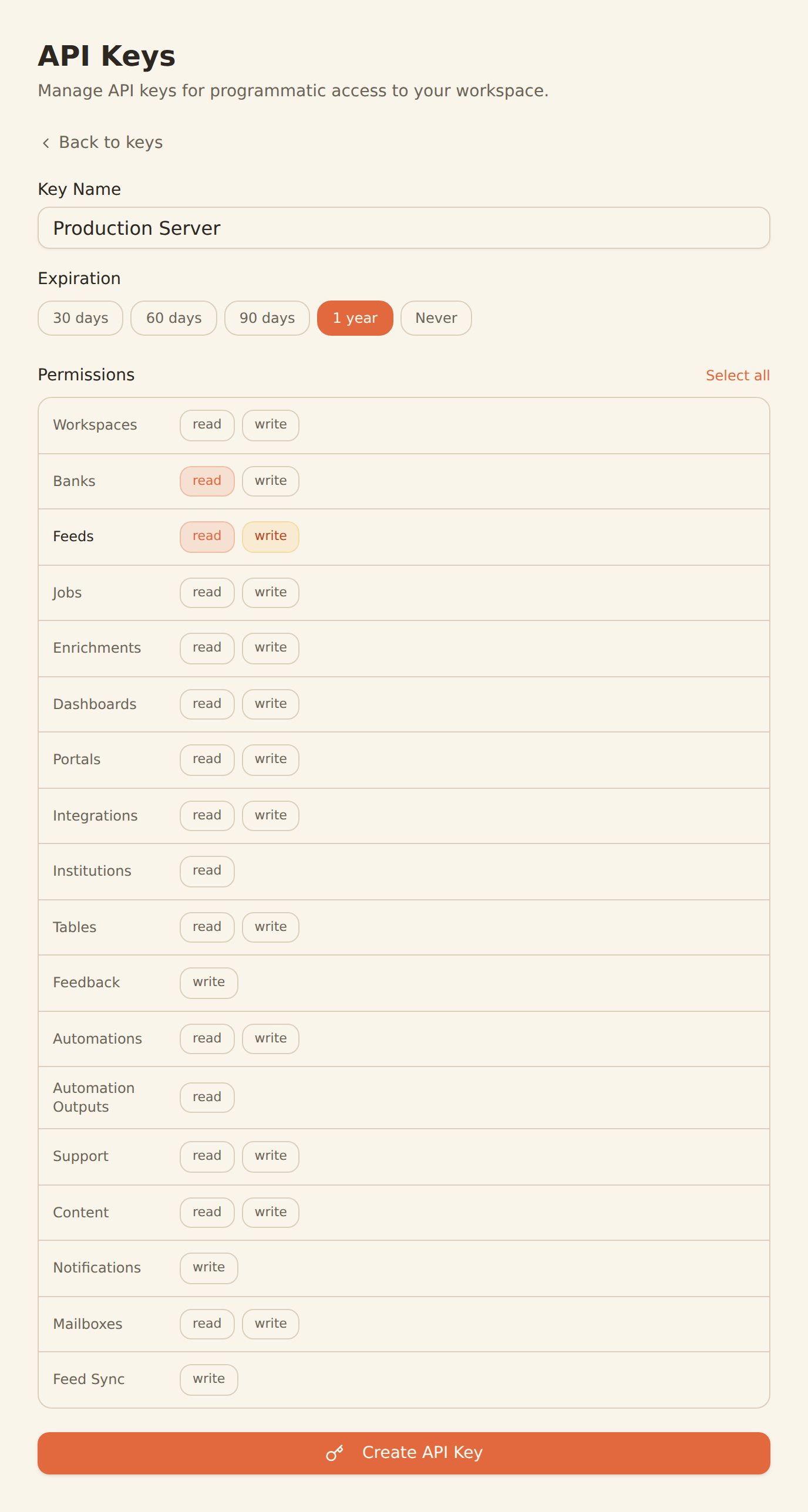
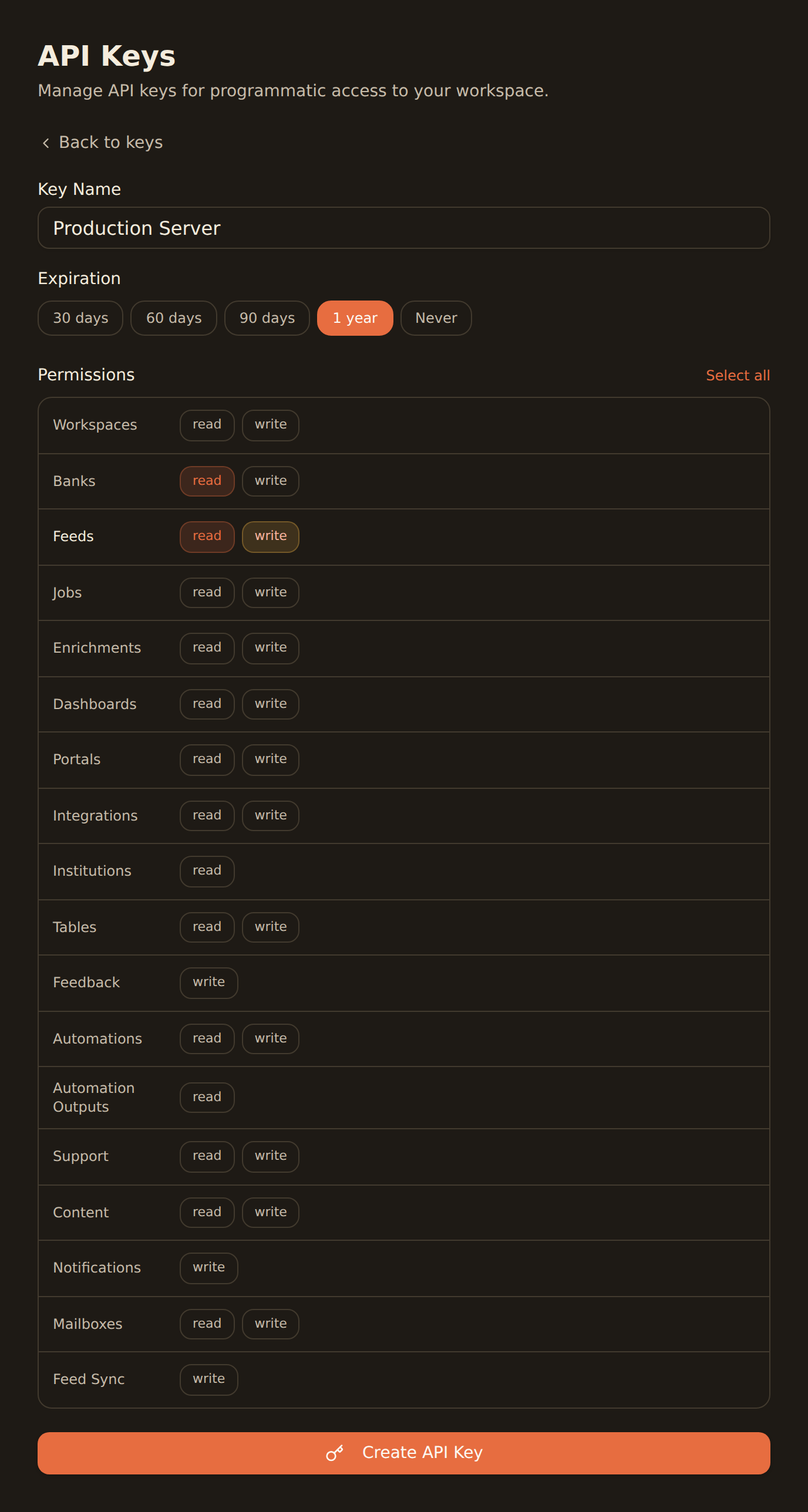
Clients that cannot sign in with OAuth authenticate with the same workspace API keys as the REST API. Keys start with bsk_ and are shown in full exactly once, at creation.
Get your key
Open Settings > Developers
In your workspace, open Settings, then the Developers section under the Workspace group. The API Keys panel lists existing keys.
Create a key
Click Create Key, name it (for example "Claude Desktop"), and pick an expiration.
Choose scopes carefully
Select only the scopes your agent needs. For a chat assistant that only answers questions about your data, grant read scopes only (banks:read, feeds:read, jobs:read). Add write scopes only if the agent should create feeds, trigger syncs, or change things.
Copy the secret
Copy the full bsk_ key when it is revealed. It cannot be retrieved later.
The full creation flow, the scopes model, and revocation are covered in API keys.
Step 2: Connect your client#
Most modern MCP clients support remote servers over Streamable HTTP. Point them at https://mcp.banksync.io. Clients that support OAuth (Claude, Claude Code, ChatGPT) sign in through the browser; the rest send your key in an X-API-Key header.
Claude Code#
Add the server, then sign in with OAuth: run /mcp inside Claude Code, pick banksync and choose Authenticate. A browser window opens to sign in to BankSync; no API key needed.
claude mcp add --transport http banksync https://mcp.banksync.ioFor headless or CI use, pass an API key in a header instead:
claude mcp add --transport http banksync https://mcp.banksync.io \ --header "X-API-Key: bsk_your_api_key_here"Or commit a project-level .mcp.json to your repo root (Claude Code expands environment variables, so the secret stays out of source control):
{ "mcpServers": { "banksync": { "type": "http", "url": "https://mcp.banksync.io", "headers": { "X-API-Key": "${BANKSYNC_API_KEY}" } } }}Verify the connection
Claude Desktop#
The quickest route is the official connector described above. To configure it by hand with an API key instead, add the server to your config file, located at ~/Library/Application Support/Claude/claude_desktop_config.json on macOS or %APPDATA%\Claude\claude_desktop_config.json on Windows:
{ "mcpServers": { "banksync": { "url": "https://mcp.banksync.io", "headers": { "X-API-Key": "bsk_your_api_key_here" } } }}Claude Desktop also supports a one-click Desktop Extension: download the BankSync .mcpb bundle from the Claude Desktop setup page and open it with Claude Desktop; you will be prompted for your API key during installation.
Cursor#
Add the same JSON to .cursor/mcp.json in your project root (per-project) or ~/.cursor/mcp.json (global):
{ "mcpServers": { "banksync": { "url": "https://mcp.banksync.io", "headers": { "X-API-Key": "bsk_your_api_key_here" } } }}Other clients#
ChatGPT, Windsurf, VS Code Copilot, Gemini CLI, Zed, Warp, n8n, LibreChat, and 30+ other agents are supported, each with its own config quirks (some use serverUrl instead of url, some use OAuth instead of an API key). Per-client setup guides live at /docs/mcp/connect-an-agent.
Alternative: the npx bridge for stdio-only clients#
Some older clients only speak the stdio transport and cannot call a remote HTTP server directly. For those, BankSync publishes @banksync/mcp, a small npm package that runs locally and bridges stdio to the remote server. It requires Node.js:
{ "mcpServers": { "banksync": { "command": "npx", "args": ["-y", "@banksync/mcp"], "env": { "BANKSYNC_API_KEY": "bsk_your_api_key_here" } } }}The bridge reads your key from the BANKSYNC_API_KEY environment variable and forwards every call to https://mcp.banksync.io. Prefer the direct remote configuration whenever your client supports it; the bridge exists only for compatibility.
Security and scope guidance#
Least privilege
Server-side enforcement
Rotate and revoke
One key per agent
Review what you share
Confirm it worked#
Ask your agent something simple that requires a tool call, such as "List my workspaces" or "What banks are connected?". A correct setup returns real data from your workspace. If the client has an MCP status view (like /mcp in Claude Code), check that the banksync server shows as connected with tools available.
Troubleshooting#
Common issues
Related guides#
- API keys: create, scope, and revoke the
bsk_keys the MCP server authenticates with. - REST API guide: the same data over plain HTTP if you are building software rather than connecting an agent.
- Changing your plan: MCP access and rate limits are set by your plan tier.
- Connect an agent: step-by-step setup for every supported MCP client.
Use this page with your AI assistant
Every BankSync doc is available as plain Markdown for agents and LLMs.