API keys
Create scoped BankSync API keys, copy the secret once, authenticate requests, and revoke keys.
10 min read
On this page
An API key is a secret credential that gives programmatic access to your workspace through the BankSync REST API and the MCP server. Each key carries a fixed set of permission scopes you choose at creation, so a script or AI agent gets exactly the access it needs and nothing more.

Before you start
You need the Admin or Owner role in the workspace to create or revoke keys. API keys are managed only from the BankSync web app: a key cannot create or revoke other keys. API access also depends on your plan, so if you see an "isn't included on your plan" banner on the API Keys panel, upgrade before creating a key.
What an API key looks like#
Every key starts with the bsk_ prefix followed by a long random string. The full secret is shown to you exactly once, at the moment of creation. After that, BankSync only ever displays the first 8 characters (the key prefix, for example bsk_a3f5) so you can identify the key in lists without exposing the secret.
bsk_a1B2c3D4e5F6g7H8i9J0k1L2m3N4o5P6q7R8s9T0u1V2Create an API key#
Create a key
Open Developer settings
Click your workspace menu, then select Developers. The API Keys panel opens and lists any existing keys, or shows "No API keys yet" if you have none.
Start a new key
Click Create Key. The create view opens with fields for the key name, expiration, and permissions.
Name the key
Type a descriptive name in Key Name, for example "Production MCP Server". The name is only a label to help you recognize the key later.
Choose an expiration
Under Expiration, pick one of
30 days,60 days,90 days,1 year, orNever. Short-lived keys reduce the blast radius if a secret leaks.Select scopes
Under Permissions, toggle only the actions you need per resource. Use Select all only if the key genuinely needs full access. You must select at least one permission to continue.
Create it
Click Create API Key. The reveal view appears with the full secret.
Copy the secret immediately
Click the copy icon (or select the text) and store the key somewhere safe. The screen warns that this is the only time it will be shown and it cannot be retrieved later. Click Done to return to the list.
The full key is shown only once
The scopes model#
Scopes follow a resource:action pattern (Stripe-style). Grant only the exact active scopes listed below. Most resource operations currently use read or write; specialized actions can be added without changing the model. A reporting script usually needs only read scopes, while an automation that triggers syncs or creates feeds needs the matching mutation scopes.
| Scope | Resource | Action | Access |
|---|---|---|---|
account:read | account | read | See whether two-step verification is on for your BankSync login, whether a recovery key was saved or used, and your recent security activity. |
automation_outputs:read | automation_outputs | read | Read what an automation run produced, when the credential also holds every permission the run’s grant held. Every read is audited. |
automations:read | automations | read | View automations, their drafts, revisions, grants and approvals, and the status of their runs. Never what a run carried. |
automations:write | automations | write | Create, edit, publish, activate and delete automations, bind them to tables, banks and feeds, request or revoke their grants, and start, cancel, pause and resume their runs. Approving a grant or an approval stays a person’s decision. |
banks:read | banks | read | View bank connections, accounts, transactions, balances, and holdings |
banks:write | banks | write | Connect, modify, and disconnect bank connections. An installed app cannot permanently remove one. |
content:read | content | read | View the workspace’s folders and where each automation sits in them, with their names and icons, what is in trash, and your own stars. |
content:write | content | write | Create folders, rename items and set their icons, move them between folders, move them to trash and restore them, and star them for yourself. It creates, edits and runs no automation. |
dashboards:read | dashboards | read | View dashboards, widgets, queries, folders, and their query results over feed data. Not available to installed apps. |
dashboards:write | dashboards | write | Create, modify, and delete dashboards, widgets, queries, and folders. Not available to installed apps. |
enrichments:read | enrichments | read | View enrichment rules. An installed app sees only the rules it created. |
enrichments:write | enrichments | write | Create, modify, and delete enrichment rules. An installed app reaches only the rules it created, and cannot write a rule that runs on every feed. |
feed_sync:write | feed_sync | write | Sync bank changes to a destination from an automation: write, update and remove the rows the automation delivered there. Never a feed’s settings. |
feedback:write | feedback | write | Send BankSync product feedback, bug reports, and feature requests as you. Reads nothing back and changes nothing in your workspace. |
feeds:read | feeds | read | View sync feed configurations. An installed app sees only the feeds it created. |
feeds:write | feeds | write | Create, modify, and delete sync feeds. An installed app reaches only the feeds it created. |
institutions:read | institutions | read | Search banks and see which providers can connect them. Reference data about institutions — never your accounts or transactions |
integrations:read | integrations | read | View connected destination integrations |
integrations:write | integrations | write | Connect and remove destination integrations. An installed app can connect one but cannot remove any. |
jobs:read | jobs | read | View sync history and job status. An installed app sees only the feeds it created. |
jobs:write | jobs | write | Trigger manual syncs and cancel running jobs. An installed app reaches only the feeds it created. |
mailboxes:read | mailboxes | read | Read the messages that reached a mailbox and the files attached to them. Never a mailbox’s settings, and never sends anything. |
mailboxes:write | mailboxes | write | Release held mail, allow or block a sender, give a mailbox another address, mark a message, send, reply and forward within the mailbox’s sending rules, and file a message’s attachments as table rows. |
marketplace:read | marketplace | read | Search the public marketplace, read the workspace’s saved templates, export workspace resources as a template, plan an install, and see the workspace’s installs and what each one created. It changes nothing. |
marketplace:write | marketplace | write | Save, edit, delete and restore the workspace’s saved templates, and install a template into the workspace, update, rename or remove an install. Installing creates dashboards, tables, feeds, enrichments and switched-off automations in the workspace. It never publishes a listing. |
notifications:write | notifications | write | Raise a notification in the workspace’s in-app tray, for every member or for its owners and admins. It sends no email. |
portals:read | portals | read | View client portals and their membership. Not available to installed apps. |
portals:write | portals | write | Create, modify, and delete client portals. Not available to installed apps. |
support:read | support | read | View your support cases with BankSync and the cases raised about this workspace, with their messages. |
support:write | support | write | Open support cases with BankSync, reply on cases, and close the cases you raised, as you. |
tables:read | tables | read | View your tables, their fields, and the rows stored in them. An installed app sees only the tables it created. |
tables:write | tables | write | Create and delete tables, change fields, and add, edit, or remove rows. An installed app reaches only the tables it created. |
workspaces:read | workspaces | read | View workspace metadata, membership, and connected integrations |
workspaces:write | workspaces | write | Modify workspace settings, members, and integrations |
Scopes and least privilege
Use the key#
Pass the key in the X-API-Key header on every request. The base URL for the REST API is https://api.banksync.io/v1. Because a key is bound to a single workspace, you do not need to send a workspace header.
curl -X GET "https://api.banksync.io/v1/banks" \ -H "X-API-Key: bsk_your_api_key_here" \ -H "Content-Type: application/json"Store the key in an environment variable rather than pasting it inline so it never lands in your shell history or source control.
export BANKSYNC_API_KEY="bsk_your_api_key_here"
curl -X GET "https://api.banksync.io/v1/banks" \  -H "X-API-Key: $BANKSYNC_API_KEY"
The same key authenticates the MCP server, so an AI client configured with it can call BankSync tools within the scopes you granted. See the MCP server guide for client setup.
List your keys#
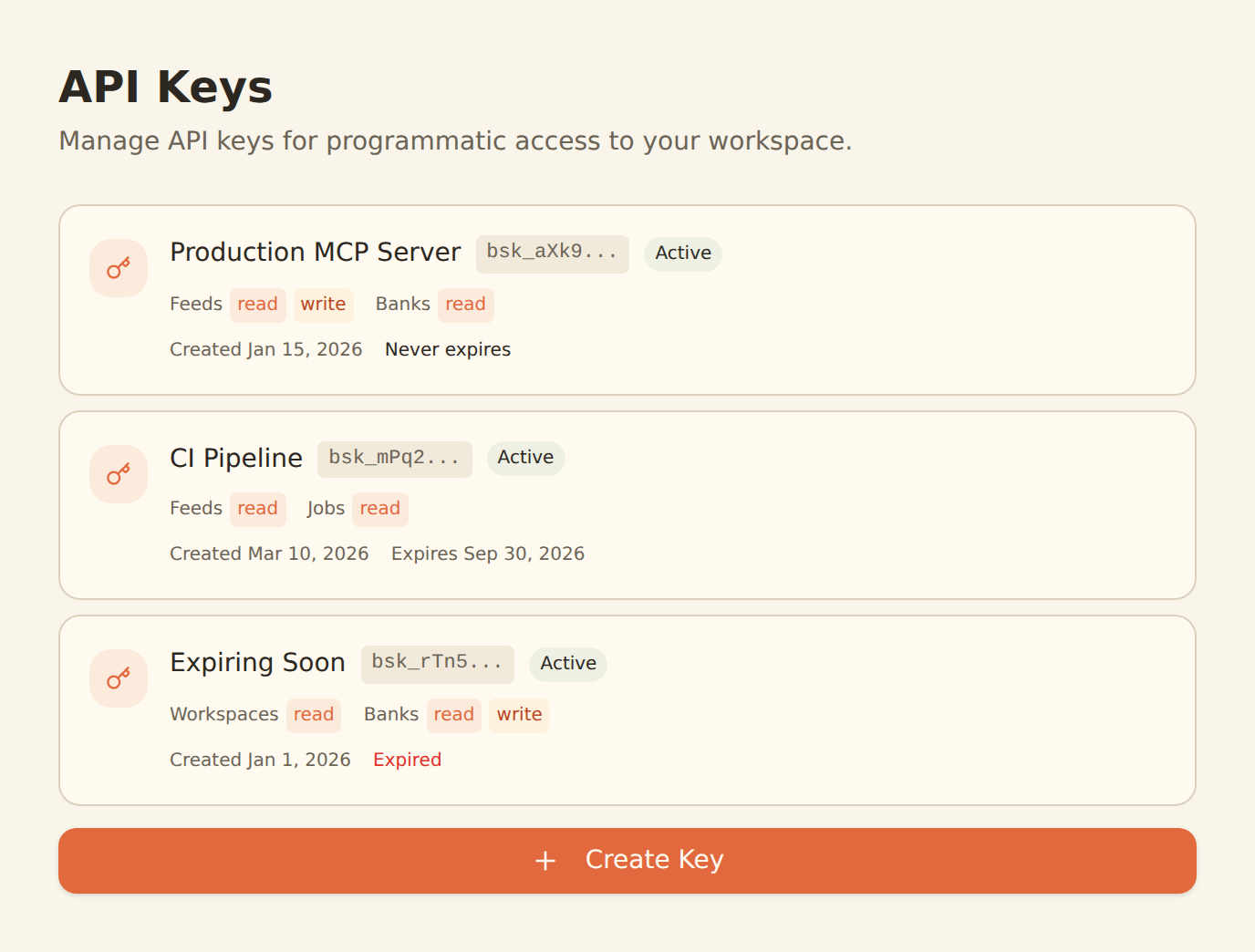
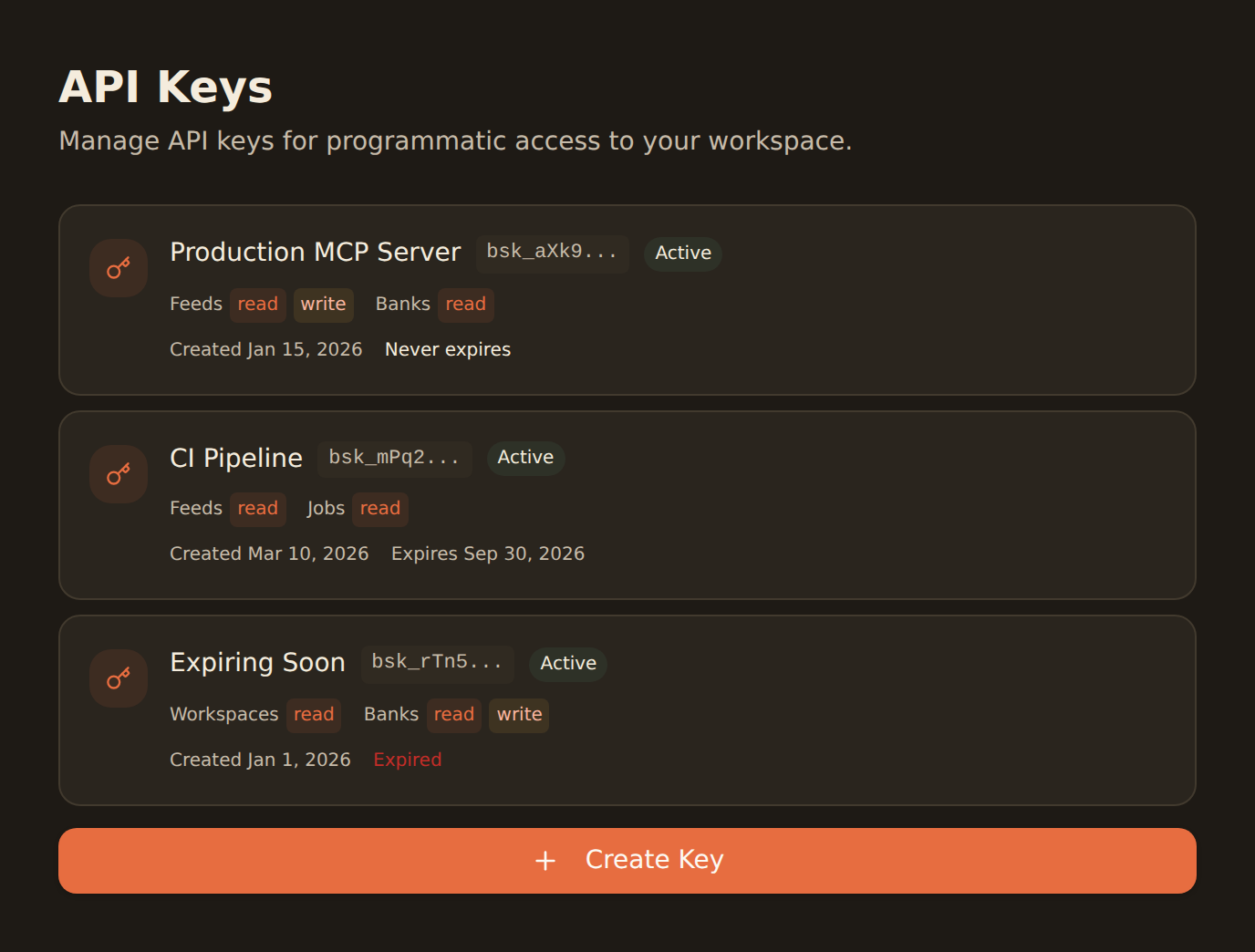
On the API Keys panel, each existing key shows its name, the key prefix (for example bsk_a3f5...), an Active badge, the granted scopes (read in blue, write in amber, grouped by resource), the creation date, and the expiry. The full secret is never shown again, by design.
curl -X GET "https://api.banksync.io/v1/workspaces/WORKSPACE_ID/api-keys" \ -H "Authorization: Bearer YOUR_SESSION_TOKEN" \ -H "X-Workspace-ID: WORKSPACE_ID"Why this call uses a session token
Revoke a key#
Revoke a key
Find the key
On the API Keys panel, locate the key by its name and prefix.
Start revocation
Click the trash icon on the key's row (titled "Revoke key"). An inline Cancel / Revoke confirmation appears.
Confirm
Click Revoke. The key is invalidated immediately and removed from the active list.
Revocation takes effect at once: any request using a revoked key gets a 401 Invalid or expired API key response. There is no grace period and no way to reactivate, so rotate by creating a new key first, switching your integration over, then revoking the old one.
Security best practices#
Store secrets safely
Keep keys in environment variables or a secrets manager. Never commit them to version control or hard-code them.
Least privilege
Grant only the scopes a key needs. A read-only reporting job should not hold any write scope.
Rotate regularly
Set an expiration and rotate keys on a schedule. Create the replacement, cut over, then revoke the old key.
Revoke leaked keys
If a key is exposed in logs, a screenshot, or a repo, revoke it immediately and issue a new one.
Confirm it worked#
Make a read request scoped to a permission you granted. A 200 OK with a JSON body confirms the key is valid and correctly scoped.
curl -i -X GET "https://api.banksync.io/v1/banks" \ -H "X-API-Key: $BANKSYNC_API_KEY"| Response | Meaning |
|---|---|
200 OK | The key is valid and has the scope for this resource. |
401 Unauthorized | The key is missing, mistyped, expired, or revoked. |
403 Forbidden | The key is valid but lacks the required scope for this operation, or your plan does not include API access. |
After revoking, repeat the same request: a 401 confirms the key is dead.
Troubleshooting#
Every request returns 403 right after creating a key
401on a brand new key: make sure you copied the full secret from the reveal view, with no truncation or trailing whitespace, and that you are sending it inX-API-Key, notAuthorization.- Lost the secret: it cannot be recovered. Revoke the key and create a new one.
- Need to create or revoke keys via API: you cannot. Key creation and revocation require a signed-in session in the web app (listing keys is available with a
workspaces:readkey).
Next steps#
- Authentication: full reference for API key and bearer token auth, headers, and scopes.
- REST API guide: endpoints, request and response shapes, and pagination.
- MCP server guide: connect an AI client to BankSync using your API key.
Use this page with your AI assistant
Every BankSync doc is available as plain Markdown for agents and LLMs.