
Organizing Dashboards with Folders
Use the content tree to rename, duplicate, search, reorder, and file dashboards into folders, focus on one folder, and understand exactly what deleting a dashboard or a folder does.
6 min read
On this page
As you build more dashboards, the content tree on the left keeps them organized. It is a folder tree of all your dashboards: you can rename them, give them icons, duplicate them, move them into folders, and reorder both dashboards and folders. To open or hide it, click the panel toggle (the left-panel icon in the editor's title strip). If you prefer the keyboard, the left bracket key [ does the same thing.
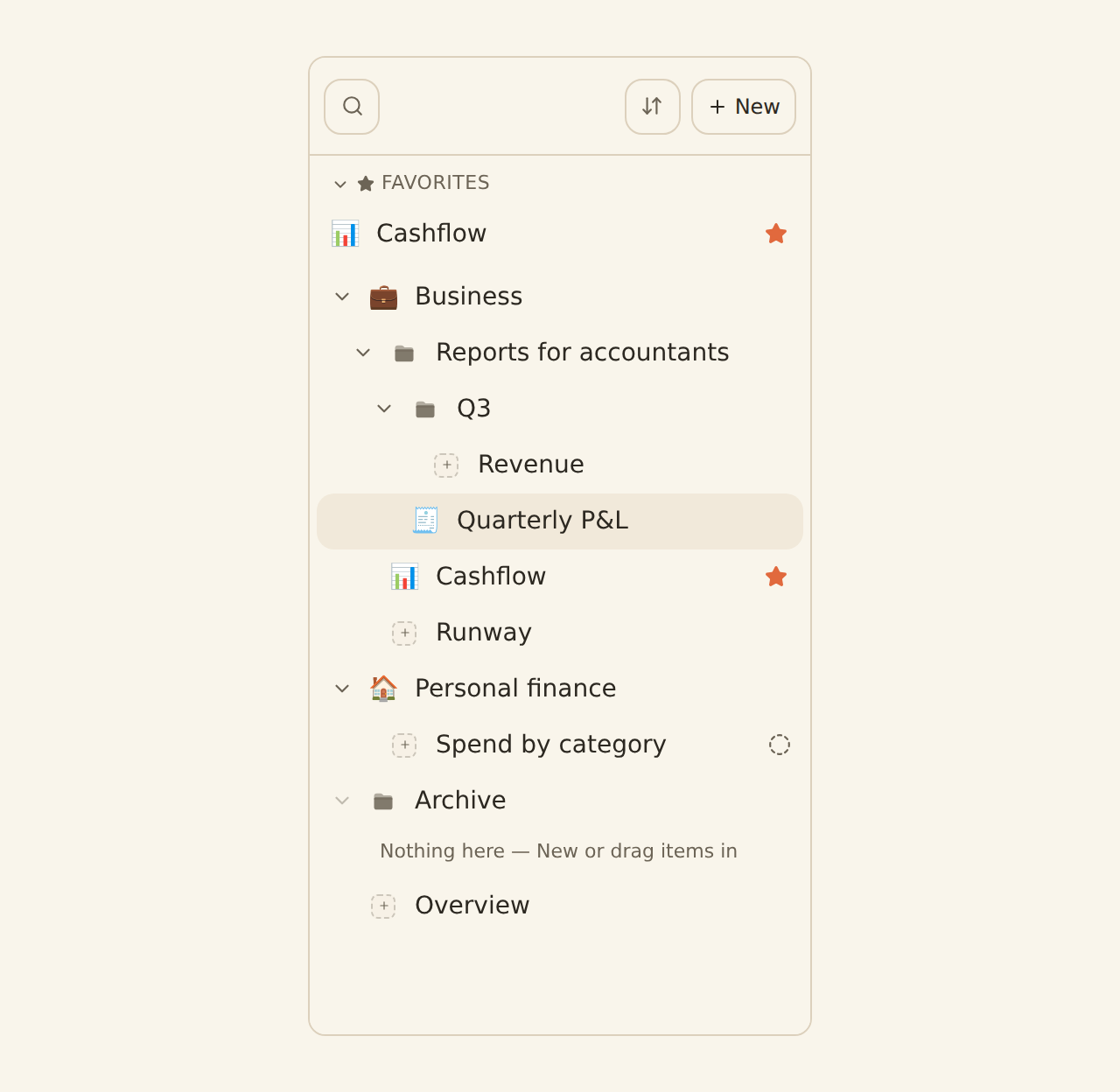
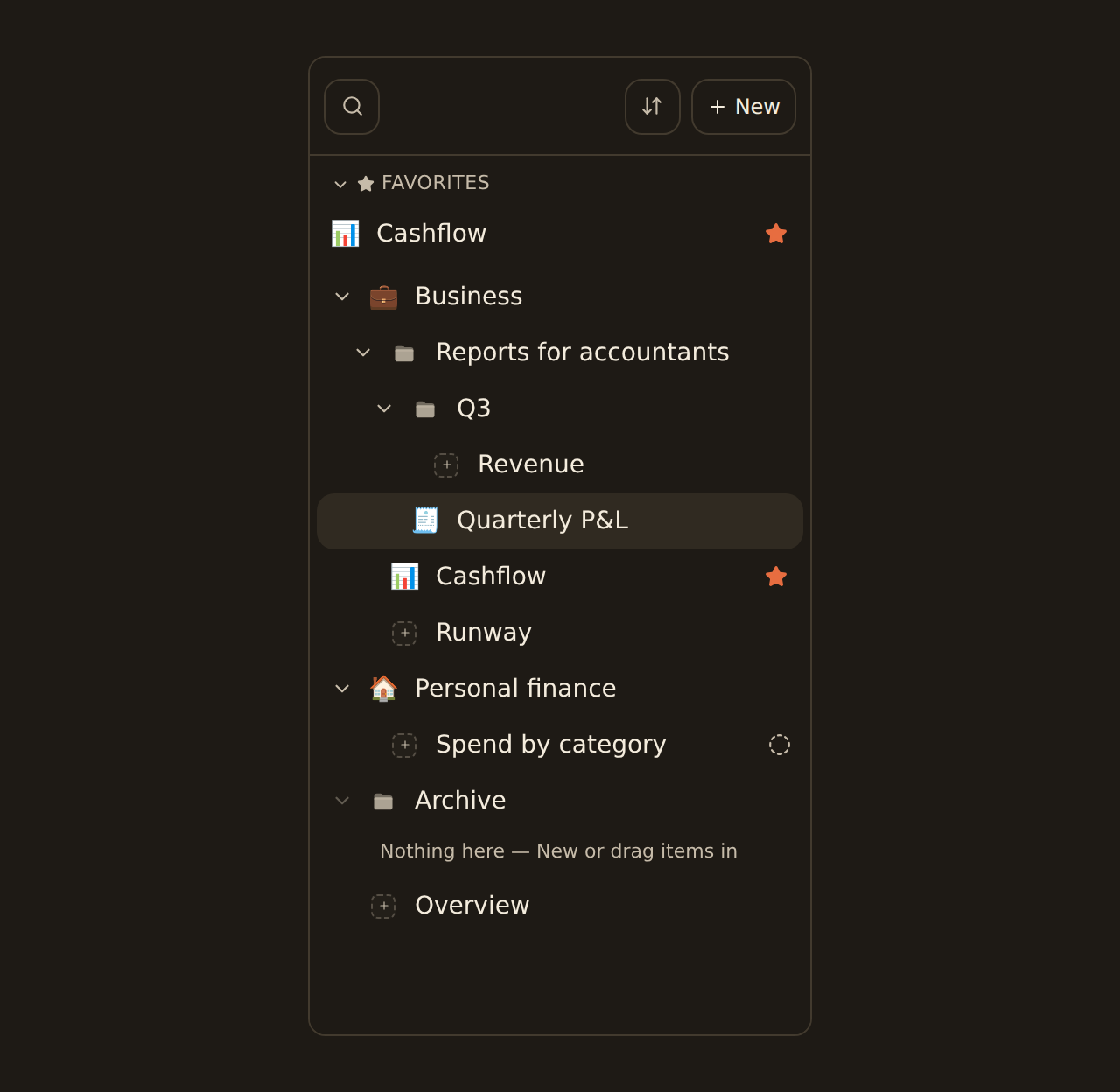
A worked example to follow along

Working with a dashboard#
Hover a dashboard in the tree and open its menu (the three-dots icon) for its actions. On a phone or tablet the menu button is always visible.
Rename & icon
Rename a dashboard inline, either by choosing Rename from its menu or by double-clicking its name in the tree. (A single click opens the dashboard, so use a double-click when you mean to rename.) Click its icon to pick a drawn icon or an emoji so it is easy to spot.
Duplicate
Make a copy with the same layout, filters, and widgets, named "… (copy)". The layout and filters are the copy's own, but the widgets are shared, not cloned (see the note below).
Move to a folder
Choose Move to… from its menu and pick a folder, or top level to take it out of every folder. You can also drag it onto a folder, or onto a folder name in the path at the top of the tree. On a touch screen, press and hold a row for a moment to start dragging.
Reorder
Drag a dashboard above or below another to set its place; a line shows where it will land. From the keyboard, Alt+↑ and Alt+↓ move it up and down. The order is shared with everyone in the workspace, and Undo appears for a few seconds after every move.
Duplicate shares widgets, it does not clone them
Finding a dashboard fast
Folders#
Folders group related dashboards (for example "Monthly reports" or "Client A"). Create a folder from the tree, move dashboards into it, and nest folders inside other folders, up to eight levels deep. Folders can also have their own emoji or symbol icon, the same way dashboards do: click the icon next to a folder's name to pick one. At every level folders come first, then dashboards, and you can reorder both. Dashboards that are not in any folder sit at the top level, after the folders.
When a tree gets deep, choose Focus on this folder from a folder's menu. The tree then shows only that folder, with its path at the top: click any name in the path, or the back arrow, to step back out. Opening a dashboard that is deep in the tree focuses on its folder for you. The tree remembers which folders you left open.
Create and fill a folder
Create the folder
Click the + New button at the top of the content tree and choose New folder, then type a name (for example "Monthly reports") and press Enter.
Add dashboards
Use Move to… on each dashboard (for example Cashflow and Runway), or drag them onto the folder. A folder's own menu also has New dashboard here and New folder here.
Nest if you like
Move one folder into another the same way. To take a folder back out, move it to the top level.
The same + New button also has a New dashboard option, so you can start a fresh dashboard right from the tree.
Deleting#
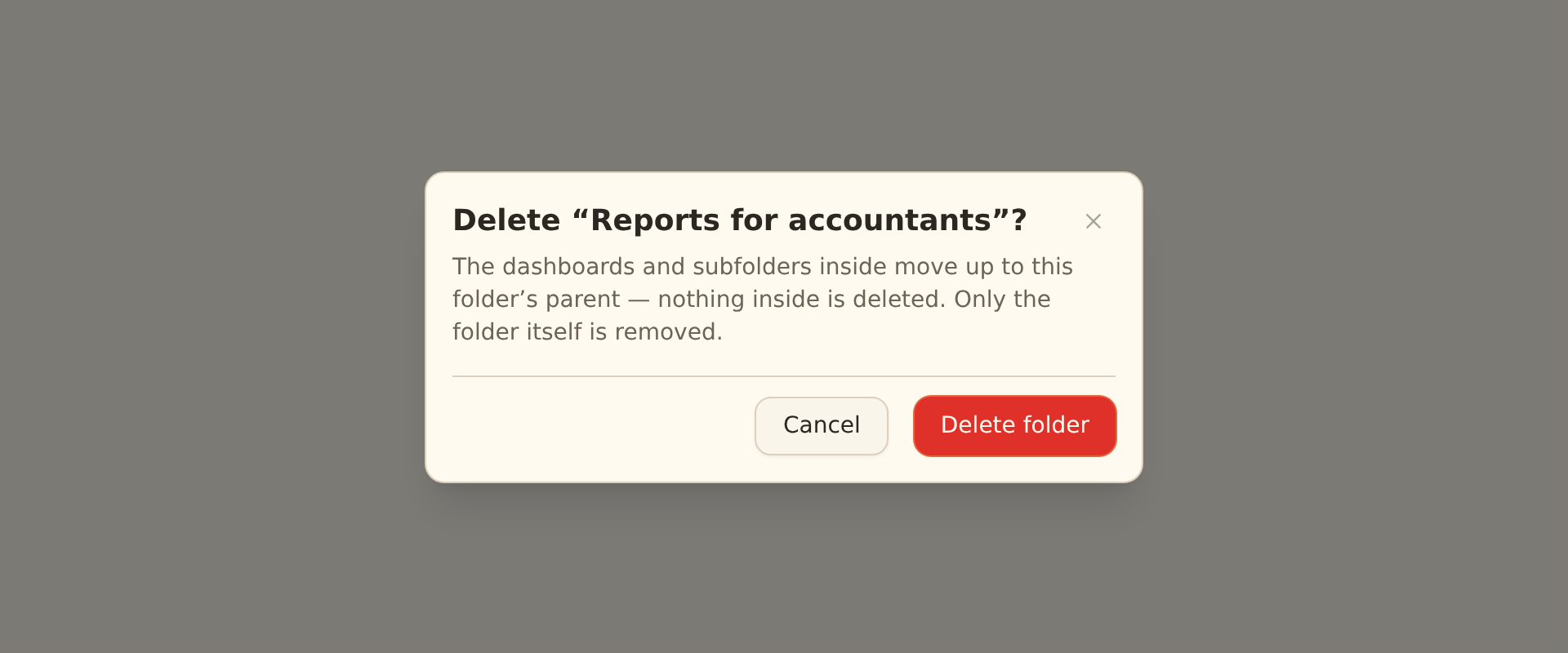
Deleting always asks you to confirm first, and the two kinds of delete behave differently.
Deleting a dashboard moves it to trash
Deleting a folder keeps its contents
Organizing with an AI agent, the API or the CLI#
If you drive BankSync through an AI agent (for example Claude with the BankSync tools), the agent can do this housekeeping for you: create folders, move dashboards into them (move_dashboard), put dashboards in order (reorder_dashboards), and delete dashboards on your behalf, all without you touching the tree by hand. Everything above still works exactly the same when you organize by hand.
Scripts can do the same through the REST API and the CLI, with an API key that has the dashboards:write scope and a role of editor or above:
- Move a dashboard:
POST /v1/dashboards/{dashboardId}/movewith{ "folderId": "…" }(ornullfor the top level) and, optionally,"before": "<another dashboard id>"(ornullto place it last). From the CLI:banksync dashboards move <dashboardId> --folder <folderId>,--top-level,--before <dashboardId>or--last. - Reorder dashboards:
POST /v1/dashboards/reorderwith{ "orderedIds": [ … ] }, the ids in their new order. From the CLI:banksync dashboards reorder <id> <id> …. Dashboards you do not list keep their places relative to each other.
Moving and reordering change only where a dashboard sits: never its content, and never its "last edited" time. Repeating the same request lands the dashboard in the same place, so a retry is safe, and the API also accepts an Idempotency-Key header. A dashboard you cannot see answers as not found, whichever way you ask.
Related guides#
- Creating your first dashboard: the editor and autosave.
- Dashboards & widgets overview: how the pieces fit together.
- Add widgets to a dashboard: build, reuse, and remove the charts inside a dashboard.
Add widgets to a dashboard
Use this page with your AI assistant
Every BankSync doc is available as plain Markdown for agents and LLMs.