
Publishing, Sharing & Embedding
Control who can see a dashboard with four visibility levels, and (where it is switched on) share a read-only link or embed a dashboard or a single widget in your own site.
5 min read
On this page
Once a dashboard is in good shape, you can decide who gets to see it. You control that with four visibility levels, ranging from just you up to a public link. Where public serving has been switched on for your workspace, you can also hand out a read-only link or embed a dashboard (or a single widget) in another site.

Public links are still rolling out (beta)
Save the dashboard first
Share it in four steps#
Save the dashboard
Give it a name or add a widget so it is saved. The Share button in the dashboard toolbar appears once there is something to share.
Open Share
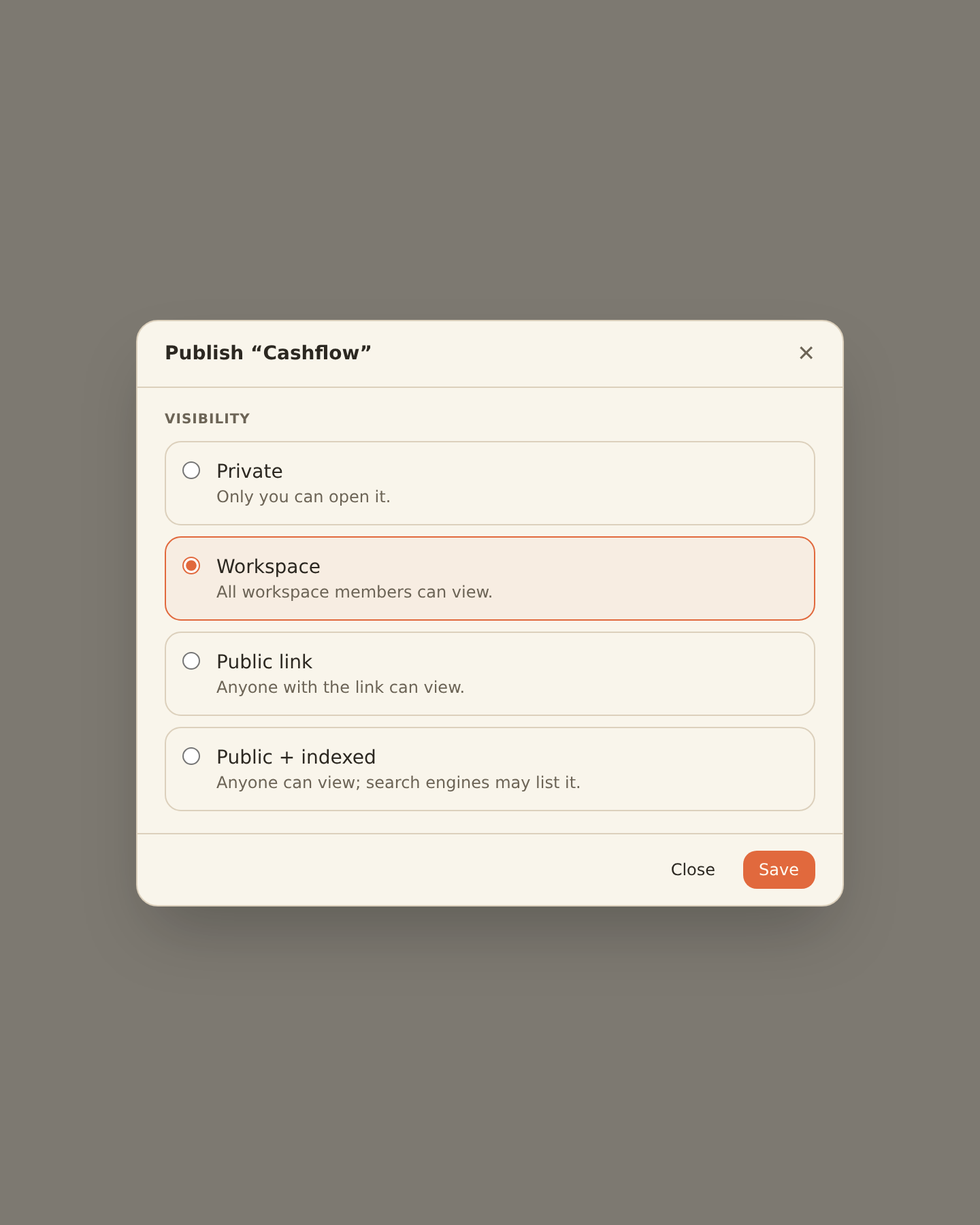
Click Share in the toolbar. The window that opens is titled Publish "<your dashboard name>", so do not be thrown that it says Publish rather than Share: it is the same thing.
Pick who can see it
Choose one of the four visibility levels below (Private, Workspace, Public link, or Public & indexed).
Press Save
The confirm button is labelled Save (not Publish). Pressing it applies the visibility you chose.
Copy the link, if there is one
If public serving is live for your workspace and you chose a public level, a link and an embed snippet appear to copy. If it is not live yet, you will see "No link yet" instead (see the beta note above).
Visibility levels#
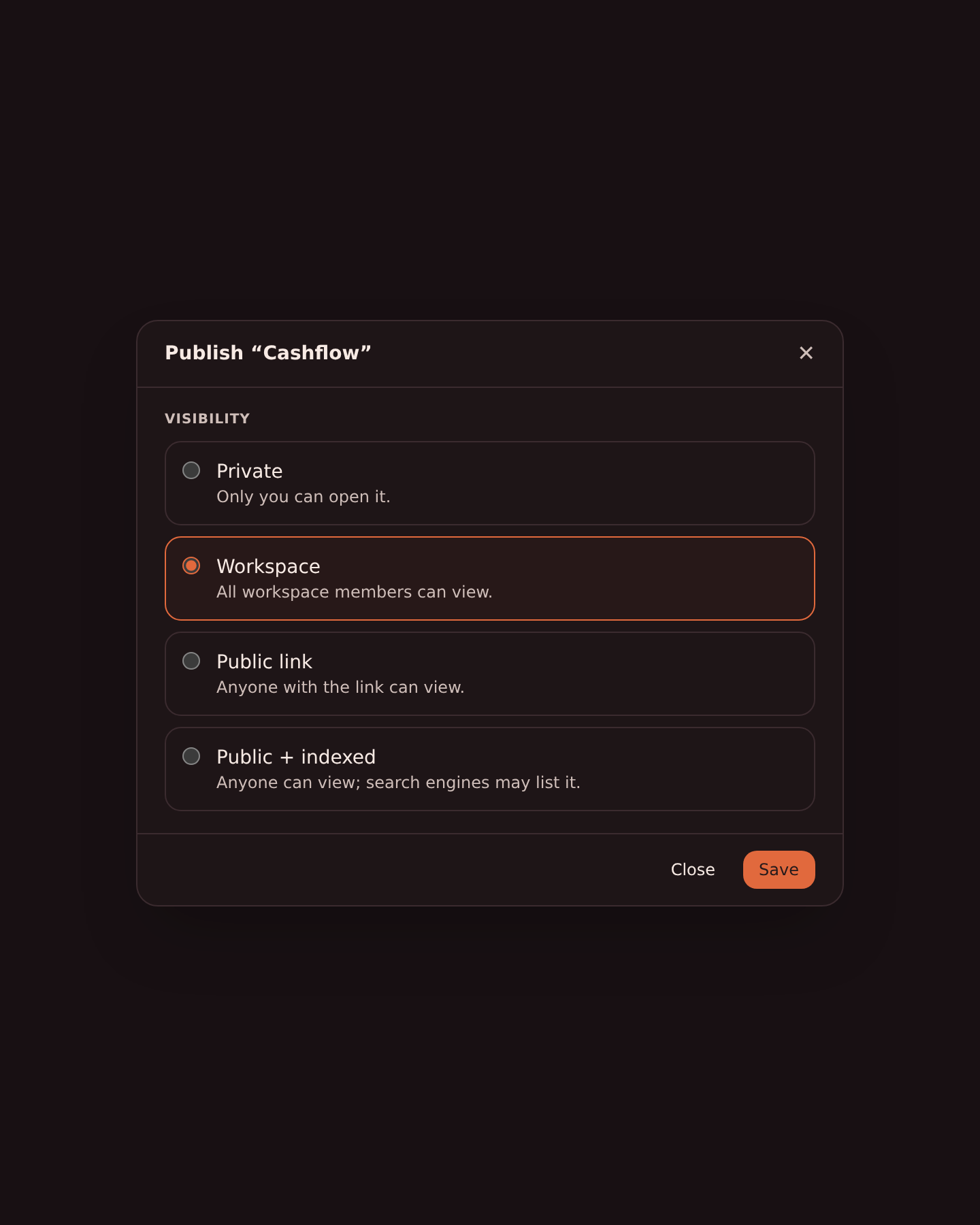
Open Share from the dashboard toolbar and choose how widely it is visible:
Private
Only you can see it. This is the default for a new dashboard.
Workspace
Everyone in your workspace can view it. There is no link to hand out: teammates simply open it inside BankSync like any other dashboard.
Public link
Anyone who has the link can view it, read-only. It is not listed anywhere public, so only people you send the link to can find it.
Public & indexed
A public link that search engines are also allowed to list, so it can turn up in search results.
Workspace sharing needs no link
Links and embedding#
When you set a dashboard to a public level and public serving is live for your workspace, BankSync issues the link from its server. The dialog shows two things to copy:
- One link to the dashboard. This is the read-only URL you send to people.
- An embed snippet. This is a short block of HTML (an
<iframe>, which is just a way to show one page inside another) that you paste into your own web page to display the dashboard there.
Both come from the server, and both only appear once a real link exists. Until public serving reaches your workspace, neither appears (see the beta note at the top of this page). In that pending state the dialog simply shows a "No link yet" message where the link and embed snippet would otherwise sit, so there is nothing to copy until serving is switched on.
Controlling who can embed it#
Two settings let you lock an embed down:
- Allowed origins. An origin is just the web address that is allowed to show your embed (for example
https://yourcompany.com). For a dashboard, if you list one or more origins, then only those sites may embed it. Listing your own site keeps the dashboard from being framed anywhere else. - Regenerate. This mints a brand-new link on the server and immediately stops the old one from working, along with any embeds that were using it. Use it if a link leaked or you no longer want an old recipient to have access. The button is labelled Regenerate, and it warns that the current link stops working.
Locking down a dashboard embed
A dashboard link is never a dead link
Sharing a single widget#
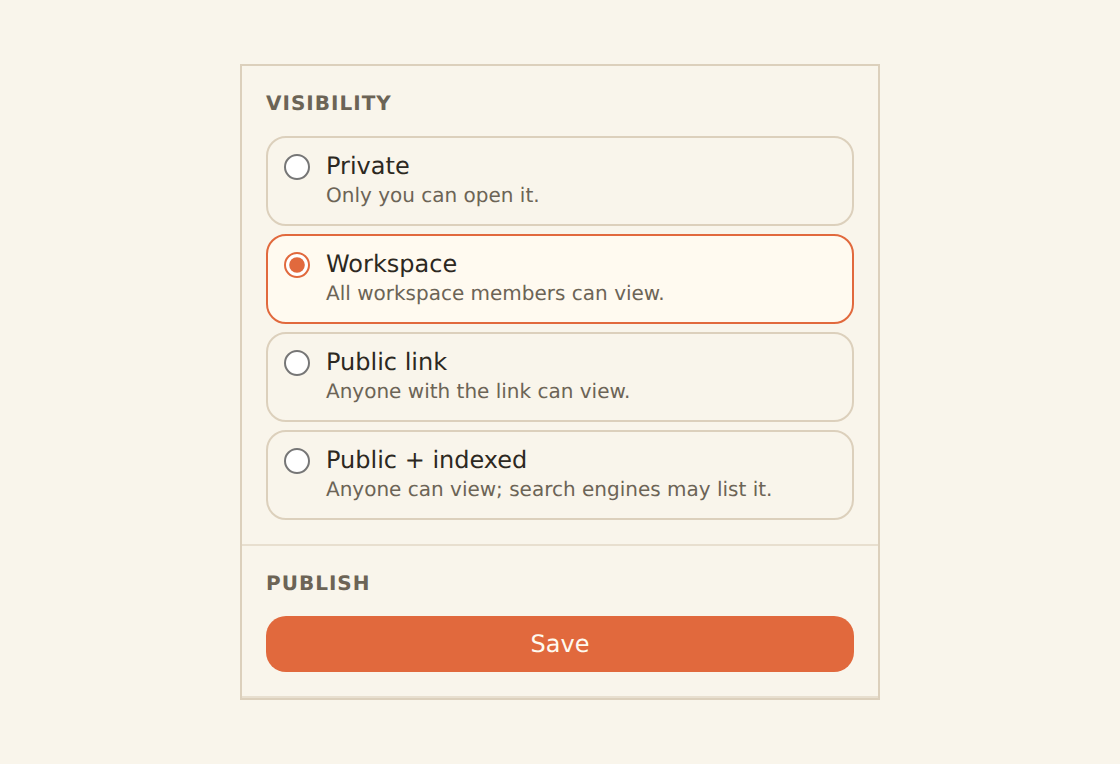
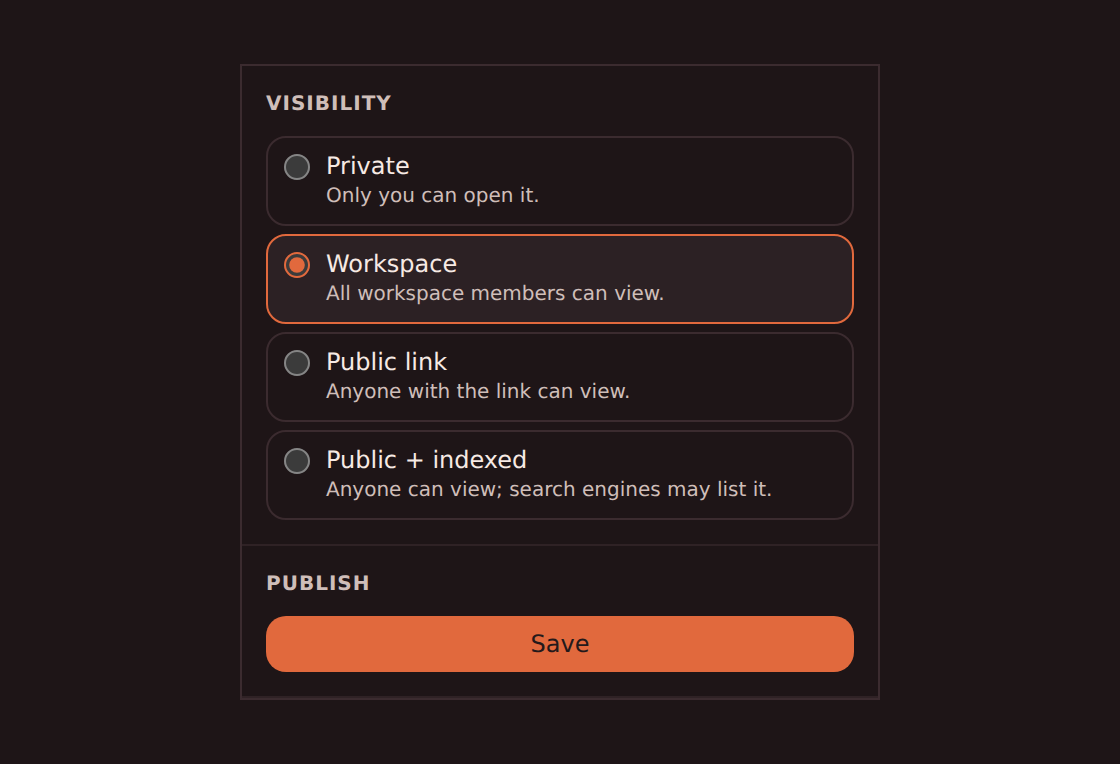
Each widget has its own Share tab in the inspector (select the widget, then open Share). Use it to configure the widget's visibility independently of its dashboard. Public links and embedding are not available yet; saving a public visibility setting does not make the widget accessible outside your workspace.
Installed custom widget is not a published package
Sharing a normal widget instance/dashboard and publishing reusable custom-widget code are different actions. Package widgets currently run only on authenticated private/workspace dashboards. Public instance links, portal execution, public package visibility, and marketplace distribution remain blocked during the package beta.
The widget Share tab works much like the dashboard dialog, with two differences worth knowing:
- Leaving allowed origins blank means any site can embed the widget. This is the opposite default from the dashboard dialog. The widget tab says so directly ("Empty = any origin can embed the widget"). If you only want your own site to embed it, list your origin (for example
https://yourcompany.com); otherwise the widget can be framed anywhere. - The regenerate button is labelled "Regenerate shortcode." A shortcode is the random code at the end of a widget's link. Rotating it gives the widget a fresh link and stops every previously-shared link from working.
Widget links are not available yet
Related guides#
- Creating your first dashboard: how a draft becomes shareable.
- Dashboard templates: the most portable way to hand a dashboard to someone else, especially while public links are still rolling out.
- Dashboard filters: filters travel with a published dashboard.
- Troubleshooting: if a shared dashboard does not load, or a publish says to try again.
Troubleshooting & FAQ
Use this page with your AI assistant
Every BankSync doc is available as plain Markdown for agents and LLMs.