
Customizing Home
Turn the dynamic Home page into a protected workspace dashboard, add native BankSync widgets, arrange the layout, and reset it safely.
4 min read
On this page
Home is the first page members see when they open a workspace. Before you customize it, Home is dynamic: BankSync picks a useful layout from the workspace's current banks, integrations, feeds, clients, enrichments, and recent sync activity.
Customizing Home turns that dynamic view into a protected workspace dashboard. From then on, Home uses the layout and widgets your team chose, while still opening in view mode by default so normal clicks open resources instead of moving cards.

Who can customize Home
You need Editor access or higher to customize, reset, or launch setup actions from Home. Viewers can read Home and open resource pages, but they cannot connect banks, connect integrations, create feeds, or change the shared Home layout.
How Home is different from a normal dashboard#
Home uses the dashboard canvas and widget system, but it has a few extra rules because it is the workspace landing page:
Dynamic until edited
A new workspace does not store a Home dashboard immediately. BankSync renders the best current recipe until an editor customizes it.
Protected after editing
The first edit saves Home as a protected workspace dashboard. It appears in Dashboards, but cannot be deleted, moved, published, or embedded through generic dashboard actions.
Native widgets
Home can use platform widgets such as account balances, connected banks, integrations, feed activity, recent sync runs, clients, and enrichment summaries.
View-first on mobile
Phones get a readable stack worked out from the desktop layout, with KPIs two to a line. The Customize and Edit buttons are hidden on phones, so Home is always edited on a wider screen.
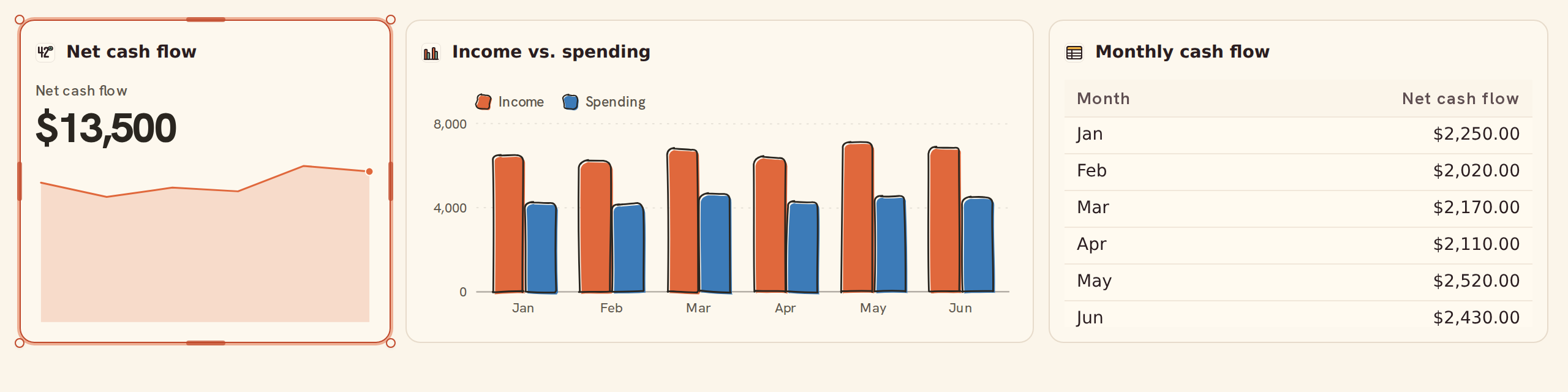
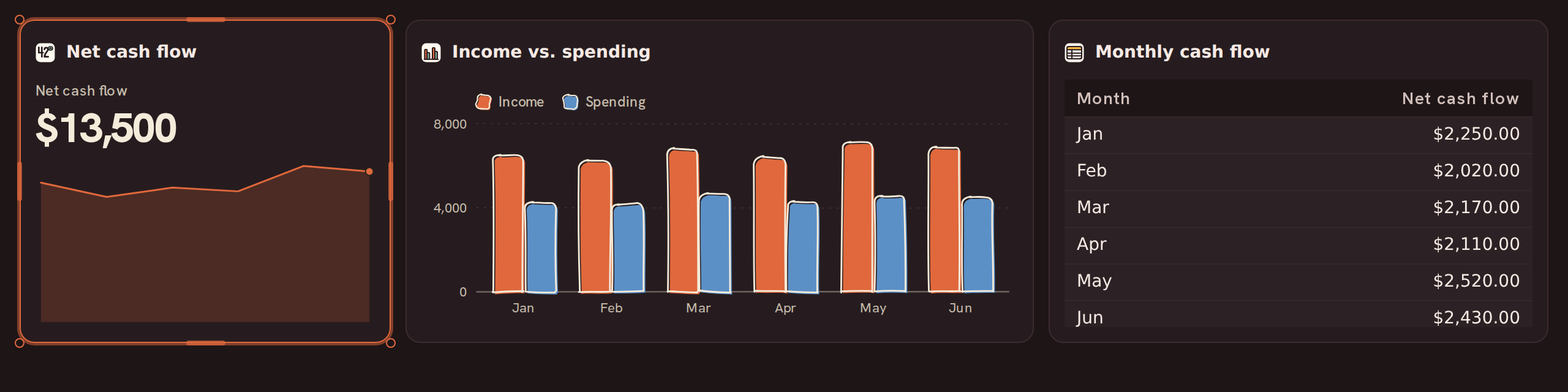
Customize Home#
Open Home from the workspace navigation and choose Customize Home (the sliders button at the top right; once Home has been customized it reads Edit). BankSync copies the exact dynamic Home you were viewing into a persisted Home dashboard, then switches the page into edit mode. While you edit, a notice reads "Changes affect everyone in this workspace."
In edit mode you can:
- Move and resize Home widgets.
- Add native BankSync widgets from the widget library.
- Pin reusable dashboard widgets onto Home.
- Remove widgets that do not belong on the landing page.
- Change Home's look in Dashboard settings.
- Choose Done to return Home to view mode.
Customize and Edit are hidden on phones and narrow windows. If the window narrows while you are editing, Home drops back to view mode and picks up where you left off when it widens again.
Change Home's look#
In edit mode, select the gear (Dashboard settings) in the editor toolbar. Home uses the same settings panel as any dashboard: Appearance (light or dark), Accent color, Chart palette, Drawing style (Clean, Sketch, or Doodle), Handwritten callouts, Widget frame, Density, and Corner radius. The panel's Home dashboard card confirms this is the dashboard everyone in the workspace sees first. See Theming for what each setting does.
Style one widget on Home only#
Select a widget and open its Style tab. For a widget that also appears on other dashboards, the This dashboard only section changes it on Home alone: a Title override, a Border and Header override (Inherit, Visible, or Hidden), and Lock position to stop it being dragged, resized, or removed. The widget keeps its own look everywhere else. The rest of the Style tab (card surface, accent colour, size, and phone settings) is covered in Layout & composition widgets.


Home is shared
Customizing Home changes the workspace Home page for every member. Use the layout for information the whole workspace should see first, not for personal scratch work.
Add native widgets#
Choose Widgets while Home is in edit mode. Native widgets appear in the widget library alongside regular chart, table, KPI, and control widgets; on Home the Native category comes first, and each native card previews the widget itself. They are app-aware widgets: instead of reading a single query, they render BankSync product surfaces inside the dashboard grid.
Good native widgets for Home include:
- Feed activity for the sync heatmap, recent runs, failures, and history links.
- Bank account balances for connected account totals and attention states.
- Connected banks and connected integrations for quick resource navigation.
- Feeds summary for pipeline health.
- Clients and enrichments summaries when those tools are central to the workspace.
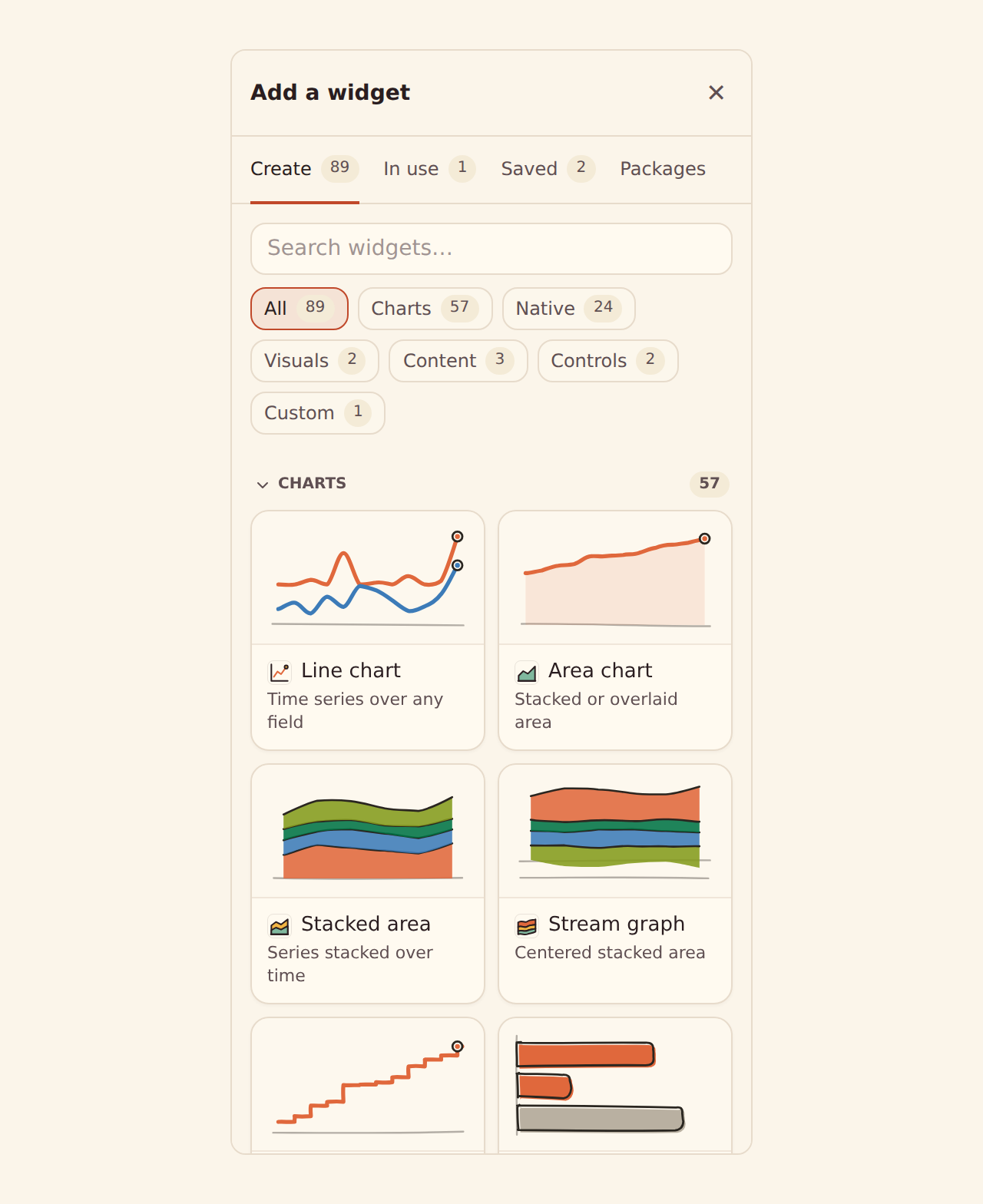
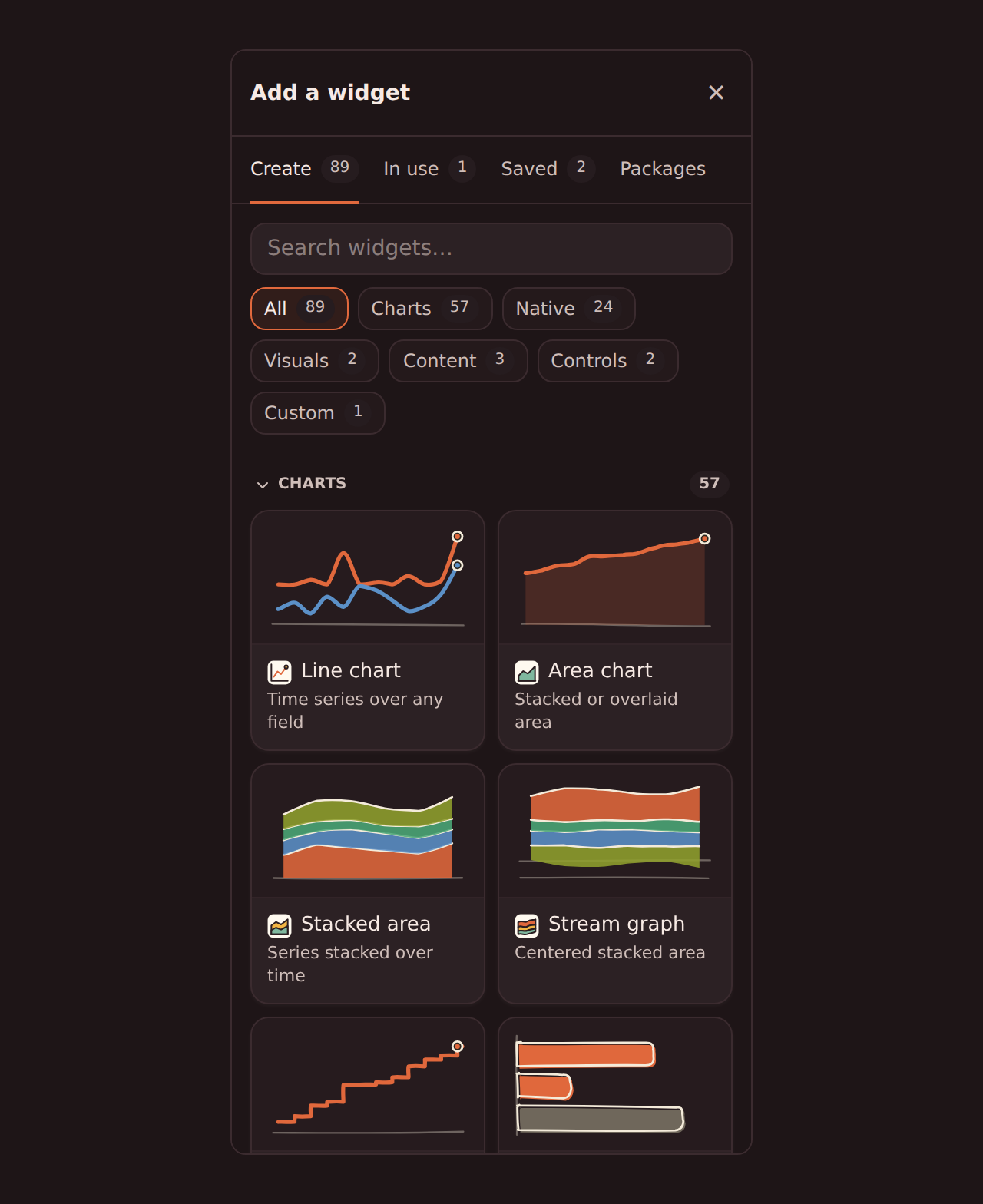
Native widgets stay inside the authenticated app. A dashboard that contains native app widgets cannot be published publicly or embedded, because those widgets depend on workspace permissions and live BankSync workflows.
Reset Home#
If the customized layout stops being useful, open Home in edit mode and choose the Reset Home button (the circular arrow beside Done), then confirm Reset Home in the dialog. Resetting also clears any theme you set for Home. Resetting removes the protected Home dashboard and the system widgets BankSync created for it. Reusable user-created widgets that were only pinned onto Home are kept.
After reset, Home goes back to the dynamic recipe and adapts again as banks, integrations, feeds, clients, enrichments, and sync activity change.
Reset affects the whole workspace
Reset only appears for editors, but it still changes the shared Home page for everyone. Use it when the team wants to return to BankSync's dynamic default.
Related guides#
- Dashboards overview: how the dashboard canvas and widget system work.
- Adding widgets: how to use the widget library.
- Organizing dashboards: how the protected Home dashboard appears in dashboard management.
- Publishing and sharing: why dashboards with native widgets cannot be published or embedded.
Use this page with your AI assistant
Every BankSync doc is available as plain Markdown for agents and LLMs.