
Actions & Interactivity
Add buttons, row-clicks, and chart-clicks that navigate, set filters, export, refresh, or trigger a sync, enrichment, webhook, or automation.
10 min read
On this page
- What an action can do
- Your screen (client actions)
- Your data (server actions)
- Combining actions (composite)
- Adding an action button
- Worked example: a "Sync now" button
- Clicking a table row
- Clicking a chart element
- Using the clicked row and other context
- Confirmation: when an action asks first
- Permissions (capabilities)
- When something goes wrong
- Automation buttons
- Authoring with an AI agent
- Related guides
Most of a dashboard just shows you numbers. Actions make it do something. An action is a small, named instruction you attach to a button, a table row, or a chart element. When someone clicks, BankSync runs that instruction: jump to another dashboard, narrow every widget to one category, download a CSV, kick off a sync, or post to a webhook.
A few plain-language terms used on this page:
- An action is one instruction, like "go to the Cashflow dashboard" or "start a sync for this feed".
- A trigger is what the person clicks to run it: an action button, a table row, or a chart element (a bar, point, or slice).
- The trigger context is the data behind what was clicked, for example the row a button sits next to. You can feed that data into the action (see Using the clicked row).
What's available today

What an action can do#
Every action has a kind. There are three families, grouped by where they run.
Your screen (client actions)#
These run instantly in your browser and never change stored data.
| Kind | What it does |
|---|---|
| Navigate | Go to a dashboard, widget, feed row, or external URL. |
| Open URL | Open a web address in a new or current tab. |
| Set filter | Write a value into a dashboard filter (for example, set Category to "Travel"). |
| Clear filters | Reset some or all dashboard filters. |
| Export | Download a widget, a query, or the whole dashboard as CSV, XLSX, JSON, or PNG. |
| Copy | Copy a value to the clipboard. |
| Refresh | Re-render some or all widgets. |
| Open drawer | Slide open a detail panel for a feed row or widget. |
| Custom (sandboxed) | Run a small custom code widget. It runs only in your browser, in a sandbox, and never on the server. |
Your data (server actions)#
These are sent to BankSync's server and run by a fixed, first-party set of handlers. They can change stored data, so they are re-checked against your permissions every time, and several ask you to confirm first.
| Kind | What it does | Changes data |
|---|---|---|
| Trigger sync | Start a sync for a feed or bank. | Yes |
| Run enrichment | Run (or preview) an enrichment. | Yes |
| Edit feed row | Write a change back to a feed row (categorize, approve, add a note). | Yes (always confirms) |
| Call webhook | Invoke a webhook you've registered. | Yes |
| Run automation | Start an automation that starts “From a dashboard button”. | Yes (always confirms) |
| Call endpoint | Call a pre-approved (allowlisted) endpoint. | Yes |
Server actions can't run arbitrary code
Combining actions (composite)#
You can chain actions together so one click does several things.
| Kind | What it does |
|---|---|
| Sequence | Run steps in order. Optionally stop at the first error. |
| Parallel | Run several actions at once. |
| Conditional | Run one action or another depending on the clicked data (for example, "if the amount is negative, set the filter to Debits"). |
Each step in a composite is itself one of the actions above, so a sequence can trigger a sync and then refresh the widgets, all from a single button.
Adding an action button#
The most common way to add an action is a button widget.
Add an action button
Add the widget
Open the widget library (the Widgets button or the
]key), search for Action button, and place it on the canvas.Select it
Click the button on the canvas to open its inspector.Name it
Set the Label (what the button says) and a Variant (Primary, Secondary, Destructive, or Ghost).
Pick what it does
Under Action, use the When clicked picker to choose a kind, then fill in its details (for example, the feed for a Trigger sync, or the filter and value for a Set filter).
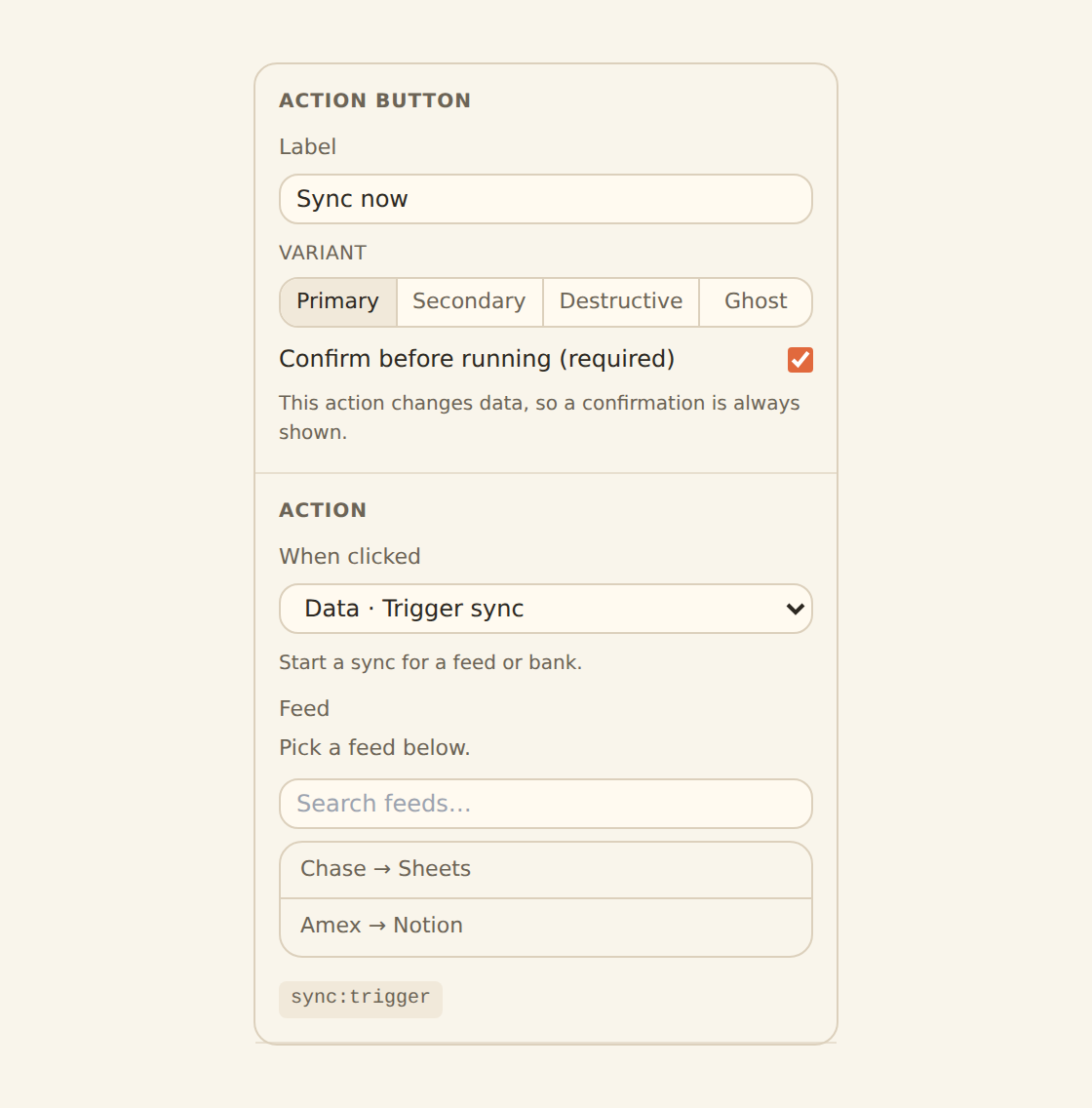
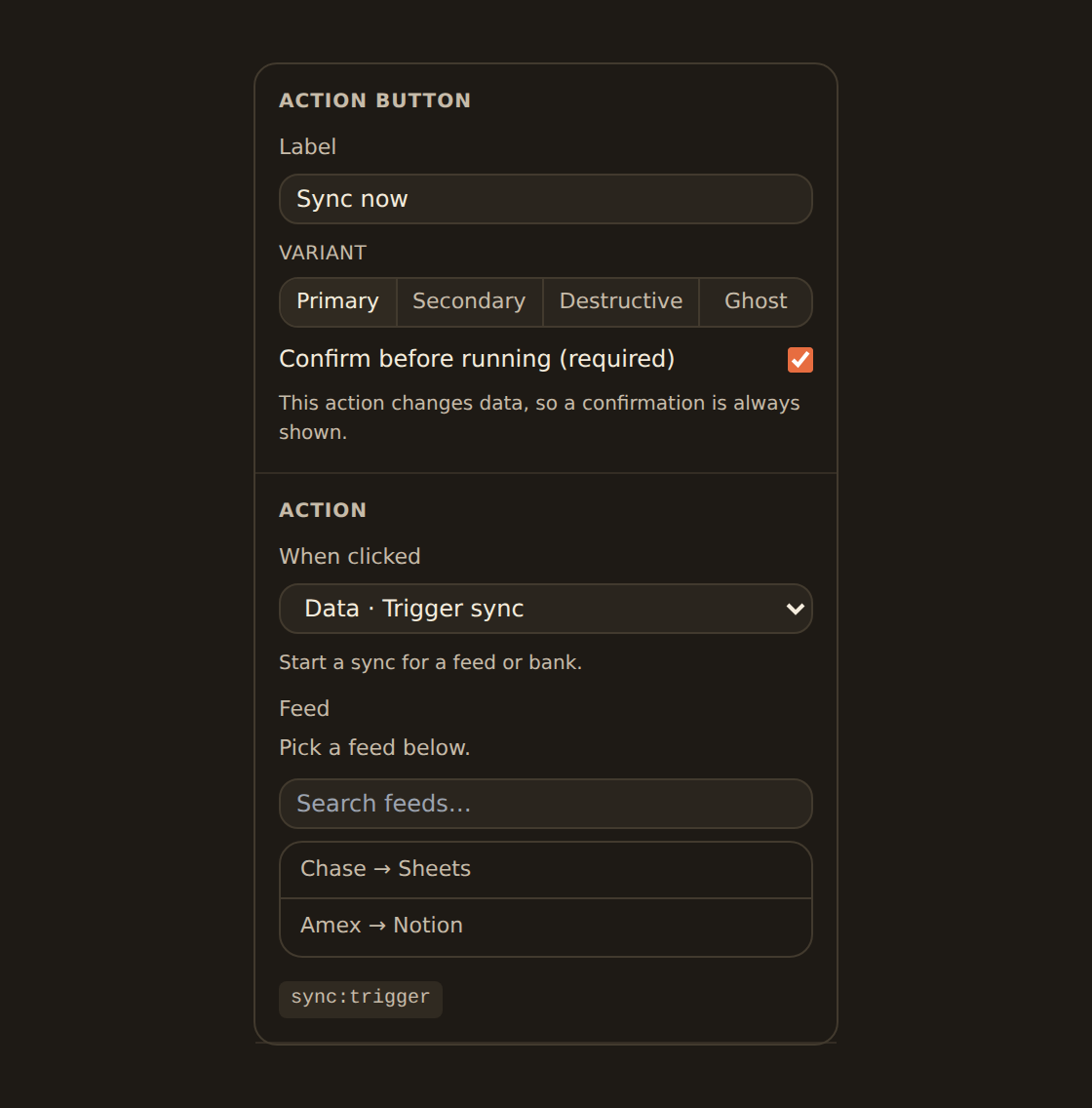
The When clicked picker offers the everyday kinds directly: Navigate, Open URL, Set filter, Clear filters, Refresh, Copy, Export, Trigger sync, Run enrichment, Call webhook, Run automation, and Call endpoint. The more advanced kinds (sequences, conditionals, parallel, open-drawer, edit feed row, and custom) are authored on the Advanced (JSON) tab.
There is also a simpler Action link widget. It only ever navigates (to a dashboard, widget, feed row, or URL), so use it when all you want is a labelled link.
Worked example: a "Sync now" button#
Say you want a one-click way to refresh your Chase Checking data, then update the charts.
- Add an Action button and label it
Sync now. - Under Action, set When clicked to Trigger sync and choose your Chase Checking feed.
- Because a sync changes data, BankSync will ask you to confirm when the button is pressed (see Confirmation).
- To also redraw the charts afterward, switch to the Advanced (JSON) tab and wrap it in a sequence: trigger the sync, then refresh. The stored instruction looks like this:
{ "kind": "sequence", "stopOnError": true, "steps": [ { "kind": "trigger-sync", "feedId": "feed_123" }, { "kind": "refresh", "scope": "all" } ]}When you click Sync now, BankSync confirms, starts the sync, and once it returns, refreshes every widget.
Clicking a table row#
A Table widget can run an action when you click a row. The clicked row becomes the trigger context, so the action can use values from that row.
A common pattern is to open a detail drawer for the clicked row:
{ "kind": "open-drawer", "target": { "kind": "feed-row", "id": { "$row": "id" } } }Here { "$row": "id" } means "use the id column from the row I clicked". You could just as easily navigate with that id, or write the row back. Row-click actions run through the same machinery as buttons, including confirmation when they change data.
Row-click actions are set on the table spec, which today means authoring them on the Advanced (JSON) tab or with an AI agent (see Authoring with an AI agent).
Clicking a chart element#
A chart can react to a click on a bar, point, or slice, in two independent ways.
- Cross-filter writes the clicked value into a dashboard filter so the rest of the dashboard narrows to that slice. It is covered in detail in Filters & cross-filtering.
- Click action runs any action (navigate, open a drawer, set a filter, and so on) using the clicked element's row as the trigger context.
Both are configured per chart. If both are set, they fire together on the same click.
Chart-click interactions must be turned on
Using the clicked row and other context#
Most actions take parameters, and a parameter can be a fixed value or a reference resolved at click time. References start with $:
| Reference | Resolves to |
|---|---|
{ "$row": "field" } | A column on the row you clicked (table row-click or chart-click). |
{ "$selection": "field" } | The same column across every selected row, as a list. |
{ "$filter": "id" } | The current value of a dashboard filter. |
{ "$param": "name" } | A dashboard parameter. |
{ "$now": true } | The current time, as a timestamp. |
{ "$secret": "name" } | A named workspace secret. Resolved on the server only, never sent to your browser. |
For example, a webhook button that posts the clicked transaction's id and a stored Slack token:
{ "kind": "call-webhook", "webhookId": "wh_123", "payload": { "txnId": { "$row": "id" }, "token": { "$secret": "slack" } }}The transaction id is filled in from the row you clicked; the Slack token never leaves the server.
Secrets stay on the server
Confirmation: when an action asks first#
Before running, an action shows a confirmation dialog ("Are you sure?") when any of these is true:
- The action changes stored data (any server action). This is automatic and can't be switched off.
- Its kind always requires confirmation (Edit feed row and Run automation do).
- You turned on Confirm before running on the button.
On an action button, the Confirm switch can only add a prompt; for a data-changing action the switch is locked on and labelled "required". For a chain of actions, the dialog appears once and covers the whole chain (a step can still set its own custom confirmation copy).
Permissions (capabilities)#
Each action declares the capability it needs, for example sync:trigger, feed:write, or webhook:call. For server actions, BankSync checks your workspace role against that capability every time the action runs, so a viewer can't trigger something they aren't allowed to. The inspector shows the required capabilities as small badges under the action so you can see what a button will need before you publish.
Mutating actions are also blocked from running through an embed or shared portal link, so a published, public dashboard can't be used to change your data.
When something goes wrong#
Actions report problems in place rather than crashing the dashboard. If an action fails, you'll see a clear reason and, where it helps, a suggested next step. Common cases:
- Not authorized / permission denied: your role doesn't include the capability the action needs.
- Not found: the feed, enrichment, webhook, or automation the action points at no longer exists.
- Validation: a parameter didn't resolve. For example, a
{ "$row": ... }reference used on a button that isn't tied to a row, or an Open URL that resolved to an empty or non-web address. - Server actions not enabled here: the data-changing action endpoint isn't deployed for your workspace yet.
A failed step in a chain is surfaced too, so a follow-up action (like a refresh after a sync) never fails quietly.
Automation buttons#
An automation button runs one of your automations from the dashboard. Give the automation a From a dashboard button trigger, publish it, approve its grant and turn it on. Then open the dashboard's settings (the gear in the editor's toolbar), find Automation buttons, and choose Add button: give it a label, pick the automation, and choose where it goes, In the toolbar or On one of the dashboard's widgets.
- Who sees it: people who can run automations in the workspace (editors and above) see the button once its automation is on. Viewers don't see it. While you arrange the dashboard you also see buttons whose automation isn't on yet, greyed out, so you know they're there.
- What the automation receives: the dashboard, the widget the button is on (if any) and, when the button runs from a row, that row. The row is the dashboard's data, so the automation treats it as untrusted input.
- What happens: the automation starts a run straight away, and a notice confirms it. The run is listed under the automation's Runs, like any other.
- Rows and actions: a Run automation action on an action button or a table row starts the automation's one From a dashboard button trigger with the row it clicked. An automation with more than one such trigger needs an automation button instead, which names the trigger.
Automation buttons appear only where automations are enabled for your workspace.
Authoring with an AI agent#
If you drive BankSync through an AI agent over MCP, the agent can build action buttons for you. Two read-only helper tools make this reliable:
- Describe actions lists every action kind with its plane, whether it changes data, whether it confirms, the capabilities it needs, and a ready-to-edit example.
- Validate action checks a candidate action against the schema before anything is saved and returns precise errors so the agent can fix them.
See Building dashboards with an AI agent for the broader agent automation.
Related guides#
- Dashboards overview
- Adding widgets
- Filters & cross-filtering
- KPI, table & gauge widgets
- Publishing & sharing
Use this page with your AI assistant
Every BankSync doc is available as plain Markdown for agents and LLMs.