

Most finance tools ask you to adopt someone else’s model of money. Their categories. Their reports. Their workflow.
A financial operating system starts from the opposite direction: the decisions you need to make, the boundaries you need to preserve and the routines you can realistically maintain. Bank data is the evidence layer. Your tables, rules, dashboards and review rhythm turn that evidence into a system that works the way you do.
With BankSync, that system can be small enough for one household, structured enough for a multi-entity business and controlled enough for an accounting firm managing many clients. The same primitives are reused, but the boundaries change.
This guide shows how to design that system from first principles.
A financial operating system is a loop, not a dashboard
A dashboard can show a number. An operating system explains where the number came from, who can see it, what should happen when it changes and how the process stays healthy next month.
The loop has six parts:
- Capture reality. Bring in transactions, balances, holdings, trades, orders or loans.
- Apply policy. Clean merchants, classify records, identify transfers, flag duplicates and watch thresholds.
- Model context. Connect transactions to vendors, invoices to clients, budgets to periods and accounts to entities.
- Surface decisions. Show only the metrics, exceptions and detail needed for a particular review.
- Take action. Investigate a transaction, follow up an invoice, move cash or update a forecast.
- Learn and review. Preserve corrections, monitor Feed health and improve the model without losing source evidence.
The screen is only one part of that loop. The operating system is the combination of data, rules, relationships, access and cadence.
The useful lesson from Notion builders
The strongest Notion systems are rarely one enormous page. They use a small set of connected databases and resurface the same underlying records through focused views such as Today, This Week, Projects or Goals. The dashboard is contextual; the model beneath it is shared.
The same principle makes a financial system durable. A transaction should not become a different fact because it appears on a cash dashboard, tax review or vendor report. Store the evidence once. Add classifications and relationships deliberately. Let multiple views answer different questions.
BankSync formalises that separation:
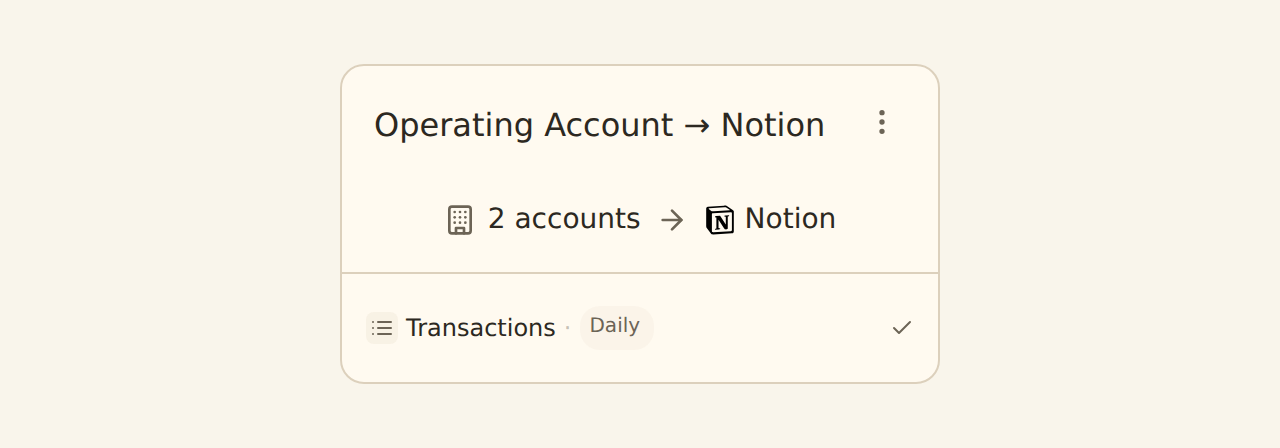
- A Feed moves one financial data type from selected accounts to a destination.
- An Enrichment transforms, guards, learns from or watches records in a defined order.
- A Table stores typed or custom relational data inside a Workspace.
- A Dashboard query defines which data to read and how to shape it.
- A widget decides how that query should look.
- A Dashboard arranges reusable widgets for a particular decision or audience.
That distinction prevents a chart filter from quietly becoming an accounting rule.
The six layers of a BankSync financial operating system
| Layer | Primitive | Question | Output |
|---|---|---|---|
| Evidence | Feeds | What facts enter? | Transactions, balances, holdings, trades, orders or loans |
| Policy | Enrichments | How are records treated? | Categories, matched transfers, alerts and reviews |
| Model | Tables | What do facts relate to? | Vendors, clients, budgets, invoices, entities and goals |
| Decision | Dashboards | What needs attention? | KPIs, trends, exceptions and drill-down rows |
| Boundary | Workspaces | Which data and people belong together? | A person, household, legal entity or operating team |
| Service | Client Portals | How are clients isolated? | Child Workspaces under one accounting practice |
Each layer has one job. Keeping those jobs separate makes the system easier to explain and change.
Capture
Feeds move one explicit data type from selected accounts on a controlled schedule.
Decide
Enrichments, Tables and Dashboards turn raw records into explainable decisions.
Separate
Workspaces and Client Portals keep entities, teams and clients inside the right boundary.
Start with a question that repeats
People overbuild financial systems when they begin with components: “I need a dashboard, a budget table, twelve categories and six automations.”
Start with a repeated decision instead.
For a household:
- What changed since our last check?
- Are we still inside the monthly plan?
- Which subscriptions increased?
- Is our cash buffer moving in the right direction?
For a business:
- How much unrestricted cash is available today?
- Which large or unusual payments require review?
- Are collections and recurring costs changing our runway?
- Which entity, account or vendor explains the movement?
For an accountant:
- Which client Feeds have stopped producing data?
- Which clients still need to connect an account?
- Where are uncategorised or unusual transactions accumulating?
- Which client needs attention before the reporting deadline?
Choose one question that deserves a daily or weekly answer. Build the thinnest complete path from source to action. That vertical slice teaches you more than a month spent drawing the perfect home screen.
Design the data spine
1. Feeds: decide what counts as evidence
A Feed selects source accounts, one data type, a destination, field mappings and a schedule. Keeping each Feed to one data type matters because a transaction is an event, a balance is a snapshot and a holding is a position. Combining them too early produces attractive but misleading totals.
A good first system usually has a transaction Feed for movement, a balance Feed for cash or snapshots, separate holdings and trades Feeds if investments matter, and a clear owner for job health.
The first run backfills the available history. Later jobs are incremental. BankSync records each job, processes large backfills in chunks and deduplicates using provider identifiers, so retries and overlapping date windows remain manageable.
Do not create two Feeds that send the same account and data type to the same destination unless you intentionally want independent histories. Deduplication is maintained per Feed, not globally across every configuration.
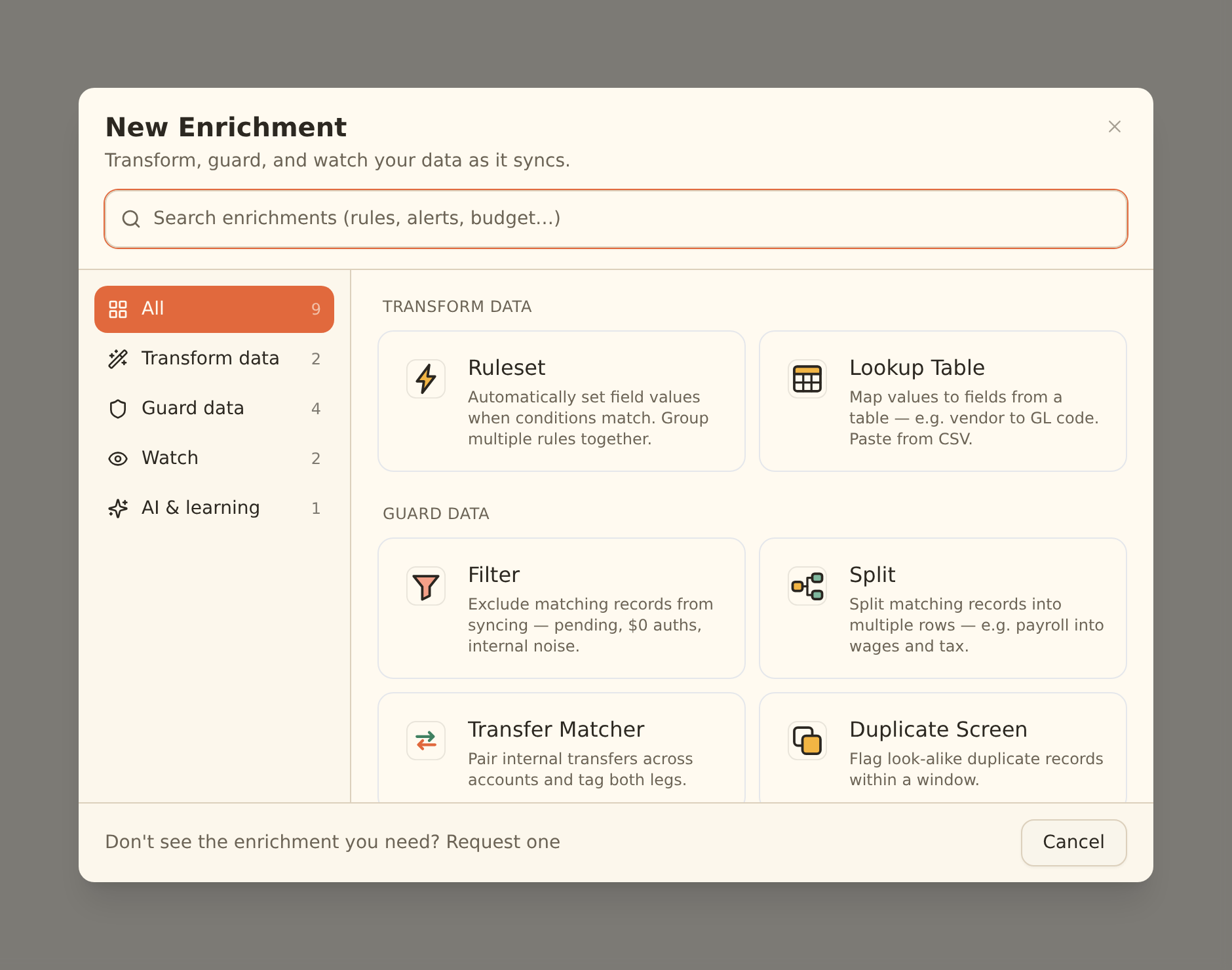
2. Enrichments: turn policy into an inspectable pipeline
Raw bank descriptions are evidence, not a finished operating model. Enrichments let you apply policy without hiding it inside an unexplained spreadsheet formula.
- Transform: Rulesets and Lookup Tables assign values such as category, entity, department or GL code.
- Guard: Filters, Splits, Transfer Matcher and Duplicate Screen control which records continue and how they are represented.
- Watch: Alerts, Feed Monitor, Budgets, Recurring Registry, Fee Ledger, Anomaly Detector and Digests observe records or totals without changing them.
- AI and learning: Memory replays accepted corrections; AI Categorizer and Merchant Cleanup fill remaining blanks; uncertain suggestions wait in Review Queue.
Order is part of the design. Guard steps run first. Memory, lookups and rules fill known values. AI fills what remains. Watches observe the final record. A suppressed row does not reach the destination, teach Memory or fire an alert.
That makes Live Preview essential before enabling a hard Filter, Split or suppression rule. An operating system should be opinionated, but it should never be mysterious.
3. Tables: model the world around the bank record
By default, BankSync can remain pass-through: a Feed reads financial data and writes it to Google Sheets, Excel, Notion, Airtable, a database or an endpoint. Choosing a BankSync Table as the destination is an explicit decision to store those rows inside the Workspace.
Tables provide typed schemas for standard finance records; custom Tables for vendors, clients, budgets, entities or goals; relations; lookups, rollups, counts and formulas; comments and row history; API and MCP access; and seven layouts: Grid, Board, Calendar, Gallery, Timeline, List and Form.
A useful small-business model might contain:
- Transactions — a typed Table filled by bank Feeds.
- Vendors — a custom Table with owner, category, payment terms and risk flags.
- Budgets — a custom Table with period, category, planned amount and threshold.
- Invoices — a typed or custom Table related to clients and payment evidence.
Link a transaction to a vendor rather than copying vendor metadata into every row. Roll up vendor spend from related transactions. Count open invoices per client. Calculate budget variance from planned and actual values. Every surface then reads the same answer.
Keep source fields intact. Add management fields beside them. The bank-provided amount, currency, date, account and identifier should remain traceable when you add a clean merchant name, cost centre or review status.
4. Views: give each role a useful working surface
Grid is ideal for broad review. Board turns status into a pipeline. Calendar and Timeline organise dated work. Gallery suits receipts and documents. List produces a calm summary. Form collects new records.
Views can be shared or personal. They remember filters, sorting, grouping, visible columns, widths, calculations and row colours. A finance manager and founder can use the same Transactions Table without sharing the same cognitive load.
A view is not a security boundary. It is a working arrangement. When data must be isolated by entity, client or team, move up to a Workspace or Client Portal.
5. Dashboards: design a decision surface, not a wall of charts
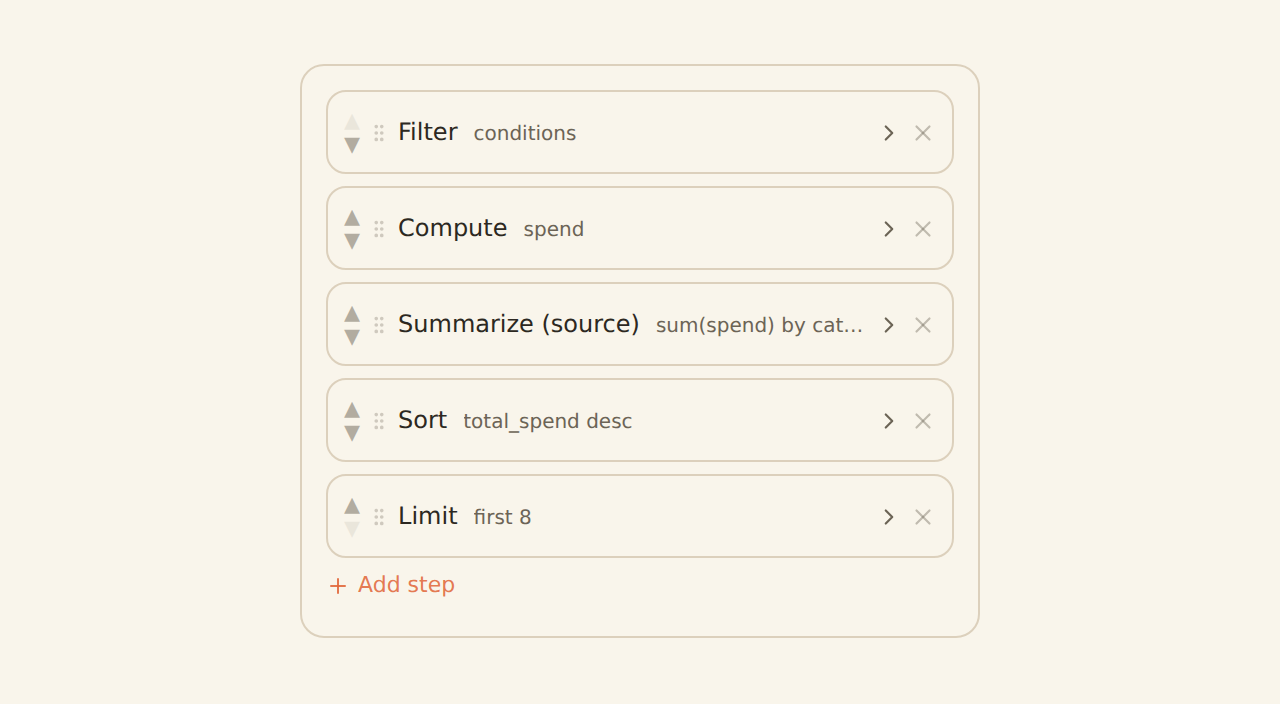
BankSync Dashboards separate query, widget and page. A query defines the source and shapes the rows. A widget decides whether the answer is a KPI, chart, gauge or richly formatted table. A Dashboard arranges reusable widgets and applies Dashboard-wide filters.
KPIs answer one-number questions. Lines show change. Bars compare categories, entities or vendors. Gauges show progress toward a threshold. Tables explain the rows behind the summary.
For everyday reporting, a Feed or Table-backed widget is predictable and efficient. A live bank source is useful when the latest possible balance matters, but it queries the provider as the Dashboard loads. Pick freshness intentionally.
Shape data before drawing when the question needs filtering, summarising, sorting, computing or joining. Reuse a saved query when several widgets need the same definition. Apply filters at the source when they affect aggregates. Browser-side filtering is a presentation convenience, not a security control.
Build the first working slice
Name one recurring decision
Write the exact question and the person who acts on the answer.
Choose the source facts
Keep transactions, balances, holdings and other data types separate.
Create the smallest Feed set
Define destinations, mappings, schedule and an owner for job health.
Preserve source truth
Keep native amount, currency, date, account and provider identifiers unchanged.
Add only necessary policy
Start with transfer handling, a compact taxonomy and one or two watches.
Model persistent context
Use Tables where relations, review status, comments, history or formulas add value.
Build detail before summary
Make the rows reviewable before trusting KPIs and charts.
Choose the boundary and rhythm
Use the right Workspace or Client Portal, assign owners and set the cadence.
Use Workspaces to isolate entities
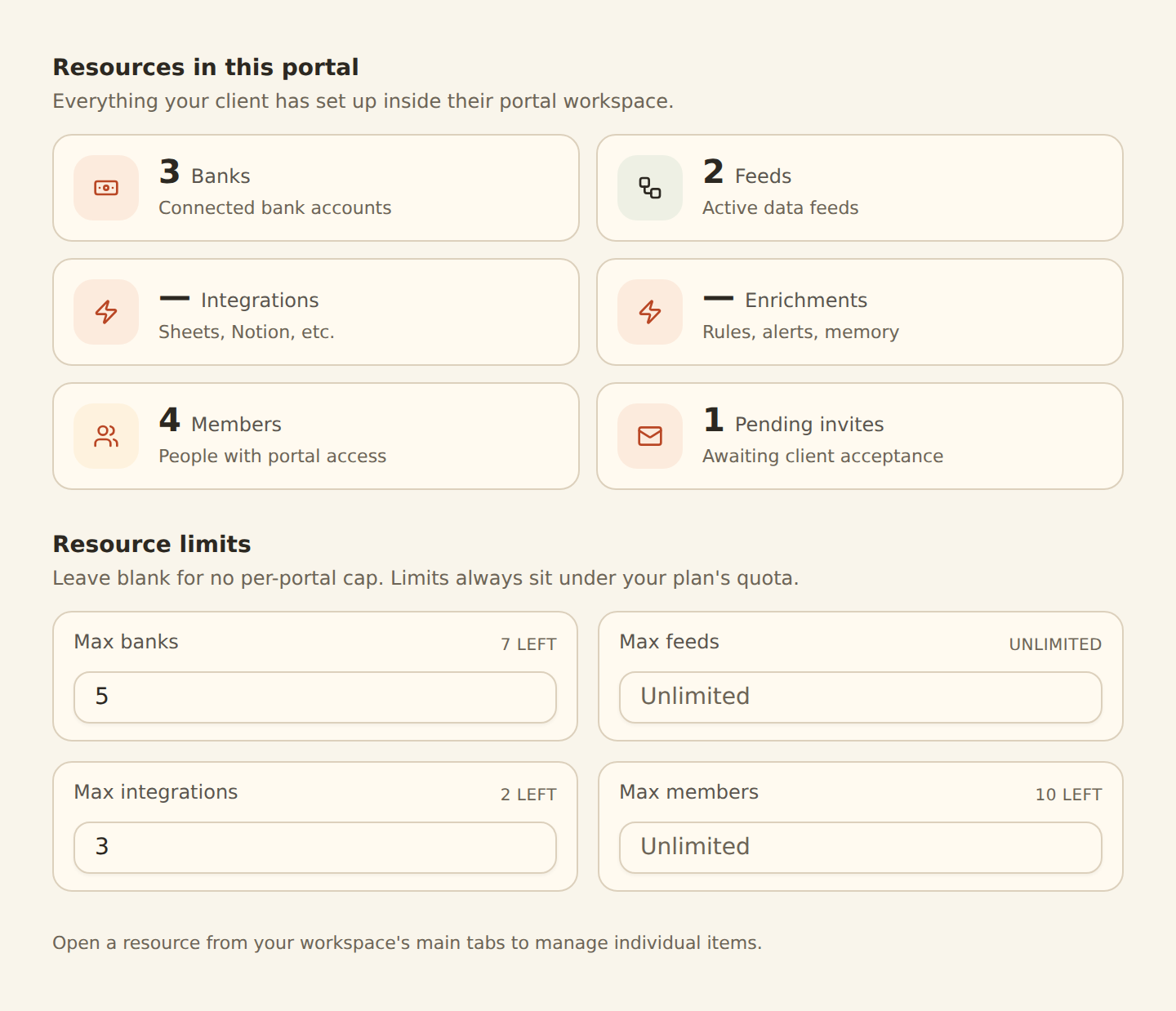
Workspaces contain banks, Feeds, Tables, integrations, Dashboards and members. Each has its own plan and billing, and its own roles according to plan availability.
That makes a Workspace a meaningful operational boundary, not a folder.
Use one Workspace when the data has the same ownership, administrators and operating purpose. Use separate Workspaces when legal ownership, consent, billing, team access or deletion requirements differ.
- Do not create a Workspace for every report. Use Dashboards, folders and Table views inside one Workspace.
- Do not create a Workspace for every department by default. Use department and cost-centre fields unless the people or data require isolation.
- Do separate legal entities when ownership or access differs.
- Do not rely on a filtered Dashboard to isolate an entity.
- Remember that Table relations never cross Workspaces. Consolidation needs an explicit reporting or API workflow that preserves entity and currency.
For a founder with personal finances and two companies, a sensible pattern is three Workspaces: Personal, Company A and Company B. Each has its own banks, Feeds, Tables and Home Dashboard. A separate consolidation workflow can pull permitted summaries into a group treasury view without erasing ownership.
For a household with shared goals and broadly shared access, one Workspace may be simpler. If one person’s accounts require true administrative separation, use another Workspace.
Workspace or Client Portal?
A Client Portal is a dedicated child Workspace owned from an accounting firm’s parent Workspace. The client connects and authenticates their own accounts inside it. The firm’s Owner and Admins retain oversight and manage Feeds and resources without mixing that client with another.
Use peer Workspaces for entities you operate. Use Client Portals for clients you serve.
Choose the right boundary
| Situation | Best boundary | Why |
|---|---|---|
| One person, many accounts | One Workspace | Shared ownership and one operating rhythm |
| Household with shared finances | One Workspace with several views | One model, different working surfaces |
| Personal finances plus a company | Separate Workspaces | Different ownership, access and purpose |
| Several legal entities | One Workspace per entity | Preserves entity-level controls |
| Departments inside one company | One Workspace with fields and views | Avoids unnecessary fragmentation |
| Accounting firm with unrelated clients | One Client Portal per client | Isolated child Workspaces |
Start with ownership and access, not convenience.
Three operating systems built from the same primitives
Personal: a calm money home
Keep the Home Dashboard small: current cash, monthly inflow and outflow, savings progress, recurring commitments and anything awaiting review. Put net worth and investments on separate pages because they use different sources and rhythms.
Use a typed Transactions Table, a custom Categories or Goals Table and, if needed, a manual Assets Table. Let Memory replay accepted corrections. Keep the taxonomy compact. Review exceptions weekly rather than watching every transaction.
A useful personal system should reduce attention, not demand it.
Business: a cash and operations control room
A business operating system connects money movement to operating context. Transactions alone cannot tell you why a payment occurred, who owns the vendor relationship or whether the cost was planned.
Relate Transactions to Vendors, Budgets, Invoices or Projects. Use rollups for vendor concentration and open exposure. Shape cash movement by account, entity, category and period. Add Feed Monitor, Budget, Fee Ledger, Recurring Registry and Anomaly Detector only where someone will respond.
BankSync can be the operational layer for cash, evidence and workflow, but it does not replace a general ledger, tax engine, payment-authorisation process or statutory consolidation system.
Accountant: a portfolio of isolated client systems
Create one Client Portal per client. Give the client the minimum role needed to connect accounts. Keep developer, billing and Workspace administration with the firm. Build the client’s Feeds from the parent side and send structured data to the firm’s working papers or reporting destinations.
A parent Workspace can query across its portal family through the API, and managed portal Workspaces appear to BankSync MCP tools. Preserve the portal or Workspace identifier on every result so an aggregate view resolves back to the right client.
The best firm-level Dashboard is an exception queue, not a collage of every client’s balances. Show stale Feeds, missing connections, failed jobs, unresolved reviews and upcoming deadlines. Open the client system only when attention is required.
Build a rhythm the system can sustain
- Daily: surface failed or stale Feeds, low cash, unusual payments and urgent exceptions.
- Weekly: review cash, commitments, collections, runway, uncategorised records and recurring-cost changes.
- Monthly: compare budget to actual, review fees, close periods, inspect access and document material classification changes.
- Quarterly: remove unused fields and alerts, review Workspace boundaries and test whether every key number drills back to evidence.
Alerts should reduce review work, not create another inbox. A daily Feed cannot support a truly real-time transaction warning. Cooldowns, batching and Digests keep notification volume proportional to the decision.
What not to build
One giant Workspace for everything
Convenience disappears when access, consent, billing or deletion diverges. Use the right boundary early.
A Dashboard before a model
If nobody can explain a KPI from its rows and assumptions, the chart is decoration. Build detail first.
A taxonomy nobody can maintain
A perfect 120-category system that is never reviewed is worse than twelve categories people understand.
Rules hidden inside presentation
A Dashboard filter or hidden chart formula should not be the only place a policy exists. Put durable classification in Enrichments or Tables and keep source evidence intact.
Automation without ownership
Every Feed, Review Queue, alert and model needs an owner. “Automated” does not mean “self-governing.”
A strong first version
Pick one weekly decision. Connect the smallest set of accounts. Preserve source fields. Add a few inspectable rules. Store context only where relations or review history matter. Build one detail Table and three useful widgets. Put the system in the correct Workspace. Assign an owner. Run the review for four weeks.
Then extend it.
That is the advantage of composable financial infrastructure: the system can become more personal, operational or professional without forcing the evidence into someone else’s product philosophy.
Continue with The BankSync Finance Application Stack, or use the worked guides for a business cash-flow dashboard, personal finance dashboard, multi-entity treasury dashboard and accounting client portal.
Primary sources
- Feeds and sync jobs
- Enrichments overview
- Tables overview
- Relations between Tables
- Dashboards overview
- Dashboard data shaping
- Workspaces and roles
- Client Portal setup
- Cross-portal queries
- How tech startups build operating systems in Notion
- The Notion dashboard Marie Poulin uses every day