
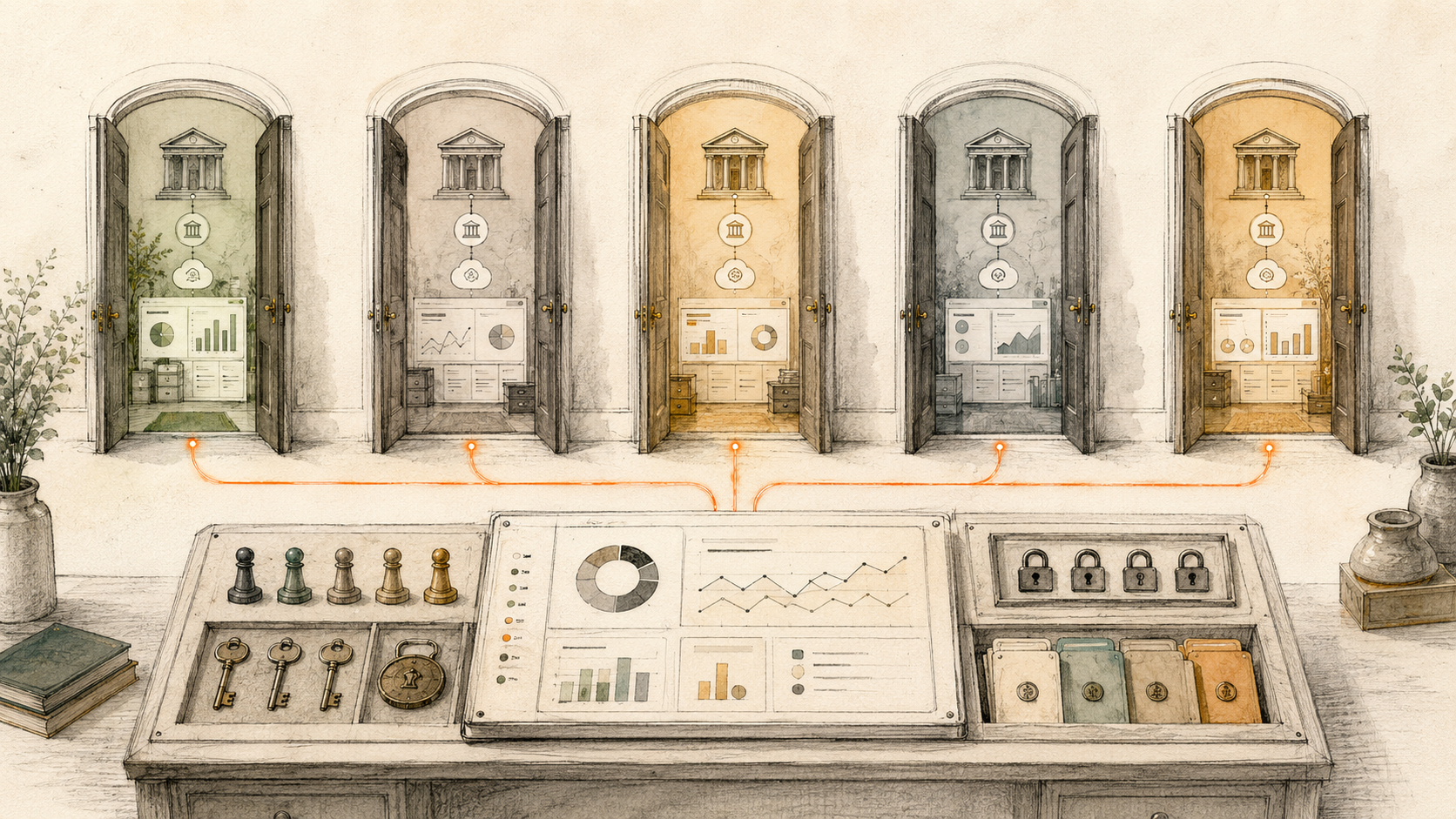
BankSync Client Portals let an accounting firm create isolated client workspaces, invite the client to connect banks and control which banks, feeds and integrations that portal can see.
What the workflow should answer
The firm should know which clients are connected, which feeds are healthy, what resources each portal can access and which exceptions need action. The client should see only the constrained portal experience and the tasks or finance views intended for them.
The system is easiest to navigate when each primitive owns one concern. Feeds bring in one financial data type from selected accounts. Enrichments clean, classify, guard and watch the records in an explicit order. BankSync Tables store typed or custom relational rows with views, comments and history. Dashboards query that model and present the result.
Preserve source truth. Original amount, currency, date, account and provider identifier should remain intact. Add workflow status, owner, category, policy and formulas in separate fields. That is what makes an exception traceable.
Model the process in Tables
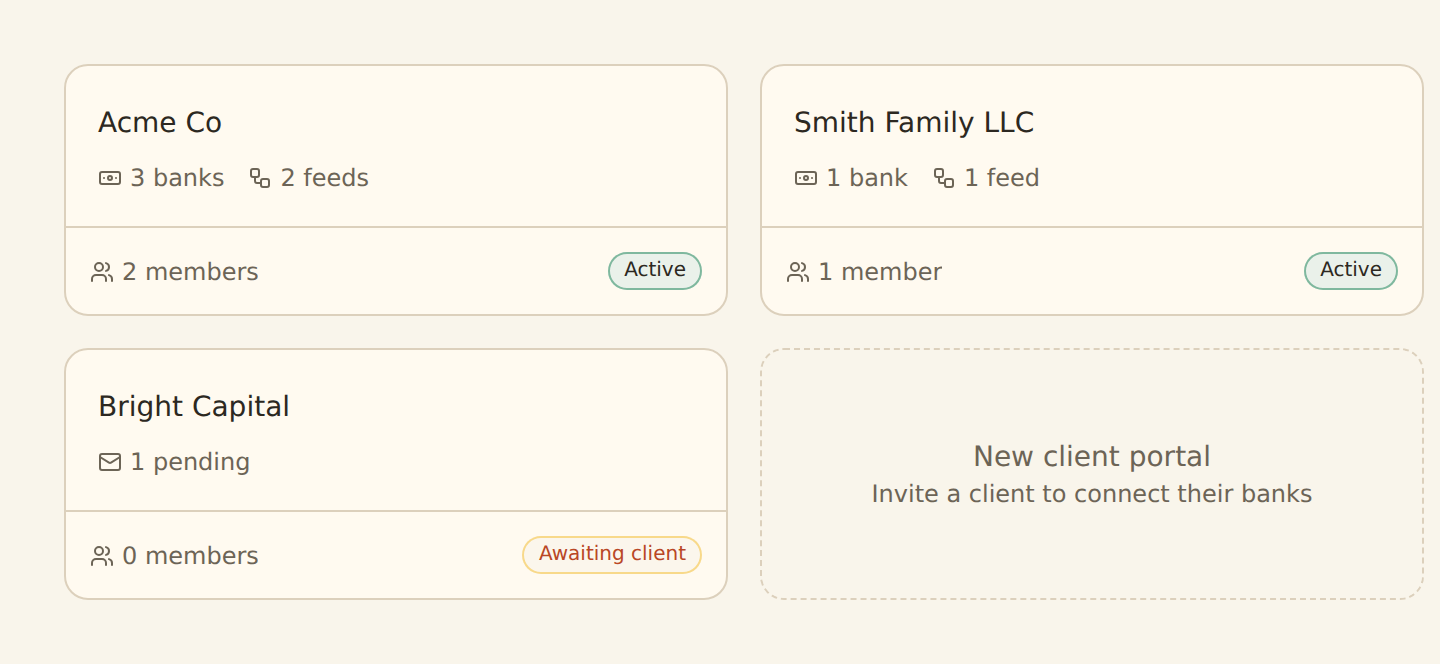
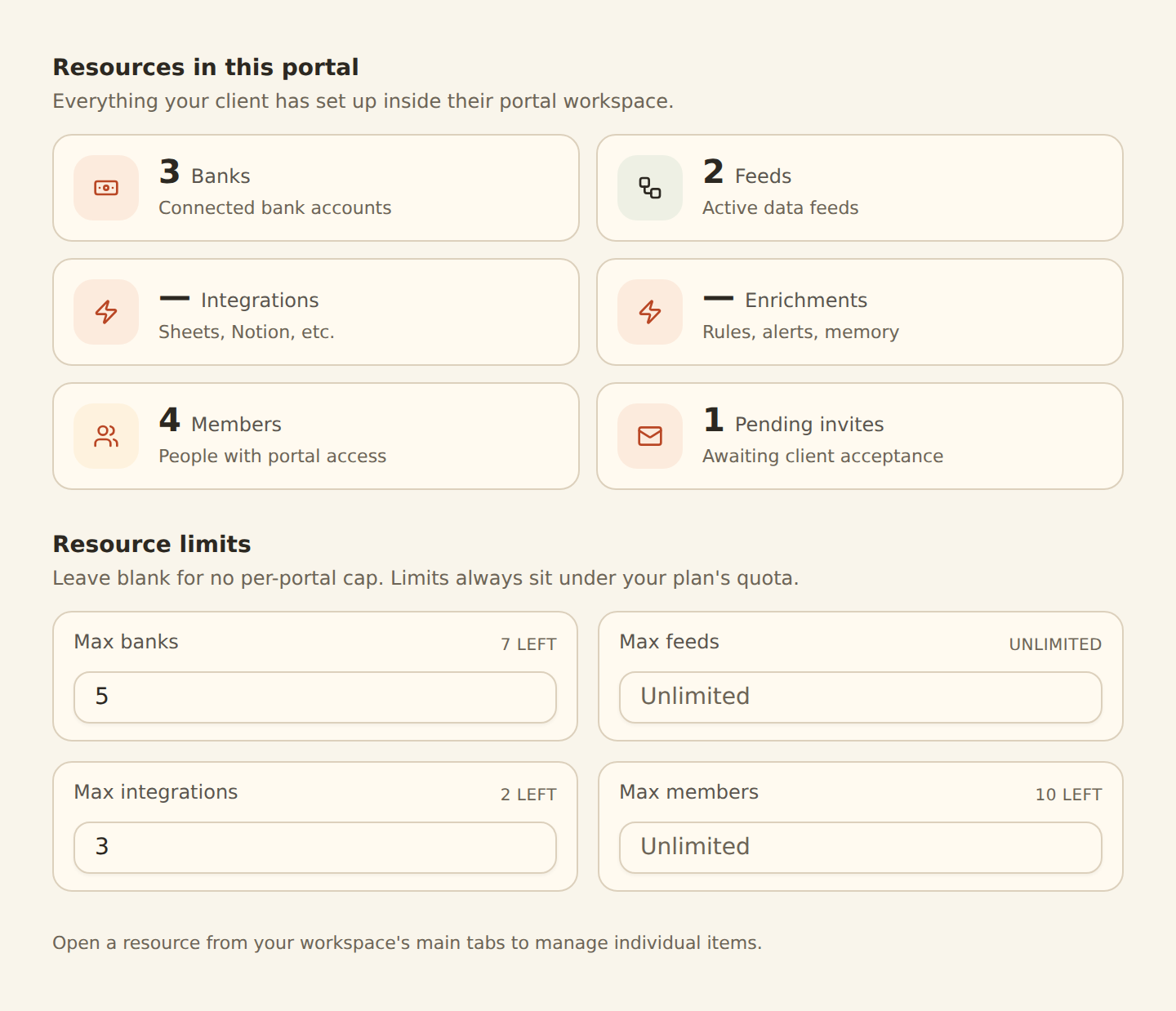
A portal is a child workspace that rolls up to the firm under one subscription. Client-connected accounts are isolated to that portal, while the firm gains access for feed and reporting work. The Resources panel restricts visible banks, feeds and integrations and can set a maximum bank count. Roles include Editor and Viewer. Capabilities can allow clients to connect banks and, if intended, create feeds.
Relations connect records without copying labels everywhere. Lookups expose related values; counts and rollups summarise child records; formulas calculate stored results that can be sorted, filtered, charted and read through API or MCP. Immutable field keys make automation safer when a human label changes.
Use the right view for the job
Grid supports detailed review. Board writes a status field when cards move. Calendar and Timeline write date fields when items move. Gallery works for attachment-led records, List for a calm summary and Form for intake. Views can be shared or personal and remember grouping, filters, sorts, columns and row colours.
Aggregate safely
Do not aggregate client data into a shared dashboard unless the firm has a lawful purpose and the correct permissions. For portfolio-level firm metrics, prefer non-sensitive operational counts or use family-scoped APIs with deliberate controls. Strict multi-currency aggregation prevents accidental totals. Any reporting currency needs an explicit rate, date and converted value while native amounts remain available.
What the firm sees
Portal status, authorised resources, feed health, review workload and the reporting views needed to serve the client.
What the client sees
A constrained portal with only the banks, feeds, settings and tasks their role and portal capabilities permit.
Set up a client portal
Define the client boundary
Decide what data and work belongs in the portal.
Create the portal
Use a clear name and icon.
Configure capabilities
Choose whether clients connect banks or create feeds.
Restrict resources
Select visible banks, feeds and integrations.
Invite the client
Assign Editor or Viewer and track expiry.
Let the client connect
Keep credentials in the bank authorisation flow.
Create feeds and views
Build the intended workflow inside the portal.
Monitor the family
Watch health and exceptions across clients.
Copy this build: the ten-client bookkeeping practice
Imagine a practice that receives monthly CSVs from ten clients. The better first version is not a giant shared workbook. Create one Client Portal per client so the workspace boundary exists before the reporting convenience.
Allow the client to connect banks. Decide separately whether they may create feeds. In Resources, select the banks, feeds and integrations visible to that portal and set any bank limit. Invite the client as Editor or Viewer, then build the client’s transaction or cash view inside the portal.
At firm level, track portal status, last successful feed, open review items and the staff owner. Feed Monitor matters more as the client count grows: a silent connection failure should become a task before month end.
What success looks like after one week
The client owns authentication, the firm owns the workflow, and neither side needs to exchange credentials or wonder which shared file contains the current data.
Dashboard and watch design
Inside each portal, build only the views the client needs: cash position, recent transactions, outstanding questions or a monthly digest. At firm level, track feed health, connection status and review workload. Locked source filters may support scoped dashboards, but portal isolation is the stronger boundary.
Source-applied filters recalculate aggregates and are the default. Browser filters are for presentation, not access control. Locked source filters should fail closed for client, entity or team-scoped dashboards.
Enrichments and alerts
Feed Monitor is especially valuable across many clients because silent failures scale badly. Review Queue creates a consistent classification inbox. Rules and lookups can encode firm policy, but client-specific exceptions should remain visible. Alerts should route to named owners rather than broadcasting client data.
Guard steps run before Memory, lookups and rules; AI fills remaining blanks; watch enrichments observe the final record. Suppressed records do not write, teach Memory or fire alerts. Use Live Preview before enabling hard Filters, Splits or suppression.
Limits and controls
Client Portals are available on Professional and Business plans and require owner or admin control. Current per-portal customisation is name and icon rather than full white-labelling. Invitations expire after seven days. Clients do not see billing, developer, membership or workspace-deletion controls.
Alerts are as fresh as the feed schedule. Dashboards are beta by workspace. Sensitive operational data should remain private or workspace-scoped. External-agent authoring is a staging workflow; review any generated dashboard in the regular editor.
Operate the system
Assign an owner for feed health, review queues and model changes. Check sync history before trusting a quiet metric. Use row comments and history for decisions that need context. Review retention and permissions. A useful operations dashboard makes the next action obvious and keeps the evidence one click away.