What your clients see
What an invited client sees and can do inside a BankSync client portal, including connecting their own banks.
7 min read
On this page
- What the client receives
- How the client accepts and lands in the portal
- Sharing with your firm
- What a client sees once they are in
- Settings are read-only for clients
- Connecting their own bank accounts
- Client can / cannot, by role
- For the accountant: how the data flows back to you
- Confirm it worked
- Troubleshooting
- Next steps
- Related guides
This guide walks through the client portal from the invited client's side: accepting the invitation, signing in, and working inside a focused space that shows their banks and data but none of your firm's account controls. It also explains, for the accountant reading along, how that data reaches you without a second invite.
Before you start

What the client receives#
When you (the accountant) create a portal and add the client's email, BankSync sends an invitation email right away. The subject line attributes the invite to your firm, in the form [Your name] invited you to join "[Portal name]", and the body names your workspace so the client recognizes who is asking. The email contains a single link to sign in and accept.
If your firm sent a request instead of an invitation, there is no account to create: the client opens one link, enters a code sent to their email, confirms sharing, connects their bank and answers the firm's questions. See Ask a client for bank data and answers.
Invitations expire
How the client accepts and lands in the portal#
Accept the invitation
Open the invite link
The client selects the link in the invitation email.Sign in or create an account
They sign in with the invited email address. A brand-new user creates a free BankSync login during this step; no subscription is needed.
Confirm sharing with the firm
One screen names the firm and explains that the firm will see the accounts they connect in the portal until they stop sharing. The client confirms to accept.
Land directly in the portal
After accepting, BankSync drops the client straight into their portal. They do not pass through your main workspace or see any of your other clients.
Accepting the invite makes the client a member of that portal with the role you assigned (Editor or Viewer). The role is fixed on the invitation, so an Editor invite produces an Editor member. Clients don't count toward the firm's team seats.
Sharing with your firm#
When a client joins a portal, they confirm they're happy to share with your firm. The confirmation names your firm, says what it can see, and is recorded so there is a clear account of what the client agreed to.
- The client chooses which accounts to connect. Your firm sees those accounts and anything else added to the portal.
- The client can stop sharing at any time. Stopping sharing ends your firm's access straight away.
- Clients who joined a portal before this step existed are asked to confirm inside the portal. Until they do, they can keep using the portal, but they can't connect Australian banks.
What a client sees once they are in#
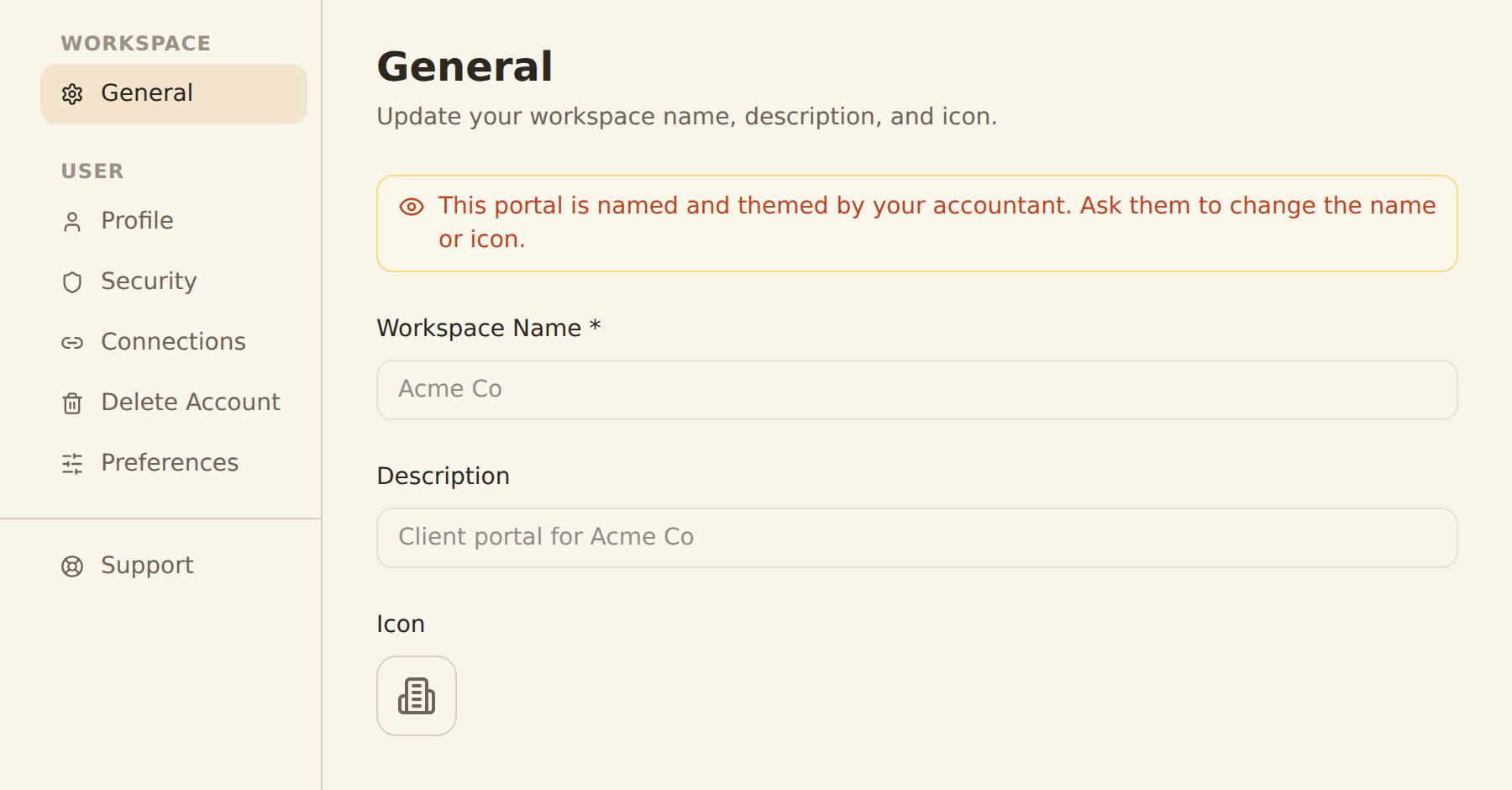
The portal is a constrained workspace. The client sees their own banks, accounts, and data, but the firm-level controls are removed from the navigation entirely. In Settings, only General and Profile remain. These sections are hidden from a portal client:
| Settings section | Visible to client? | Why |
|---|---|---|
| General | Yes (read-only name/icon) | Basic workspace info |
| Profile | Yes | The client's own account |
| Members | No | The accountant manages membership from the parent workspace |
| Billing | No | The portal inherits billing from the firm's plan; it has no separate subscription |
| Developers | No | API keys for a portal are reserved for the accountant |
| Affiliate | No | A firm-level rewards surface |
| Delete Workspace (Danger Zone) | No | Only the accountant can delete a portal, from the parent workspace |
These are not just hidden links. The routes themselves are guarded: if a client tries to deep-link to /billing or /danger-zone, BankSync redirects them back to General.
The Portal label in the switcher
Settings are read-only for clients#
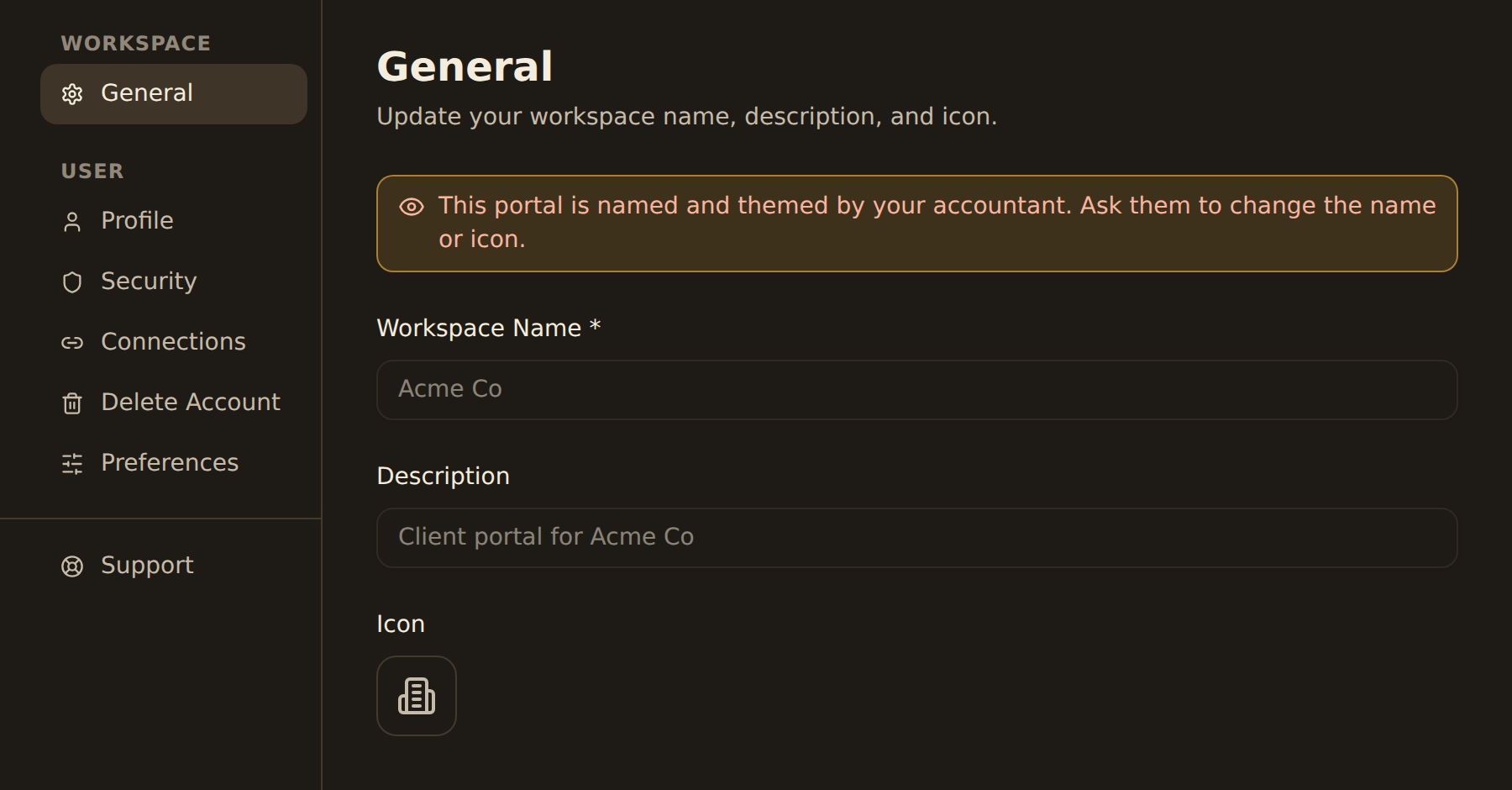
A client cannot rename the portal or change its icon. The General settings page shows the message: "This portal is named and themed by your accountant. Ask them to change the name or icon." If a client (even one promoted to admin inside the portal) tries to rename it through the API, the request is rejected with an "only the accountant" error. The same rule blocks portal clients from inviting new members.
Connecting their own bank accounts#
Whether a client can add a bank depends on the Clients can connect banks setting the accountant controls on the portal's Access tab.
Connect a bank (when allowed)
Open the Banks tab
From inside the portal, the client selects the Banks tab.
Add a new connection
They choose the option to add a bank connection. This appears only when bank creation is enabled for portal members.
Authenticate with their bank
They sign in to their institution through the same secure connection flow described in Connecting banks.
See the connected accounts
Once the connection completes, the accounts appear inside the portal's Banks tab.
Australian banks
When bank creation is turned off
Client can / cannot, by role#
Roles are scoped to the portal. A few capabilities also depend on the portal-level toggles the accountant sets.
| Capability | Editor | Viewer |
|---|---|---|
| Sign in and see the portal's banks and data | Yes | Yes |
| Connect a new bank (when "Clients can connect banks" is on) | Yes | No |
| Create feeds into Sheets, Notion, or Airtable (when "Clients can create feeds" is on) | Yes | No |
| View account status and balances | Yes | Yes |
| Rename or re-icon the portal | No | No |
| See Members, Billing, Developers, Affiliate, or Delete Workspace | No | No |
| Invite other members to the portal | No | No |
Editor and Viewer alike are blocked from the firm-level settings and from renaming the portal. The Editor / Viewer split governs whether the client can act on data (connect banks, create feeds), not whether they can touch firm controls.
For the accountant: how the data flows back to you#
A portal is a child workspace under yours, so you and your admins already have access to it without any second invitation. The moment a client connects a bank in their portal, that connection and its data are available to you. You can build and manage feeds that read from the client's banks: the client handles authentication, you handle the reporting. From your main workspace you can see a portal's banks marked "Managed by the client in [Portal name]," and you reconnect or disconnect by opening the portal.
For reading or managing every portal at once programmatically, use the scope=family parameter described in the developer portals reference.
Confirm it worked#
The client experience is set up correctly when, after the client accepts the invite:
- They land directly in the portal and see the Banks tab with their accounts (or an empty Banks tab ready for a connection).
- The Settings navigation shows only General and Profile: no Members, Billing, Developers, Affiliate, or Delete Workspace.
- If the client belongs to more than one workspace, the portal carries a Portal tag in the workspace switcher.
- Back in your main workspace, the client appears under Members on the portal (not just Pending invitations), and once they connect an account the portal's Resources tab shows a non-zero Banks count.
Troubleshooting#
Common client-side snags
Next steps#
Set the portal up
Configure permissions, branding, and invites from the admin side.
Automate across clients
Read every portal at once with scope=family.
Set up a client portal
Related guides#
- Set up a client portal: the admin-side flow for creating the portal, permissions, and invites.
- Hand a portal over to your client: when the client wants to own and pay for the portal.
- Connecting banks: the secure connection flow your clients go through inside the portal.
- Developer portals reference: programmatic access across every portal at once with scope=family.
Use this page with your AI assistant
Every BankSync doc is available as plain Markdown for agents and LLMs.