
Searching for a way to automatically export UK bank transactions to Google Sheets usually begins with the same problem: a useful spreadsheet has already been built, but the transaction tab still depends on repeated CSV downloads.
That manual step creates avoidable work. Each export must use the right account and date range. Columns may need rearranging. Existing rows must be checked for duplicates. Formulas can break when an import lands in the wrong place. The workbook may look automated while its source data is already out of date.
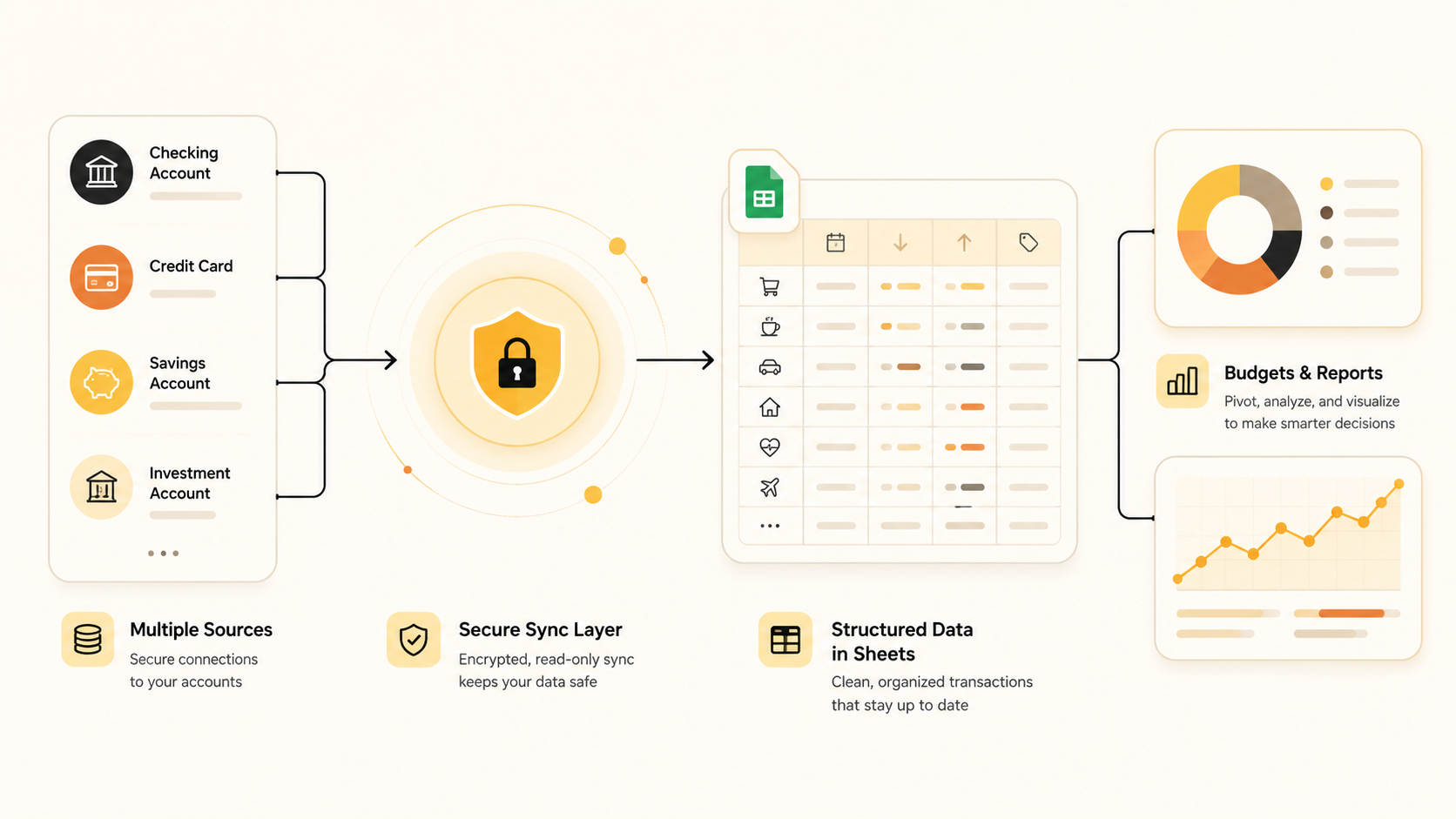
BankSync provides a different route. Connect the supported UK bank through Open Banking, choose Google Sheets as the destination, map the fields once and run the feed on a schedule. Your formulas, pivots, charts and management logic can stay in Google Sheets while the raw transaction layer is operated separately.

Recurring transaction updates
Retrieve newly available posted transactions weekly, daily or hourly where the selected plan and source support that cadence.
Keep your existing workbook
Write into a dedicated source-data tab and leave calculations, pivots and dashboards in the structure your team already uses.
Stable field mapping
Map bank fields such as date, description, amount, account, currency and transaction ID into consistent columns.
Clean data before delivery
Apply merchant cleanup, categories, transfer matching, duplicate screening and review flags before rows arrive.
How the UK-to-Google-Sheets connection works
The connection has two separate authorisations.
First, you authorise a supported UK institution through its Open Banking flow. That consent is read-only, scoped to the accounts you select and revocable. Your online-banking password and one-time authentication codes stay in the bank or provider-hosted pages.
Second, you authorise BankSync to access the Google account that owns or can edit the destination spreadsheet. That Google connection lets the feed list accessible spreadsheets and write to the workbook and tab you choose. It does not make other Google files public.
A BankSync Feed then joins the two sides. It defines the source accounts, the transaction data type, the Google Sheets destination, the field mapping, optional Enrichments and the recurring schedule.
Export UK bank transactions to Google Sheets automatically
Prepare a dedicated raw-data tab
Create a tab such as Bank_Transactions. Keep formulas, dashboards, manual notes and summary totals outside the range the feed will control.
Connect the correct UK institution
In BankSync, open Banks and select the exact personal, business, corporate or credit entry that holds the accounts you need.
Complete the Open Banking consent flow
Authenticate on the bank or provider-hosted pages, review the read-only access request and select only the required accounts.
Connect Google Sheets
Open Integrations, add Google Sheets and authorise the Google account that can access the intended workbook.
Create a transaction feed
Choose Transactions as the feed data type and select the connected UK accounts that should provide rows.
Select the spreadsheet and tab
Choose the workbook, worksheet tab, header row and starting location. By-row delivery is the normal choice for an append-oriented transaction history.
Map source fields to columns
Map transaction date, posting description, merchant, amount, currency, account, bank, category and stable transaction identifier into clearly named columns.
Add only the Enrichments you need
For example, clean merchants, categorise recurring suppliers, tag internal transfers, screen duplicates or mark uncertain rows for review.
Choose the schedule and run a test
Select an available weekly, daily or hourly cadence, then run the feed manually and compare a sample with the institution before turning on reporting.

Video transcript
Visual transcript: The BankSync feed setup opens the destination step and selects Google Sheets. The authorised Google connection is chosen, followed by the target spreadsheet and worksheet tab. The configuration identifies the header row and the starting location for incoming records. The workflow then continues to field mapping, where source fields such as transaction date, description, amount, currency, account and transaction identifier are assigned to stable Google Sheets columns. The completed mapping is reviewed before saving so the first manual test writes rows into the intended range.
Use a source table that is deliberately boring
The transaction tab should preserve what the institution supplied and make each row traceable. Do not turn the feed-controlled range into the dashboard itself.
A practical transaction table keeps source fields separate from management fields. Source fields include the bank's date, description, amount, currency, account and transaction identifier. Management fields can include an internal category, VAT review status, client code, department, cash-flow class or reconciliation note.
If a management field is populated by BankSync Enrichments, map it into its own column. If a person will edit it in the sheet, keep that editable column outside the fields the feed overwrites or maintain the logic in a separate lookup table.
Recommended Google Sheets columns for UK bank transactions
| Column | Why it matters | Typical owner |
|---|---|---|
| Transaction date | Places the item in the correct day, week and accounting period. | Bank source |
| Posted or authorised date | Separates the bank's available date fields where both are supplied. | Bank source |
| Description | Preserves the original transaction text for verification. | Bank source |
| Merchant or counterparty | Provides a cleaner reporting label where available or enriched. | BankSync or bank |
| Amount | Stores the signed source amount without hiding the debit/credit convention. | Bank source |
| Currency | Prevents GBP and non-GBP rows from being combined accidentally. | Bank source |
| Account name or ID | Supports multi-account filtering and transfer analysis. | Bank source |
| Institution | Shows which connected bank supplied the row. | BankSync |
| Transaction ID | Supports incremental sync, traceability and deduplication. | Bank source |
| Category | Drives budget, spend, tax-review and cash-flow summaries. | Enrichment or controlled lookup |
| Transfer treatment | Excludes movements between owned accounts from consolidated inflow and outflow. | Enrichment or review |
| Review status | Creates an exception queue without editing the source evidence. | Finance owner |
The exact fields available depend on the institution. Preserve stable source identifiers even when they are not displayed on the dashboard.
Protect formulas from the feed
The safest workbook architecture uses separate tabs:
- Bank_Transactions for append-oriented source rows.
- Accounts for account labels, currency and inclusion rules.
- Mappings for controlled merchant and category rules.
- Review_Queue for exceptions or uncertain classifications.
- Dashboard for pivots, charts, KPIs and filters.
Point formulas and pivots at the source table rather than placing totals below a range that will keep growing. Protect the raw tab from casual edits. Avoid merged cells, decorative headings or blank rows inside the source table.
If an existing template expects different column names, map the BankSync fields to those names rather than rebuilding the whole workbook. Test the first run in a copy when the workbook contains important formulas.
Improve the data before it reaches Google Sheets
BankSync Enrichments run as part of the feed pipeline. This is useful when the same cleanup would otherwise be repeated in every workbook.
Rules can assign categories or business units from merchant, description, account or amount conditions. Merchant Cleanup can normalise inconsistent names. Transfer Matcher can identify opposite-side movements between owned accounts. Duplicate Screen adds another guard around repeated records. Recurring Registry can track direct-debit and subscription patterns. Alerts, anomaly detection and Feed Monitor can watch the resulting rows and connection health.
Keep the source values intact. Add cleaned merchant names, internal categories and review decisions in separate fields so every summary remains explainable from the chart back to the underlying transaction.
Choose the right update method
| Feature | Method | Best for |
|---|---|---|
| Manual CSV import | Occasional one-off analysis | No recurring automation |
| Custom Apps Script or API code | Teams that want to own authentication, provider APIs and maintenance | Highly custom engineering workflows |
| BankSync to Google Sheets | Recurring UK bank data with managed connection, mapping, scheduling and monitoring | |
| BankSync Tables and Dashboards | Persistent relational review and native decision surfaces | Workflows that have outgrown a spreadsheet-only model |
Scheduling, posting times and consent renewal
A feed schedule controls when BankSync asks for newly available data. It does not control when a bank posts a transaction. A card payment may appear later, change from pending to posted or receive a revised description. BankSync uses incremental retrieval, source identifiers, lookback behaviour and deduplication to reduce gaps and repeated rows, but the first sync should still be verified.
Available schedules depend on the BankSync plan. They can include weekly, daily and hourly cadences. Daily is sufficient for many bookkeeping and cash-management sheets; hourly can suit active operating views where supported.
UK Open Banking consent is time-limited. It commonly needs reconfirmation around every 90 days, although the institution controls the exact window. Renew before expiry and reselect all accounts that should remain connected. Your spreadsheet history and feed configuration remain; an expired consent simply prevents new retrieval until access is restored.
Common Google Sheets connection problems
| Problem | Likely cause | What to check |
|---|---|---|
| The spreadsheet is not listed | The connected Google account cannot access it | Ownership, sharing permissions and the authorised Google identity |
| Rows land in the wrong place | Header row or starting location is incorrect | Feed destination settings and empty source range |
| Dates are treated as text | Source-to-column type mismatch | Mapping and Google Sheets column format |
| Income and spending signs look reversed | The workbook assumes a different debit/credit convention | A sample of source amounts before writing formulas |
| Totals double-count transfers | Both sides are treated as external activity | Transfer Matcher or a controlled transfer rule |
| No recent rows arrive | Consent, institution posting or feed schedule issue | Bank connection status, consent expiry and feed history |
| Manual notes disappear or shift | Editable work is inside the feed-controlled range | Move notes and formulas to separate columns or tabs |
Security checklist for a UK bank-to-Sheets workflow
Never store credentials in the workbook
Passwords, one-time codes and connection tokens do not belong in spreadsheet cells or scripts.
Restrict spreadsheet access
Limit editors, avoid public links and review access when team members leave.
Use the minimum bank scope
Authorise only the accounts required for the workbook's purpose.
Separate clients and entities
Use different workspaces and destination files where access or legal ownership differs.
Own consent renewal
Assign responsibility for renewal notices and account reselection.
Verify important totals
Reconcile material figures with the bank and the accounting record before making high-stakes decisions.
UK bank transactions in Google Sheets: FAQs
Sources and next guides
- BankSync Google Sheets destination
- Connect UK banks
- Manage UK Open Banking consent
- Create a BankSync feed
- Map source fields
- Configure feed schedules
- BankSync Enrichments
Read the main BankSync UK launch announcement, the companion guide for connecting a UK bank account to Excel, or the practical guide to a UK small-business cash-flow dashboard.