
Microsoft Excel is often where a business's real finance model lives: cash reporting, reconciliations, management packs, working papers, forecasts and Power Query transformations.
The recurring weak point is the bank-data input. A workbook can contain sophisticated formulas and still begin with somebody downloading a CSV from each UK bank, cleaning the columns and pasting the rows into place.
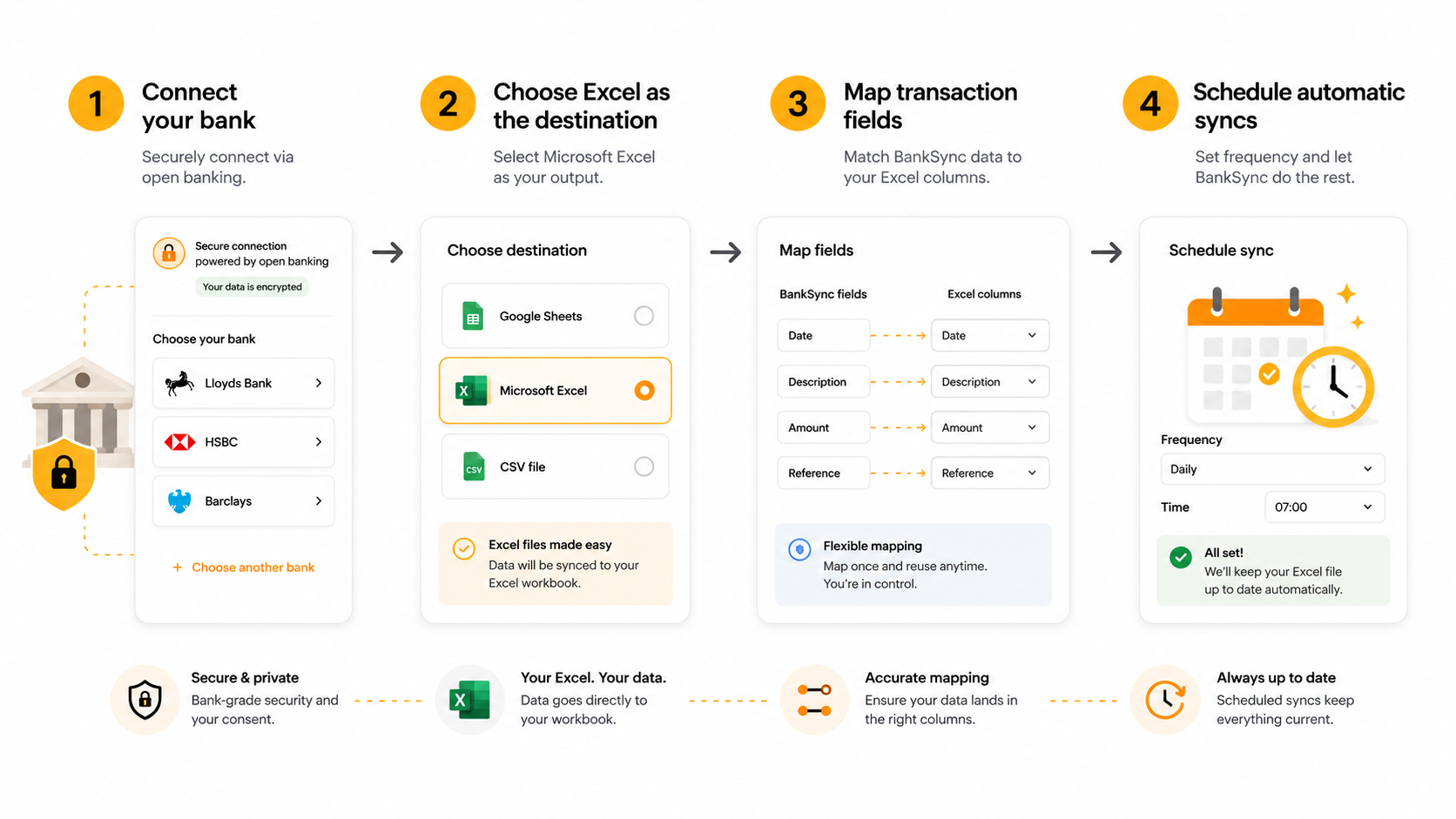
BankSync lets you connect a UK bank account to Excel automatically without replacing the workbook. The bank connection is authorised through read-only UK Open Banking. The Excel connection writes to a workbook stored in OneDrive or SharePoint. A BankSync Feed controls the selected accounts, transaction data type, worksheet, field mapping, Enrichments and schedule.

Works with Microsoft 365 files
Choose an accessible workbook stored in OneDrive or SharePoint and select the worksheet that should receive the feed.
Recurring bank transaction sync
Retrieve newly available rows weekly, daily or hourly where the selected plan and source support it.
Controlled Excel columns
Map bank fields into existing headers or let BankSync create matching columns in a clean worksheet.
Enrichment before Excel
Normalise merchants, categorise spend, match transfers, screen duplicates and flag exceptions before delivery.
Ways to bring UK bank transactions into Excel
| Feature | Method | Operational fit |
|---|---|---|
| CSV download and paste | Simple for a one-off request | |
| Power Query from local exports | Good for transforming files already downloaded | |
| Custom Open Banking or API build | Maximum engineering control | |
| BankSync to Excel | ||
| BankSync Tables and Dashboards | Native relational review and decision surfaces | Useful when the workflow needs more than a workbook |
The connection has three controlled layers
A reliable Excel bank feed is not one giant integration. It is three separate permissions joined by a Feed.
- UK bank consent: you authenticate on the institution or provider-hosted Open Banking pages and select the accounts BankSync may read.
- Microsoft connection: you authorise the Microsoft account that can access the workbook in OneDrive or SharePoint.
- BankSync Feed: you choose the source accounts, data type, workbook, worksheet, mapping, Enrichments and recurring schedule.
Keeping those layers separate makes troubleshooting clearer. If no transactions are available, inspect the bank connection and consent. If the workbook is missing, inspect the Microsoft identity and file location. If fields land in the wrong columns, inspect the feed mapping.
Connect a UK bank account to Excel
Move or create the workbook in OneDrive or SharePoint
The Excel destination needs a cloud-accessible Microsoft 365 workbook. A file stored only on a local hard drive cannot be selected by the integration.
Create a dedicated source worksheet
Add a clean tab such as Bank_Transactions. Keep formulas, tables, pivot outputs and manual notes outside the feed-controlled range.
Connect the correct UK bank entry
In BankSync, open Banks and choose the exact personal, business, corporate or card institution entry that holds the account.
Complete read-only Open Banking consent
Authenticate on the bank or provider-hosted pages, review the requested access and select only the required accounts.
Connect Microsoft Excel
Open Integrations, add Excel and authorise the Microsoft account that can access the target OneDrive or SharePoint file. A work or school tenant may require administrator approval.
Create a Transactions feed
Select Transactions as the data type and choose the authorised UK accounts that should supply rows.
Choose the workbook and worksheet
Select the Microsoft 365 file and the clean source tab. Confirm whether the feed should use existing headers or create matching columns.
Map the source fields
Map date, description, merchant, amount, currency, account, institution, category and stable transaction identifier into typed columns.
Add Enrichments and the schedule
Apply only the required cleanup, categories, guards or alerts, then select an available weekly, daily or hourly cadence.
Run and reconcile a test
Check dates, amount signs, currencies, account labels, row count and a sample of transactions before refreshing dependent Excel reports.
Design the worksheet for repeated writes
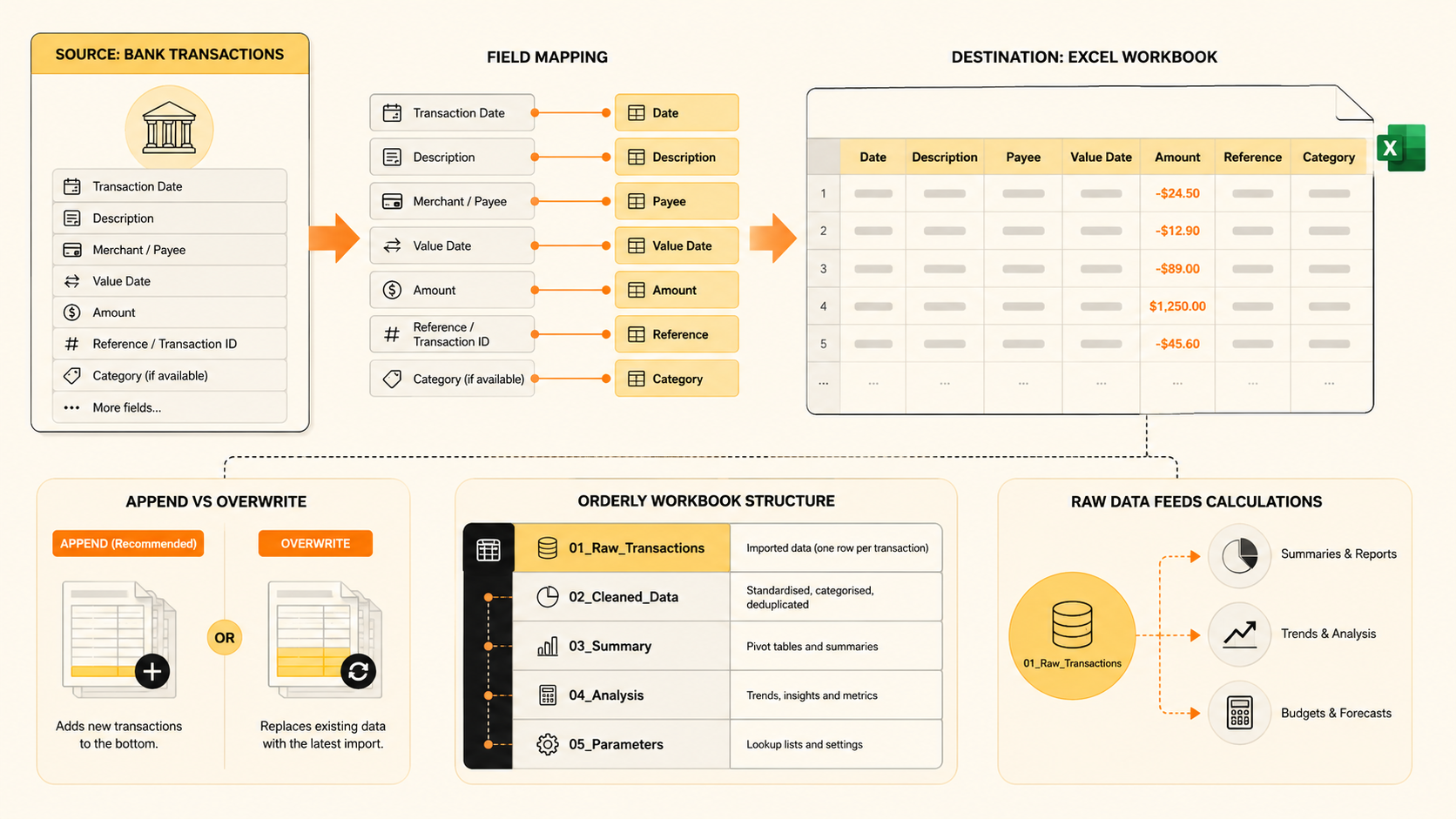
An automated source worksheet should be predictable. Use one header row, one field per column and one transaction per row. Avoid merged cells, blank separator rows, subtotals and manual commentary inside the source table.
Preserve the bank's original values even when you also create cleaner management fields. The original description supports verification. The signed amount preserves source truth. Currency prevents unlike values from being added accidentally. Institution and account fields support multi-bank filtering. A stable source transaction identifier supports traceability and duplicate control.
Excel Tables are useful for formulas and references, but test how the destination behaves with the exact workbook structure. The safest pattern is a dedicated raw worksheet feeding separate calculation, reconciliation and reporting sheets.
Recommended Excel columns for a UK transaction feed
| Column | Use in the workbook |
|---|---|
| Transaction date | Period, ageing, cash-flow and reconciliation logic |
| Posted or authorised date | Distinguish the available date concepts when both are supplied |
| Original description | Verification against the institution and investigation |
| Merchant or counterparty | Cleaner supplier and customer reporting |
| Amount | Signed source value for inflow and outflow analysis |
| Currency | Separate GBP and foreign-currency activity |
| Account | Filter and reconcile individual current, savings or card accounts |
| Institution | Identify the source bank in multi-bank workbooks |
| Transaction ID | Traceability, incremental retrieval and duplicate control |
| Category | Management reporting, budget and review workflows |
| Transfer flag | Exclude internal movements from consolidated income and spending |
| Review status | Route uncertain or unusual records to a controlled queue |
Available fields vary by institution and account product. Map only fields the source actually provides.
Use separate sheets for source data and finance logic
A practical recurring workbook might contain:
- Bank_Transactions — append-oriented source rows from the feed.
- Accounts — account labels, entity, currency, inclusion and ownership rules.
- Mappings — controlled merchant, category, department or VAT-review rules.
- Reconciliation — expected balances, transaction checks and unresolved differences.
- Review_Queue — exceptions, uncategorised rows and questions for the owner or accountant.
- Cash_Flow — operating inflows, outflows and forecast assumptions.
- Management_Report — pivots, charts, KPIs and commentary.
The feed should not write directly into a presentation table with manually edited totals. Let the source tab grow. Point Excel Tables, formulas, Power Query, PivotTables and charts at that source.
When a workbook is business-critical, test structural changes in a copy. Renaming or deleting a mapped worksheet, moving headers or changing a field's expected type can interrupt a recurring feed or its downstream formulas.
Clean and control data before it reaches Excel
BankSync Enrichments can reduce the amount of repeated logic inside each workbook.
Use Rules or Lookup Tables for deterministic mappings. Use Merchant Cleanup to normalise supplier names. Use Transfer Matcher to identify movements between owned accounts. Use Duplicate Screen as a guard. Use Memory or AI Categorizer to fill classifications that remain blank, with Review Queue for uncertain suggestions. Use Recurring Registry, anomaly detection, alerts and Feed Monitor to observe the final records and connection health.
The order matters. Guard steps run before learning and classification. Watch Enrichments observe the final rows. Suppressed records do not write to Excel, teach Memory or trigger alerts. Preview hard filters and splits before applying them to a production feed.
Do not replace the bank's original description, amount, date or currency with a management label. Add the cleaned value in a separate mapped column.
Refresh cadence is not the same as bank posting time
The BankSync schedule determines when the feed checks for newly available records. It cannot make an institution post a pending card payment sooner. Some descriptions, dates or states may change when an item becomes final.
Available BankSync schedules depend on the plan and can include weekly, daily and hourly. A daily run is enough for many finance workbooks. An hourly run may suit active cash monitoring where the plan and source support it. Always use feed history and the bank connection status when a report looks stale.
UK Open Banking consent is also time-limited. Reconfirmation is commonly required on a rolling cycle around 90 days, although the institution controls the exact window. Renew before expiry and reselect every account that should remain shared. Existing Excel rows and the BankSync feed configuration are not deleted when access expires; new retrieval pauses until consent is restored.
Troubleshooting a UK bank-to-Excel feed
| Symptom | Likely cause | Resolution |
|---|---|---|
| Workbook does not appear | It is local-only or the authorised Microsoft account lacks access | Move it to OneDrive/SharePoint and check the connected identity |
| Microsoft sign-in is blocked | The organisation requires administrator approval | Ask the Microsoft 365 administrator to review the application |
| Worksheet cannot be selected | It was renamed, deleted or is not accessible | Create a clean tab and update the feed destination |
| Dates or amounts are text | Mapping or destination type mismatch | Inspect the field mapping and worksheet formats |
| Rows appear duplicated | Manual imports overlap the automated source range or identifiers are missing | Stop mixing manual and feed writes; preserve account and transaction ID |
| No new transactions arrive | Consent, schedule, source posting or connection problem | Check bank status, consent expiry, feed history and the institution |
| Formulas fail after a run | Reports point at a fixed or feed-controlled presentation range | Use an expandable source table and separate calculation sheets |
| An account disappeared after renewal | It was not reselected during the new consent | Renew again and select every required account |
Controls for a production Excel bank feed
Keep credentials out of Excel
Do not store banking passwords, one-time codes, secrets or access tokens in workbook cells or VBA.
Limit Microsoft file access
Review OneDrive and SharePoint permissions, external sharing and departed users.
Reconcile the first import
Compare a sample, account coverage and balances with the institution before trusting reports.
Assign renewal responsibility
Give one person ownership of consent notices and account reselection.
Preserve source identifiers
Keep institution, account, currency and transaction ID available even if they are hidden from reports.
Monitor the feed, not only the workbook
A quiet spreadsheet may mean no activity or a failed connection. Check feed history before deciding which.
UK bank accounts and Excel: FAQs
Sources and related UK guides
- BankSync Excel integration
- Connect UK banks
- Manage UK Open Banking consent
- Create and manage feeds
- Field mapping
- Feed scheduling
- Enrichments overview
Start with the BankSync UK launch announcement. Google users can follow the guide to export UK bank transactions to Google Sheets. Finance teams can continue with the UK small-business cash-flow dashboard.